
Converting Figma to Elementor is crucial in transforming high-fidelity designs into fully functional, responsive websites.
In this guide, we’ll walk you through the process in five simple steps, ensuring your Figma designs transition seamlessly into Elementor pages.
Whether you’re a web developer or a designer, these steps will help you maintain design integrity while making the most of Elementor’s powerful features.
Converting Figma to Elementor involves rebuilding a Figma design as a functional WordPress page using Elementor’s visual editor. The process includes reviewing the design layout, creating page sections, adding elements, matching styles, and optimizing responsiveness. Since Figma provides design files and Elementor builds live web pages, the conversion requires careful implementation to maintain the original structure, appearance, and user experience.
Overview of Elementor and Figma
For this article, let’s take a brief look at Elementor and Figma.
Elementor is one of the leading WordPress page builders, letting you create exceptional websites without writing a single line of code.
Its drag-and-drop editor and extensive library of pre-designed templates and widgets make it accessible for both beginners and advanced users.
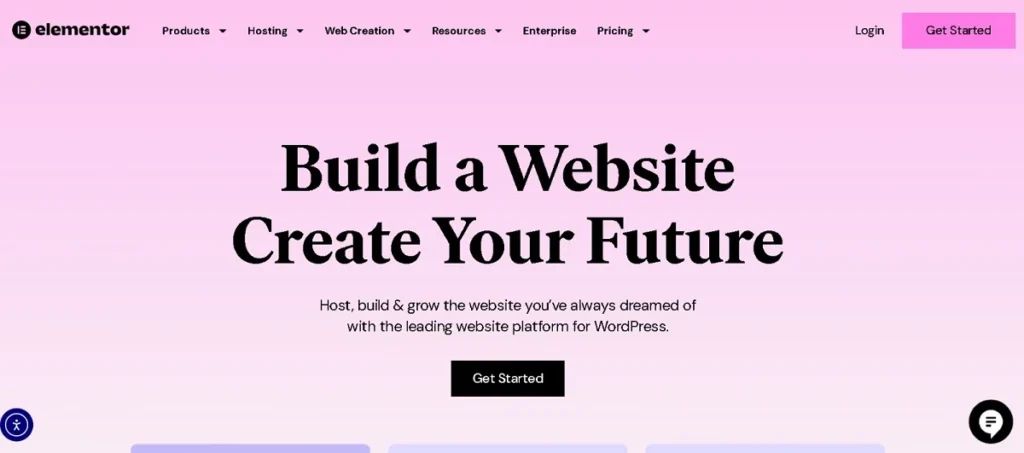
Key features of Elementor include:
- Responsive design settings
- Theme builder capabilities
- Range of integrations
Elementor’s popularity is also due to its flexibility, ease of use, cost-effectiveness, and ability to build professional-quality websites quickly.
As a cloud-based design tool, Figma is known for its collaborative capabilities and ease of use. It allows multiple web designers to work on the same project simultaneously, making it well-suited for team projects.
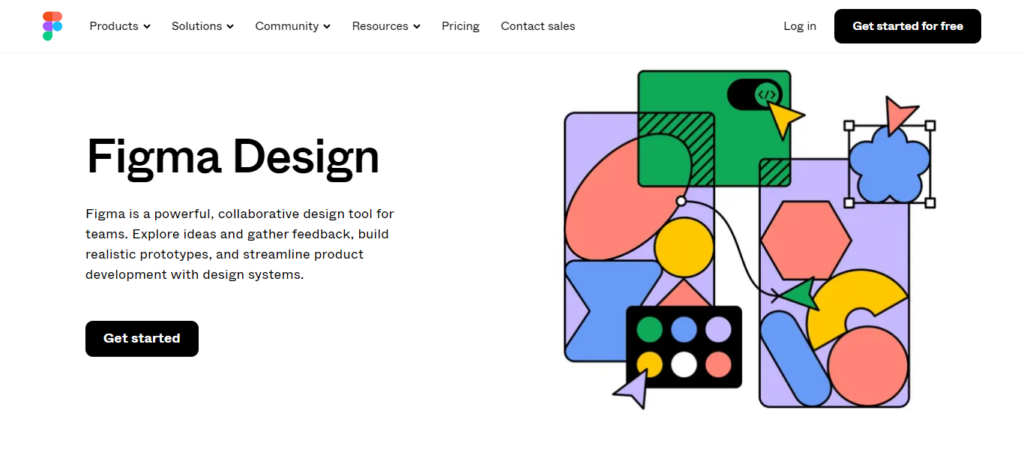
Key features of Figma include:
- Vector editing
- Prototyping
- Developer handoff
This helps streamline the design-to-development workflow. Figma’s popularity also stems from its real-time collaboration features, varied plugins, and accessibility from any device with an internet connection.
Know More About: Elementor vs Figma
Methods to Convert Figma Designs into Elementor Pages
There are several practical approaches to turn your design mockups into functional Elementor layouts, ranging from professional services and AI-powered tools to fully manual page building, depending on your project needs.
Method 1: Hire a Professional Figma to Elementor Expert
Professional developers don’t just copy what they see on the screen; they deeply understand layout hierarchy, user experience, and functionality, ensuring every button, section, and animation works as intended.

From complex design structures and interactive animations to custom widgets and Elementor theme building, experts can bring your design to life exactly the way you envisioned it, and often better.
Beyond visual fidelity, professionals focus on:
- Clean, semantic coding practices
- Mobile responsiveness and accessibility
- Integration with WordPress custom post types
- SEO and performance optimization
- Plugin compatibility and extensibility
At Seahawk Media, we specialize in turning high-fidelity Figma designs into fully functional, fast-loading, and responsive WordPress sites using Elementor.
Our team handles everything from design auditing and structure planning to custom Elementor components and QA testing.
We’re proud to work as a white-label partner for agencies and businesses worldwide, offering tailored solutions that align with your brand’s vision and business goals.
By choosing a professional service like ours, you’re not just outsourcing the task, you’re gaining a reliable partner in your web development journey.
Just like converting Figma to WordPress, you can seek professional help for converting Figma to Elementor. Seahawk Media specializes in this process, ensuring a smooth transition from design to a fully functional Elementor website.
By following a streamlined approach, we take care of every detail, from exporting assets to setting up your Elementor pages accurately.
Our expertise ensures that your design integrity is maintained and that a high-quality, responsive website is delivered as per your specifications.
Want to see the Figma to Elementor process in action? Check out this quick and helpful video tutorial that walks you through the entire conversion, from Figma to Elementor.
Method 2: Use AI-Based Tools for Figma to Elementor Conversion
If you’re looking for a faster and cost-effective way to convert your Figma designs into a working WordPress website, using an AI-powered tool like FigWebX can be a smart option. It lets you go from Figma to Elementor quickly, without having to rebuild everything manually.
This method is ideal for users with basic Elementor knowledge who want to speed up the process while still maintaining decent control over the final layout.
What is FigWebX?
FigWebX is a design-to-code converter developed by Softlight. It enables direct exports from Figma to page builders like Elementor, Gutenberg, and Bricks.
Unlike traditional converters, FigWebX does not require Auto Layout setup and uses AI to detect and tag elements, reduce unnecessary DOM elements, and create clean, responsive layouts.
It simplifies the entire conversion process, making it accessible even for users with limited coding experience.
Step-by-Step: Convert Figma to Elementor with FigWebX
Here’s how you can convert your Figma design into Elementor using FigWebX:
Step 1: Sign Up at FigWebX
Visit the FigWebX website and create an account using your email. Once you’re logged in, you’ll be directed to the dashboard where you can manage all your conversion projects.
Step 2: Create a New Project and Paste Your Figma Link
Click on “Create New Project” and enter a name for your conversion task. Then, copy the share link from your Figma file (make sure link sharing is enabled) and paste it into FigWebX. The tool will then begin analyzing your design file.
Step 3: Select Elementor as the Export Type
Once your design is loaded, you’ll be prompted to select the type of builder you want to export to. Choose Elementor from the available options. This ensures the exported code will be compatible with Elementor’s structure and widgets.
Step 4: Enable Optional AI Features
FigWebX offers advanced options like AI Auto-Tagging, DOM Optimization, and CSS Clean-Up. These settings improve the final output by automatically identifying elements such as headers, buttons, and sections and generating lightweight code that reduces bloat.
Step 5: Download and Install the FigWebX WordPress Plugin
After your layout is generated, you’ll be provided with a WordPress plugin file. Download it and log into your WordPress dashboard.
Navigate to Plugins ⟶ Add New, upload the plugin, and activate it. This plugin is necessary to import FigWebX layouts into Elementor.
Step 6: Import the Layout in Elementor
Go to Pages ⟶ Add New, and create a fresh page. Set the template to Elementor Canvas for full-width control. Then click Edit with Elementor.
Once inside the Elementor editor, you’ll find a FigWebX import option or paste the generated code/layout (depending on the method used). Your design will now appear as an editable Elementor layout.
Step 7: Tweak and Publish
Once the layout is imported, you can begin adjusting margins, spacing, or replacing demo content. Add animations, integrations, and responsive settings as needed. After final adjustments, click Publish to make the page live.
FigWebX Pricing
While exports to Webflow or Gutenberg are free, exporting to Elementor requires a Pro plan:
- $10/month for up to 50 exports
- $20/month for up to 100 exports
- $499 one-time payment for unlimited exports (lifetime plan)
Choose a plan based on how often you use Figma and Elementor.
Pros of Using FigWebX
- Fast and simple Figma to Elementor conversion
- Supports multiple WordPress page builders
- Clean and responsive layout generation
- No need to recreate designs manually
Limitations
- Some complex designs may still require manual adjustments
- Spacing and alignment might need fine-tuning post-import
- Not ideal for advanced interactive or dynamic elements
Best for: This method works best for users who want quick, clean conversions without needing full manual control. It’s great for freelancers, marketers, or small teams building simple websites or prototypes.
Learn More: Methods to Fix Elementor Stuck on Loading Screen
Let Us Handle Your Figma to Elementor Conversion
Whether you’re looking to create a seamless user experience or bring a unique aesthetic to your site, we’ve got you covered.
Method 3: Manual Conversion of Figma to Elementor
Manual conversion is a hands-on process in which you rebuild your Figma design in Elementor, section by section.
While it takes more time and effort, this method gives you complete control over your layout, performance, and responsiveness. It’s the ideal route for designers and developers who want pixel-perfect precision and flexibility.
Here’s a detailed step-by-step guide:
Step 1: Review the Figma File
Start by thoroughly analyzing your Figma design before jumping into WordPress.
- Identify the structure: Break your layout into clear sections such as header, hero, services, testimonials, and footer.
- Inspect design elements: Note the font styles, spacing, color palette, buttons, and icons used.
- Export assets: Download images, SVGs, and icons at the right resolution from Figma. Use Figma’s export feature to generate assets in WebP or PNG as needed.
- Typography & spacing: Record the line height, font size, and padding values so you can match them accurately in Elementor.
Step 2: Set Up Your WordPress Environment
Before you begin designing, make sure your WordPress setup is optimized for Elementor:
- Install WordPress on your domain or local environment.
- Use a lightweight theme like Hello Elementor or Astra; both are highly compatible with Elementor and minimize code bloat.
- Install the Elementor plugin, and consider Elementor Pro for advanced features like custom headers, forms, and dynamic content.
Step 3: Rebuild Your Layout Using Elementor
Now, open a new page and start recreating your Figma layout using Elementor’s drag-and-drop builder.
- Create global styles for colors and typography in Elementor Site Settings.
- Use sections and inner sections to structure your layout.
- Drag in widgets such as Heading, Text Editor, Image, Button, and Icon Box to build your content blocks.
- Match spacing and alignment using Elementor’s margin and padding controls.
- Use custom CSS (available in Elementor Pro) for more precise styling if needed.
Step 4: Adjust Responsive Settings
Responsive design is a must, and Elementor gives you granular control over how your design looks across devices.
- Toggle between desktop, tablet, and mobile views using the responsive mode.
- Customize spacing, alignment, text sizes, and column stacking for each device.
- Hide or duplicate elements for a better mobile experience if necessary.
- Test on real devices to ensure fluid responsiveness.
Step 5: Add Dynamic and Interactive Elements
Bring your static design to life by adding interactive and animated components:
- Use Elementor widgets like sliders, toggles, tabs, accordions, and progress bars.
- Add hover effects or entrance animations for text, buttons, and images.
- Embed videos, maps, or social feeds.
- Integrate dynamic WordPress content with Elementor Pro (great for blogs, portfolios, or eCommerce).
- Add forms with conditional logic, and link to email marketing tools or CRMs.
Step 6: Optimize and Fine-Tune
Once the layout is complete, optimize your site for speed, SEO, and accessibility:
- Compress and lazy-load images using plugins like Smush or ShortPixel.
- Minimize plugin use and avoid unnecessary widgets.
- Use caching plugins (e.g., WP Rocket) to improve page load speed.
- Make sure headings follow semantic structure (H1 for main title, H2 for sections).
- Add alt tags to all images for SEO and accessibility.
Pros of Manual Conversion
- Total Design Freedom: You have full control over layout, styles, and interactions.
- Performance-Focused: Minimal code bloat and clean implementation.
- Scalability: Great for custom sites that may grow or evolve.
- Unique Look: No reliance on automated tools or templates ensures originality.
Cons
- Time-Intensive: Can take hours or days depending on complexity.
- Requires Elementor Skills: You need to be comfortable with Elementor’s interface.
- Higher Learning Curve: Not ideal for beginners or one-off small projects.
Best for: Manual conversion is best for designers, developers, agencies, and freelancers who prioritize performance, scalability, and customization.
If you want a pixel-perfect website that mirrors your Figma design closely and performs well across devices, this is the method to go with.
Why Are Figma and Elementor an Excellent Combination for Web Design?
Figma and Elementor complement each other exceptionally well in the web design process.
Together, they streamline the transition from design to development, enabling both designers and developers to work more efficiently.
Here are a few reasons why this combination is ideal for creating stunning, responsive websites:
Seamless Collaboration Between Teams
Figma is renowned for its real-time collaboration, enabling multiple designers and stakeholders to work together on a project.
This ensures that feedback is incorporated quickly and that design iterations proceed without delay. When combined with Elementor, the handoff to developers becomes much smoother.
Developers can recreate the Figma design directly in Elementor without dealing with complex code.
Design Precision with Visual Flexibility
Figma enables designers to craft pixel-perfect, high-fidelity designs, providing complete control over every design element.
Once the design is ready, Elementor’s drag-and-drop interface enables precise implementation. This ensures the final website matches the original design team vision without requiring custom coding.
Rapid Prototyping and Iteration
Figma’s prototyping tools make it easy to create interactive website design mockups that simulate how the final website will look and function.
After client approval, Elementor’s fast, flexible editing tools enable developers to bring those prototypes to life quickly.
The process of moving from design concept to functional web pages is significantly sped up, enabling rapid iteration and on-the-fly adjustments.
Maintaining Design Consistency
Elementor offers global settings for fonts, colors, and spacing, ensuring that your website maintains a consistent style throughout.
Figma’s design systems can be easily translated into Elementor’s global design settings, ensuring the website’s overall look and feel stays true to the initial design.
No Coding Required
One of the biggest advantages of combining Figma with Elementor is that you don’t need advanced coding skills to turn designs into live websites.
Designers can focus on creativity without worrying about code, while developers and non-developers can use Elementor’s intuitive interface to faithfully recreate the design without touching a single line of HTML, CSS, or JavaScript.
Responsive Design Made Simple
Both Figma and Elementor prioritize responsive design. In Figma, designers can create multiple layouts for different screen sizes, ensuring that the design works well on mobile, tablet, and desktop.
Elementor allows developers to fine-tune the website for different devices, ensuring that the design looks just as good in practice as it did during the design phase.
Preparing Figma Designs for Elementor Conversion
Before you begin converting your Figma designs into Elementor, prepare them to ensure a smooth, efficient workflow.
Proper preparation will save you time, minimize critical errors, and help maintain design integrity throughout the conversion process. Here are key tips on how to get your Figma designs ready for Elementor conversion:
Make Your Designs Responsive
One of the most important steps in preparing your Figma designs is ensuring they are responsive. Since websites need to look great on multiple devices (desktop, tablet, and mobile), it’s essential to create responsive designs in Figma.
Test different layouts and use Figma’s Auto Layout feature to easily adapt your design elements to different screen sizes. This will help ensure that your design works seamlessly when recreated in Elementor’s responsive settings.
Organize Layers and Components
An organized design file will make the conversion process much easier. Properly name and group your layers, components, and assets in Figma so that each design element is easy to find.
Use Figma’s grouping and component features to maintain a clean and structured design file. This is especially important when exporting assets, as an unorganized file can lead to confusion and missed elements during the Elementor build.
Export Assets in Web-Friendly Formats
When exporting assets like images, icons, and buttons, choose the appropriate web-friendly formats to ensure high performance. SVG is ideal for vector graphics like icons, while PNG or WebP works best for images.
Figma lets you export assets in multiple formats, so always choose the one that maintains visual quality without compromising website speed. Additionally, compress images to reduce file sizes and improve load times when imported into Elementor.
Optimize Image and Media Assets
Ensure that images and media assets are optimized for the web before importing them into Elementor. Figma provides options to export images at different scales, but it’s essential to choose the appropriate resolution for each asset.
For example, icons and logos should be exported as SVGs, while larger images or photographs should be compressed to avoid slowing down the website’s performance.
Keeping file sizes small without sacrificing quality is key to maintaining an efficient and fast-loading site.
Set Up a Style Guide for Consistency
To maintain design consistency across your Elementor site, create a style guide in Figma. Define global styles for typography (fonts, headings, and paragraph text), colors, and spacing.
This will ensure that when you recreate your design in Elementor, you can use its Global Settings to apply consistent styles across all pages, saving time and ensuring uniformity.
Prepare Interactive Elements for Translation
Figma’s prototyping tools enable designers to create interactive elements such as hover states, transitions, and animations.
While Elementor does support animations and interactive features, not all Figma prototypes will translate perfectly. Identify which interactions can be easily recreated in Elementor and plan for adjustments where necessary.
Consider how interactive elements will behave on different devices to ensure a smooth user experience.
Ensure Font Compatibility
When designing in Figma, use web-safe fonts that are widely supported in Elementor and across browsers.
If your design uses custom fonts, make sure they are available for use in Elementor, or be prepared to upload the font files during the site build.
Testing the appearance of these fonts in Figma will give you an idea of how they’ll render on your Elementor site.
Check for Consistency Across Components
In Figma, it’s easy to reuse components like buttons, icons, and form elements across multiple pages. Make sure these reusable components are consistent in style and size, as this will make recreating them in Elementor much simpler.
Consistent components ensure a uniform look and feel across your website and eliminate the need for repeated design adjustments.
Consider the Website’s Structure
While preparing your design in Figma, it’s helpful to think about how your pages will be structured in Elementor. Organize sections, columns, and rows in a way that aligns with Elementor’s layout system.
This forethought will make it easier to translate your design into Elementor without losing any structural integrity. Use consistent grid systems and spacing in Figma to ensure alignment is easy to replicate in Elementor.
Common Mistakes to Avoid When Converting Figma to Elementor
Converting a Figma design into Elementor can be straightforward, but there are common pitfalls that can lead to inconsistencies or performance issues.
Avoiding these mistakes will ensure a smoother workflow and a better final website. Here are the key mistakes to watch out for:
Ignoring Responsive Design
One of the most common mistakes is failing to account for responsive design during the Figma-to-Elementor conversion.
In Figma, it’s important to ensure that the design adapts well to different screen sizes. If not accounted for, this can lead to misalignment and poor user experience on mobile or tablet views in Elementor.
Always test your design across multiple devices to ensure it’s fully responsive.
Not Exporting Assets in Optimal Formats
When exporting images, icons, or other assets from Figma, choosing the wrong file format can significantly affect your Elementor site’s performance.
For instance, using high-resolution PNGs for icons instead of SVGs can increase load times. Ensure that you export assets in the right formats, SVG for vector graphics, PNG or WebP for images, and compress them for the web.
Overcomplicating the Design
Designers may sometimes create intricate, overly complex layouts in Figma that don’t translate well into Elementor. Elementor works best with clean, structured layouts.
Avoid excessive layering, complex interactions, or overly detailed elements that can make implementation difficult and negatively affect site performance.
Skipping the Use of Global Settings in Elementor
A frequent oversight is failing to use Elementor’s global settings for fonts, colors, and spacing. Without using global settings, you might find yourself manually adjusting each element on each page, which can lead to design inconsistencies.
Setting up global styles ensures that your design remains cohesive across the entire website and simplifies future updates.
Failing to Optimize for Performance
Large image files, unoptimized code, or excessive use of widgets in Elementor can significantly slow down the site.
Always optimize images before importing them into Elementor, use as few plugins and widgets as possible, and ensure that your site is optimized with caching and minification techniques to prevent slow load times.
Neglecting Mobile Design Adjustments
Even though Figma allows you to create multiple designs for different screen sizes, it’s crucial not to forget about Elementor’s mobile-specific settings.
After recreating your design in Elementor, switch to Elementor’s responsive mode to adjust and fine-tune the layout for mobile and tablet users. Failure to do this can result in a website that looks great on desktop but is cluttered or misaligned on smaller screens.
Not Organizing Design Layers Properly in Figma
A messy or unorganized Figma file can make the conversion to Elementor more challenging. If your design layers aren’t properly grouped and labeled in Figma, you may spend extra time finding and exporting the right elements.
This can lead to frustration and potential errors in the final design. Keep your Figma file organized to streamline the process.
Skipping Design Validation and Testing
A common mistake is launching a website without thorough testing. After converting from Figma to Elementor, always validate your design by testing across different devices, screen sizes, and browsers. Check for broken elements, responsiveness issues, or misalignments that might need to be addressed before going live.
Conclusion
Converting designs from Figma to Elementor can be a seamless process if you follow these five steps:
- Prepare your Figma design
- Set up Elementor
- Build your pages
- Add advanced customizations
- Thorough testing before launch
By carefully executing each step, you can ensure your design vision is accurately brought to life in a functional, responsive website. However, this process can sometimes be complex and time-consuming.
If you need assistance, seek professional help from experts like Seahawk Media. We specialize in converting Figma designs to Elementor, ensuring high-quality, efficient, and precise transformations that turn your designs into fully functional websites. Contact us today to convert Figma to Elementor!
Figma to Elementor FAQs
Can I convert Figma to WordPress?
Yes, you can convert Figma designs to WordPress. This process typically involves using a page builder like Elementor to recreate your Figma design within WordPress.
How do I integrate Figma with Elementor?
While there is no direct integration between Figma and Elementor, you can achieve a seamless workflow by exporting assets from Figma and importing them into Elementor.
Can you import Figma into Elementor?
Direct import of Figma to Elementor is not possible. However, you can manually transfer your Figma designs into Elementor. Export the necessary design assets (images, icons, etc.) from Figma. Then, in Elementor, create a new page and use the drag-and-drop editor to replicate your Figma design.
How to convert Figma to Elementor for free?
Converting Figma designs to Elementor for free can be done by manually exporting design elements and importing them into Elementor. Use Figma to organize your designs into layouts, export assets like images and fonts, and then rebuild the design within Elementor using its free tools and widgets.
Do I need Elementor PRO for Figma conversion?
No, you don’t need Elementor PRO to convert Figma designs into a working website, especially if you’re dealing with relatively simple static sites. However, Elementor PRO can significantly enhance your web development process with advanced widgets, motion effects, and theme-building capabilities.
Is Figma Better Than Elementor?
Figma and Elementor serve different purposes and are often used in conjunction. Figma is a robust design tool ideal for UI/UX design, collaborative prototyping, and creating design systems. It excels in the design phase, where visual planning and collaboration are important.
Elementor, on the other hand, is a drag-and-drop page builder for WordPress that shines at translating those designs into functional web pages without extensive coding knowledge.


