
Modern websites demand speed, flexibility, and rock-solid SEO. A headless WordPress with Next.js delivers all three. By separating your content management system from your frontend, you unlock the best of both worlds: WordPress’s familiar editing experience and Next.js’s blazing-fast rendering capabilities.
This guide walks you through everything, from understanding the architecture to deploying a production-ready headless site.
Whether you’re a developer exploring decoupled CMS setups or a team looking to modernize a legacy WordPress site, this step-by-step resource has you covered.
TL;DR: Build a Fast and Scalable Headless Website
- Use a decoupled setup to separate content management from the frontend for better flexibility.
- Fetch content through REST API or GraphQL for efficient data delivery.
- Improve performance with static generation, server rendering, and smart caching.
- Deploy on modern hosting platforms and secure APIs for speed, scalability, and protection.
What is Headless WordPress and Why Pair it with Next.js?
To understand the power of this stack, you first need to understand the concept of a “headless” architecture and why these two specific technologies make such a perfect pair.
Defining Headless WordPress CMS Architecture
Traditional WordPress is a monolithic system. It handles content storage, business logic, and page rendering in a single place. When a visitor lands on your site, WordPress queries the database, processes PHP templates, and delivers a fully rendered HTML page.
Headless WordPress breaks that model apart. In a headless architecture:
- WordPress acts as the backend only. It manages content, user authentication, and data storage.
- The frontend is completely separate. A JavaScript framework like Next.js handles all rendering and user interaction.
- An API bridges the two. WordPress exposes content through its REST API or GraphQL endpoint, and Next.js fetches that data to build pages.
The term “headless” comes from removing the “head,” the frontend presentation layer, from WordPress.
Your WordPress installation still exists, editors still log in to /wp-admin, and posts still get created the same way. But visitors never interact with WordPress directly. They interact with your Next.js frontend.
Launch Your Future Ready Headless Website
Launch a fast, scalable, and SEO focused digital experience powered by modern headless architecture.
Benefits of Decoupling Backend from Frontend
Decoupling your WordPress backend from your frontend architecture provides several massive advantages:
- Performance gains: Next.js pre-renders pages as static HTML at build time. There’s no PHP processing on every request, which dramatically reduces Time to First Byte (TTFB).
- Frontend freedom: You can rebuild or redesign your frontend without touching WordPress. Swap frameworks, redesign layouts, or run A/B tests without CMS migrations.
- Improved security: Your WordPress instance can run on a private server or a subdomain, hidden from the public internet. Attackers can’t target
wp-login.php, if they can’t find it.
- Scalability: Static pages served from a CDN handle traffic spikes effortlessly. Your WordPress server only receives API requests, not page loads.
- Multi-channel content delivery: The same WordPress content API can serve a website, a mobile app, a voice assistant, and a kiosk simultaneously.
- Better developer experience: Frontend teams work in React and JavaScript tooling they already know, without learning PHP or WordPress theme development.
Why Next.js is Ideal for Headless WordPress Performance and SEO?
Next.js stands out among JavaScript frameworks for headless CMS projects for several reasons.
- Server-Side Rendering (SSR) and Static Site Generation (SSG) give you control over when and how pages are rendered. You can statically generate your blog at build time, server-render product pages that change frequently, or mix both strategies across your site.
- Built-in image optimization via the
next/imagecomponent automatically serves correctly sized, WebP-formatted images with lazy loading. This directly improves Core Web Vitals scores.
- File-based routing makes dynamic routes straightforward. Creating a
[slug].jsfile in your pages directory automatically handles all blog post URLs.
- API Routes let you add server-side logic, like form processing or webhook handling, directly in your Next.js project without a separate backend.
- SEO capabilities are native. Next.js renders full HTML on the server, so search engine crawlers receive complete page content without waiting for JavaScript to execute. Combined with the
next/headA meta tag component keeps your site SEO-competitive.
REST API vs GraphQL With WordPress Content Fetching
WordPress offers two API approaches for headless setups:
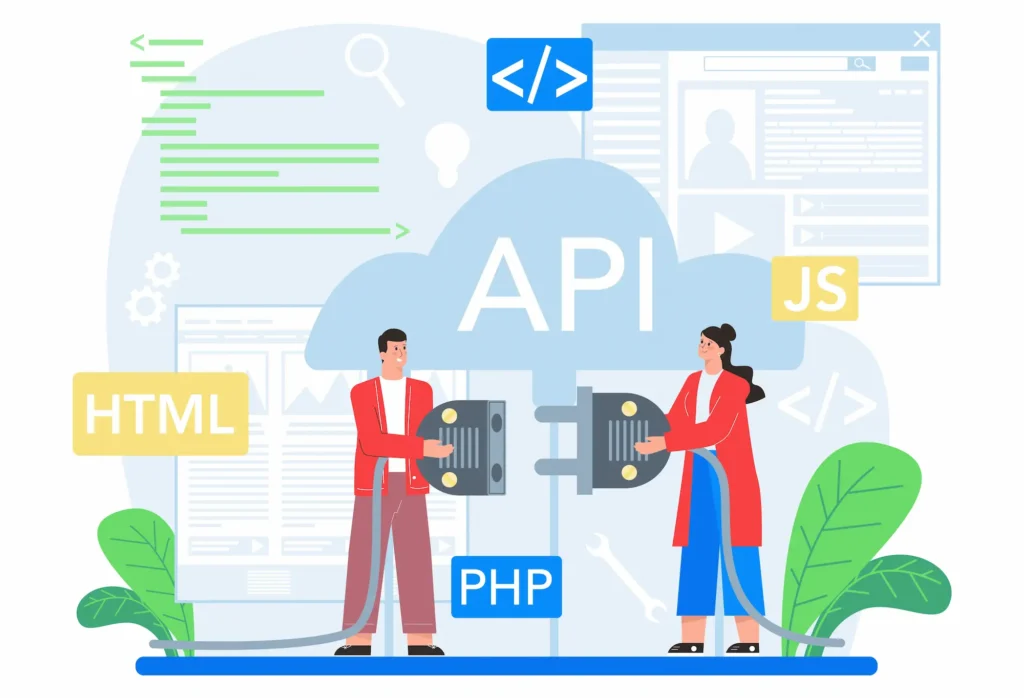
WordPress REST API ships with WordPress core. No additional plugins required. It exposes endpoints: /wp-json/wp/v2/posts for posts and /wp-json/wp/v2/pages for pages. It’s straightforward to use fetch() and works well for simple content needs.
WPGraphQL is a plugin that adds a GraphQL endpoint to WordPress. Instead of receiving a large JSON object with dozens of fields you don’t need, you write a query that requests only the exact fields your frontend requires.
This reduces payload size, simplifies nested data fetching (e.g., posts with their categories and author details in a single request), and gives your frontend team a strongly typed schema to work with.
For small projects or teams new to GraphQL, the REST API is perfectly sufficient. For larger sites with complex content relationships, WPGraphQL typically delivers better performance and a cleaner developer experience.
Prerequisites for Building a WordPress and Next.js Headless Setup
Before writing any code, you need to establish a solid foundation and prepare your environment.
Required Tools and Environment Setup
To follow along with a headless WordPress setup, you need the following tools installed on your machine:
- Node.js (v18 or later): Download from nodejs.org. Run
node -vin your terminal to confirm installation.
- npm or Yarn: npm ships with Node.js. Yarn is optional but preferred by some teams.
- A running WordPress installation: local (using LocalWP, MAMP, or Docker) or a hosted instance. The only requirement is that it’s accessible via HTTP.
- A code editor: VS Code with the ESLint and Prettier extensions gives you the best Next.js development experience.
- Git: For version control and deployment workflows.
For local WordPress development, LocalWP is the fastest way to spin up a WordPress site on your machine with zero configuration.
Installing Necessary WordPress Plugins (WPGraphQL, REST API)
The WordPress REST API is enabled by default in all modern WordPress installations. You can verify it works by visiting https://yoursite.com/wp-json/wp/v2/posts it in your browser.
For WPGraphQL:
- Log in to your WordPress dashboard.
- Navigate to Plugins → Add New.
- Search for WPGraphQL and install the plugin by Jason Bahl.
- Activate it.
- A new GraphQL menu item appears in your dashboard. Visit GraphQL → Settings to configure the endpoint.
You can also install WPGraphQL for ACF if you use Advanced Custom Fields, which exposes custom field data through your GraphQL schema.
To test your GraphQL endpoint, navigate to GraphQL → GraphiQL IDE in your dashboard. This interactive playground lets you write and test queries before using them in your Next.js project.
WordPress API Configuration for Headless Delivery
Several WordPress settings affect headless API delivery:
- Permalinks: Go to Settings → Permalinks and select any option other than “Plain.” The REST API does not function correctly with plain permalinks. “Post name” (
/%postname%/) is the most common choice.
- CORS Headers: By default, WordPress REST API responses may block cross-origin requests from your Next.js development server. Add CORS headers to your WordPress theme’s
functions.phpor use a plugin like WP CORS to allow requests from your Next.js domain.
- Application Passwords: For private or draft content, WordPress supports Application Passwords (introduced in WordPress 5.6). Generate one in your user profile and include it in your API requests as a Basic Auth header.
- Public content visibility: Ensure that posts you want to display are published, not password-protected or private.
Understanding React and Next.js Basics Before You Start
Headless WordPress development with Next.js assumes familiarity with:
- React fundamentals: Components, props, state, and the
useEffectanduseStatehooks.
- Next.js page rendering methods: Understanding the difference between
getStaticProps,getServerSideProps, andgetStaticPathsis essential.
- Async JavaScript: You’ll write asynchronous data-fetching code using
async/awaitthe Fetch API.
- JSX syntax: How to write HTML-like syntax inside JavaScript.
If you’re new to Next.js, spending a few hours with the official Next.js tutorial at nextjs.org/learn before starting this project will pay dividends.
Step-by-Step Guide to Connecting WordPress and Next.js
Now that the foundation is set, let’s connect the backend to the frontend. This guide uses the Next.js Pages Router paradigm, which is widely used for static blog architectures.
Step 1: Creating and Configuring a New Next.js Project
Open your terminal and create a fresh Next.js application using the create-next-app utility.
npx create-next-app@latest my-headless-site
cd my-headless-site
The setup wizard asks whether you want TypeScript, ESLint, Tailwind CSS, and the App Router. For this guide, choose the Pages Router for maximum compatibility with existing tutorials and plugins. TypeScript is recommended for larger projects.
Next, create an .env.local file in your project root to store your WordPress URL:
NEXT_PUBLIC_WORDPRESS_API_URL=https://your-wordpress-site.com/wp-json/wp/v2
WORDPRESS_GRAPHQL_ENDPOINT=https://your-wordpress-site.com/graphql
Never commit this file to version control. Add .env.local to your .gitignore.
Step 2: Fetching WordPress Data With REST API and getStaticProps
Create a file at pages/blog/index.js. This page lists all blog posts fetched from the WordPress REST API:
export default function BlogIndex({ posts }) {
  return (
    <ul>
      {posts.map((post) => (
        <li key={post.id}>
          <a href={`/blog/${post.slug}`}>{post.title.rendered}</a>
        </li>
      ))}
    </ul>
  );
}

export async function getStaticProps() {
  const res = await fetch(
    `${process.env.NEXT_PUBLIC_WORDPRESS_API_URL}/posts?_embed&per_page=100`
  );
  const posts = await res.json();

  return {
    props: { posts },
    revalidate: 60,
  };
}
getStaticProps runs at build time on the server. It fetches posts from WordPress and passes them as props to your component. This revalidate: 60 enables Incremental Static Regeneration, covered in the advanced section.
Step 3: Using WPGraphQL With Apollo or GraphQL Client
For a more scalable approach, use WPGraphQL. First, install a lightweight GraphQL client in your Next.js project.
npm install @apollo/client graphqlCreate a utility file at lib/apolloClient.js:
import { ApolloClient, InMemoryCache } from "@apollo/client";

const client = new ApolloClient({
  uri: process.env.WORDPRESS_GRAPHQL_ENDPOINT,
  cache: new InMemoryCache(),
});

export default client;
Then query WordPress posts using GraphQL in getStaticProps:
import client from "../../lib/apolloClient";
import { gql } from "@apollo/client";

const GET_POSTS = gql`
  query GetPosts {
    posts {
      nodes {
        id
        title
        slug
        date
        excerpt
        featuredImage {
          node {
            sourceUrl
            altText
          }
        }
      }
    }
  }
`;

export async function getStaticProps() {
  const { data } = await client.query({ query: GET_POSTS });
  return {
    props: { posts: data.posts.nodes },
    revalidate: 60,
  };
}
This approach fetches only the fields your frontend uses, keeping API responses lean.
Step 4: Dynamic Routes and Static Generation for Blog Pages
To create individual pages for each blog post, you need to use Dynamic Routing. In Next.js, create a file [slug].js inside a pages/posts/ directory.
You will use getStaticPaths to tell Next.js which URLs to build, and getStaticProps to fetch the specific content for each URL.
export async function getStaticPaths() {
  const res = await fetch(
    `${process.env.NEXT_PUBLIC_WORDPRESS_API_URL}/posts?per_page=100`
  );
  const posts = await res.json();

  const paths = posts.map((post) => ({
    params: { slug: post.slug },
  }));

  return { paths, fallback: "blocking" };
}

export async function getStaticProps({ params }) {
  const res = await fetch(
    `${process.env.NEXT_PUBLIC_WORDPRESS_API_URL}/posts?slug=${params.slug}&_embed`
  );
  const posts = await res.json();

  if (!posts.length) {
    return { notFound: true };
  }

  return {
    props: { post: posts[0] },
    revalidate: 60,
  };
}
getStaticPaths tells Next.js which slugs to pre-render. Setting fallback: "blocking" means any slug not in the initial build gets server-rendered on the first request and then cached as a static page.
Step 5: Handling Post Content, Images, and Custom Fields
WordPress stores post body content as raw HTML. Render it safely using React’s dangerouslySetInnerHTML:
<div dangerouslySetInnerHTML={{ __html: post.content.rendered }} />For featured images, use the _embed query parameter in REST API requests. Access the image URL via post._embedded['wp:featuredmedia'][0].source_url.
Wrap it with Next.js’s Image component for automatic optimization:
import Image from "next/image";

<Image
  src={post._embedded["wp:featuredmedia"][0].source_url}
  alt={post.title.rendered}
  width={1200}
  height={630}
/>
For Advanced Custom Fields, enable the WPGraphQL for ACF plugin. Custom field data then appears in your GraphQL schema and can be queried alongside standard post data.
Advanced Techniques for Headless WordPress and Next.js
Once the basics are functioning, you can implement advanced features to make your site feel like an enterprise-grade application.

Optimize with Incremental Static Regeneration (ISR)
ISR lets you update statically generated pages after deployment without rebuilding your entire site. How you configure it depends on which Next.js router you are using, and confusing the two is a common source of bugs.
Pages Router ISR (time-based)
Add a revalidate value (in seconds) to your getStaticProps return:
return {
  props: { post },
  revalidate: 300, // Regenerate every 5 minutes
};
When a user visits a page after the revalidation window expires, Next.js serves the cached page immediately while regenerating it in the background. The next visitor gets the fresh version.
Pages Router ISR (on-demand)
For on-demand revalidation triggered by a WordPress publish or update event, create an API Route at pages/api/revalidate.js. WordPress calls this route via a webhook:
export default async function handler(req, res) {
  if (req.query.secret !== process.env.REVALIDATION_SECRET) {
    return res.status(401).json({ message: "Invalid token" });
  }

  const slug = req.query.slug;

  try {
    await res.revalidate(`/blog/${slug}`);
    return res.json({ revalidated: true });
  } catch (err) {
    return res.status(500).send("Error revalidating");
  }
}
res.revalidate() is the correct Pages Router method. It triggers an immediate background regeneration for that specific path without waiting for the time-based window to expire.
App Router ISR
If you are using the App Router (app/ directory) instead of the Pages Router, the syntax is different. Time-based revalidation is set as a route segment config export:
// app/blog/[slug]/page.js
export const revalidate = 300;
On-demand revalidation in the App Router uses revalidatePath() or revalidateTag(), imported from next/cache, inside a Server Action or Route Handler, not inside an API Route:
// app/api/revalidate/route.js (App Router Route Handler)
import { revalidatePath } from "next/cache";
import { NextResponse } from "next/server";

export async function POST(request) {
  const { slug, secret } = await request.json();

  if (secret !== process.env.REVALIDATION_SECRET) {
    return NextResponse.json({ message: "Invalid token" }, { status: 401 });
  }

  revalidatePath(`/blog/${slug}`);
  return NextResponse.json({ revalidated: true });
}
Key distinction:
res.revalidate()belongs to the Pages Router.revalidatePath()andrevalidateTag()belong to the App Router. Using App Router methods inside a Pages Router project, or vice versa, will cause silent failures or runtime errors. Match the method to the router you are actually using.
This guide’s step-by-step section uses the Pages Router throughout. If you migrate to the App Router in the future, update all ISR logic to use revalidatePath() in Route Handlers accordingly.
Adding Preview Mode for Draft Content
Preview Mode lets editors see draft WordPress content on your Next.js frontend before publishing. Set up two API routes:
/api/preview: Enables preview mode and redirects to the post./api/exit-preview: Disables preview mode.
In your WordPress theme or plugin, configure the Preview URL setting (if using WPGraphQL JWT Authentication) to point to https://your-nextjs-site.com/api/preview?secret=YOUR_SECRET&slug={slug}.
In getStaticProps, check for preview mode and fetch draft content:
export async function getStaticProps({ params, preview, previewData }) {
  const authHeader = preview
    ? { Authorization: `Bearer ${previewData.token}` }
    : {};

  const res = await fetch(
    `${process.env.NEXT_PUBLIC_WORDPRESS_API_URL}/posts?slug=${params.slug}&status=draft`,
    { headers: authHeader }
  );
  // ...
}
Creating Sitemaps and SEO Metadata in Next.js
Install the next-sitemap package for automatic sitemap generation:
npm install next-sitemapCreate a next-sitemap.config.js file and configure it to include all WordPress post slugs fetched at build time. Run next-sitemap as a postbuild script in your package.json.
For per-page SEO metadata, use the next/head component or, if using the App Router, the built-in Metadata API:
import Head from "next/head";

<Head>
  <title>{post.title.rendered} | My Blog</title>
  <meta name="description" content={post.excerpt.rendered} />
  <meta property="og:title" content={post.title.rendered} />
  <meta property="og:image" content={featuredImageUrl} />
</Head>
Use the RankMath plugin in WordPress and expose its metadata through WPGraphQL with the Add WPGraphQL SEO plugin. This lets editors control titles and descriptions from WordPress, which Next.js fetches and renders.
Read More: Using WordPress as a Headless CMS
Caching Strategies and SWR for Client-Side Fetching
Not all content needs to be statically generated. User-specific data, comments, or real-time inventory benefit from client-side fetching. Use the swr library from Vercel:
npm install swrimport useSWR from "swr";
const fetcher = (url) => fetch(url).then((r) => r.json());
function Comments({ postId }) {
const { data, error } = useSWR(
`/wp-json/wp/v2/comments?post=${postId}`,
fetcher
);
if (error) return <p>Failed to load comments.</p>;
if (!data) return <p>Loading...</p>;
return <ul>{data.map((c) => <li key={c.id}>{c.content.rendered}</li>)}</ul>;
}SWR handles caching, revalidation, and deduplication automatically. It uses a stale-while-revalidate strategy: it returns cached data immediately, then silently fetches fresh data in the background.
Deployment, Performance, and Security Best Practices for WordPress with Next.js
Deploy your Next.js frontend and WordPress backend as separate services. This separation is one of the core advantages of the headless model.

Next.js deployment works best on Vercel, the platform built by the Next.js team. Vercel handles ISR, edge caching, image optimization, and environment variable management out of the box.
Netlify and AWS Amplify are solid alternatives. For self-hosted deployments, run Next.js with npm run build && npm start behind an Nginx reverse proxy.
WordPress deployment can live on any standard PHP host, (WP Engine, Kinsta, SiteGround), or a VPS. Since WordPress only serves API responses (not page views), even modest hosting handles significant traffic.
Security hardening for headless WordPress:
- Move your WordPress install to a non-public subdomain like
cms.yourdomain.com. - Disable XML-RPC (
add_filter('xmlrpc_enabled', '__return_false');). - Use a Web Application Firewall (WAF) such as Cloudflare.
- Restrict the WordPress REST API to authenticated requests for sensitive endpoints.
- Keep WordPress core, themes, and plugins up to date.
- Use strong Application Passwords for API authentication.
Performance optimization checklist:
- Enable CDN delivery for your Next.js static assets.
- Use
next/imagefor all images, it generates responsive sizes and serves WebP automatically. - Minimize client-side JavaScript by keeping components server-rendered where possible.
- Set appropriate HTTP cache headers on WordPress API responses.
- Use a WordPress object cache (Redis or Memcached) to speed up database queries behind your API.
Troubleshooting Common Pitfalls in WordPress with Next.js Headless Setup
Transitioning to a headless setup is rewarding but comes with a learning curve. Here are the most common roadblocks and how to fix them:
- CORS errors in development: Your browser blocks cross-origin requests from
localhost:3000to your WordPress domain. Add CORS headers to WordPress viafunctions.phpor use the WP CORS plugin. Allow origins for both your development and production Next.js domains.
- Permalinks returning 404: The REST API requires non-plain permalinks. Navigate to Settings → Permalinks and save any non-plain option, even if you don’t change anything. This flushes the rewrite rules.
- Images from WordPress blocked by Next.js: Next.js restricts access to external image domains for security reasons. Add your WordPress domain to
next.config.js:
module.exports = {
  images: {
    domains: ["your-wordpress-site.com"],
  },
};- HTML entities in rendered content: WordPress REST API returns titles with HTML entities like
&. Use a small utility to decode them, or install thehtml-entitiesnpm package.
- Build is failing due to too many API requests: If you have thousands of posts, fetching all slugs in
getStaticPathscan time out or hit rate limits. Paginate your requests using thepageandper_pagequery parameters, or usefallback: "blocking"and only pre-render your most recent posts.
- GraphQL schema errors after plugin updates: WPGraphQL schema changes when you add or remove plugins. Regenerate your Apollo client cache or clear your local schema snapshot after WordPress plugin changes.
- Draft posts appearing in production: If you use
status=anythem in your API queries during development, make sure production queries only requeststatus=publish. Use environment-specific API parameters to prevent drafts from appearing publicly.
Conclusion
Using WordPress with Next.js gives you a scalable, SEO-friendly headless architecture that outperforms traditional WordPress on nearly every metric.
Your content team keeps the familiar WordPress editor while your development team builds with modern React tooling.
The setup relies on three components: WordPress as the headless CMS, the REST API or WPGraphQL as the data layer, and Next.js handling all frontend rendering and performance optimization.
Start with the REST API, adopt WPGraphQL as complexity grows, then layer in ISR, Preview Mode, and on-demand revalidation as your site matures. Deploy your Next.js frontend to Vercel and WordPress to a dedicated PHP host for a clean, production-ready separation.
This combination is no longer experimental. It powers major publishing platforms, e-commerce sites, and enterprise applications. The tooling is mature, the community is active, and the performance gains are real. Now is the right time to build.
FAQs on WordPress with Next.js for a Headless Site
Why should I use WordPress with Next.js for a headless website?
WordPress manages content easily, while Next.js handles the frontend with speed and flexibility. This setup improves performance, SEO, and scalability. It also allows developers to build modern React-based interfaces without limiting content editors.
Should I use REST API or WPGraphQL with WordPress and Next.js?
Both work well. REST API is simple and built into WordPress. WPGraphQL offers more precise data fetching and reduces overfetching. Choose based on project complexity and developer preference
Does WordPress with Next.js improve SEO?
Yes. Next.js supports server-side rendering and static generation. These features help search engines crawl content easily. You can also control metadata, structured data, and sitemaps more effectively.
Can I use plugins with a headless WordPress setup?
You can use content-related plugins such as SEO, custom fields, and security tools. However, frontend-focused plugins will not work because Next.js controls the presentation layer.
Is WordPress with Next.js suitable for large websites?
Yes. It scales well when configured correctly. Use caching, incremental static regeneration, and CDN integration to efficiently handle high traffic and large content volumes.


