
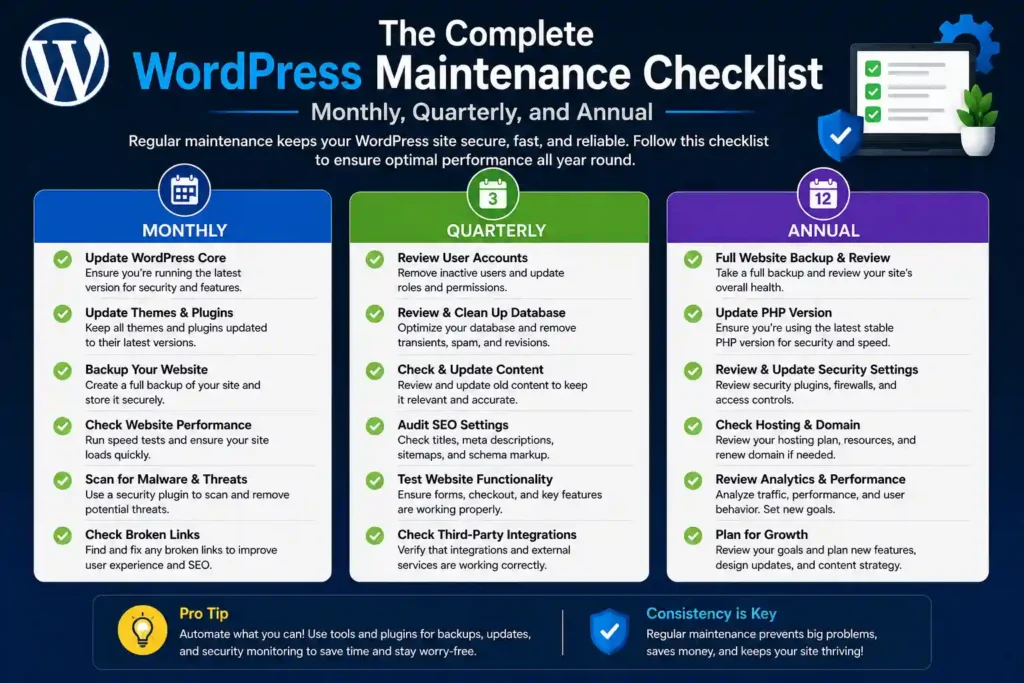
A WordPress maintenance checklist is a documented list of recurring tasks that keep your site updated, secure, optimized, and backed up. Without one, critical tasks get missed, plugins fall out of date, and small issues quietly turn into expensive problems.
This checklist organizes everything your WordPress site needs by frequency, monthly, quarterly, and annual, so you know exactly what to do and when. Whether you manage one site or fifty, following this schedule consistently is what separates a reliable site from one that breaks at the worst possible moment.
TL;DR
- Run updates, security scans, backup checks, and speed tests monthly.
- Audit plugins, optimize your database, and test all forms every quarter.
- Conduct a full SEO audit, security review, and backup strategy check every year.
- Automating routine tasks saves time, but manual reviews still require human judgment.
- A managed maintenance plan covers everything on this list for $49/mo.
A neglected WordPress site does not just underperform. It becomes a liability. Patchstack reported 6,700 new WordPress vulnerabilities in H1 2025 alone. Sucuri found that 73% of hacked WordPress sites were running outdated software at the time of the attack.
Regular maintenance is not optional. It is what keeps your site secure, fast and ranking.
Who Should Use This Checklist?
This checklist works for anyone responsible for keeping a WordPress site healthy. Whether you manage one site or dozens, the tasks and frequency remain the same.
It is built for:
- Site Owners: Managing your own WordPress site without a dedicated developer on hand.
- Freelancers and Developers: Maintaining client sites and looking for a repeatable, structured process.
- Marketing Teams: Responsible for site performance, SEO, and uptime without deep technical knowledge.
- Agencies: Running maintenance across multiple client sites and needing a consistent standard of care.
DIY vs Professional WP Site Maintenance
Running maintenance yourself works well for small, low-traffic sites where you have the time and technical confidence. As your site grows, so do the risks and time commitment. Here is how the two approaches compare.
| Factor | DIY Maintenance | Professional Maintenance |
|---|---|---|
| Cost | Time only | From $49/mo |
| Time required | 1 to 3 hours/month | None |
| Technical skill needed | Moderate to high | None |
| Response to emergencies | You handle it | Covered by provider |
| Consistency | Depends on you | Guaranteed |
| Best for | Small personal sites | Business and growing sites |
Keep Your WordPress Site Healthy and Running Smoothly
Get reliable help to manage updates, security, backups, and performance so your website stays stable, protected, and ready to grow.
Monthly WordPress Website Maintenance Checklist
Monthly maintenance covers the most time-sensitive tasks on your site. Run every item on this list once a month to catch security threats, performance drops, and broken functionality before they affect your visitors or rankings.
Update WordPress Core, Plugins, and Themes
Outdated software is the leading cause of WordPress security breaches. Update WordPress core, all active plugins, and your theme every month. Always test updates on a staging environment first, especially for major version changes, to avoid conflicts with custom code or other plugins.
- Update WordPress core to the latest stable version.
- Update all active plugins and check for conflicts after each batch.
- Update your active theme and any parent themes.
- Deactivate and delete plugins you no longer use.
Estimated time: 30 to 60 minutes
Run a Full Security Scan
Security threats do not wait for your annual review. Run a full malware scan using Wordfence, Solid Security, or a similar WordPress security plugin. Check your security logs for unauthorized file changes, suspicious admin accounts, and unusual login activity.
- Scan for malware and malicious code.
- Review security logs for unusual activity.
- Check for unauthorized admin accounts and remove them.
- Confirm your firewall and WAF are active and properly configured.
Estimated time: 20 to 30 minutes
Check and Test All Backups
A backup is only useful if it actually works. Verify that your automated backups completed successfully and test a restore on a staging environment at least once a month. Store backups offsite or in cloud storage separate from your hosting server.
- Confirm backups completed without errors.
- Check that backup files are complete and not corrupted.
- Verify that off-site or cloud storage is receiving backup copies.
- Test a restore on a staging environment to confirm recovery works.
Estimated time: 15 to 20 minutes
Review Website Performance and Speed
Slow sites lose visitors and rankings. Run your site through Google PageSpeed Insights or GTmetrix, and compare the scores to last month. Look for uncompressed images, render-blocking scripts, or new plugins causing slowdowns. Check your Core Web Vitals, particularly LCP, CLS, and INP, in Google Search Console.
- Run a speed test and compare with last month’s baseline.
- Compress any unoptimized images uploaded during the month.
- Check Core Web Vitals scores in Google Search Console.
- Clear server and plugin caches after updates.
Estimated time: 20 to 30 minutes
Check for Broken Links
Broken links damage user experience and crawlability. Use Broken Link Checker or run a crawl with Screaming Frog to identify 404 errors and dead internal links. Fix or redirect them immediately using a plugin like Redirection.
Estimated time: 15 minutes
Review Uptime Reports
Check your uptime monitoring tool for any downtime incidents during the month. If your site went down, investigate the cause and confirm it has been resolved. Aim for 99.9% uptime or better.
Estimated time: 10 minutes
Check Google Search Console for Errors
Log in to Google Search Console and review the Coverage and Core Web Vitals reports. Look for new crawl errors, manual actions, or indexing issues that appeared during the month and address them promptly.
Estimated time: 15 minutes
Quarterly WordPress Maintenance Checklist
Quarterly tasks go deeper than your monthly checks. Run these every 3 months to catch issues that build up gradually and wouldn’t show up in a standard monthly review.
Audit Your Plugins and Themes
Plugin bloat slows your site and increases security risk. Review every installed plugin quarterly and ask whether it is still needed, actively maintained, and compatible with the current version of WordPress. Abandoned plugins with no recent updates are a vulnerability waiting to be exploited.
- Check the last update date of every plugin.
- Remove plugins that have not been updated in over a year.
- Replace abandoned plugins with actively maintained alternatives.
- Delete all inactive themes except one backup theme.
Estimated time: 30 to 45 minutes
Optimize Your Database
Your WordPress database accumulates clutter over time, including post revisions, spam comments, expired transients, and orphaned metadata. Use WP-Optimize or run WP-CLI commands to regularly clean and optimize your database tables.
- Delete post revisions older than 30 days.
- Remove spam and trashed comments.
- Clear expired transients and orphaned metadata.
- Run a database optimization to defragment and repair tables.
Estimated time: 20 to 30 minutes
Review User Accounts and Permissions
Accounts with incorrect roles or abandoned credentials are a common attack vector. Audit every user account on your site quarterly and apply the principle of least privilege across all roles.
- Remove accounts for team members who no longer work with you.
- Downgrade user roles that have more access than needed.
- Enforce strong passwords and two-factor authentication for all admin accounts.
- Remove any accounts you do not recognize.
Estimated time: 15 to 20 minutes
Test All Forms and Key Functionality
Forms break silently. A contact form that stopped delivering emails costs you leads with no visible error on the front end. Test every form, checkout process, login page, and key user journey on your site every quarter.
- Submit each contact and lead form and confirm delivery.
- Test your WooCommerce checkout flow end-to-end.
- Check that all email notifications are sending correctly.
- Test login, registration, and password reset flows.
Estimated time: 30 to 45 minutes
Review and Update Content
Outdated content hurts your credibility and SEO rankings. Identify your top-performing pages and posts and check whether the information is still accurate. Update statistics, replace broken external links, and refresh anything that has become stale.
- Update posts referencing outdated statistics or tools.
- Fix or replace broken external links.
- Add internal links to newer relevant content.
- Refresh meta titles and descriptions on underperforming pages.
Estimated time: 1 to 2 hours
Review Your Hosting Plan and Resources
Check your hosting account for trends in resource usage. If your site is consistently hitting memory limits or traffic has grown significantly, upgrade your plan before performance suffers.
Estimated time: 15 minutes
Annual WordPress Site Maintenance Checklist
Once a year, step back and review the bigger picture. These tasks ensure your site stays aligned with your business goals, technical standards, and long-term security requirements.
Conduct a Full SEO Audit
An annual SEO audit gives you a clear picture of how your site performs in search. Use Rank Math, Semrush, or Google Search Console to assess keyword rankings, your backlink profile, technical health, and content gaps.
- Review top-ranking pages and identify any that have dropped.
- Audit site structure and internal linking for logical flow.
- Check for duplicate content, thin pages, and keyword cannibalization.
- Review your XML sitemap and robots.txt for errors.
Estimated time: 2 to 4 hours
Review and Renew SSL Certificate and Domain
Check your SSL certificate expiry and confirm auto-renewal is active. Do the same for your domain registration. An expired SSL certificate or domain causes immediate downtime and destroys visitor trust.
- Confirm the SSL certificate is valid and set to auto-renew.
- Check the domain expiry and renew it for at least two years.
- Verify HTTPS is enforced across every page with no mixed content warnings.
Estimated time: 15 to 20 minutes
Run a Full Security Audit
Go beyond monthly scans with a comprehensive annual security review. Check your hosting environment, server configuration, WordPress hardening settings, and full user access history.
- Review file permissions across your WordPress installation.
- Check wp-config.php and .htaccess for proper security hardening rules.
- Audit login-attempt logs for brute-force patterns.
- Consider a professional penetration test for high-traffic or ecommerce sites.
Estimated time: 2 to 3 hours
Review Your Backup Strategy
Your backup needs change as your site grows. Review backup frequency, retention period, and storage locations annually to ensure they remain aligned with the scale and importance of your site.
- Confirm daily backups are running for all active sites.
- Verify backup retention covers at least 30 days.
- Test a full restore from backup to confirm the process works end-to-end.
- Add a secondary backup storage location if you only have one.
Estimated time: 30 to 45 minutes
Evaluate Your Hosting Performance
Benchmark your hosting against current alternatives. If your site has grown significantly, your current plan may no longer be the best fit. Compare performance, support quality, and pricing against managed WordPress hosting options.
Estimated time: 30 minutes
Review Your WordPress Maintenance Plan
If you use a maintenance service provider, review what is included in your current plan and whether it still covers your needs. As your site grows, you may need to upgrade to a plan with advanced monitoring, faster response times, or dedicated support.
Estimated time: 15 minutes
What Happens When You Skip WP Maintenance?
Skipping maintenance does not cause immediate visible damage. That is exactly what makes it dangerous. Problems build quietly in the background until something breaks at the worst possible moment.
Here is what actually happens when maintenance gets neglected:
- Your Site Gets Hacked. Outdated plugins and themes are the number one entry point for attackers. According to Sucuri, 73% of hacked WordPress sites were running outdated software at the time of the attack. Once compromised, recovery costs far more than any maintenance plan.
- Your Rankings Drop. Google uses Core Web Vitals as a ranking factor. A bloated database, uncompressed images, and outdated code slow your site down gradually. You may not notice until your organic traffic has already fallen.
- Your Backups Fail Silently. Backup plugins break after updates, and nobody notices until a restore is needed. Without monthly verification, you may discover your most recent working backup is months old.
- Plugins Conflict and Break Functionality. Running outdated or abandoned plugins alongside newer ones creates compatibility issues. Forms stop submitting, checkout flows break, and errors appear that drive visitors away before you even know they exist.
- Your SSL Expires and Kills Visitor Trust. An expired SSL certificate triggers browser warnings that tell visitors your site is not secure. Most users leave immediately and never return.
- Your Database Slows Everything Down. Post revisions, spam comments, and expired transients accumulate over time. Without regular cleanup, database queries slow down, and every page load takes longer.
How to Automate WordPress Maintenance?
You cannot automate everything on this checklist, but you can automate enough to significantly reduce your monthly maintenance time. Here is what to automate, what to schedule, and what always needs human judgment.
Tasks You Can Fully Automate
- Backups: Use UpdraftPlus or BlogVault to run daily automated backups to an off-site cloud storage service. Set it once and verify monthly that files are landing correctly.
- Uptime Monitoring: Tools like UptimeRobot or Jetpack monitor your site around the clock and alert you immediately when your site goes down.
- Security Scanning: Wordfence and Solid Security run scheduled malware scans automatically. Configure alerts so critical threats reach you by email in real time.
- Minor Core Updates: WordPress can auto-apply minor core releases by default. Enable this in your wp-config.php file or through your hosting dashboard.
- Plugin and Theme Updates: You can enable auto-updates for individual plugins in the WordPress dashboard. Use this selectively for trusted plugins with strong update histories.
- Database Cleanup: WP-Optimize can run scheduled database cleanups automatically, removing post revisions, spam comments, and expired transients on a set frequency.
Tasks Requiring Human Expertise
- Major Core, Plugin, and Theme Updates: Auto-updating major versions without staging environment testing is risky. A plugin jumping from version 2 to version 3 can break your site entirely. Always review and test major updates manually.
- Content Reviews and Refreshes: No plugin can judge whether your statistics are still accurate or your pages reflect your current services.
- User Account Audits: Reviewing who has access to your site requires human decision-making, not automation.
- Performance Analysis: Speed test scores need context. A drop in LCP requires someone to investigate the cause, not just flag the number.
- Google Search Console Review: Crawl errors and manual actions need a human to interpret and act on them correctly.
Best Tools for Automating Website Maintenance
The right tools do most of the heavy lifting for you. These five cover the core areas of website maintenance and work reliably across sites of any size.
- UpdraftPlus: The most widely used WordPress backup plugin. Schedule automated backups and send them directly to Google Drive, Dropbox, or Amazon S3. The free version covers most sites, and the premium adds multisite and incremental backup support.
- Wordfence or Solid Security: Both are industry-standard security plugins. Wordfence includes a real-time firewall and malware scanner. Solid Security focuses on site hardening and brute force protection. Both run scheduled scans and send email alerts for critical threats.
- UptimeRobot: Monitors your site every 5 minutes and instantly alerts you by email, SMS, or Slack when it goes down. The free plan covers up to 50 monitors, making it practical for sites of any size.
- WP-Optimize: Cleans your database on a schedule by removing post revisions, spam comments, and expired transients. Also handles image compression and caching, making it a useful all-in-one optimization plugin.
- MainWP or WP Umbrella: Built for managing multiple WordPress sites from one dashboard. MainWP is self-hosted and free. WP Umbrella is a cloud-based solution that adds client reporting and performance tracking. Both are ideal for agencies managing five or more sites.
Conclusion
WP maintenance is not a one-time task. It is a recurring responsibility that directly affects how fast your site loads, how secure it stays and how well it ranks.
Follow this checklist consistently, automate what you can, and never skip the tasks that need human judgment. A site that gets regular attention rarely breaks. A site that gets ignored eventually does.
FAQs
What is a website maintenance checklist for WordPress?
A documented list of recurring tasks that keep your site secure, updated, optimized, and backed up. Tasks are organized by frequency, monthly, quarterly, and annual, so nothing critical gets missed between review cycles.
How often should I perform site maintenance?
Core updates, security scans, and backup checks should happen monthly. Database optimization, plugin audits, and form testing should happen quarterly. A full SEO audit, security review, and backup strategy check should happen once a year.
Can I automate website upkeep tasks?
Yes, partially. Backups, uptime monitoring, security scanning, and database cleanup can all be automated. However, major update testing, content reviews, user account audits, and Search Console analysis always require human judgment.
How long does site maintenance take each month?
Monthly upkeep takes between one and three hours for a standard business site. Quarterly tasks add another two to four hours. Annual tasks can take a full day depending on the size and complexity of your site.


