Your WordPress site just went down. Visitors are getting blank screens. Revenue is leaking by the minute. Panic sets in fast.
But here is the truth: most WordPress crashes are recoverable. You just need a clear plan and the right steps.
This guide walks you through a complete WordPress disaster recovery process, from identifying what went wrong to getting your site fully back online. You will also learn how to prevent future crashes before they happen.
WordPress disaster recovery is the process of restoring a site to working order after a crash, hack, or data loss event. Start by identifying the error type, 500, 503, or white screen, then check server status before touching any files. Restore from the most recent clean backup if one exists. If the site was compromised, reset all credentials and scan for malware before going live. Most crashes trace back to plugin conflicts, corrupted databases, failed updates, or security breaches.
What is WordPress Disaster Recovery and Why Does it Matter?
Learn how WordPress disaster recovery helps restore crashed websites, minimize downtime, and protect your business from data loss and security threats.
Understanding WordPress Disaster Recovery for Website Owners
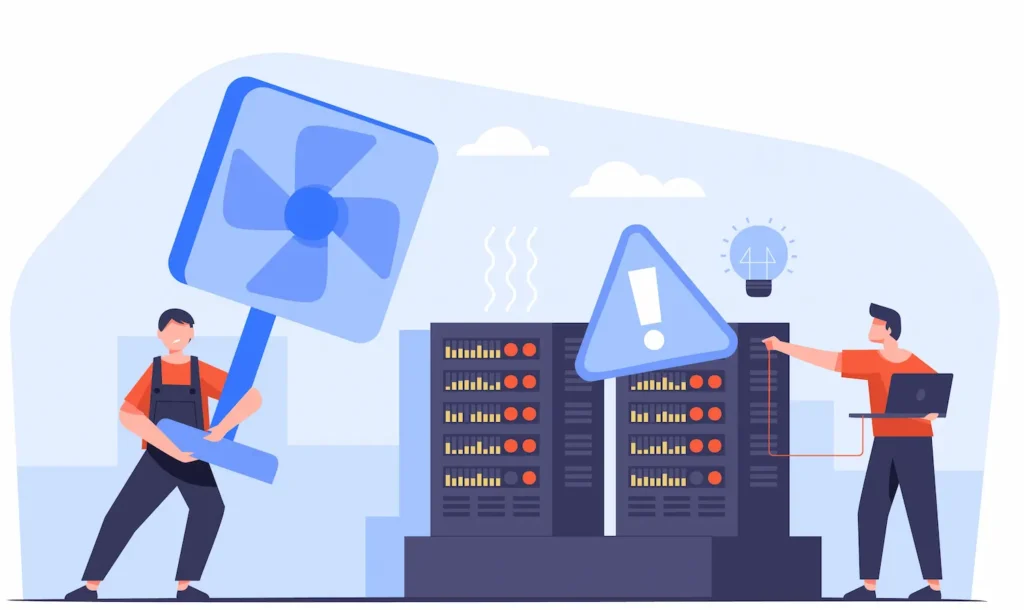
WordPress disaster recovery is the structured process of restoring a website to a functional state after an unexpected failure. It covers everything from restoring backups and rebuilding corrupted databases to removing malware and recovering lost files.
Recovery is not just about fixing what broke. It is about doing so with minimal data loss and downtime, and with a plan to prevent the same failure from happening again.
Every WordPress website owner needs a disaster recovery strategy. It does not matter whether you run a personal blog or a high-traffic e-commerce store. Downtime affects everyone.
Common Causes of WordPress Website Crashes and Downtime
Understanding why sites crash makes recovery faster and prevention easier. The most common causes include:
Plugin or theme conflicts that trigger fatal PHP errors. Failed WordPress core updates that leave files in a broken state. Server outages are caused by resource exhaustion, hardware failure, or provider issues. WordPress development mistakes, such as editing core files directly or skipping staging environments.
Corrupted database tables from interrupted writes or storage failures. Malware infections that delete, modify, or encrypt critical files. Expired SSL certificates cause browsers to block the site entirely. DNS configuration errors prevent the domain from resolving correctly.
How Website Downtime Impacts SEO Rankings, Revenue, and User Trust?
Downtime is expensive in multiple ways.
Google treats persistent downtime as a signal of poor quality. If your site returns 5xx errors for hours, search engines may deindex your pages. Recovery of lost rankings can take weeks.
For e-commerce businesses, every minute offline is a direct revenue loss. A site that loads slowly or fails intermittently loses conversions fast. Visitors do not wait. They leave and rarely return.
User trust is the hardest thing to rebuild. Implementing uptime monitoring services ensures you know the moment your site goes down, not hours later when customers start complaining.
Difference Between WordPress Backup, Website Restore, and Disaster Recovery
These three terms are related but not the same.
- A backup is a saved copy of your site’s files and database at a specific point in time.
- A website restore is the process of using a backup to restore your site to a previous state.
- Disaster recovery is the broader strategy that includes identifying failures, executing restores, patching vulnerabilities, and testing everything before going live again.
You need all three working together. A backup without a tested restore process is nearly useless in an emergency.
Recover Your Hacked WordPress Site Quickly
Get expert malware removal, website restoration, and security hardening services to bring your WordPress site back online safely.
How to Identify the Type of WordPress Website Crash Before Recovery?
Before you start fixing anything, identify what you are dealing with. Acting on the wrong diagnosis wastes time and can make things worse.
Check your browser’s error output first. A 500 Internal Server Error usually points to a PHP issue or a corrupted .htaccess file. A 503 error often means the server is overwhelmed or in scheduled maintenance. A white screen with no error message typically indicates a fatal PHP error caused by a plugin or theme conflict.
Log in to your hosting control panel and review the error logs. Most shared and managed hosts expose PHP and Apache/Nginx error logs in cPanel or a similar dashboard.
Check whether the issue affects only the front end, only the admin area, or both. A broken admin panel with a working front end points to a plugin conflict in the backend. A completely blank site, front and back, usually means a PHP fatal error or a missing core file.
If your site recently received a plugin or theme update, that is the first place to investigate. Enabling WordPress maintenance mode while you troubleshoot prevents visitors from seeing broken pages during the recovery process.
Immediate Steps to Take After a WordPress Site Crash
Speed matters, but so does order. Take these steps as soon as your site goes down.
- Stay calm and document everything. Note the time the site went down, any recent changes made, and the exact error messages you see. This information is invaluable during diagnosis.
- Check your hosting provider’s status page. Server-side outages are outside your control. Confirm whether the issue is on your end or your host’s end before touching any files. If your hosting is fine, use this comprehensive WordPress site-crashing fix guide to quickly narrow down the root cause.
- Notify your team. If multiple people manage the site, make sure everyone knows recovery is in progress. Prevent anyone from making changes while you work.
- Enable maintenance mode. Use a plugin or a manual
.maintenancefile to display a proper maintenance message to visitors instead of a broken page. This protects your brand and prevents visitors from encountering errors. If you cannot access the WP-Admin, learn how to fix a temporarily unavailable for scheduled maintenance error via FTP.
- Access your most recent backup. Do not start editing files until you know a restore option exists. Even a 24-hour-old backup is better than no safety net.
Step-by-Step WordPress Disaster Recovery Process
Follow this practical WordPress disaster recovery process to identify issues, restore backups, remove malware, and recover your website quickly.

Step 1: Restore Your WordPress Website From a Recent Backup
The fastest path to recovery is almost always a clean backup restore. If your backup is recent, ideally within the last 24 hours, this single step can bring your site back online in minutes.
Access backups from your backup plugin, your hosting provider’s dashboard, or your cloud storage account. Most quality backup tools provide one-click restore functionality. Verify the backup before restoring by checking its timestamp and file size.
After restoring, test all critical pages. Confirm that contact forms, checkout flows, and login pages work correctly before taking the site out of maintenance mode.
Step 2: Recover WordPress Files Using cPanel, FTP, or Hosting Backups
If your backup plugin cannot connect or the automated restore fails, use cPanel’s File Manager or an FTP client like FileZilla to access your server directly.
Navigate to your WordPress root directory. Download a fresh copy of WordPress from WordPress.org and replace the wp-admin and wp-includes directories. Do not overwrite wp-content, that directory contains your themes, plugins, and uploads.
If your hosting provider maintains server-level backups, contact support and request a restore to the most recent snapshot. Many managed hosts keep daily backups for 30 to 90 days.
Step 3: Repair a Corrupted WordPress Database Using phpMyAdmin
A corrupted database causes a “Error Establishing a Database Connection” message or similar failures. Open phpMyAdmin through your hosting control panel.
Select your WordPress database from the left panel. Choose all tables and run the “Repair Table” operation. This fixes common table corruption caused by interrupted write operations.
If the repair fails, check your wp-config.php file to confirm the database name, username, password, and host are still correct.
Mismatched credentials after a server migration are a surprisingly common cause of database connection failures. Plugins listed in our guide on WordPress database plugins can also automate repair and optimization tasks.
Step 4: Reinstall WordPress Core Files Without Losing Content
If core files are missing or corrupted, reinstall WordPress without touching your database or content.
Download the latest version of WordPress from WordPress.org. Extract the files. Delete the wp-admin and wp-includes Extract the archive, then upload the two directories to your server via FTP, overwriting the existing versions.
Do not upload wp-config.php from the fresh download. Your existing wp-config.php file contains your database credentials and security keys. Overwriting it will immediately break your site.
After uploading, refresh your site. The admin area should return. If you still see errors, run a plugin and theme conflict check by deactivating all plugins via FTP (rename the plugins directory plugins_disabled) and switching to a default WordPress theme.
Step 5: Fix Broken Permalinks and .htaccess Errors in WordPress
After a recovery or server change, URLs often break. This causes 404 errors across every page of your site.

Go to Settings → Permalinks in your WordPress admin. Without changing anything, click Save Changes. WordPress regenerates the .htaccess file with correct rewrite rules.
If you cannot access the WP-Admin, connect via FTP and locate the .htaccess file in your root directory. Replace its contents with the default WordPress .htaccess rules.
This solves the majority of permalink-related 404 errors after recovery. If you recently migrated your site, a more detailed process for fixing broken links after migration is available.
Step 6: Resolve PHP Memory Limit and Fatal Error Issues
A PHP memory limit error stops WordPress from loading entirely. The site displays either a blank white screen or a brief error message before the connection drops.
Open your wp-config.php file and add the following line before the “That’s all, stop editing!” comment:
define('WP_MEMORY_LIMIT', '256M');If your hosting plan does not allow this value, contact your host. Many plans cap PHP memory at 64M or 128M, which is insufficient for WordPress sites running multiple plugins.
Fatal PHP errors from a specific plugin are diagnosed by enabling WP_DEBUG it in wp-config.php. Set WP_DEBUG to true Temporarily reload the site.
The error message will reveal which file triggered the failure. Refer to our guide on how to fix critical errors on WordPress websites for a complete list of solutions.
Step 7: Remove Malware and Backdoors From WordPress Websites
If your site was compromised before the crash, restoring a backup is not enough. Backdoors and malicious code must be removed before the site goes back online, or the attacker can reinfect it immediately.
Install a reputable security scanner such as Wordfence or Sucuri to identify injected scripts, rogue admin accounts, and modified core files. Compare your installation against clean WordPress files.
Delete all files that do not belong in a standard WordPress installation. Pay particular attention to wp-config.php, the wp-includes folder, and the theme files in wp-content.
After cleaning, reset all passwords, including WordPress admin, FTP, cPanel, and database credentials. The full process for removing malware from WordPress covers each step in detail.
If the infection is severe, consult a professional WordPress malware removal service rather than attempting a manual cleanup. Missed backdoors allow re-infection within hours.
Step 8: Restore SSL Certificates and HTTPS Functionality
After a server change or file restore, SSL certificates sometimes stop working. Visitors see “Your connection is not private” warnings. Browsers block access entirely in some cases.
Log in to your hosting control panel and check whether the SSL certificate is active and not expired. If it has expired, reissue it. Most hosts offer free Let’s Encrypt certificates that renew automatically.
After confirming the certificate is valid, update your WordPress site URL in Settings → General to use https://. Install the Really Simple SSL plugin to fix mixed-content warnings caused by HTTP resources loading on HTTPS pages.
Step 9: Clear CDN and Cache Issues Affecting WordPress Site Recovery
After a recovery, old cached versions of your broken site can continue to appear. Visitors and search engines may still see error pages even after the underlying issue is resolved.
Clear your cache at every layer: WordPress caching plugins (WP Rocket, W3 Total Cache, LiteSpeed Cache), server-level caching in your hosting panel, CDN caches if you use Cloudflare or a similar service, and browser cache on your own machine.
In Cloudflare, navigate to Caching → Configuration and click Purge Everything. In most WordPress cache plugins, a single “Clear All Cache” button handles site-level purging.
Step 10: Test Website Functionality After WordPress Recovery
Never take a site out of maintenance mode without first running a complete functionality check.
Test the homepage, key landing pages, and blog posts. Submit a test order on e-commerce sites. Complete a contact form submission. Log in and log out of the admin area. Check that all media files load correctly.
Verify site speed using Google PageSpeed Insights or GTmetrix. Confirm the SSL certificate shows a green padlock in the browser. Run a crawl with Screaming Frog or a similar tool to catch any residual 404 errors.
Set up WordPress monitoring and emergency support before disabling maintenance mode. This ensures you receive instant alerts if the site goes down again within the first 24 hours after recovery.
How to Recover a Hacked WordPress Website After a Security Breach?
A hacked site requires a different recovery approach. The goal is not just restoration, it is complete remediation.

- Start by isolating the site. Take it offline or restrict access to prevent the attacker from continuing to exploit the breach while you work.
- Contact your hosting provider and ask them to scan the server for malware and to check whether other accounts on the shared server were affected.
- Reset every access credential immediately. This includes WordPress admin passwords, FTP credentials, cPanel passwords, and database user passwords. Generate new WordPress security keys using the official WordPress Secret Key generator and update your
wp-config.php.
- Identify the attack vector. Common entry points include nulled plugins and themes, outdated plugin versions with known vulnerabilities, brute-force attacks on weak admin passwords, compromised FTP credentials, and WordPress phishing hacks that inject malicious code through deceptive entry points. Fixing the root cause is the only way to prevent re-infection.
- Restore from a clean backup taken before the compromise. If you are unsure when the infection began, use your backup tool’s activity log to pinpoint the first signs of unusual file changes.
- Run your site through Google Search Console. If Google blacklisted your site during the breach, submit a review request after confirming the malware has been removed. Full recovery of search rankings can take one to four weeks.
For proactive protection going forward, follow the steps in a comprehensive WordPress security guide and implement ongoing WordPress security maintenance as a standard part of your site management routine. E-commerce site owners should also review these specific tips to protect e-commerce sites from hacking.
Best WordPress Backup and Recovery Tools for Faster Site Restoration
Choosing the right tools before a disaster happens is what separates a 15-minute recovery from a 15-hour one. These tools cover backup, security, SSL, and file management across every layer of your WordPress site.
BlogVault
BlogVault is purpose-built for WordPress backup and recovery. It creates automated daily backups stored off-site on BlogVault’s own servers, completely separate from your hosting account.
One-click restore works even when your site is completely offline. BlogVault also includes malware scanning, staging environments, and website management features, making it one of the most complete WordPress disaster recovery tools available.
Jetpack
Jetpack by Automattic offers real-time backups through its VaultPress integration. Every change to your site, new posts, product updates, and comment approvals- is captured instantly.
This means recovery is possible from any point in time, not just your last scheduled backup. Jetpack also includes downtime monitoring, malware scanning, and one-click restore for faster WordPress disaster recovery.
Understanding uptime and downtime monitoring is a critical part of any recovery strategy.
SolidWP
SolidWP (formerly iThemes Security and BackupBuddy) combines robust backup scheduling with strong security hardening. It supports off-site backups to Stash (SolidWP’s storage), Amazon S3, and remote FTP destinations.
The restore wizard walks you through recovery step by step, making it accessible for non-technical users. It also includes two-factor authentication, brute force protection, and file change detection.
WP Remote
WP Remote is a site management platform that handles backups, plugin updates, and uptime monitoring from a single dashboard. It suits agencies and developers managing multiple WordPress sites.
Backups are stored in the cloud and can be restored remotely without server access. Its real-time monitoring triggers immediate alerts the moment a site goes offline.
Wordfence
Wordfence is the leading WordPress security and malware scanning plugin. During disaster recovery from a security breach, Wordfence identifies infected files, detects backdoors, and blocks repeated attack attempts.
Its file integrity checker compares your installation against the official WordPress repository and flags any unauthorized changes.
Wordfence is indispensable for post-hack cleanup. It is also a key recommendation among the best WordPress security service providers.
Really Simple SSL
Really Simple SSL solves the most common SSL-related issues after a WordPress recovery. It automatically detects your SSL certificate, updates your site URL to HTTPS, and fixes mixed content warnings.
It also provides an HTTP Strict Transport Security (HSTS) option for added protection. For sites that lost SSL functionality during a server restore or migration, this plugin resolves the issue in under a minute.
Infinite Uploads
Infinite Uploads provides cloud-based media storage and offloads your WordPress media library to a dedicated CDN.
During disaster recovery, having your media files stored independently from your web server means image and video content remains accessible even when the core WordPress installation is down. It also prevents media library loss during site file replacements.
phpMyAdmin
phpMyAdmin is a web-based database management tool included with most hosting plans via cPanel. It allows direct access to your WordPress database for repairing corrupted tables, running SQL queries, and manually restoring database exports.
During WordPress disaster recovery, it is the primary tool for diagnosing and fixing database connection errors and table-level corruption.
FileZilla FTP Client
FileZilla is a free FTP client that lets you connect directly to your server and manage WordPress files when the admin dashboard is inaccessible.
During a crash, FileZilla lets you replace corrupted files, access, and htaccess, and edit wp-config.phpdisable plugins by renaming directories, upload clean WordPress core files, and all without needing your WordPress admin to be functional.
Conclusion
A WordPress site crash feels catastrophic in the moment. But with the right process, most sites are recoverable within hours, sometimes minutes.
The ten-step WordPress disaster recovery process outlined in this guide covers every major failure scenario: bad backups, corrupted databases, broken core files, malware infections, SSL failures, and cache conflicts.
Work through each step in order. Do not skip the post-recovery testing phase. A site that appears fixed but has residual issues can crash again within hours.
Prevention is ultimately cheaper than recovery. Invest in automated daily backups, uptime and downtime monitoring, a reputable security plugin, and a structured WordPress maintenance package before disaster strikes, not after. If you are unsure whether you need ongoing support or a maintenance plan, this WordPress support vs maintenance breakdown clarifies the difference.
If the recovery process feels overwhelming or the infection is too severe for a DIY fix, hiring a WordPress maintenance agency specializing in disaster recovery is the fastest way to get back online safely.
Professional teams handle emergency WordPress maintenance every day and resolve most critical issues within 2 hours.
Your site is recoverable. Start with the steps above, stay systematic, and keep backups running from now on. Recovery today. Prevention from tomorrow.
FAQs About WordPress Disaster Recovery
How do I recover a crashed WordPress website?
Start by checking your hosting server and error logs. Restore a recent backup if available. Disable any faulty plugins or themes, then scan the site for malware. You can also repair the database and reinstall WordPress core files if needed.
What causes a WordPress site to crash?
Common causes include plugin conflicts, theme errors, corrupted databases, malware infections, failed updates, and hosting server issues. Low PHP memory limits can also cause a website to break.
Can I restore my WordPress site without a backup?
Yes, but recovery becomes harder. You can use hosting snapshots, cached versions, or manually repair files and databases. Some managed WordPress hosts also provide automatic restore points.
What is the best WordPress backup and recovery tool?
Popular tools include BlogVault, WPvivid Backup, Jetpack, SolidWP, and WP Remote. The best tool depends on your backup frequency, storage needs, and recovery features.
How can I prevent WordPress website downtime in the future?
Use automated backups, keep plugins and themes up to date, enable website security monitoring, and test changes on a staging site before going live. Regular maintenance reduces the risk of future crashes.