
You blocked the time. You prepared. You waited. Nobody showed up.
No-show appointments do not just waste an hour. They are a direct hit to your revenue, your schedule, and your ability to serve the next client who genuinely wants your time.
The frustrating part is that most no-shows are preventable. Clients do not skip appointments because they are bad people. They forget, they double-book, or they cannot find an easy way to cancel. Each of these has a fix, and WordPress gives you the tools to automate every single one.
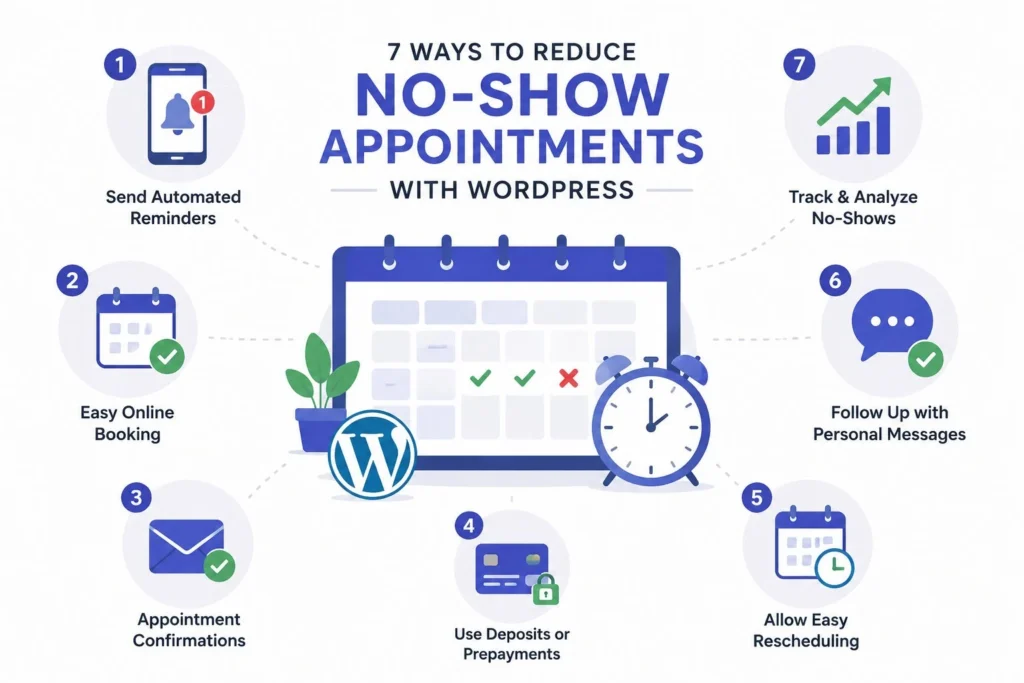
This guide covers 7 proven strategies to reduce no-show appointments on your WordPress site, which plugins make it easiest to implement, and how to set up a system that runs without you having to chase anyone.
Use automated reminders, require a deposit, and allow easy rescheduling. Most businesses see fewer no-shows within 30 days.
How to Reduce No-Show Appointments with WordPress?
Reducing no-show appointments in WordPress involves combining three core strategies: automated reminders, upfront payments, and self-service rescheduling.
The fastest setup covers these steps:
- Install a WordPress booking plugin with built-in email and SMS reminders
- Configure automated reminders to send 48 hours and 24 hours before each appointment
- Require a deposit or full payment at the time of booking
- Include a one-click self-service rescheduling link in every confirmation and reminder email
- Write a clear cancellation policy into your booking page and email templates
- Sync your booking calendar with Google Calendar to eliminate double-bookings
- Use WP Mail SMTP to ensure reminder emails land in inboxes, not spam folders
Most service businesses that implement all seven strategies see a measurable drop in no-show rates within the first 30 days.
Want Your WordPress Booking System Set Up Right?
Seahawk configures your appointment plugin, automated reminders, and deposit system so no-shows stop costing you money. Expert WordPress setup from $39/hr. No contracts. No retainers.
What No-Show Appointments Are Actually Costing You?
Before fixing the problem, it helps to understand its true cost. Most business owners underestimate it.
Missed appointments cost the healthcare industry alone an estimated $150 billion annually, according to research cited by Forbes. Individual practices can lose $200 or more per empty time slot. For salons, consultants, fitness studios, and other service businesses, the numbers are proportionally damaging.
It is not just lost revenue. Every no-show also means:
- A paying client who could have filled that slot did not get the chance
- You absorbed overhead costs (rent, software, staff time) with no return
- Your scheduling data becomes unreliable, making it harder to plan capacity
The fix does not require a new phone system or hiring a receptionist. It requires a smarter WordPress booking setup.
Why Clients Don’t Show Up (And What Fixes Each Cause)
Understanding the root cause of a no-show determines the right solution. Most missed appointments fall into one of four categories.
They forgot. Life is busy. An appointment booked two weeks ago fades from memory. Fix: automated reminders at 48 hours and 24 hours out.
They double-booked. They made a commitment elsewhere and did not check their calendar. Fix: Google Calendar sync so the booking appears in their personal schedule immediately.
They had no easy way to cancel. Calling to cancel feels awkward. Clients who feel stuck between an uncomfortable phone call and just not showing up will often choose the no-show. Fix: self-service rescheduling links in every email.
They had no financial commitment. A free booking carries no consequence. Clients cancel mentally without telling you. Fix: require a deposit at the time of booking.
Address all four causes, and your no-show rate drops significantly.
7 Ways to Reduce No-Show Appointments with WordPress
Reduce missed bookings and keep your schedule full with smart WordPress tools, automated reminders, and seamless booking workflows. Improve client attendance, boost revenue, and create a smoother appointment experience.
Set Up Automated Email Reminders
Automated email reminders are the quickest win available to any service business using WordPress. They cost nothing extra with most booking plugins and take under an hour to configure.
The most effective reminder sequence sends two emails: one 48 hours before the appointment and one 24 hours before. The 48-hour email gives clients enough time to reschedule if needed. The 24-hour email serves as a final confirmation.
Every reminder email should include:
- The appointment date, time, and service name are pulled in automatically via smart tags
- A one-click link to reschedule or cancel
- Your address or meeting link
- Your cancellation policy in one clear sentence
Once you configure the templates, the system automatically sends every reminder. You never have to manually follow up again.
Add SMS Reminders for Higher Open Rates
Email reminders work well. SMS reminders work better. SMS messages have an open rate of around 98% compared to roughly 20% for email. For appointment reminders, that difference directly translates to attendance rates.
SMS reminders reduce no-shows by 38% compared to email-only systems. Running both together gives you the strongest possible coverage.
WordPress booking plugins with built-in SMS support include Amelia and Bookly. Both integrate with Twilio for SMS delivery. The setup requires a Twilio account, but the per-message cost is low enough that a single recovered appointment more than covers a month of SMS costs.
If your booking volume is modest, start with email only. Add SMS when the ROI is clear.
Require a Deposit or Full Pre-Payment
A financial commitment changes client behavior more reliably than any reminder. Businesses that accept deposits experience 67% fewer no-shows compared to those using manual payment collection, according to Mindbody’s 2025 Business Management Software Survey.
The psychology is straightforward. A client who has paid $30 toward a $100 appointment has a concrete reason to show up or, at a minimum, to cancel in advance rather than ghost.
Two approaches work well depending on your service type:
Full pre-payment works best for high-value or one-time services where you cannot afford to hold a slot speculatively. The client pays the full amount at booking and receives a refund if they cancel within the window you specify.
Deposit booking works best for recurring services or new clients. Charge 20% to 50% of the service cost upfront. This lowers the barrier to booking while still creating accountability.
Most WordPress booking plugins with Stripe or PayPal integration handle both approaches. Sugar Calendar Bookings, Amelia, and Bookly all support deposit and full pre-payment at the service level.
When using deposits, be explicit in your service description. State the deposit amount, the total service cost, and your refund window clearly before the client confirms.
Add Self-Service Rescheduling Links to Every Email
This strategy feels counterintuitive. Making it easier to cancel an appointment would likely increase the number of cancellations. It actually reduces no-shows.
When clients have a frictionless path to reschedule, they use it instead of silently not showing up. A last-minute cancellation is inconvenient. A no-show with zero notice is far worse because you cannot fill the slot.
Every booking confirmation and reminder email should contain a one-click link that lets clients reschedule or cancel without calling. Sugar Calendar Bookings includes a cancel URL tag for this. Amelia embeds a manage-booking link automatically. Most premium booking plugins provide this natively.
The result is a client base that actively communicates changes to you, which means your calendar is more accurate and your filled slots are with people who actually intend to show up.
Add Booking Confirmation as a Two-Step Process
A single-click booking with no confirmation step is convenient, but it does not build commitment. A two-step confirmation process, where the client books and then confirms via a follow-up email, filters out casual bookings that were never firm.
The confirmation email arrives immediately after booking and asks the client to click a link to finalize the appointment. Clients who do not confirm within the specified window (typically 24 hours) have their slot automatically released.
This approach works particularly well for high-demand calendars where unfilled slots are genuinely costly. The extra step removes speculative bookings and ensures every confirmed appointment carries real intent.
Not every booking plugin supports two-step confirmation natively. Amelia and Booknetic both offer appointment status workflows that approximate this behavior.
Sync Bookings with Google Calendar
A booking that does not appear in a client’s personal calendar competes with everything else in their life. A booking that syncs automatically to Google Calendar does not.
Google Calendar sync adds the appointment to the client’s calendar as soon as the booking is completed. They see it alongside their other commitments, receive Google’s own reminders, and are far less likely to double-book over it.
From the business side, Google Calendar sync also keeps your availability accurate across devices and prevents double-bookings when you schedule other commitments manually.
Amelia, Simply Schedule Appointments, and Booknetic all support two-way Google Calendar sync. This is one of the features worth prioritizing when evaluating booking plugins.
Fix Your Email Deliverability With WP Mail SMTP
All of the strategies above rely on emails landing in inboxes. By default, WordPress sends email through PHP mail, which has poor deliverability and frequently ends up in spam folders.
If your reminder emails are going to spam, they are not reducing no-shows. They are generating false confidence that your system is working when it is not.
WP Mail SMTP routes your WordPress emails through a proper mail provider such as SendLayer, Brevo, or Gmail SMTP. This single fix can immediately improve the deliverability of every confirmation and reminder your booking plugin sends.
Install WP Mail SMTP, connect it to your preferred mail provider, and run a test email to confirm delivery before trusting your reminder system with real appointments.
Best WordPress Plugins to Reduce No-Show Appointments
Every strategy above can be implemented with the right plugin. Here is how the leading options compare on the features that matter most for reducing no-shows.
| Plugin | Email Reminders | SMS Reminders | Deposits | Self-Service Links | Google Calendar | Starting Price |
| Sugar Calendar Bookings | Yes | No | Yes (Stripe) | Yes | No | Free / Pro |
| Amelia | Yes | Yes (Twilio) | Yes | Yes | Yes | $59/year |
| Bookly | Yes | Yes (Twilio) | Yes | Yes | Yes | $89/year |
| Simply Schedule Appointments | Yes | No | No (free tier) | Yes | Yes | Free / $99/year |
| Booknetic | Yes | Yes | Yes | Yes | Yes | $79 one-time |
For solo service providers starting out, Sugar Calendar Bookings Lite includes email reminders and deposit collection at no subscription cost.
For businesses where SMS matters, Amelia or Bookly offer the most complete reminder stack with both email and SMS built in.
For teams with multiple staff: Amelia and Booknetic both handle multi-staff scheduling with individual calendars and service assignments.
How to Set Up Appointment Reminders in WordPress: Step-by-Step
This setup uses Amelia, but the process is similar across most premium booking plugins.
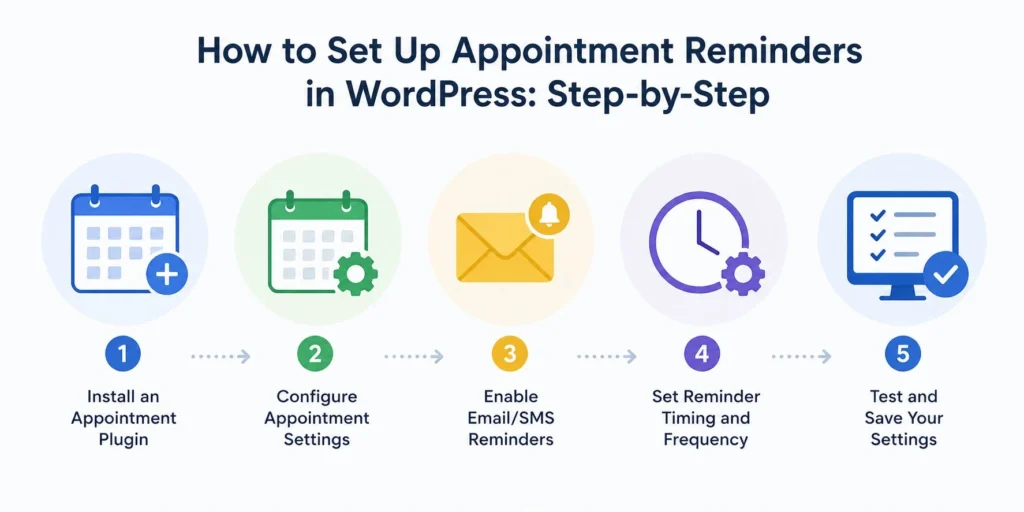
Step 1: Install and activate your booking plugin. Go to Plugins > Add New in your WordPress dashboard. Search for your chosen plugin, install it, and activate it. Enter your license key if using a premium version.
Step 2: Create your services. Go to the plugin’s services section. Add each service with its name, duration, price, and description. If collecting deposits, enter the deposit amount in the price field and clarify the full-service cost in the description.
Step 3: Set your availability. Define your working hours, buffer time between appointments, and any blocked dates. Buffer time prevents back-to-back bookings that leave no time for preparation.
Step 4: Configure email notifications. Navigate to the notifications or emails section. Enable the Appointment Reminder template. Set the first reminder to send 48 hours before the appointment and the second to send 24 hours before. Customize the message body with smart tags for the client name, service, date, time, and cancellation link.
Step 5: Connect Stripe for deposits. Go to payment settings and connect your Stripe account. Enable the deposit requirement at the service level. Set your deposit amount and refund policy.
Step 6: Enable Google Calendar sync. Go to integrations and connect your Google account. Enable two-way sync so bookings appear on both your calendar and the client’s.
Step 7: Install WP Mail SMTP. Install and activate WP Mail SMTP. Connect it to SendLayer, Brevo, or your preferred SMTP provider. Run a test email to confirm delivery.
Step 8: Embed your booking form. Create a new WordPress page named “Book Now” or similar. Add the booking form block or shortcode from your plugin. Publish the page and test the full booking flow yourself before sending clients to it.
Final Thoughts: Reduce No-Show Appointments in WordPress
No-show appointments are a system problem, not a client problem. When the booking system makes it easy to remember, easy to reschedule, and costly to ghost, most clients behave accordingly.
WordPress gives you every tool you need to build that system. Automated reminders handle the forgetting problem. Deposits handle the commitment problem. Self-service links handle the friction problem. Google Calendar sync handles the double-booking problem.
None of these strategies requires a developer or a complicated setup. A solid booking plugin, a working SMTP configuration, and an afternoon of setup are all it takes to put a no-show prevention system on autopilot.
If you want the setup done properly from the start, Seahawk’s WordPress team can configure your entire booking and reminder system as part of a broader WordPress development or site build engagement.
Frequently Asked Questions About Reducing No-Show Appointments in WordPress
How do I reduce no-show appointments in WordPress?
The most effective approach combines automated email reminders, upfront deposits, and self-service rescheduling links. Install a booking plugin like Amelia, Sugar Calendar Bookings, or Bookly, configure reminder emails to send 48 and 24 hours before each appointment, require a deposit at the time of booking, and include a cancellation link in every email. This combination addresses the four main causes of no-shows: forgetting, double-booking, lack of an easy cancellation path, and no financial commitment.
What is the best WordPress plugin to prevent no-shows?
Amelia is the most complete option for reducing no-shows. It includes native email reminders, SMS reminders via Twilio, Stripe for deposit collection, self-service cancellation links, and Google Calendar sync, all in one plugin. Sugar Calendar Bookings is a strong alternative for solo providers who only need email reminders and Stripe deposits without the additional cost.
How much of a deposit should I charge to prevent no-shows?
A deposit of 20% to 50% of the service cost is the standard range. Even a small fixed deposit of $20 to $25 creates enough financial commitment to significantly reduce no-show rates. For high-value services or new clients with no booking history, full pre-payment is worth considering.
Do SMS reminders work better than email reminders for appointments?
Yes. SMS messages have an open rate of approximately 98% compared to around 20% for email. SMS reminders reduce no-shows by 38% more than email-only systems. Running both together produces the strongest results. If you can only implement one, start with email, as it costs nothing extra with most booking plugins.
Why does making it easier to cancel reduce no-shows?
When clients have no easy cancellation path, many choose to simply not show up rather than make an awkward phone call. A self-service cancellation link in a reminder email removes that friction. Clients who would otherwise ghost you will cancel in advance with a single click. A last-minute cancellation is recoverable. A no-show with no notice is not.
Will my appointment reminder emails go to spam?
They might if you are using WordPress’s default PHP mail. Install WP Mail SMTP and connect it to a dedicated mail provider such as SendLayer or Brevo. This routes your reminder emails through the proper mail infrastructure, significantly improving deliverability and ensuring clients actually receive the reminders you send.
Can I set up appointment reminders in WordPress without a paid plugin?
Sugar Calendar Bookings Lite is free and includes email reminders and Stripe payment integration. It has a 3% transaction fee on payments in the free tier. For reminder-only use with no payment collection, the free tier covers the core use case. For SMS reminders, Google Calendar sync, and no transaction fees, a paid plugin is required.


