

The HTTP 302 error on WordPress is a temporary redirect response that can quietly disrupt your website’s performance and user experience. It signals that a page has temporarily moved to a new URL, but when it fires incorrectly, it confuses browsers, harms SEO, and sends visitors in the wrong direction.
Fortunately, most 302 redirect problems on WordPress have clear, fixable causes. This guide walks you through what triggers them, how to diagnose the root issue, and the exact steps to resolve each scenario.
TL;DR: What You Need to Know
- A 302 status code signals a temporary redirect; when misconfigured, it disrupts traffic and search rankings.
- Common triggers include wrong WordPress URL settings, broken
.htaccessrules, plugin conflicts, and malware.
- Nine step-by-step methods cover everything from clearing cache to scanning for malicious code.
- Proactive maintenance, regular audits, and secure hosting prevent these redirect issues from returning.
What is the HTTP 302 Error in WordPress?
In simple terms, an HTTP 302 error indicates a temporary redirect that sends users and search engines from the requested URL to a different page for a short period.
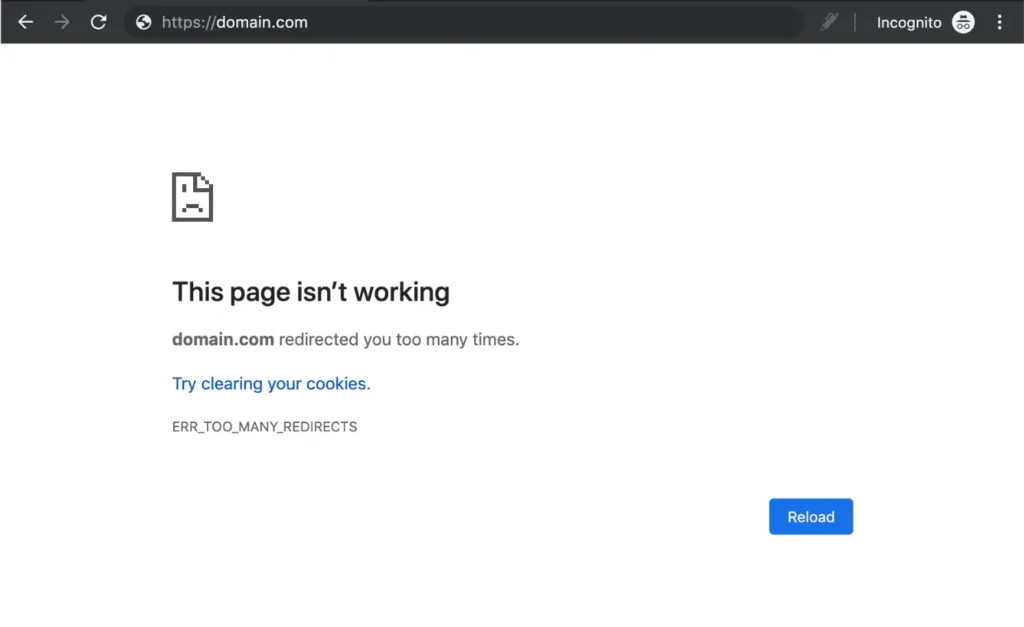
Understanding HTTP Status Codes and Temporary Redirects
Every time a browser requests a web page, the server responds with an HTTP status code. These codes communicate whether the request succeeded, failed, or requires further action.
Status codes in the 3xx range indicate redirects, instructions for the browser to fetch content from a different URL.
The 302 status code falls in this category. It means “Found” or “Moved Temporarily.” The server acknowledges the request but directs the browser to a different location for now. Unlike a permanent redirect, a 302 is meant to be a short-term arrangement.
While 302 redirects have legitimate uses, they become a problem when they fire unexpectedly, send users to the wrong destination, or loop without resolution.
When this happens on a WordPress site, it is typically logged alongside other common WordPress errors that affect site function and user experience.
How a 302 Redirect Works in Browsers and Web Servers?
When a visitor hits a URL that returns a 302 response, the browser reads the Location header in the server’s reply. It then automatically requests the URL specified in that header.
In some configurations, the original URL remains unchanged in the browser address bar, which can confuse users.
Web servers like Apache and Nginx process redirect rules from configuration files. WordPress adds its own redirect logic through the .htaccess file, plugin hooks, and wp_redirect() functions.
A conflict at any of these layers can trigger an unintended 302 response.
Understanding WordPress error logs is critical here. They reveal which file or function is generating the unexpected redirect, helping you trace the exact source.
Also Learn: What is the 406 Not Acceptable Error in WordPress and How to Fix it
Difference Between HTTP 302, 301, and 307 Redirects
Redirect codes are not interchangeable. Each carries a specific meaning for browsers and search engines.
- 301 Moved Permanently: Indicates to search engines that the page has permanently relocated. Link equity transfers to the new URL. Use this for lasting URL changes.
- 302 Found (Temporary Redirect): Signals a short-term move. Search engines continue to index the original URL and do not pass full link equity. Best used for maintenance periods or A/B testing.
- 307 Temporary Redirect (HTTP/1.1): Similar to 302 but preserves the request method (GET, POST). Used when form data must reach the new URL intact.
How Does the HTTP 302 Error Affect WordPress SEO and User Experience?
When a 302 fires incorrectly, the effects are immediate and compounding. Search engines treat the original URL as the canonical source and do not transfer ranking signals.
If the redirect points to a low-value or unrelated page, crawlers may eventually deprioritize the entire domain.
From the user’s perspective, unexpected redirects trigger confusion, erode trust, and increase bounce rates. If the redirect loops or sends visitors to error pages, the experience deteriorates further.
Running a WordPress SEO and speed audit helps uncover redirect chains and unintended 302 responses before they compound into larger ranking problems.
Keep Your WordPress Site Error Free
Our WordPress experts proactively monitor, maintain, and secure your site so redirect errors never slow you down.
Common Causes of the HTTP 302 Error on WordPress Websites
Several factors, from misconfigured redirects to plugin conflicts, can trigger an HTTP 302 error on a WordPress website.

Incorrect WordPress URL or Site Address Settings
WordPress stores two critical URLs in the database: the WordPress Address (URL) and the Site Address (URL).
When these do not match the actual domain you’re serving, especially after migrating to HTTPS or switching domains, WordPress automatically redirects to the correct URL. That redirect often returns a 302 status code.
This is one of the most frequent causes, especially on sites that recently activated SSL.
If you’ve recently moved to HTTPS, double-check your URL settings and ensure the SSL transition is complete by reviewing how to force HTTPS on WordPress without creating mismatched URL configurations.
Misconfigured Redirect Rules in .htaccess or Server Settings
The .htaccess file controls URL rewriting on Apache servers. A poorly written RewriteRule or a leftover rule from a plugin or migration can issue a 302 even when none is intended.
Similarly, Nginx location blocks or return Directives in the server configuration can intercept traffic and redirect it before WordPress processes the request. Reviewing these files manually or through a WordPress site audit helps identify which rule is responsible.
Plugin Conflicts Causing Unexpected Redirects
WordPress plugins frequently modify redirect behavior. SEO plugins, caching tools, security plugins, and login page customization tools can all issue redirects. When two plugins conflict, they can cause redirect loops or 302 responses that are misdirected.
These conflicts often surface after updates, when one plugin changes its redirect logic without accounting for another plugin’s rules.
This is closely related to the ERR_TOO_MANY_REDIRECTS error, which occurs when a redirect loop repeats endlessly.
Theme-Related Redirect Issues
Some WordPress themes include redirect logic within their template files or functions. A child theme that inherits a broken wp_redirect() call from a parent theme can silently issue 302 responses on specific pages.
Custom themes with outdated conditional redirects for mobile detection or localization are especially prone to this.
Switching to a default theme during troubleshooting isolates whether the active theme is contributing to the problem.
CDN or Security Firewall Redirect Conflicts
Content Delivery Networks (CDNs) and Web Application Firewalls (WAFs) intercept requests before they reach WordPress.
Cloudflare, for example, can issue its own redirects based on page rules, firewall rules, or SSL mode settings. When these conflict with WordPress redirect rules, the result is often an unexpected 302.
Incorrectly configured CDN origin rules are a particularly common source of redirect issues.
A WordPress DDoS protection process also highlights that while security layers are valuable, they must be properly aligned with WordPress URL structures to avoid interfering with normal page routing.
Browser Cache or Cookie Problems
Browsers cache redirect responses. An old 302 cached in the browser can keep sending users to an outdated URL even after you’ve fixed the underlying issue.
Similarly, cookies that store session state or locale preferences can trigger conditional redirects on subsequent visits.
This makes browser cache-clearing an essential first step in any 302 troubleshooting workflow.
Malware or Hijacked Redirects in WordPress
Malicious code injected into WordPress files can produce 302 redirects that send visitors to phishing sites, spam pages, or malware distribution servers. These redirects often target new visitors or search engine crawlers while hiding from logged-in admins.
The WordPress redirect hack is a well-documented attack pattern. If your site redirects certain users to unrelated domains, inspect your core files and database immediately.
Among the common WordPress errors site owners face, malware-induced redirects are among the most damaging.
Methods to Fix the HTTP 302 Error in WordPress
Follow these practical troubleshooting methods to quickly identify the cause and resolve the HTTP 302 error on your WordPress site.

Method 1: Verify and Correct WordPress URL Settings
Start by checking that your WordPress Address (URL) and Site Address (URL) are correct in the settings, as incorrect values can trigger unexpected temporary redirects.
- Log in to your WordPress dashboard.
- Go to Settings → General.
- Check the WordPress Address (URL) and Site Address (URL) fields.
- Ensure both match exactly, including whether they use
http://orhttps://. - Click Save Changes.
If you cannot access the dashboard, update these values directly in wp-config.php by adding:
define('WP_HOME', 'https://yourdomain.com');
define('WP_SITEURL', 'https://yourdomain.com');
This method resolves the majority of 302 issues triggered by URL mismatches. If you manage redirecting WordPress URLs across domains or subfolders, verify that each redirect points to the correct destination with the right status code.
Method 2: Clear Browser Cache and Cookies
Clearing your browser cache and cookies removes outdated redirect data that may be forcing your browser to repeatedly load a temporary 302 redirect instead of the correct page.
- Open your browser settings.
- Navigate to Privacy or History settings.
- Clear cached images, files, and cookies.
- Close and reopen the browser, then reload your site.
Also, use any server-side caching plugins, such as FastPixel, or implement CDN caches.
For quick reference on cache clearing during site recovery, the emergency WordPress troubleshooting outlines exactly which cache layers to purge during active issues.
Method 3: Disable All WordPress Plugins to Detect Redirect Conflicts
If you cannot access the dashboard, rename the /wp-content/plugins/ folder to /wp-content/plugins_disabled/ via FTP. This deactivates all plugins at once. If the 302 resolves, reactivate individually to find the culprit.

- Go to Plugins → Installed Plugins in your dashboard.
- Select all plugins and choose Deactivate from the bulk actions menu.
- Reload your site and check if the 302 redirect disappears.
- Reactivate plugins one at a time, testing between each activation.
Plugin-driven redirect issues are also a frequent source of 404 errors and redirect issues. Keep this in mind if the 302 resolves, but users start hitting 404s instead.
Method 4: Switch to a Default WordPress Theme for Testing
If the error disappears after switching themes, it indicates that your previous theme contains code or redirect logic that is triggering the HTTP 302 error.
- Go to Appearance → Themes in the dashboard.
- Activate Twenty Twenty-Four or another default WordPress theme.
- Test whether the 302 redirect persists.
If the error resolves after switching themes, the active theme contains redirect logic that needs to be edited. Review functions.php for any wp_redirect() calls or template redirection hooks.
Method 5: Reset and Regenerate the .htaccess File
Resetting the .htaccess file removes incorrect or conflicting redirect rules that may be triggering the HTTP 302 Error on your WordPress website.
- Access your site files via FTP or cPanel File Manager.
- Navigate to the root directory and rename
.htaccessit to.htaccess_backup. - In your WordPress dashboard, go to Settings → Permalinks.
- Click Save Changes without making any edits. WordPress regenerates a clean
.htaccessfile automatically.
Review the new file and compare it to your backup. Remove any custom rules that are no longer needed. Keeping .htaccess clean and minimal avoids many redirect conflicts. Reviewing error logs alongside this step reveals whether specific .htaccess rules triggered the 302 responses.
Method 6: Check Server-Side Redirect Rules in Apache or Nginx
Server-level redirect rules in Apache or Nginx can sometimes override WordPress settings and unintentionally trigger temporary redirects that lead to an HTTP 302 error.
For Apache:
- Review the
.htaccessfile and thehttpd.confvirtual host forRedirectorRewriteRuledirectives that use[R=302]or[R]without specifying301.
For Nginx:
- Check the
nginx.confor the site configuration file forreturn 302orrewritedirectives that are not permanent.
Change unintended 302 directives to 301 if the redirect is permanent, or remove them entirely if they are obsolete. A full site audit should include a review of server configuration files to catch these server-level issues.
Method 7: Scan and Remove Malware That Causes Redirects
Run a full WordPress security scan to detect malicious code or unauthorized scripts that may be triggering unexpected 302 redirects and remove them immediately.
- Install Wordfence or Sucuri Security from the WordPress plugin repository.
- Run a full site scan from the plugin’s dashboard.
- Review the scan results for infected files, especially in
wp-admin,wp-includes, and.htaccess. - Use the plugin’s guided repair or manually delete flagged files.
- Compare modified core files against the originals from WordPress.org.
Malware-induced redirects require thorough cleanup. Removing malware from WordPress walks through the complete process, including database inspection and credential resets after infection.
Professional WordPress malware removal services are also available if the infection is widespread.
Method 8: Review CDN or Security Firewall Redirect Settings
After reviewing and correcting these settings, test your website in an incognito window or with an HTTP status checker to confirm that the HTTP 302 Error and any unwanted redirect loops have been resolved.
- Log in to your CDN or WAF dashboard (e.g., Cloudflare).
- Review Page Rules or Redirect Rules for any rules that redirect your domain URLs.
- Check the SSL/TLS mode, “Flexible” SSL causes redirect loops with WordPress; switch to Full (Strict).
- Clear the CDN cache after making any rule changes.
- Confirm that the origin server rules align with the CDN edge rules.
Mismatched SSL modes between Cloudflare and WordPress are among the most common CDN-triggered redirect conflicts.
Strategies to protect WordPress from malware also cover how security layers should be configured without interfering with normal redirect behavior.
Method 9: Flush DNS and Check Domain Redirect Configuration
Flushing your DNS cache and reviewing your domain redirect settings ensures that outdated DNS records or incorrect domain-level redirects do not trigger unexpected HTTP 302 responses on your WordPress website.
- Open Command Prompt (Windows) or Terminal (Mac/Linux).
- Run
ipconfig /flushdns(Windows) orsudo dscacheutil -flushcache(Mac). - Check your domain registrar’s DNS settings for any redirect records pointing to outdated URLs.
- Review your hosting control panel for domain-level redirect rules that may override WordPress settings.
DNS-level redirects operate entirely outside WordPress and are invisible to plugin-based diagnostic tools.
A post-migration WordPress audit includes DNS verification as a standard step, especially valuable after domain changes or host migrations.
Advanced Troubleshooting Tips for Persistent HTTP 302 Redirect Errors
When standard methods don’t resolve the issue, a deeper investigation is necessary.

- Use a redirect checker tool. Tools like Rank Math, JetPack, Redirect Checker, or Screaming Frog crawl your site and return full redirect chains with status codes for each hop. This reveals whether multiple redirects are chaining and which URL initiates the 302 redirect.
- Inspect server response headers. Use your browser’s Developer Tools (F12 → Network tab) and reload the problematic URL. Look at the headers for the first response, the
Locationheader in a 302 response reveals exactly where the server is redirecting.
- Check the
wp_optionstable. Open phpMyAdmin, navigate towp_options, and verify thesiteurlandhomevalues match your intended WordPress URL. Database-level mismatches override everything else.
- Audit database redirect entries. Some redirect plugins store rules in their
wp_redirection_itemsor custom tables. Outdated or conflicting entries in these tables generate persistent 302s that appear even after the plugin is deactivated.
- Review recently modified files. Use FTP or a hosting file manager to sort files by modification date. Files edited recently without your knowledge, especially index.php, .htaccess, or core files, are a strong indicator of a WordPress security vulnerability.
Using comprehensive website audit tools provides a structured view of all status codes across your site, enabling you to isolate the source of persistent 302 responses more quickly.
Also, checking for SSL issues in WordPress during this phase rules out HTTPS misconfiguration as a hidden contributor.
Best Practices to Prevent HTTP 302 Redirect Errors in WordPress
Fixing a 302 error resolves the immediate problem. These practices stop it from returning:
- Use Reliable Redirect Management Plugins: Utilize a dedicated plugin, such as Redirection or Safe Redirect Manager, to manage all redirect rules from a single dashboard. These tools let you assign the correct status code, track redirect hits, and avoid conflicts caused by manual edits to server files.
- Avoid Multiple Redirect Rules and Chains: Each additional hop in a redirect chain increases load time and weakens SEO signals. Keep redirect paths direct, one URL to one destination.
- Keep WordPress Core, Themes, and Plugins Updated: Outdated code introduces broken redirect logic and security gaps. Apply updates consistently through a proactive WordPress maintenance plan to ensure every component stays compatible and redirect behavior remains predictable.
- Monitor Website Redirects with SEO and Site Audit Tools: Schedule regular crawls using tools like Screaming Frog or Google Search Console. Routine monitoring through a WordPress site audit catches unintended 302 responses early, before they affect rankings or user experience.
- Regularly Audit .htaccess and Server Configuration Files: Review your
.htaccessand server config files after every plugin update, migration, or SSL change. Leftover or conflicting redirect rules in these files are a silent source of recurring 302 errors. Remove obsolete entries and keep rules minimal and well-documented.
Conclusion: Quickly Resolve HTTP 302 Errors
The HTTP 302 error on WordPress is rarely catastrophic on its own, but it should never be left unresolved.
Whether it stems from a misconfigured URL setting, a plugin conflict, a server rule, or something more serious like a malware-driven redirect hack, each cause has a clear diagnostic path and actionable fix.
Start with the simplest checks, URL settings, and browser cache, and work your way through the more technical layers. Use developer tools, redirect checkers, and server logs to pinpoint the exact source.
Once resolved, implement the preventive practices outlined here to keep your site stable. A site that handles redirects correctly signals reliability to both users and search engines, helping protect your rankings, traffic, and reputation in the long term.
FAQs About HTTP 302 Error
What is the HTTP 302 error in WordPress?
The HTTP 302 error is a temporary redirect response. The server tells the browser that a page has been temporarily moved to a new URL.
In WordPress, it becomes a problem when it fires unintentionally due to incorrect URL settings, plugin conflicts, or malware, sending users or search engines to incorrect destinations.
Does the HTTP 302 error hurt WordPress SEO?
Yes. Search engines treat 302 redirects as temporary and do not transfer link equity or ranking signals to the redirect destination.
If a 302 fires on key pages, the original URL retains authority but may drop in rankings if the destination page receives the traffic. Always use 301 for permanent URL changes.
How do I find which plugin is causing a 302 redirect?
A 301 is a permanent redirect; it passes link equity and informs search engines that the original URL has moved permanently.
A 302 is temporary; search engines continue to index the original URL and withhold full SEO value from the destination. Use 302 redirects only for short-term redirects, such as site maintenance or split testing.
Can malware cause the HTTP 302 error?
Yes. Hackers inject a redirect code into .htaccess, wp-config.php, or core files to silently send visitors to malicious sites.
Malware-based 302 redirects often target new visitors while hiding from logged-in admins. Run a full malware scan with Wordfence or Sucuri if no configuration-based cause is found.
What is the difference between a 301 and a 302 redirect?
A 301 is a permanent redirect; it passes link equity and informs search engines that the original URL has moved permanently.
A 302 is temporary; search engines continue to index the original URL and withhold full SEO value from the destination. Use 302 redirects only for short-term redirects, such as site maintenance or split testing.


