

You need quick checks to keep your WordPress site healthy. A fast SEO and speed audit helps you catch issues before they affect traffic, rankings, or user experience. WordPress sites change often, and even small updates can impact performance.
You should run a audit when your site feels slow, rankings drop, or after updates and redesigns. These audits help you confirm that nothing broke and everything still works as expected.
This guide shows you how to run a focused audit in under one hour using a simple tool list. You will know what to check, which tools to use, and how to spot problems quickly.
TL;DR: WordPress SEO and Speed Audit in Brief
- An audit helps protect your WordPress site from ranking drops and performance issues.
- You can complete a focused speed audit in under one hour using a small set of reliable tools.
- The most important checks include indexing, on-page SEO, Core Web Vitals, and mobile usability.
- Common problems usually come from unoptimized images, too many plugins, missing caching, and slow hosting.
- Running audits regularly keeps WordPress fast, stable, and search-friendly.
What Does a SEO and Speed Audit Cover?
An audit focuses on the most important areas that affect rankings, performance, and user experience on a WordPress site.
- Technical SEO Basics: You check whether search engines can crawl and index your site correctly. This includes indexing status, crawl errors, broken links, and basic site structure.
- On-Page SEO Health: You review page titles, meta descriptions, headings, URLs, and internal links. These elements help search engines understand your content and match it to search intent.
- Core Web Vitals and Loading Speed: You measure how fast pages load and how stable they remain during loading. Key metrics include load time, visual stability, and interaction speed.
- Mobile and Usability Checks: You confirm that pages work well on mobile devices. Navigation, layout, and readability should remain clear across different screen sizes.
Get a Professional SEO and Speed Audit for Your WordPress Site
Find hidden SEO issues, Core Web Vitals problems, and speed bottlenecks with a complete WordPress audit.
Tools List for WordPress SEO and Speed Audit
You do not need dozens of tools to audit SEO and speed effectively. This list covers crawlability, performance, on-page SEO, and backend issues using tools that are reliable, widely used, and easy to interpret.
Each tool below serves a specific purpose. Used together, they give you a complete picture of your WordPress site’s health in a short time.
Google Search Console
Google Search Console shows how Google crawls and indexes your WordPress site. It helps you identify indexing issues, crawl errors, excluded pages, and manual actions that affect visibility.
You can also review Core Web Vitals and mobile usability reports to spot experience-related problems. This tool is essential for understanding whether search engines can properly access and interpret your site’s content.
Google PageSpeed Insights
Google PageSpeed Insights analyzes page speed and Core Web Vitals for mobile and desktop users. It highlights loading speed, layout stability, and interaction delays that affect rankings and usability.

The tool also provides performance diagnostics, such as render-blocking resources and unused scripts. It is best used to review key pages and identify speed issues that need immediate attention.
GTmetrix
GTmetrix provides a detailed breakdown of how a page loads. It shows total load time, page size, number of requests, and performance scores. The waterfall chart helps identify slow scripts, large images, external services, and plugin-related delays.

This tool is useful for understanding exactly which elements slow down your WordPress site and where optimization efforts should focus.
Google Analytics (GA4)
Google Analytics helps you understand how performance impacts user behavior. You can identify pages with high bounce rates, low engagement, or short session durations. These signals often point to speed or usability problems.

GA4 does not diagnose technical issues directly, but it helps prioritize which pages need attention based on how users interact with your site.
Screaming Frog SEO Spider
Screaming Frog crawls your WordPress site and lists SEO elements across all pages.
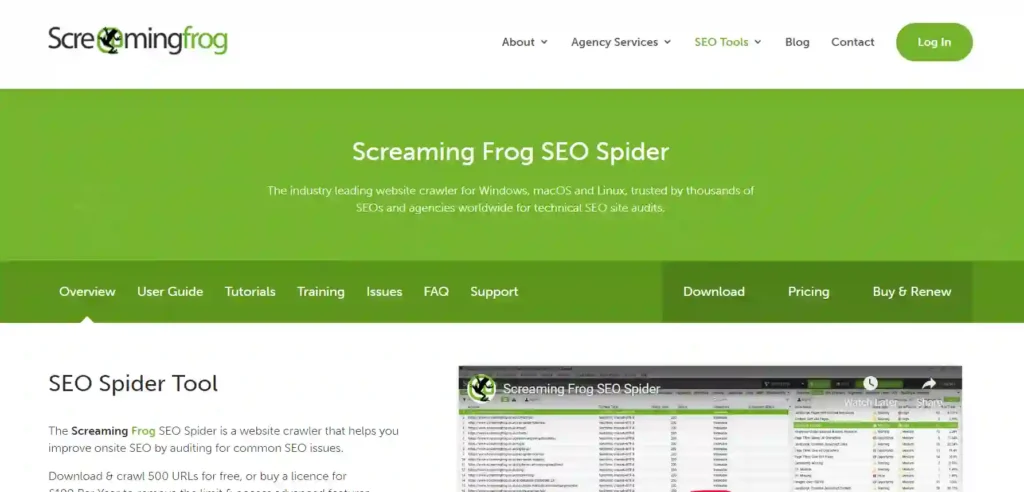
It helps identify missing titles, duplicate meta descriptions, broken links, redirect chains, and canonical issues.
The tool saves time by showing on-page SEO problems at scale instead of page by page. It is especially useful for medium to large WordPress websites.
Yoast SEO
Yoast SEO manages on-page SEO settings inside WordPress. It helps control titles, meta descriptions, schema markup, and indexing rules. The plugin also generates XML sitemaps and highlights common SEO issues within the editor.

Yoast SEO is not an audit tool on its own, but it makes it easier to apply fixes found during an SEO and speed audit, especially for on-page and indexing-related changes.
Rank Math
Rank Math manages on-page SEO settings with more advanced configuration options. It supports title and meta control, schema setup, index management, and XML sitemap generation.

Like Yoast, Rank Math is not an audit tool by itself. It works best as a follow-up tool to apply SEO fixes identified during a WordPress SEO and speed audit.
Query Monitor
Query Monitor is a WordPress plugin that reveals backend performance issues. It shows slow database queries, PHP warnings, REST API calls, and plugin conflicts.
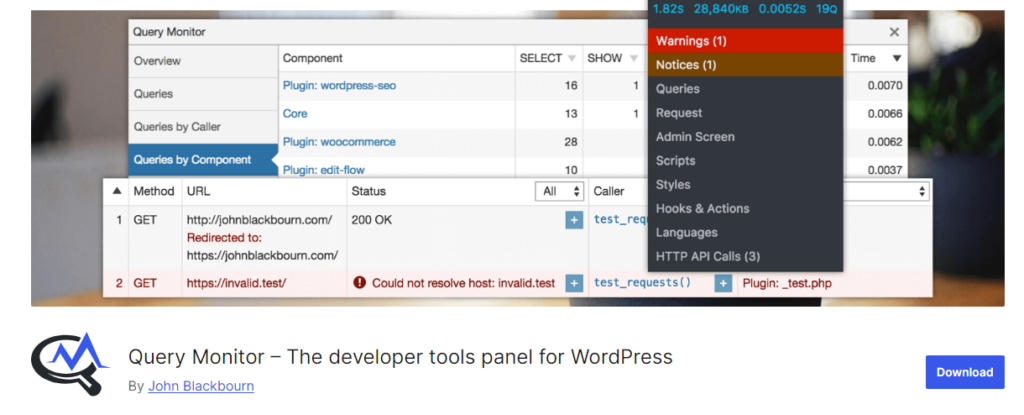
This tool is useful when front-end speed tests do not explain performance problems. It helps identify which plugins, themes, or custom code negatively impact site speed and stability.
ShortPixel
ShortPixel focuses on image compression and format optimization for WordPress sites. It reduces image file sizes by compressing existing media and converting images to modern formats like WebP.

ShortPixel also supports lazy loading and bulk optimization, which helps improve load times across the entire site. This tool is useful when images make up a large portion of page weight and affect speed scores.
Hosting Performance Tools
Hosting performance tools show server-level metrics such as response time, PHP version, caching status, and resource usage.
Many managed WordPress hosts provide these dashboards. If your site remains slow despite optimization, hosting tools help confirm whether server limitations are the cause. Hosting quality plays a major role in overall WordPress performance.
Step-by-Step WordPress SEO and Speed Audit Checklist
This checklist helps you review the most important SEO and speed factors without turning the audit into a long technical task. Each step focuses on one area that directly affects rankings and performance.

Check Website Indexing and Crawlability
Tools: Google Search Console
Start by checking whether Google can index your pages correctly. Look at indexing status and coverage reports to see which pages are indexed, excluded, or showing errors. Pay attention to crawl issues, blocked URLs, and duplicate pages.
Common fixes include updating robots.txt rules, correcting noindex tags, fixing broken links, and resubmitting important pages through Search Console once issues are resolved.
Page Speed Audit and Core Web Vitals
Tools: PageSpeed Insights, GTmetrix
Review Core Web Vitals metrics such as Largest Contentful Paint, Cumulative Layout Shift, and Interaction to Next Paint. These scores show how fast and stable your pages feel to users.
Slow scores usually point to heavy images, unoptimized scripts, lack of caching, or slow server response. GTmetrix helps confirm which files or elements cause delays.
Analyze On-Page SEO Health
Tools: Yoast SEO, Rank Math, Screaming Frog
Check titles, meta descriptions, headings, URLs, and internal links across key pages. Make sure titles are unique, meta descriptions are present, and heading structure remains clear.
Common WordPress issues include duplicate titles, missing meta descriptions, long URLs, poor internal linking, and pages accidentally set to noindex.
Test Mobile Performance and Responsiveness
Tools: Website Responsive Testing Tool
Run key pages through the mobile-friendly test to confirm usability. Mobile speed affects rankings because Google prioritizes mobile-first indexing.
Issues often appear due to theme layout problems, oversized images, small text, or elements placed too close together. These problems reduce usability and engagement on mobile devices.
Review Image Optimization and Media Load
Tools: PageSpeed Insights, ShortPixel, Smush
Check for oversized images and uncompressed media files. Images often contribute the most to page weight on WordPress sites.
Ensure images are compressed, properly sized, and loaded using lazy loading. Also review image formats to confirm modern formats like WebP are in use where possible.
Check Plugin and Theme Performance Impact
Tools: Query Monitor, GTmetrix Waterfall
Review how plugins and themes affect performance. Query Monitor helps identify slow database queries, PHP warnings, and plugin conflicts.
The GTmetrix waterfall view shows which plugins or scripts load slowly. Heavy or unused plugins often increase load time and should be replaced or removed.
Common WordPress SEO and Speed Issues Found in Audits
SEO and speed audits often reveal the same problems across many WordPress sites. These issues usually build up over time and affect performance, rankings, and user experience.
- Too Many Plugins: Installing too many plugins increases load time and creates conflicts. Each plugin adds scripts, styles, or database queries that can slow down your site.
- Unoptimized Images: Large images without compression or proper sizing add significant page weight. This slows down load time and hurts Core Web Vitals scores.
- Poor Hosting Performance: Low-quality or overcrowded hosting leads to slow server response times. Even a well-optimized site cannot perform well on weak hosting.
- Missing Caching: Without caching, WordPress generates pages on every request. This increases server load and slows down page delivery, especially during traffic spikes.
- Outdated WordPress Core or Theme: Running outdated core files or themes causes compatibility issues and security risks. It also prevents performance improvements included in newer versions.
How to Prioritize Fixes After Your Audit?
Once the audit is complete, the next step is deciding what to fix first. Not every issue needs immediate attention, and focusing on the wrong items can waste time without improving results. Prioritization helps you protect rankings while improving performance efficiently.
- Fix Issues That Impact Rankings the Most: Start with problems that affect indexing, crawlability, Core Web Vitals, and mobile usability. These issues directly influence search visibility and user experience.
- Start With Quick Wins: Fix unoptimized images, enable caching, and remove unnecessary plugins early. These changes often produce noticeable speed improvements with minimal effort.
- Identify What Can Wait: Lower-impact on-page tweaks or minor warnings can be scheduled later. These issues rarely cause immediate SEO damage and can be handled during routine maintenance.
How Often Should You Run a WordPress SEO and Speed Audit?
Regular audits help you catch issues before they affect traffic or conversions.

How often you run them depends on how frequently your site changes and how important performance is to your goals.
- Small and Low-Traffic Sites: Run an audit every three to four months to maintain baseline performance and prevent gradual slowdowns.
- Business and WooCommerce Sites: Run audits monthly or after major updates. High-traffic and revenue-focused sites benefit from closer monitoring.
- After Updates or Redesigns: Always audit after theme changes, plugin updates, or redesigns. These updates often introduce hidden SEO or speed issues that need immediate review.
Conclusion
Regular SEO and speed audits protect your WordPress site from slowdowns, ranking drops, and technical issues that build up over time. Small problems often go unnoticed until they start affecting traffic and user experience.
Simple fixes like image optimization, caching, and plugin cleanup can lead to better load times and stronger engagement. These improvements support search visibility and make your site easier to use.
To keep WordPress fast and healthy, run quick audits often, act on high-impact issues first, and avoid letting small warnings pile up. Consistency matters more than complexity.
FAQs About WordPress SEO and Speed Audit
What is an SEO and speed audit for WordPress?
An audit checks how well your WordPress site performs in search engines and how fast pages load. It reviews indexing, on-page SEO, Core Web Vitals, and usability.
How long does a WordPress SEO audit take?
A quick audit usually takes 30 to 60 minutes. Deeper audits may take longer depending on site size and complexity.
What tools are best for WordPress speed audits?
Common tools include Google Search Console, PageSpeed Insights, GTmetrix, Google Analytics, and image optimization plugins like ShortPixel or Smush.
Can plugins affect WordPress SEO and speed?
Yes. Too many or poorly built plugins can slow down your site and cause conflicts. Some plugins also add unnecessary scripts that affect performance.
How do Core Web Vitals affect WordPress rankings?
Core Web Vitals measure loading speed, layout stability, and interaction. Poor scores can hurt rankings and reduce user satisfaction.
Do I need technical skills to audit WordPress SEO?
No advanced skills are required for a quick audit. Most tools provide clear reports that help you identify issues without coding knowledge.


