
The 406 Not Acceptable error in WordPress can be frustrating, especially when it disrupts user access or API functionality. However, with a systematic approach, you can quickly identify the root cause and restore normal operations. This guide walks you through diagnosing and resolving the issue on both the client and server sides, along with WordPress-specific debugging steps.
TL;DR: Quick Fixes for 406 Error in WordPress
If you’re facing a 406 Not Acceptable error, apply these rapid checks to restore functionality:
- Clear cache and test in incognito to rule out browser issues.
- Verify the URL structure and remove forced file extensions.
- Disable all plugins temporarily, especially security plugins.
- Switch to a default theme to eliminate theme conflicts.
- Check server logs for ModSecurity or MIME-related blocks.
- Roll back recent updates if the error appeared after changes.
These steps resolve most 406 errors quickly and safely.
Quick Overview of the 406 Not Acceptable HTTP Error
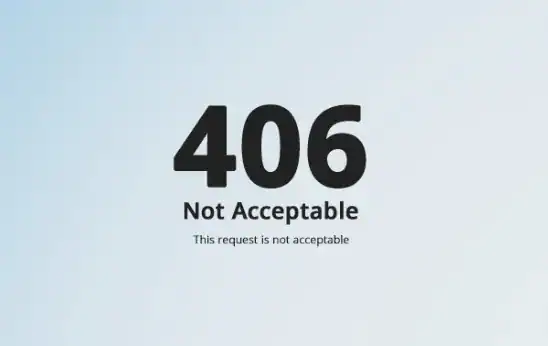
The 406 Not Acceptable status code is defined in the HTTP specification as a content negotiation error.
It occurs when:
- The client sends an Accept header specifying particular content types.
- The server cannot provide a response matching those content types.
- Security rules (such as ModSecurity) block the request.
- MIME types or server configurations are misconfigured.
In WordPress, this error is commonly triggered by:
- Improper .htaccess rules
- Content negotiation misconfigurations
- Corrupt themes or plugins
- Aggressive firewall rules at the hosting level
Understanding the context in which the error appears (admin area, REST API, specific page, etc.) is crucial for accurate diagnosis.
Get Expert Support to Fix WordPress Error Fast
Our WordPress experts quickly diagnose issues to restore your site. Contact us today for fast, reliable troubleshooting and get your site back online with minimal downtime.
How to Diagnose the 406 Not Acceptable Error in WordPress?
Before applying fixes, it is essential to correctly diagnose the 406 Not Acceptable error.

Since this HTTP status code is typically related to content negotiation, security filtering, or misconfigured headers, a structured diagnostic approach helps you pinpoint the exact trigger.
Instead of guessing, follow the methods below to systematically identify the root cause.
Inspect the Browser’s Network Request
Open your browser’s Developer Tools and review the failed request under the Network tab. Pay close attention to the Accept headers, response headers, and status code details. This helps determine whether the issue is caused by restrictive content-type negotiation.
Test in Incognito or Another Browser
Next, test the same URL in an incognito/private window or a different browser. If the error disappears, cached files, cookies, or browser extensions may be interfering with the request.
Verify the Requested URL Structure
Carefully review the URL for spelling errors, incorrect paths, or forced file extensions such as .json or .xml. Testing the homepage can also help isolate whether the issue is URL-specific.
Review WordPress Debug Logs
Enable WP_DEBUG and check the /wp-content/debug.log file. This step reveals plugin, theme, or PHP-related conflicts that may be generating the 406 response.
Analyze Server Access and Error Logs
When diagnosing a 406 Not Acceptable error, server logs provide the most authoritative evidence.
Rather than relying on assumptions, log files reveal exactly how the server processed the request and why it was rejected. Therefore, reviewing both access and error logs should be a priority during troubleshooting.
Open Access Logs for 406 Status Entries: First, examine your web server’s access logs to confirm when and how often the 406 status appears.
- For Apache, check: /var/log/apache2/access.log
- For NGINX, check: /var/log/nginx/access.log
Search specifically for HTTP 406 entries. This helps you identify affected URLs, request methods, IP addresses, and user agents.
Open Error Logs for Matching Timestamps: Next, cross-reference those entries with your error logs. Review Apache error logs, NGINX error logs, and PHP logs. Matching timestamps can reveal whether the issue stems from misconfiguration, script execution failures, or security rule enforcement.
Correlate Log Entries with Plugin or Theme Actions: Finally, align log timestamps with recent site changes. For example, check whether the error began after a plugin update, theme modification, or security rule trigger. This correlation often pinpoints the exact component responsible for generating the 406 response.
Check Security and Firewall Logs
Finally, inspect ModSecurity, web application firewall, or security plugin logs. In many cases, these tools block suspicious requests, thereby triggering the 406 error.
How to Resolve the 406 Not Acceptable Error in WordPress?
Once you’ve identified possible causes, begin troubleshooting methodically.
Fix 1: Troubleshooting on the Client Side
Before modifying server configurations or WordPress settings, it is important to rule out client-side causes.
In many cases, the 406 Not Acceptable error is triggered by browser cache, restrictive headers, or local network interference.
Therefore, start with the following checks to determine whether the issue originates from the user environment rather than the server.
- First, clear your browser cache and cookies. Stored files or outdated session data may send incorrect request headers, which can result in content negotiation failures. After clearing them, reload the page to see if the issue persists.
- Next, open the affected URL in an incognito or private browsing window. This disables most extensions and cached data. If the page loads correctly, the problem may be related to browser extensions or stored credentials.
- Then, open your browser’s Developer Tools and inspect the failed request under the Network tab. Pay attention to the Accept header values. If they are overly restrictive (e.g., requiring only JSON), the server may reject the response.
Finally, switch networks or restart your router. Occasionally, proxies, VPNs, or firewall configurations can modify request headers, inadvertently triggering a 406 error.
Fix 2: Troubleshooting on the Server Side
If client-side checks do not resolve the issue, the next step is to examine your server configuration.
Since the 406 Not Acceptable error is commonly linked to content negotiation or misconfigured response handling, reviewing your web server settings is essential.
By systematically inspecting these areas, you can identify configuration conflicts that block valid requests.
Inspect Web Server Content Negotiation Settings
First, analyze how your server handles content negotiation.
- For Apache, review the mod_negotiation module settings. In particular, check whether the MultiViews directive is enabled in your .htaccess file, as it may force unexpected content matching.
- For NGINX, verify how content types are processed within the types block. Additionally, inspect rewrite rules to ensure they are not interfering with request handling.
Verify Server MIME Types for Requested Resources
Next, confirm that your server supports all required MIME types. For example, ensure proper configuration for application/json, text/html, and application/xml.
If these types are missing or incorrectly mapped, the server may reject the request and return a 406 status.
Review Custom Rewrite or Redirect Rules
Examine custom rewrite and redirect rules. Look for overly strict .htaccess rules, incorrect NGINX rewrite rules, or potential redirect loops. Even minor misconfigurations can disrupt response negotiation and trigger this error.
Adjust ModSecurity Rules on the Server
Review your ModSecurity logs to identify the specific rule ID triggering the block. Once identified, you can either disable that rule selectively or whitelist the affected URL or parameter.
However, avoid disabling ModSecurity entirely. Instead, make precise adjustments to maintain security while allowing legitimate requests.
Remove Problematic Accept Header Constraints from Clients
Inspect client-side or application-level requests for restrictive Accept headers.
For example, if a script requests only application/json but the server responds with text/html, the request may be rejected.
Modifying the header to allow broader content types often resolves this mismatch.
Sanitize Request Inputs That Trigger Security Rules
Finally, review query strings, form inputs, or API payloads. Special characters, unencoded parameters, or suspicious patterns may activate firewall rules. Properly sanitizing and encoding inputs reduces false positives and prevents future 406 errors.
Fix 3: Debugging WordPress Specifically for a 406 Error
If server-level diagnostics do not reveal the cause, the issue may be rooted within WordPress itself.
Since plugins, themes, or custom code can alter headers, rewrite rules, or request handling, a structured debugging process is essential.
By isolating components methodically, you can identify what is triggering the 406 response.
- Enable WP_DEBUG and WP_DEBUG_LOG in wp-config.php: First, activate WordPress debugging by enabling WP_DEBUG and WP_DEBUG_LOG in the wp-config.php file. This step allows WordPress to log PHP notices, warnings, and errors to the /wp-content/debug.log file. Reviewing this log can reveal conflicts, deprecated functions, or output issues contributing to the error.
- Deactivate All Plugins Temporarily: Next, deactivate all plugins at once. Then, test the affected page or endpoint. If the error disappears, it confirms that a plugin is responsible. Security, firewall, or header-modifying plugins are common triggers.
- Switch to a Default WordPress Theme: After that, temporarily switch to a default theme such as Twenty Twenty-Four. This helps determine whether theme functions, custom templates, or embedded scripts are interfering with request handling.
- Reinstall Plugins One by One to Isolate the Culprit: Finally, reactivate plugins individually while testing each time. This controlled approach helps you pinpoint the exact plugin causing the 406 error and apply a targeted fix.
Fix 4: Roll Back Recent Upgrades
If the 406 error appeared shortly after an update, recent changes are likely the trigger.
Since WordPress core, plugins, and themes frequently modify request handling or security logic, rolling back updates can quickly restore stability.
Therefore, reviewing recent upgrades should be part of your diagnostic workflow.
- First, check your WordPress dashboard or hosting logs for recent updates. Determine whether the issue started after a plugin, theme, or core version change.
- Next, downgrade the suspected plugin or theme to a previous stable version. You can do this manually via FTP or by using a rollback tool.
- Lastly, if downgrading does not resolve the issue, restore a full site backup from a point before the error occurred.
Verification Successful and Post-Fix Testing
After implementing the necessary fixes, it is critical to confirm that the 406 Not Acceptable error has been fully resolved.
Rather than assuming the issue is fixed, structured validation ensures long-term stability. Therefore, perform comprehensive post-fix testing to verify that no residual configuration conflicts remain.
Run cURL Requests to Confirm No 406 Responses
First, use curl to test affected URLs directly from the command line. This method bypasses browser-related variables and provides raw HTTP response headers.
Confirm that the server now returns a 200 OK status instead of 406 Not Acceptable. Testing multiple endpoints, including API routes, is recommended.
Test Key Site Pages Across Multiple Browsers
Next, open essential pages, such as the homepage, contact page, login screen, and admin dashboard, across different browsers and devices. This step ensures consistent behavior regardless of whether sessions are cached or browser-specific handling is used.
Verify “Verification Successful” Messages No Longer Appear
Finally, review security dashboards and logs to confirm that no additional blocking or verification warnings are being triggered. Continuous monitoring helps prevent recurrence of the issue.
Additional Tips for Prevention and Monitoring
Once the 406 Not Acceptable error has been resolved, the next priority is prevention.
Because configuration conflicts, security rules, and updates can reintroduce similar issues, proactive monitoring and maintenance are essential.
By implementing structured safeguards, you reduce downtime and improve long-term site stability.
- Schedule Regular Backups Before Updates: First, always create full backups before updating WordPress core, plugins, or themes. This includes both files and the database. In doing so, you ensure that you can quickly restore a stable version if an update triggers unexpected 406 responses.
- Monitor Server Logs for Recurring 406 Errors: Next, routinely review server access and error logs. Look specifically for recurring 406 status codes or blocked requests. Setting up log monitoring alerts can help you detect patterns early, allowing you to address issues before they escalate.
- Document Configuration Changes for Future Rollback: Maintain a record of server adjustments, security rule modifications, and rewrite changes. Proper documentation simplifies troubleshooting and enables faster rollback when necessary.
- Contact Hosting Support When Root Causes Are Unclear: Lastly, if logs indicate server-level restrictions or firewall enforcement beyond your control, contact your hosting provider. They can analyze ModSecurity rules, MIME configurations, or network filters more comprehensively.
Final Thoughts
The 406 Not Acceptable error in WordPress is typically tied to content negotiation mismatches, security restrictions, or server misconfigurations.
However, by following a structured troubleshooting process, starting from client-side checks and progressing to server and WordPress-specific debugging, you can isolate and resolve the issue efficiently.
Most importantly, always verify logs before making changes. With careful diagnostics and preventive monitoring, you can minimize future disruptions and maintain a stable WordPress environment.
FAQs About 406 Error in WordPress
What does a 406 error mean in WordPress?
A 406 error is among server error responses triggered when the server cannot generate an acceptable response based on the acceptable values defined in the request headers.
Is a 406 a client or server problem?
Although often grouped with client error responses, it is commonly considered server error responses because it frequently stems from server side issues.
What usually causes this error?
Common causes include faulty plugins, restrictive security rules, or misconfigured headers like Accept-Language or Accept-Encoding.
How do headers trigger a 406 response?
If an HTTP request included strict acceptable values for content type or format, the server may be unable to return a proper response.
Can updates break a website?
Yes, after the last update, conflicts within the content management system or its moving parts may require restoring a previous version.
How can I confirm the root cause?
To confirm the root cause, double check server side logs to identify blocked HTTP requests and review configuration suggestions from your hosting system.
Can file types cause the error?
Yes, one example is when a CSS file is requested in an unsupported format, leading to negotiation failure.


