

WooCommerce product image size is one of the most overlooked settings in any online store. Most store owners upload whatever size comes off their camera, set WooCommerce to the default, and move on.
Then they wonder why product images look blurry on some pages, why their Core Web Vitals score is failing, or why mobile shoppers bounce before the product even loads.
At Seahawk Media, we work on WooCommerce stores across every industry. The same pattern shows up constantly. The image size issue is either ignored entirely or handled inconsistently across a product catalog.
Both cost sales. If you want to see what well-built, high-performing ecommerce websites powered by WordPress and WooCommerce look like in practice, our portfolio shows real examples across multiple industries.
This guide covers the exact dimensions that work in 2026, how WooCommerce actually handles image sizes, what to upload, how to format images, and the tools that automatically optimize images so you can focus on selling.
TL;DR: WooCommerce Product Image Size
- The best WooCommerce product image size for most stores is 800 x 800 pixels for single product pages and 600 x 600 pixels for catalog grids.
- Upload source images at 1200 x 1200 pixels minimum so WooCommerce can generate all sizes without loss of quality.
- WooCommerce automatically creates three image sizes: single product image, catalog thumbnail, and gallery thumbnail.
- Use WebP format in 2026. It is 25-35% smaller than JPEG at the same visual quality and has 97% browser support.
- Always use ShortPixel to compress images and regenerate thumbnails after changing size settings.
- Wrong image sizes cause blurry images, slow load times, failed Core Web Vitals, and lost sales.
How WooCommerce Handles Image Sizes?
Before choosing any dimensions, it helps to understand how WooCommerce actually uses your uploaded image. WooCommerce registers three image sizes and generates them automatically from your source file when you upload.
Here is what each one is for and what it defaults to:
| Image Size | Default Dimensions | Where It Is Used |
|---|---|---|
| Single product image (woocommerce_single) | 600px width, uncropped | Main image on individual product pages |
| Catalog thumbnail (woocommerce_thumbnail) | 300px width, square cropped | Shop page grid, category pages, search results |
| Gallery thumbnail (woocommerce_gallery_thumbnail) | 100 x 100px, square cropped | Small images below the main product image for gallery navigation |
The critical thing to understand here is that these defaults are conservative. A 300px catalog thumbnail looks acceptable on a desktop grid, but looks noticeably soft on modern retina displays. A 600px single-product image leaves no room for high-quality zoom functionality. Most stores need to adjust these settings from day one.
Is Your WooCommerce Store Losing Sales to Slow Images?
We audit and optimize WooCommerce stores for image performance, Core Web Vitals, and conversion rate improvement.
The Recommended WooCommerce Product Image Sizes for 2026
In a nutshell: Upload source images at 1200 x 1200 pixels or larger. Set your single product image to 800px width and your catalog thumbnail to 600px width.
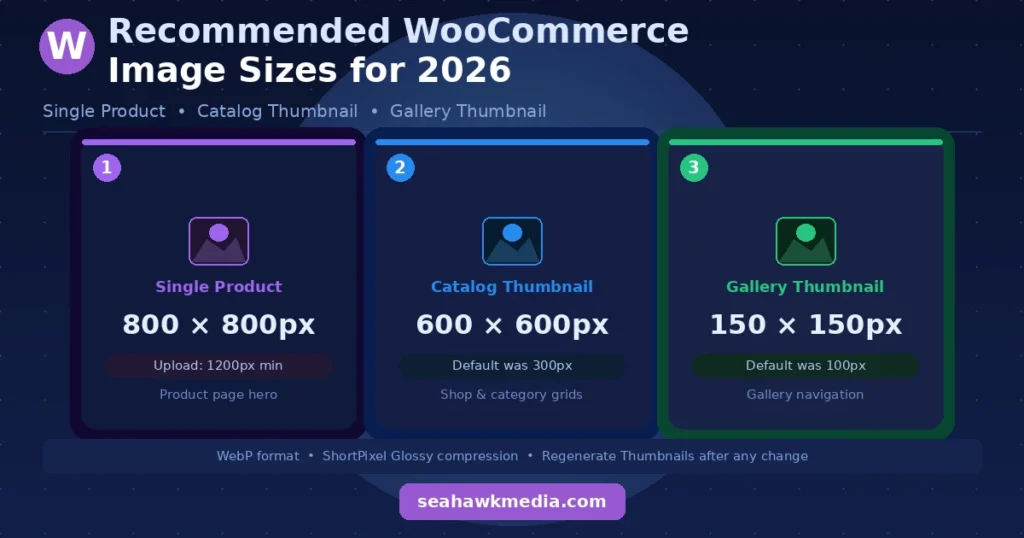
Here is the recommended size setup that balances visual quality, page speed, and conversion performance for most stores:
| Image Type | Recommended Size | Notes |
|---|---|---|
| Source upload (original) | 1200 x 1200px minimum | Gives WooCommerce enough resolution to generate all sizes without quality loss |
| Single product page image | 800 x 800px | Sharp, zoom-ready, works across all modern themes |
| Catalog thumbnail | 600 x 600px | Clean grids on desktop and mobile, retina-safe |
| Gallery thumbnail | 150 x 150px | Visible and clear for gallery navigation |
The square aspect ratio works best for most stores because WooCommerce grids are built around consistent product cards. A consistent 1:1 ratio across your catalog creates a professional, coherent layout that builds customer trust.
If your theme uses a non-square ratio (e.g., portrait or landscape layouts), match the dimensions to your theme’s specifications and keep that ratio consistent across all products.
WooCommerce Image Sizes by Product Type
The recommended sizes above work well for general stores. However, image requirements vary significantly depending on what you are selling. Here is a practical breakdown by product category.
- Clothing and apparel: Images between 800 and 1000 pixels wide provide enough detail to show fabric texture, stitching, and fit without creating unnecessarily large files. Keep a consistent aspect ratio across all garment images to keep your grid uniform.
- Jewelry: Detailed close-ups are essential. The craftsmanship of gemstones, engravings, and fine metalwork requires higher resolution. Use images between 1000 and 1500 pixels wide, and ensure your theme supports zoom so customers can inspect the details.
- Electronics: Technical details matter for products like laptops, smartphones, and cameras. Customers need to read labels, see ports, and inspect components. Use images up to 1200-1400 pixels wide to maintain clarity across all display types.
- Furniture and home decor: These products rely on lifestyle images that show scale, texture, and placement in a room. Images between 1200 and 1600 pixels work well. Portrait and landscape ratios are common in this category, so match your theme’s layout rather than forcing a square crop.
- Digital products and software: Smaller images are fine here. Clean screenshots and mockups at 800 x 800 pixels are more than sufficient.
How to Change WooCommerce Image Sizes?
Changing image sizes in WooCommerce takes less than five minutes. The important thing is knowing what to change and what to do after you change it.
Step 1: Go to Appearance ⟶ Customize in your WordPress dashboard.
Step 2: Navigate to WooCommerce and then Product Images.
Step 3: Adjust the thumbnail cropping and dimensions. You will see a preview on the right that updates as you make changes. Click Publish to save your changes.
Changing these settings in the Customizer updates the dimensions WooCommerce uses going forward. However, all your existing product images will continue to be displayed at their original dimensions until you regenerate thumbnails. Skipping this step is one of the most common mistakes store owners make after updating image settings.
Step 4: Install the Regenerate Thumbnails plugin and run it on your full media library. This reprocesses every existing image to the new dimensions. For large catalogs, this runs in the background and can take a few hours, but requires no further input from you.
What Image Format to Use in 2026?
In a nutshell: Use WebP as your primary image format. It delivers the same visual quality as JPEG at 25-35% smaller file sizes and has 97% global browser support as of 2026.
The image format conversation has shifted decisively in the past two years. Here is where each format stands today.
- WebP is the right choice for most WooCommerce product images in 2026. Every major browser supports it. It handles photographs, product cutouts, and transparent images.
WebP at quality 80 to 85 produces files that are visually indistinguishable from JPEG at quality 90 to 95, but at significantly smaller file sizes. If you are not already serving WebP on your store, this is the single most impactful image change you can make this year.
- JPEG remains acceptable for product photography if WebP conversion is not yet set up, but it is no longer the optimal choice. JPEG does not support transparency and is consistently larger than WebP at equivalent quality.
- PNG should be used only when transparency is genuinely needed, such as product images on coloured backgrounds or images with text overlays. PNG files are considerably larger than WebP and JPEG for photographs. Do not use PNG for standard product photos.
- AVIF is the next-generation format after WebP and produces even smaller files. Browser support is growing, but is not yet universal enough for primary use across a general WooCommerce store. It is worth monitoring, but it is not yet the default recommendation for most stores.
The easiest way to convert your entire WooCommerce media library to WebP without manually re-exporting every image is to use ShortPixel.
It compresses images on their servers (leaving your hosting resources unaffected), converts automatically to WebP and AVIF, and serves the right format to each browser. The Glossy compression mode is the right setting for product photography: it reduces file size by 40-60% with no visible quality loss.
Why Image Size Affects Your Google Rankings?
Product image size is not just a visual issue. It directly affects your store’s performance in Google Search in two specific ways that most store owners do not fully appreciate.
Core Web Vitals and Largest Contentful Paint
Google measures page load experience using these metrics. The Largest Contentful Paint metric, which measures how quickly the main visible content loads, is almost always the main product image on a WooCommerce product page.
An unoptimized 3MB hero image reliably causes an LCP failure and directly reduces your search rankings. Getting your product images right is one of the most concrete steps you can take to improve your WooCommerce site speed and SEO performance.
Image Search and Structured Data
In 2026, visual search tools, including Google Lens and AI-powered search, are increasingly important for e-commerce discovery. Product images wrapped in proper Product and ImageObject schema markup are significantly more likely to appear in rich image results.
Most SEO plugins, including AIOSEO and Rank Math, handle this automatically, but they need to point to your highest-resolution image variant (800px or larger) rather than a thumbnail. Verify this in your schema settings after changing image dimensions.
Mobile Performance
53% of mobile users abandon pages that take more than three seconds to load. The product image is almost always the heaviest asset on a mobile product page. Optimized image sizes, the WebP format, and lazy loading are the combination that keeps mobile performance strong.
For a complete look at how image performance fits into the broader picture of e-commerce site optimization, our full guide covers every layer from images to checkout.
Common WooCommerce Image Problems and How to Fix Them
Here are some of the common issues, and here’s how to fix them:
- Blurry product images: Almost always caused by uploading images smaller than your configured WooCommerce dimensions. If you set single-product images to 800px but upload 400px source files, WooCommerce stretches the image, and quality degrades. Always upload source images at a minimum of 1200px. After correcting source images, run the Regenerate Thumbnails plugin.
- Inconsistent product grid layout: Caused by uploading images with different aspect ratios across your catalog. A mix of portrait, landscape, and square images creates an uneven product grid that looks unprofessional and erodes trust. Standardize all product images to the same aspect ratio before uploading, and set WooCommerce to use hard crop to enforce consistency.
- Images look fine on desktop but soft on mobile: This is usually a retina display issue. Modern phones use high-density displays that require images at 2x the CSS pixel dimensions to appear sharp. Set your catalog thumbnail to 600px rather than 300px to ensure retina sharpness on mobile devices.
- Slow page load times from product images: Large, uncompressed files are the most common cause of slow WooCommerce stores. Install ShortPixel, run a bulk optimization on your media library, and enable WebP delivery. For stores with large catalogs, this single change typically delivers the biggest performance improvement of any optimization task.
- Images not updating after changing size settings: You changed the dimensions in the Customizer, but the images are still displaying at their old sizes. This means thumbnails have not been regenerated. Run the Regenerate Thumbnails plugin to reprocess all existing images to the new dimensions.
The Right Tool Stack for WooCommerce Image Optimization
You do not need to manage image sizes and compression manually. The right WordPress image optimization plugin combination handles everything automatically from the moment you upload.
- ShortPixel handles image compression and WebP conversion. Use Glossy mode for product photography. It compresses images server-side, supports bulk optimization of existing libraries, and automatically serves WebP to supported browsers. For WooCommerce stores, ShortPixel offers the best balance of quality, cost, and automation.
- Regenerate Thumbnails is a free plugin you will need whenever you change image dimensions in WooCommerce. Install it, run it after any size change, and it handles the rest in the background. It is a one-task plugin that does its job well.
- MonsterInsights connects your store to Google Analytics 4 and gives you clear visibility into which product pages have the highest bounce rates, which can indicate image performance issues on specific pages.
Conclusion
Getting WooCommerce product image sizes right is not complicated, but it does require intentional decisions rather than relying on defaults.
- Upload source images at 1200 x 1200 pixels or larger.
- Set your single product image to 800px and your catalog thumbnail to 600px. Use WebP format.
- Compress with ShortPixel at Glossy mode. Regenerate thumbnails after any size change. Match your aspect ratio consistently across your entire catalog.
These steps simultaneously improve visual quality, Core Web Vitals scores, mobile performance, and search visibility. For an e-commerce store where product images are the primary tool for convincing a customer to buy, this is not optional maintenance. It is the foundation of a store that converts.
Overall Verdict: The default WooCommerce image settings work as a starting point but are not optimized for modern retina displays, WebP delivery, or Core Web Vitals. Adjusting dimensions, switching to WebP, and compressing with ShortPixel is the minimum setup every serious WooCommerce store should have in 2026.
Frequently Asked Questions
What is the best WooCommerce product image size?
The best WooCommerce product image size for most stores is 800 x 800 pixels for single product pages and 600 x 600 pixels for catalog thumbnails. Upload source images at 1200 x 1200 pixels minimum so WooCommerce can generate all required sizes without quality loss.
What image format should I use for WooCommerce products in 2026?
WebP is the recommended format for WooCommerce product images in 2026. It is 25-35% smaller than JPEG at equivalent quality and has 97% global browser support. Use ShortPixel to automatically convert your existing image library to WebP without re-uploading every file.
Why are my WooCommerce product images blurry?
Blurry WooCommerce product images are almost always caused by uploading source images smaller than your configured output dimensions. If your single product image is set to 800px but your source file is 400px, WooCommerce stretches the image, resulting in degraded quality. Upload larger source files (1200px minimum) and run the Regenerate Thumbnails plugin.
How do I change the WooCommerce product image size?
Go to Appearance, then Customize, then WooCommerce, then Product Images. Adjust the thumbnail cropping and dimensions and click Publish. After saving, run the Regenerate Thumbnails plugin to reprocess all existing images to the new dimensions. Changes only apply to new uploads; otherwise.
Do WooCommerce image sizes affect SEO?
Yes, significantly. Large, unoptimized images cause Largest Contentful Paint failures, which is a direct Google ranking factor. Optimized images improve Core Web Vitals, reduce mobile bounce rates, and make your product images eligible for Google rich image results when paired with proper Product schema markup.
What is the WooCommerce thumbnail size?
WooCommerce sets the catalog thumbnail to 300px width by default. This is too small for modern retina displays. The recommended catalog thumbnail size for most stores is 600 x 600 pixels, which delivers sharp images on both standard and high-density screens.
How do I regenerate thumbnails in WooCommerce?
Install the free Regenerate Thumbnails plugin from the WordPress plugin directory. After changing your image dimensions in the WooCommerce Customizer, go to Tools ⟶ Regenerate Thumbnails, then run the process on your entire media library. It runs in the background and automatically processes all existing images to the new dimensions.
Should I use JPEG or WebP for WooCommerce images?
Use WebP. It delivers the same visual quality as JPEG at 25-35% smaller file sizes, supports transparency (replacing PNG for product cutouts), and is fully supported across all major browsers as of 2026. ShortPixel automatically converts your existing JPEG library to WebP, without requiring manual re-export of every image.


