
The way AI agents interact with websites is changing fast. At the center of this shift is the Model Context Protocol (MCP), an open standard that enables AI models to communicate with external tools, databases, and platforms in a structured, secure manner. For WordPress site owners and developers, MCP integration opens a powerful new frontier: giving AI agents direct, controlled access to your website’s content, settings, and data.
This guide walks you through everything you need to know about WordPress MCP integration. You’ll learn what MCP is, why it matters, how to set it up step by step, and how to keep your site secure throughout the process.
MCP integration with WordPress connects AI applications with WordPress data and tools through a standardized communication method. It allows compatible AI clients to interact with WordPress content, workflows, and website functions through an MCP server, which can be configured using plugins, APIs, or custom development methods.
What is MCP, and How Does MCP Work With WordPress?
Learn how Model Context Protocol works and how it enables AI tools to communicate with WordPress websites through structured connections.
Understanding Model Context Protocol (MCP) for AI Integrations
The Model Context Protocol (MCP) is an open protocol developed by Anthropic in late 2024. It provides a standardized interface for AI models to connect with external tools, services, and data sources. Think of it as a universal connector between AI agents and the systems they need to interact with.

Before MCP, developers had to build custom integrations every time they wanted an AI model to interact with a different tool or API.
This was time-consuming, inconsistent, and fragile. MCP solves this by creating a common language. An MCP server exposes tools and resources that any compatible AI client can access, without requiring custom integration work every time.
MCP works on a client-server architecture. The MCP server runs on your application side and exposes specific capabilities, such as reading posts, creating users, and querying the database.
The MCP client is the AI agent or application that connects to the server and calls those capabilities. Communication happens over standard protocols like JSON-RPC or HTTP with Server-Sent Events (SSE).
For those already familiar with WordPress REST API development, MCP will feel like a natural evolution. Where REST APIs expose raw data endpoints, MCP exposes structured tools with defined inputs and outputs, making them far easier for AI models to use reliably.
How WordPress MCP Integration Connects AI Agents With Website Data
WordPress stores everything your site needs in a MySQL database and exposes much of it through its REST API. When you add an MCP layer to WordPress, you give AI agents a controlled, structured way to access that data and perform actions on your site.
A WordPress MCP server can expose tools such as:
- Reading or creating posts, pages, and custom post types
- Querying user accounts and modifying roles
- Accessing site settings and plugin configurations
- Searching content by category, tag, or custom field
- Triggering predefined workflows or automation routines
This means an AI assistant can answer questions like “What are my five most recent published posts?” or execute commands like “Draft a new post in the Travel category,” all through the MCP layer, without direct database access.
The integration also respects WordPress’s existing permission system. Each MCP tool call runs under the credentials of an authenticated WordPress user. This keeps your site’s security model intact while enabling powerful automation.
Why is MCP Important for the Future of WordPress and AI Automation?
WordPress powers over 43% of all websites on the internet. As AI for WordPress maintenance and security becomes more sophisticated, the demand for structured AI-site communication is growing rapidly.
Traditional chatbots and AI plugins relied on basic API calls or scraping. MCP changes the equation. It lets AI agents reason about your site context, take multi-step actions, and maintain state across a workflow, all in a way that’s auditable and reversible.
For developers building WordPress AI plugins or automations, MCP provides a consistent interface that reduces integration time and increases reliability. For site owners, it means smarter AI tools that can actually manage content, respond to visitors, and execute tasks without constant human oversight.
MCP also aligns with where the broader web is heading. As agentic AI systems become more capable, websites that support structured AI communication will have a significant advantage. WordPress MCP integration is not just a technical upgrade; it’s a strategic one.
Integrate AI Powered Solutions With Your Website
Get expert WordPress development support to build secure MCP integrations, automate workflows, and enhance your website capabilities.
Why Integrate MCP With WordPress?
Explore the benefits of connecting MCP with WordPress to improve AI automation, content workflows, and website management.
Automate WordPress Content Management With AI Agents
Content management is one of the most time-intensive parts of running a WordPress site. Publishing schedules, category assignments, metadata updates, and bulk edits add up quickly. With MCP integration, AI agents can handle these operations automatically.

For example, you can instruct an AI agent to review all unpublished drafts, check them against your editorial guidelines, and schedule them for publication at optimal times.
Or you can set up a workflow that automatically tags new content based on its topic analysis. Teams that rely on the best AI content writing tools can extend those tools to act directly within WordPress via MCP, removing the manual copy-paste step entirely.
MCP also enables bulk operations that would be tedious to do manually, such as updating SEO metadata across hundreds of posts or reassigning author credits after a staff change.
Improve AI Access to WordPress Data and Website Context
For an AI agent to be genuinely useful on your WordPress site, it needs to understand your site’s context. That means knowing what content exists, how it’s structured, what categories and tags are in use, who the authors are, and what the site’s goals are.
MCP enables rich contextual access. Instead of an AI model guessing at your site structure from a static file or a brief prompt, it can query your actual WordPress data in real time.
It can retrieve your most recent posts, check whether a particular category exists, or confirm the current status of a scheduled post, all through structured MCP tool calls.
This contextual awareness powers much smarter AI behavior. An agent writing a new post can automatically check what you’ve already published on the same topic. An agent handling customer queries can pull in relevant WordPress website AI support data to give accurate, specific answers.
Connect WordPress With AI Tools Using MCP Integration
The AI tooling landscape is expanding rapidly. Models like Claude, GPT-4o, and Gemini all support tool use and can connect to MCP servers. This means your WordPress site becomes a first-class participant in AI workflows, not just a static data source.
You can connect your WordPress site to AI tools for content generation, customer support, SEO analysis, and more, all through a single MCP server. The AI tool doesn’t need to know the specifics of the WordPress REST API. It just calls the MCP tools your server exposes.
This approach also works well in headless WordPress development tools, APIs, and frameworks setups, where the frontend is decoupled from WordPress. The MCP server sits alongside the REST API layer, giving AI agents a structured way to interact with the same content that powers your decoupled frontend.
Build AI-Powered WordPress Workflows
Beyond one-off tasks, MCP enables persistent, multi-step AI workflows. These are sequences of actions that an AI agent executes over time, adapting based on outcomes.
A practical example: an AI agent that monitors your site for underperforming content, identifies posts that need updating, writes improved versions, and submits them as new drafts for human review.
This entire workflow runs through the MCP tool calls, reads post analytics, retrieves existing content, creates new draft posts, and sends a notification.
Teams that invest in WordPress development workflow optimization will find MCP particularly valuable. It brings the same automation philosophy that CI/CD pipelines apply to code deployments to content and site management.
How to Integrate MCP With WordPress: Step by Step
There are four primary methods to integrate MCP with WordPress. The right choice depends on your technical setup, the WordPress version you’re running, and the level of customization you need.
Method 1: Enable Built-In MCP Support for WordPress
As of mid-2025, WordPress core has begun exploring native MCP support through ongoing discussions in the Gutenberg and core development teams. Some managed WordPress hosting environments and advanced page builders now offer built-in MCP server support as a premium feature.
To check if your current setup supports native MCP:
- Log in to your WordPress dashboard.
- Navigate to Settings → General or check your hosting control panel.
- Look for an “AI Integrations” or “MCP Server” section.
- If present, enable the MCP server and follow the on-screen configuration wizard.
- Copy the MCP server endpoint URL; you’ll need this to configure your AI client.
This is the simplest option when available. It requires no plugin installation or custom code, and the server is managed by your hosting provider or WordPress core update cycle.
For sites running on platforms like AWS, you may want to review how your environment handles WordPress on AWS EC2 Ubuntu configurations before enabling server-level MCP features.
Method 2: Install and Configure a WordPress MCP Plugin
For most WordPress users, the easiest way to add MCP support is through a dedicated plugin. Several MCP plugins are available in the WordPress plugin repository as of 2025. The most widely used is WP MCP Server, though the ecosystem is growing.
Here’s how to install and configure a WordPress MCP plugin:
- Log in to your WordPress admin dashboard.
- Go to Plugins → Add New.
- Search for “MCP Server” or “Model Context Protocol.”
- Install and activate the plugin.
- Navigate to Settings → MCP Server in your dashboard.
- Configure the available tools and choose which WordPress capabilities to expose (posts, pages, users, taxonomies, settings).
- Set the authentication method (Application Password is recommended).
- Copy the generated MCP endpoint URL.
- Test the connection using an MCP client like Claude Desktop or a compatible developer tool.
Most MCP plugins allow you to enable or disable individual tools. This granular control is important for security; you should only expose the tools your AI workflows actually need.
After setup, it’s worth reviewing how WordPress user roles affect site access to ensure the account your MCP server uses has only the capabilities required for your intended workflows.
Method 3: Connect MCP With WordPress REST API
The WordPress REST API is already a robust data access layer. You can build an MCP server that sits on top of it, translating REST API calls into MCP-compatible tool definitions.
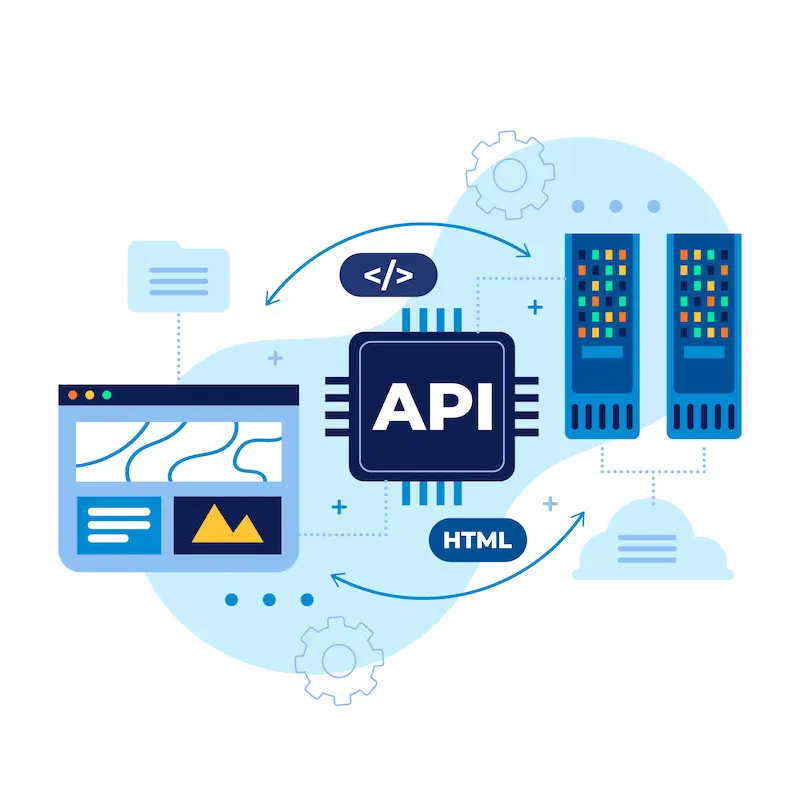
This approach is ideal if you want to use an existing MCP framework (like Anthropic’s official MCP SDK) without modifying WordPress core or installing a plugin.
The basic architecture works like this:
- Your MCP server (a Node.js or Python application) runs alongside your WordPress installation.
- The MCP server defines tools that map to WordPress REST API endpoints, for example, a
get_poststool that calls/wp-json/wp/v2/posts.
- Authentication is handled via WordPress Application Passwords or JWT tokens.
- Your AI client connects to the MCP server endpoint.
This method gives you the most flexibility. You can expose exactly the endpoints you need, add custom business logic, and connect multiple data sources through a single MCP interface.
For detailed guidance on setting up REST API authentication, the complete WordPress REST API guide covers cookie authentication, Application Passwords, OAuth, and JWT, all of which can serve as the auth layer for your MCP server.
If you’re building a more advanced setup involving a WordPress with Next.js headless configuration, your MCP server can share the same authentication layer as your Next.js frontend, simplifying credential management.
Method 4: Create a Custom WordPress MCP Server
For developers with specific requirements, building a custom MCP server from scratch gives maximum control. This is the recommended approach for enterprise deployments or when you need to expose custom post types, proprietary workflows, or third-party integrations alongside standard WordPress data.
Here’s a high-level overview of the process:
- Choose your MCP SDK. Anthropic’s official MCP SDK is available for TypeScript/Node.js and Python. Install it via npm (
npm install @anthropic-ai/mcp) or pip.
- Define your tools. Each tool has a name, description, and JSON Schema input definition. For example, a
create_posttool would accepttitle,content,status, andcategory_idas inputs.
- Implement tool handlers. Each handler makes authenticated WordPress REST API calls using the credentials you configure. Return structured JSON responses.
- Add authentication middleware. Validate incoming MCP requests against a secret key or Bearer token before processing any tool calls.
- Set up transport. Use HTTP with SSE for web deployments, or stdio for local development.
- Deploy and test. Deploy your server alongside your WordPress installation (or as a separate microservice) and test with an MCP client.
Custom MCP servers work particularly well in enterprise headless WordPress development environments where content architecture is complex and standard plugins may not cover all requirements.
How to Connect an MCP Client With WordPress?
Once your WordPress MCP server is running, you need to connect an MCP client to it. The client is the AI agent or application that will use your server’s tools.
The most common MCP clients as of 2026 include:
- Claude Desktop: Anthropic’s desktop app, which supports MCP server connections natively
- Cursor: An AI-powered code editor with MCP support
- Continue: A VS Code extension for AI-assisted development
- Custom AI agents: Applications you build using Claude’s API or other LLM APIs with tool-use support
To connect Claude Desktop to your WordPress MCP server:
- Open Claude Desktop and go to Settings → Developer → MCP Servers.
- Click Add Server.
- Enter your MCP server’s endpoint URL (e.g.,
https://yoursite.com/mcp/sse). - Add any required headers, such as your API key or Bearer token.
- Save the configuration.
- Claude will automatically discover the tools your server exposes.
- Test by asking Claude to list your recent posts or create a draft.
For API-based integrations, you pass your MCP server URL and credentials when initializing the AI client. The client then discovers available tools through the MCP handshake protocol and can call them during conversations or automated workflows.
If you’re building a custom AI-powered application, the WordPress GraphQL development approach can complement MCP by providing a flexible query layer for complex content structures, while MCP handles the action-execution side of AI workflows.
Best Practices for Secure MCP Integration With WordPress
Security is the most critical consideration when giving AI agents access to your WordPress site. The following practices ensure your integration is both functional and safe.
Configure Authentication and WordPress User Permissions
Every MCP server call must run under authenticated WordPress credentials. The recommended authentication method for WordPress MCP integration is Application Passwords, introduced in WordPress 5.6.
Create a dedicated WordPress user account specifically for MCP access. This account should have only the capabilities required for your AI workflows, not full admin access. For a content automation workflow, an Editor-level account is sufficient. For read-only AI queries, a Contributor role may be adequate.
When configuring permissions, modifying WordPress user roles and permissions carefully reduces the blast radius of any security incident. If an MCP server is compromised, a limited-permission account prevents attackers from escalating to full site control.
Never use the main admin account as your MCP service account. Create a named service account (e.g., mcp-service-agent) with a strong, randomly generated Application Password. Rotate this password periodically.
Enable Only Required MCP Tools and Website Access
Most MCP plugins and custom servers allow you to enable or disable individual tools. Follow the principle of least privilege: only expose the tools your AI workflows actually need.
For a content creation workflow, you might enable get_posts, create_post, update_post, and get_categories, but disable delete_post, manage_users, and update_settings. This limits what an AI agent can do, even if it receives unexpected or malicious instructions.
Avoid exposing tools that provide access to sensitive data, such as user email addresses, order details, or private page content, unless your workflow explicitly requires it. Keeping the tool scope narrow also makes your MCP server easier to audit and debug.
This same principle applies to integrating payment gateways in WordPress setups; never expose financial or transactional tools through MCP unless your security architecture has been fully reviewed.
Monitor AI Actions and Maintain WordPress Security
AI agents can execute actions quickly and at scale. Without monitoring, a misconfigured workflow or malicious prompt injection could make hundreds of unwanted changes to your site before you notice.
Implement action logging at the MCP server level. Record every tool call: the tool name, inputs, outputs, timestamp, and the AI client that triggered it. Review these logs regularly and set up alerts for unusual patterns, such as bulk deletions, rapid post creation, or permission changes.
Combine MCP monitoring with your existing WordPress security plugins stack. Security plugins like Wordfence can alert you to unusual REST API activity that might indicate an MCP server is being abused.
Also, keep your MCP server software up to date. New vulnerabilities in MCP libraries or in your WordPress installation can expose your site to AI-powered cyberattacks targeting automation endpoints.
Finally, back up your WordPress database before enabling MCP integration, and set up automated daily backups. A complete WordPress database migration or rollback capability is your safety net if an AI workflow causes unintended data changes.
Common Issues When Integrating MCP With WordPress
Understand common MCP setup challenges and solutions for connection, authentication, and compatibility issues.
Fix MCP Server Connection Errors in WordPress
Connection errors are the most common issue when setting up WordPress MCP integration. If your AI client cannot reach your MCP server, check the following:
- CORS configuration. If your MCP server runs on a domain different from your WordPress site, you need to configure CORS headers. Add the AI client’s origin to your allowed CORS origins in your server configuration or
.htaccessfile.
- Firewall rules. Some hosting environments block outbound connections or restrict access to custom ports. Verify that your MCP server port (typically 3000 or 8080) is accessible from the internet.
- SSL/TLS mismatch. MCP clients expect HTTPS connections in production. Ensure your server has a valid SSL certificate. If you’re running WordPress by IP address during local development, use HTTP and switch to HTTPS before deploying to production.
- Endpoint URL errors. Double-check the MCP server endpoint URL in your client configuration. A trailing slash, wrong path, or typo will cause connection failures.
Resolve AI Client Detection and Permission Issues
Sometimes the MCP server connects successfully, but the AI client either doesn’t detect the available tools or receives permission errors when attempting to use them.
If tools are not detected, verify that your server’s tool discovery endpoint is working. In most MCP implementations, the client sends a tools/list request to discover available tools. Check your server logs to see if this request is being received by your server.
If tool calls return permission errors, the issue is typically with the WordPress user credentials attached to your MCP server. Verify that the Application Password is correct and hasn’t expired. Also, confirm that the WordPress user account has the required capabilities for the tools being called.
Check the WordPress REST API directly using a tool like Postman or curl. If the REST API returns a 401 or 403 error for the same credentials, the problem is with WordPress authentication, not the MCP layer.
If your site has been recently targeted, repairing a hacked WordPress site covers API lockout scenarios that share the same diagnostic path.
Troubleshoot WordPress MCP Authentication Problems
Authentication issues are a leading cause of failed MCP integrations. Here are the most common authentication problems and their fixes:
- Application Password not working. Application Passwords require WordPress 5.6 or later. They must be generated from within the WordPress user profile screen (Users → Your Profile → Application Passwords). Copy the password immediately; WordPress shows it only once. If it’s not working, delete it and generate a new one.
- JWT token expiry. If you’re using JWT authentication, tokens expire after a set period. Your MCP server should implement automatic token refresh. If it doesn’t, expired tokens will cause intermittent authentication failures that are difficult to diagnose.
- Cookie authentication is failing. Cookie auth is intended for browser-based requests within the WordPress admin. It will fail for server-side MCP requests. Switch to Application Passwords or JWT for server-to-server authentication.
- Nonce validation errors. If your MCP server is making REST API requests that require nonces (particularly for write operations), ensure your server correctly generates and passes the
X-WP-Nonceheader. This is a common issue when adapting browser-based code for server-side MCP use.
If you’ve verified credentials and still face issues, checking whether invisible WordPress admin users or conflicting user accounts exist can sometimes surface unexpected permission conflicts.
MCP With WordPress vs Traditional API Integrations
Understanding where MCP fits relative to traditional API integrations helps you choose the right approach for your needs.
Traditional REST API integrations are request-response-based. Your application sends a specific HTTP request to a specific endpoint and receives a structured JSON response. They require your application to know the exact endpoint structure, parameter names, and response format in advance. They’re reliable, well-understood, and appropriate for programmatic data access in predictable workflows.
MCP integrations are tool-based and AI-native. Instead of specifying exact endpoints, you define tools with natural language descriptions and input schemas. The AI model decides which tools to call and in what order based on the task at hand. This makes MCP far more flexible for agentic workflows where the exact sequence of operations isn’t known in advance.
The key differences:
| Feature | REST API | MCP |
|---|---|---|
| Communication style | Request-response | Tool-based, multi-turn |
| Discovery | Manual documentation | Automatic via tool definitions |
| AI-friendliness | Low, requires prompt engineering | High, tools are AI-native |
| Flexibility | Fixed endpoints | Dynamic, context-aware |
| Security model | Token/OAuth-based | Same, plus tool-level scoping |
| Error handling | HTTP status codes | Structured tool error responses |
MCP does not replace the REST API. In fact, most WordPress MCP servers use the REST API internally. MCP is better understood as a structured interface layer on top of existing APIs, making them accessible and usable by AI agents without requiring custom integration code.
For teams already using WordPress GraphQL for headless CMS projects, MCP can coexist with your GraphQL layer. GraphQL handles flexible data queries from your frontend, while MCP handles AI agent interactions — both optimized for their respective use cases.
Traditional API integrations remain the right choice when you need predictable, high-performance data access from non-AI systems. MCP shines when the client is an AI agent that needs to reason about your WordPress site and take actions based on that reasoning.
Conclusion: The Future of MCP Integration With WordPress
MCP integration with WordPress represents a meaningful shift in how AI agents interact with websites. By giving AI models structured, secure access to your site’s content and capabilities, MCP transforms WordPress from a passive content repository into an active participant in AI-driven workflows.
The benefits are concrete: faster content management, smarter AI tools with real site context, and automated workflows that go far beyond what traditional plugins can offer. Whether you use a plugin, a REST API bridge, or a custom server, the path to WordPress MCP integration is more accessible than ever.
The key steps to success are straightforward: choose the integration method that fits your technical setup, configure authentication carefully using dedicated service accounts, expose only the tools your workflows need, and monitor AI actions with the same rigor you apply to any other privileged system access.
As the headless WordPress and AI ecosystems continue to converge, MCP will likely become a standard feature of mature WordPress installations. Sites that adopt it early will have a head start on building the AI-native workflows that will define the next generation of web management.
The integration work you do today, setting up your MCP server, securing your tools, and testing your AI workflows, lays the foundation for a site that can work intelligently alongside the AI agents your team relies on. That’s not just a technical upgrade. It’s how modern WordPress sites stay competitive in an AI-first world.
FAQs About Integrating MCP With WordPress
What is MCP in WordPress?
MCP, or Model Context Protocol, enables AI applications to securely connect to WordPress websites and interact with their data, content, and tools via a standardized communication protocol.
How can I integrate MCP with WordPress?
You can integrate MCP with WordPress by using built-in MCP support, installing an MCP plugin, connecting through the WordPress REST API, or creating a custom MCP server for advanced workflows.
Can ChatGPT or other AI tools connect with WordPress using MCP?
Yes, AI tools that support MCP can connect with WordPress through an MCP server. This allows AI assistants to access WordPress content, automate tasks, and perform approved actions.
Is MCP integration secure for WordPress websites?
MCP integration can be secure when you use proper authentication, limit user permissions, enable only required tools, and regularly monitor AI actions on your website.
What can AI agents do with WordPress MCP integration?
AI agents can help create and edit content, manage WordPress data, automate SEO tasks, analyze website information, and streamline repetitive website management workflows.


