
A WordPress database migration sounds straightforward: export the database, import it somewhere else, done. In practice, it is the step where more WordPress sites break than any other.
The reasons are specific. WordPress stores serialized PHP objects in its database. A simple find-and-replace on a URL silently breaks that serialized data, leaving your site looking broken in ways that are difficult to trace. Plugin updates trigger database schema migrations that cannot be rolled back with a file restore. The wrong database prefix, a missing table, or an out-of-sync wp-config.php file can each produce a different error that points in a different direction.
This guide covers every scenario where you need to run a WordPress database migration, how to do each one without data loss, and how to fix the errors that commonly appear when something goes wrong.
A WordPress database migration is the process of transferring, copying, or modifying a WordPress database. It commonly occurs when moving a site to a new host, changing domains, or deploying changes between staging and production environments.
Database migrations can also occur automatically during major plugin updates when plugins modify database tables, columns, or stored data to support new features and functionality.
Understanding both types of migrations is essential for preventing data loss, compatibility issues, and unexpected downtime during WordPress updates or site moves.
Types of WordPress Database Migrations
Not all database migrations are the same. The method, the risk, and the preparation differ by migration type.
Moving the Database to a New Host or Domain
This is the most common scenario. You are changing hosting providers, moving from HTTP to HTTPS, or rebranding with a new domain. The database content is intact, but all the URLs stored in the database need to be updated to reflect the new location.
The challenge: WordPress stores URLs in multiple places in the database, including serialized arrays in the wp_options table and the wp_postmeta table. A manual find-and-replace across these tables that doesn’t account for serialization will silently corrupt the data.
Moving from Staging to Production
When you build a site on staging and push it to production, the database needs to move with it, and all staging URLs need to be replaced with production URLs. This is one of the most common sources of staging-to-live migration issues because developers often push a file without updating the database.
Plugin-Triggered Schema Migrations
When plugins modify the database structure during an update, they are running a schema migration: a change to the database structure rather than just the data inside it. WooCommerce’s HPOS (High-Performance Order Storage) migration is a current example. Membership plugins that move member data to new table structures are another.
These migrations run as part of the plugin update process. You do not trigger them manually. This is why they require staging preparation before the update is applied to production.
Need Your WordPress Database Migration Done Right?
Seahawk handles WordPress database migrations, host moves, staging-to-live deployments, and plugin update management. No data loss. No downtime. No contracts.
What You Need Before Any Database Migration?
Complete every item on this list before running a single command or clicking export.
Full database backup. Export the complete MySQL database from your current environment using phpMyAdmin, WP-CLI, or your hosting provider’s backup tool. Verify the backup file opens and contains data before proceeding. A corrupted export file discovered after you have already overwritten the original database is unrecoverable without a hosting-level backup.
Full file backup. Your database cannot function without the corresponding WordPress files. Back up your entire WordPress installation alongside the database backup.
wp-config.php details for the destination. Note the database name, username, password, and host for the destination environment. These are required to connect your WordPress files to the imported database.
A staging environment. Any database migration should be tested in staging before being run in production. This applies to both host-to-host migrations and plugin update schema migrations.
PHP version compatibility confirmed. If you are migrating to a new host running a different PHP version, verify that your plugins and themes are compatible with the new version before the migration. PHP version mismatches after migration produce errors that appear to be database problems but are actually compatibility issues.
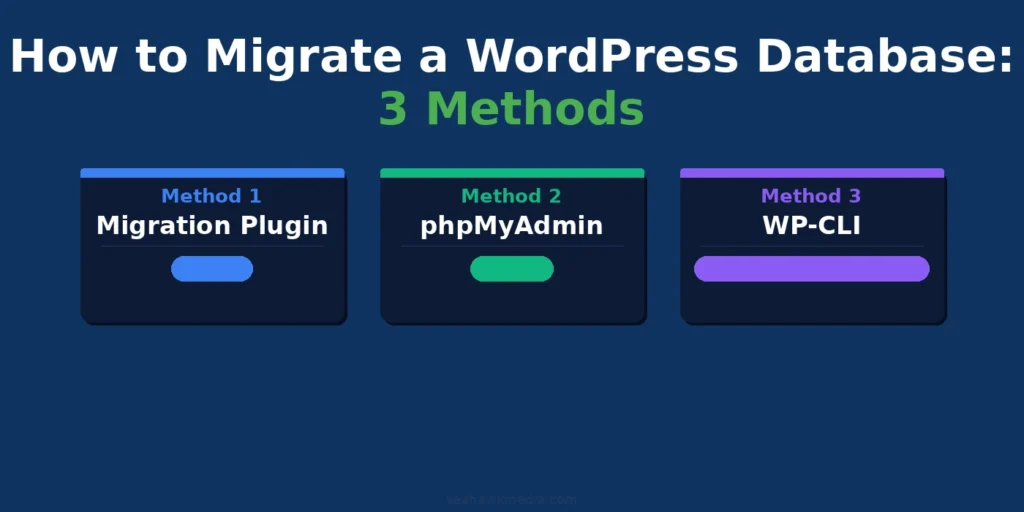
How to Migrate a WordPress Database: 3 Methods
The right method depends on your technical comfort level and the size of your database. All three handle serialized data correctly when used as described below.
Method 1: Migration Plugin (Easiest)
Migration plugins handle the export, import, file transfer, and URL replacement in a single process. They are the right choice for most site owners without command-line experience.
Recommended plugins:
Duplicator Pro handles databases up to several gigabytes, supports scheduled migrations, and generates an installer file that automatically handles URL replacement. It is the most reliable option for large or complex sites.
All-in-One WP Migration creates a single archive file containing your entire WordPress installation, including the database. The free version has an import size limit of 512MB. The premium version removes this limit. The plugin handles serialized data replacement during import.
WP Migrate (formerly WP Migrate DB) is specifically designed for database-only migrations and push/pull between environments. It handles serialized data correctly and supports selective table migration, which is useful when you want to pull only the content database from production to staging without overwriting your staging plugin settings.
Step-by-step with All-in-One WP Migration:
- Install and activate All-in-One WP Migration on your source site
- Go to All-in-One WP Migration > Export
- Select Export To > File
- Wait for the export to complete and download the .wpress file
- Install All-in-One WP Migration on your destination site
- Go to All-in-One WP Migration > Import
- Drag and drop the .wpress file or click to browse for it
- Confirm the import when prompted. The plugin warns you that this will overwrite all existing content
- After import completes, go to Settings > Permalinks and click Save Changes without changing anything. This flushes the rewrite rules and resolves most 404 errors that appear after migration
Method 2: phpMyAdmin (Manual)
phpMyAdmin is the right method when you need full control over the migration, are migrating a large database that plugin tools cannot handle, or need to migrate a database independently of the WordPress files.
Exporting the database:
- Log in to phpMyAdmin on your source hosting environment via your hosting control panel
- Select your WordPress database from the left sidebar
- Click the Export tab
- Select Custom export method
- Ensure all tables are selected
- Under Format-specific options, check Add DROP TABLE / VIEW / PROCEDURE / FUNCTION / EVENT / TRIGGER statement. This ensures the import overwrites existing tables cleanly, rather than causing duplicate entry errors
- Under Data creation options, check Complete inserts and Extended inserts
- Click Export and save the .sql file
Importing the database:
- Log in to phpMyAdmin on your destination hosting environment
- Select or create the destination database
- Click the Import table
- Click Choose File and select your .sql file
- Click Go to run the import
Updating the URLs:
After the import, you must update the site URL stored in the database. The simplest method for non-technical users is to run the following SQL queries in phpMyAdmin’s SQL tab, replacing old-domain.com and new-domain.com with your actual domains:
UPDATE wp_options SET option_value = replace(option_value, 'https://old-domain.com', 'https://new-domain.com') WHERE option_name = 'siteurl' OR option_name = 'home';Do not run a full find-and-replace across all tables using SQL alone. This will corrupt serialized data. Use the WP-CLI method below for the complete replacement.
Method 3: WP-CLI (Most Reliable for Technical Users)
WP-CLI is the WordPress command-line interface. Its search-replace command is the most reliable method for replacing URLs in a WordPress database because it handles serialized data correctly by default.
Prerequisites: SSH access to your server and WP-CLI installed. Most managed WordPress hosts (Kinsta, WP Engine, Cloudways) have WP-CLI available by default.
Export the database:
wp db export backup-$(date +%Y%m%d).sqlThis exports the complete database to a dated .sql file in your current directory.
Import the database into the destination:
wp db import backup-20260101.sqlReplace backup-20260101.sql with your actual filename.
Run the URL replacement:
wp search-replace 'https://old-domain.com' 'https://new-domain.com' --precise --all-tablesThe –precise flag ensures serialized data is handled correctly. The –all-tables flag applies the replacement across every table in the database, including tables created by plugins.
Verify the replacement:
wp search-replace 'https://old-domain.com' 'https://new-domain.com' --precise --all-tables --dry-runRunning with –dry-run shows you how many replacements would be made without actually making them. Run this first to verify the count looks correct before running the live replacement.
Flush the cache and rewrite rules:
wp cache flushwp rewrite flushHow to Handle Serialized Data During Migration?
This is the most misunderstood part of WordPress database migration and the most common cause of post-migration breakage.
Why Simple Find-Replace Breaks WordPress?
WordPress stores some data in a serialized PHP format. A serialized string looks like this:
a:2:{s:4:"home";s:22:"https://old-domain.com";}The s:22 part means “string of 22 characters.” If you run a find-and-replace that changes old-domain.com to new-domain.com, the string length changes, but the s:22 count does not update. WordPress tries to read a 22-character string, finds one of a different length, and produces an error.
The error often manifests as a blank white screen, broken widget areas, or plugin settings that appear empty after migration. It is difficult to trace without knowing about serialized data.
How to Run a Safe Search-Replace?
Use one of these serialization-aware methods:
WP-CLI (recommended):
wp search-replace 'https://old-domain.com' 'https://new-domain.com' --precise --all-tablesBetter Search Replace plugin: Install the Better Search Replace plugin in WordPress. It handles serialized data by default and provides a dry-run option to preview changes before applying them. This is the right option if you do not have WP-CLI access.
Interconnect/it Search Replace DB: A PHP script you upload to your server root, run via browser, and delete after use. It handles serialized data and supports live or dry-run modes.
How to Verify the Search-Replace Worked?
After running the replacement, check these locations:
- Go to Settings > General in your WordPress dashboard. Confirm that the WordPress Address and Site Address show your new domain
- Visit the frontend of your site and check the browser’s developer console for mixed content warnings (HTTP resources loading on an HTTPS domain)
- Check your media library: does clicking an image show the correct URL?
- Run a Screaming Frog crawl or use Broken Link Checker to scan for remaining old-domain URLs
Plugin-Triggered Database Migrations in WordPress
Unlike host-to-host migrations, you do not trigger these manually. They run as part of the plugin update process, which is why staging preparation matters more here than anywhere else.
How WooCommerce Database Migrations Work?
WooCommerce introduced HPOS (High-Performance Order Storage) as a major structural change to how orders are stored. When you migrate to HPOS, WooCommerce creates new dedicated order tables and moves all historical order data into them.
This migration runs automatically when you enable HPOS in WooCommerce settings or when you update WooCommerce on a site with the migration pending. It cannot be reversed by rolling back files. If the migration runs on a site where some plugins are not HPOS-compatible, those plugins will stop working correctly.
How to prepare: Before enabling HPOS or updating WooCommerce across major versions, run WooCommerce’s compatibility checker by going to WooCommerce > Status > HPOS. It lists every installed plugin and whether it is HPOS-compatible. Resolve incompatibilities before the migration runs.
How Membership Plugin Migrations Work?
Membership plugins, including MemberPress, Paid Memberships Pro, and Restrict Content Pro, create their own custom database tables for member records, subscription data, and transaction history. When these plugins update across major versions, they sometimes alter these table structures.
Because membership data is stored in custom tables rather than standard WordPress tables, migration plugins may not always include this data in their exports by default. Verify explicitly that your backup tool covers custom plugin tables before migrating a membership site.
How to Prepare Before a Plugin Triggers a Migration?
- Set up a staging environment that exactly mirrors your production database
- Apply the plugin update on staging first
- Verify all affected functionality (checkout, member login, subscription management) on staging after the update
- If staging passes, apply the same update to production during a low-traffic window
- Keep a verified backup from immediately before the production update
Post-Migration Database Checklist
Run through every item after a database migration before telling anyone the migration is complete.
- WordPress admin loads without errors at the new URL
- Front end of the site loads correctly at the new URL
- All media files load correctly (no broken images)
- Contact forms submit and send confirmation emails
- User login works for all account types
- If WooCommerce: complete a test checkout end-to-end
- If membership site: log in as a member and verify content access
- Google Search Console shows no index coverage errors after resubmitting the sitemap
- No mixed content warnings (HTTP resources on an HTTPS site) in the browser console
- No old domain URLs visible in page source or browser network tab
- Caching plugin cache cleared
- Permalink structure flushed: Settings > Permalinks > Save Changes
Common WordPress Database Migration Errors and How to Fix Them
Do not attempt to re-run the migration before identifying the error. Each error below tells you exactly what went wrong and what to change before trying again.
Error 1062: Duplicate Entry for Key PRIMARY
This error appears when you import a database into a destination that already contains data. The import script tries to insert a row with an ID that already exists.
Fix: Before importing, either drop all existing tables in the destination database or ensure your export file includes DROP TABLE statements. In phpMyAdmin, when exporting, check the option to include DROP TABLE statements. In WP-CLI: wp db reset –yes, then wp db import backup.sql.
Error 2002: Can’t Connect to MySQL Server
This error indicates that WordPress cannot connect to the database server. It usually appears after a migration when the database hostname in wp-config.php does not match the actual hostname on the new server.
Fix: Open wp-config.php and check the DB_HOST value. On most shared hosts, it is localhost. On managed WordPress hosts, it may be a specific hostname provided in your hosting dashboard. Update the DB_HOST value to match your destination server’s MySQL hostname.
Error 1045: Access Denied for User
This error means the database username or password in wp-config.php does not match the credentials for the database on the destination server.
Fix: Open wp-config.php and verify DB_USER and DB_PASSWORD match the database user credentials on your destination server. In cPanel, go to MySQL Databases and confirm the user is assigned to the correct database with All Privileges.
Final Thoughts on WordPress Database Migrations
WordPress database migrations break most often because of two things: serialized data that a simple find-and-replace corrupts silently, and plugin-triggered schema migrations that run automatically during updates on unprepared sites.
Both problems have clear solutions. Use WP-CLI or a serialization-aware search-replace tool instead of SQL find-and-replace. Prepare a staging environment before applying plugin updates that trigger schema migrations. Take a verified backup before each migration step, and test it before relying on it.
The three migration methods covered above cover every skill level: plugins for those who want a guided process, phpMyAdmin for those who need granular control, and WP-CLI for those with command-line access. Pick the method that best fits your environment, and follow the post-migration checklist before closing the project.
If you need a WordPress database migration handled by an experienced team, Seahawk has managed migrations for hundreds of WordPress sites across all levels of complexity.
Frequently Asked Questions About WordPress Database Migrations
What is a WordPress database migration?
A WordPress database migration is either moving a WordPress database from one server to another (during a host move, domain change, or staging-to-live deployment) or a plugin-triggered schema change that alters the database structure during a major version update. Both types carry risk and require preparation. Moving the database requires serialization-aware URL replacement. Plugin-triggered migrations require staging testing before the update runs on production.
How do I migrate a WordPress database without losing data?
Take a verified backup before starting. Use a serialization-aware migration method: WP-CLI search-replace with the –precise flag, Better Search Replace plugin, or a migration plugin like Duplicator Pro or All-in-One WP Migration. Never run a raw SQL find-and-replace across all tables, as it will corrupt WordPress’s serialized data. After migration, verify functionality by running a complete checkout, login, and form submission test before going live.
What is serialized data in WordPress, and why does it matter for migration?
WordPress stores some settings and plugin data as serialized PHP objects in the database. Serialized strings include a character count as part of their format. If you change a URL using a simple find-and-replace, the URL length changes, but the character count does not update, corrupting the data. This causes blank screens, empty widget areas, and broken plugin settings after migration. Use WP-CLI or a serialization-aware search-replace tool to handle serialized data correctly.
How do I export a WordPress database?
Export a WordPress database through phpMyAdmin (go to your database, click Export, choose Custom, and select all tables with DROP TABLE statements included), through WP-CLI with the command wp db export backup.sql, or through a migration plugin like All-in-One WP Migration or Duplicator. Always verify the exported file opens and contains data before proceeding with the migration.
What is a plugin-triggered database migration in WordPress?
When plugins like WooCommerce, membership systems, or page builders update across major versions, they sometimes modify the database structure automatically during the update process. WooCommerce’s HPOS migration is a current example. These schema changes cannot be reversed by rolling back plugin files. Any database-level changes made during the update persist even if you revert to an older plugin version. This is why testing major plugin updates on staging before production is critical.
How do I fix the Error 1045 Access Denied after a WordPress database migration?
Error 1045 means the database username or password in wp-config.php does not match the credentials for the database on the destination server. Open wp-config.php and verify the DB_USER and DB_PASSWORD values match the credentials you set up for the database on the new server. In cPanel, go to MySQL Databases, confirm the database user exists, and verify it is assigned to the correct database with All Privileges.
Do I need to update the database after changing my WordPress domain?
Yes. WordPress stores the site URL and home URL in the wp_options table of the database. After changing your domain, these values must be updated. The safest method is WP-CLI: run wp search-replace ‘https://old-domain.com’ ‘https://new-domain.com’ –precise –all-tables after importing the database. This replaces all occurrences, including those in serialized data. After the replacement, flush permalinks by going to Settings > Permalinks and clicking Save Changes.


