
Building a WordPress website on your local machine is the smart way to work. You can build and test your website privately, and once it works perfectly, it’s time to make it live. WordPress site migration from localhost to live server may sound complex, but it’s easier than you think when broken down into simple steps.
Whether you’re a WordPress developer deploying a client’s site or an entrepreneur launching your own project, this process is critical for ensuring your website is not only functional but fully optimized for public viewing.
By following this guide, you’ll learn how to move your site without losing any data, breaking URLs, or encountering dreaded downtime.
Crucial Steps to Migrate WordPress from Localhost to Live Server
Migrating your WordPress site from a local environment to a live server is an essential milestone in web development. Follow these key steps to ensure a smooth transition and avoid any downtime or data loss.
Step 1: Preparing for the Migration
Before starting the migration, a few things need to be in place:
- Choose a Web Hosting Provider: Your live site needs a reliable host. Popular WordPress hosting providers, such as DreamHost, Kinsta, and Pressable, are excellent choices.
- Have a Domain Name Ready: You’ll need a domain name, so purchase one if you haven’t already.
- Backup Your Local WordPress Site: It’s always good practice to backup your site, just in case something goes wrong during migration.
Key Tools You’ll Need:
- FTP Client: To upload your files to the live server, you’ll need an FTP client like FileZilla or Cyberduck.
- phpMyAdmin: This tool helps you manage your database and is usually available in your hosting control panel.
- Database Migration Plugin (Optional): Plugins like Duplicator can automate parts of the process if you prefer a less hands-on approach.
Step 2: Export the Local WordPress Database
Your WordPress site consists of files and a WordPress database, both of which need to be moved. The first thing you’ll do is export your local database.
- Open phpMyAdmin in your local development environment (e.g., MAMP, XAMPP, or Local by Flywheel).
- Select your WordPress database.
- Click on the Export tab, and select Quick Export.
- Save the exported .sql file to your computer.
Pro Tip: Be sure to record your database name, username, and password for future reference.
Explore: How to Repair and Fix WordPress Database
Step 3: Upload WordPress Files to Live Server via FTP
Next, you’ll upload your WordPress files to the live server using an FTP client.
- Open your FTP client and connect to your web hosting server using your FTP credentials (usually provided by your host).
- Navigate to the root directory (often called public_html or www).
- Upload all the files from your local WordPress directory (wp-content, wp-includes, etc.) to the live server.
Important Note: Ensure your files are in the correct directory. Uploading them to the wrong folder may cause your site not to load correctly.
Find: Best WordPress Website Migration Agencies
Need Help Migrating Your WordPress Site from Localhost to Live?
Avoid the hassle and technical pitfalls of manual migration. Let Seahawk handle the entire process smoothly, ensuring your website goes live without a hitch!
Step 4: Create a New Database on the Live Server
Just like you have a database locally, your live WordPress site will also need one.

- Log in to your hosting control panel (e.g., cPanel, Plesk).
- Navigate to MySQL Databases and create a new database.
- Assign a database user with full privileges to this new database.
Step 5: Import Local Database to Live Server
Now, it’s time to import your local database to the live server.

- In your hosting control panel, open phpMyAdmin.
- Select the new database you created in Step 4.
- Click the Import tab.
- Upload the .sql file you exported from your local environment and hit Go.
Find: Best WordPress Importer Plugins to Import Local Database
Step 6: Update the wp-config.php File
The wp-config.php file contains the information WordPress needs to connect to the database. You’ll need to update it with your live server’s database details.
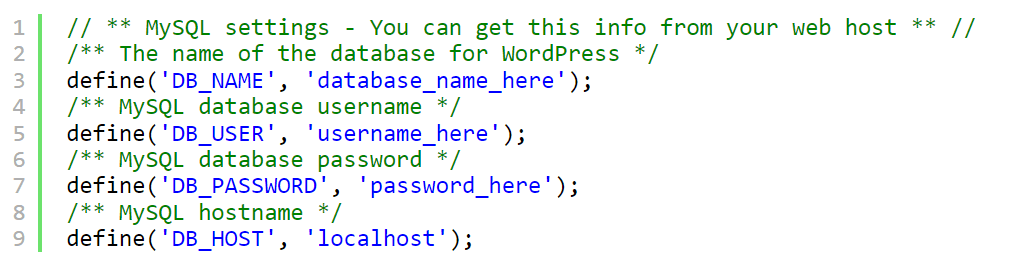
- Open the wp-config.php file from your WordPress files.
Update the following lines with your live server’s database name, username, and password:
define(‘DB_NAME’, ‘your_live_database_name’);
define(‘DB_USER’, ‘your_live_database_user’);
define(‘DB_PASSWORD’, ‘your_live_database_password’);
define(‘DB_HOST’, ‘localhost’);
- Save the changes.
Quick Tip: Double-check your database credentials to avoid connection issues later.
Step 7: Update the Site URL
Your site’s URLs are still pointing to localhost, so you need to update them.
- In phpMyAdmin, go to your newly imported database and find the wp_options table.
- Locate the siteurl and home fields.
- Update both fields with your live site’s URL (e.g., https://www.yourwebsite.com).
Optional Method: You can also update the site URLs by adding these lines temporarily to your wp-config.php file:
define(‘WP_HOME’,’https://www.yourwebsite.com’);
define(‘WP_SITEURL’,’https://www.yourwebsite.com’);
Learn: How to Move a WordPress Site to a New Domain (Easy Steps)
Step 8: Configure Permalinks and Check for Errors
Now that your site is live, log into the WordPress admin panel on your live server (https://yourwebsite.com/wp-admin) and check for any errors.
- Go to Settings → Permalinks, and click Save Changes. This refreshes your permalink structure.
- Visit your site to ensure everything is working as expected, and test out various pages.
Step 9: Troubleshooting Common Issues
Here are some common WordPress errors you may encounter during migration and how to fix them:
- Error Establishing Database Connection: Double-check your wp-config.php file and database credentials.
- Broken Links or Images: Sometimes URLs of images or internal links might still point to localhost. Use a WordPress plugin like Better Search Replace to update these URLs in your database.
- 500 Internal Server Error: This could be caused by incorrect file permissions or issues with your .htaccess file. Contact your hosting provider if this persists.
Step 10: Secure Your Live WordPress Site
Once your site is live, don’t forget to implement basic security measures:
- Install a security plugin or contact a Professional security service provider, such as Seahawk.
- Keep your WordPress version, themes, and plugins up to date.
- Set up regular backups using a backup plugin, such as Blogvault.
Conclusion: Migrate Your WordPress from Localhost to Live Successfully
Migrating your WordPress website from a local server to a live server is a pivotal step in the web development journey. It’s the moment your website transitions from a private project to a publicly accessible platform, allowing you to share your content, services, or products with the world.
While the process may seem intimidating at first, breaking it down into manageable tasks, as outlined in this guide, ensures a smooth and efficient migration.
From exporting your local database to adjusting your wp-config.php file and troubleshooting potential errors, each step plays a crucial role in ensuring your site runs smoothly in its new live environment.
However, remember that the migration process doesn’t end once your site is live. Ongoing security, regular updates, and proper maintenance are essential for maintaining a healthy and secure website. Don’t forget to back up your site regularly, monitor performance, and implement security measures to protect your investment.
Now that your website is live, the real fun begins: building an audience, sharing content, and growing your online presence.
FAQs About Migrating Your WordPress from Localhost to Live Successfully
Why should I move my WordPress website from a local site to a live site?
You should move your site when you want real visitors to be able to access it. A live server allows search engines to crawl your pages. It also gives you full hosting account features, faster performance, and stable backups.
What is the easiest way to migrate a local WordPress site to a live server?
You can manually move your site using FTP access and database import tools. You can also use a plugin such as Duplicator. Both methods upload your site files and your local database to the hosting account.
How do I fix broken links after migration?
Broken links occur when localhost URLs are stored in the database. You can resolve this issue with a search and replace tool or a database management tool. You can also run a SQL query in phpMyAdmin to update content in the wp_posts table.
What should I check if my live website shows errors after import?
Verify the WordPress configuration file for the correct database name, username, and password. Ensure that your site files are located in the root folder. Verify that your domain is correctly configured to point to the intended web server. Clear your browser cache and reset permalinks in the WordPress dashboard.
Can I migrate my WordPress site without losing design changes or media files?
Yes. Move all core files, themes, plugins, and media files. Export your whole database. Create new backups before you start. This ensures your new site looks the same as your local version.


