
Managing who can do what on your WordPress website is one of the most important responsibilities of a site owner. Whether you run a blog, a business site, or a membership platform, knowing how to modify user roles and permissions in WordPress gives you precise control over your content, your team, and your site’s security.
This guide walks you through everything, from understanding default WordPress user roles to creating custom roles, using plugins, writing backend code, and restoring permissions when things go wrong.
WordPress user roles and permissions can be modified through the dashboard, role management plugins, or custom code. Administrators can update user access levels, change capabilities, or create custom roles to control what users can manage on a website. These changes should be reviewed carefully to ensure users have only the access required for their tasks.
Why Modify User Roles and Permissions in WordPress?
Before diving into the how, it helps to understand the why. WordPress user roles and permissions are not one-size-fits-all. Every site has different needs, and the default setup may not always serve those needs well.

Improve WordPress Website Security by Controlling User Access
User access is one of the most overlooked entry points for security threats. When too many users have elevated permissions, the risk of unauthorized changes or data exposure increases significantly. Applying strict access controls reduces that risk.
According to the WordPress security guide, strengthening login protection with limited user roles is a fundamental step in any security strategy. Only give users the permissions they actually need for their role, nothing more.
Improper role assignment can also make it easier for attackers to exploit accounts. If a contributor’s account gets compromised, the damage is minimal. But if that account had administrator access, the entire site could be at risk.
Manage Team Workflows with Proper WordPress User Roles
Different team members perform different tasks. A content writer does not need access to site settings. A customer support agent may only need to moderate comments. A developer needs backend access that a marketing intern should never have.
Assigning proper WordPress user roles ensures everyone works efficiently within their lane. It reduces confusion, minimizes accidental changes, and creates a structured workflow.
This becomes especially important when managing WordPress multisite networks, where multiple teams may be managing different subsites under a single installation.
Prevent Accidental Changes to WordPress Settings and Content
Even well-meaning team members can accidentally break things. A new user might delete a post they shouldn’t touch, or change site settings without understanding the consequences. Limiting permissions prevents these mistakes before they happen.
Role-based access means users only see and interact with what they are authorized to use. This keeps site settings, core configurations, and critical content protected from unintentional edits or deletions.
Customize WordPress Permissions for Different User Requirements
Not every use case fits neatly into the default role categories. A client who needs to review unpublished content, a moderator who should handle only forum posts, or a product manager who needs to update a specific page type: these scenarios require custom permissions.
WordPress gives you the flexibility to build custom roles that match your exact workflow. With over 70 permission options available, you can fine-tune access for almost any user requirement.
Optimize Your WordPress Website Management
Get expert WordPress development and support services to manage user roles, permissions, security, and website functionality.
Understanding WordPress User Roles and Permissions Before Making Changes
Before modifying user access, it is important to understand how WordPress roles and capabilities work to assign the right permissions and maintain website control.
What Are User Roles and Permissions in WordPress?
User roles define a user’s job function on a WordPress site. Permissions define the specific actions that a user is authorized to perform. Together, they form a system of role-based capabilities that governs everything from publishing posts to installing plugins.
Think of roles as job titles and permissions as the actual tasks tied to those titles. An editor-in-chief can edit any article, but a freelance writer can only submit their own. WordPress works the same way.
Roles are assigned to individual users, and each role carries a predefined set of capabilities. Administrators can create, modify, and remove user permissions across the board. Lower-level roles have a limited and specific set of capabilities.
Default WordPress User Roles and Their Capabilities
WordPress comes with six default user roles. Understanding each one is essential before making any changes.
- Administrator: The administrator role has full control over the WordPress site. Administrators can install plugins, manage themes, change site settings, create and delete users, and access every area of the admin dashboard. Only trusted individuals should hold this role.
- Editor: Editors can create, edit, publish, and delete any post or page, including content created by other users. They can manage categories, manage tags, and upload media. They do not have access to site settings or plugin management.
- Authors can publish and manage their own posts only. They can upload files, create and edit their own content, and delete their own published posts. They cannot touch other users’ posts or access admin-level settings.
- Contributor: Contributors can create and edit their own posts, but cannot publish them. Their content must be reviewed and approved by an editor or administrator before it goes live. They cannot upload media or manage any site settings.
- Subscriber: Subscribers can only manage their own accounts and read content. They have the least access of any registered user. This role is commonly used for membership sites where logged-in users get access to gated content.
- Super Admin (WordPress Multisite only): On a WordPress Multisite network, the Super Admin role sits above all standard administrators. The super admin has full control over the entire network, including network settings, plugin activation across all sites, and user management at the network level. Standard administrators on individual subsites cannot override network-level settings.
Difference Between WordPress Roles and Capabilities
Roles and capabilities are related but not the same thing. A role is a named container, like “Editor” or “Author.” Capabilities are the individual permissions stored within that container, such as “edit_posts,” “delete_pages,” or “manage_categories.”
When you assign a role to a user, WordPress grants that user all the capabilities associated with that role. Capabilities are stored in the user_meta table in the database as a serialized array. This is what makes it possible to programmatically add or remove individual capabilities without changing the entire role.
Understanding this distinction matters when you want granular control. Instead of creating an entirely new role, you can sometimes add a single capability to an existing role to meet a specific need.
Methods to Modify User Roles and Permissions in WordPress
There are three primary methods for modifying user roles and permissions in WordPress. Each suits a different level of technical expertise and site complexity.
Method 1: Using the WordPress Dashboard
The simplest way to change a user’s role is through the built-in WordPress admin dashboard. This method requires no plugins or code.
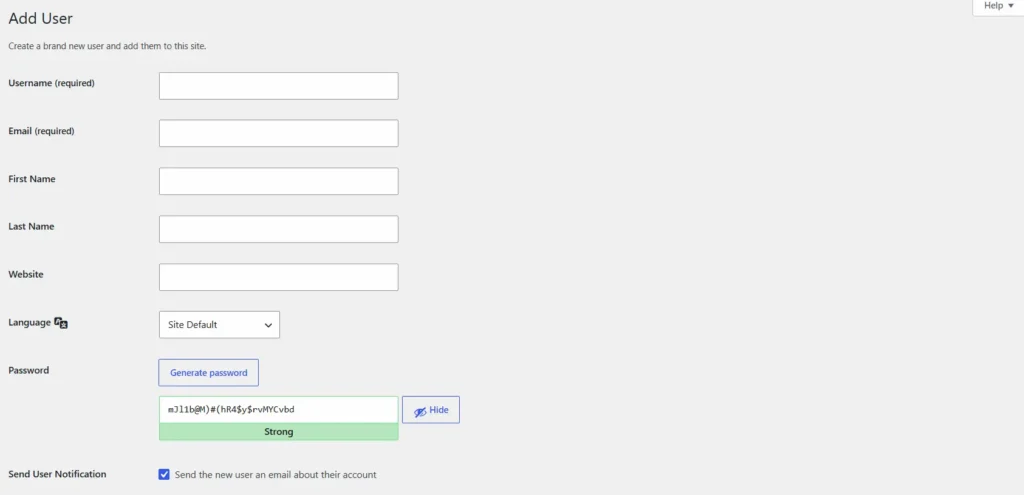
Changing an individual user’s role:
- Log in to your WordPress admin dashboard.
- Navigate to Users → All Users from the left sidebar.
- Click on the user’s name to open their profile.
- Scroll down to the Role dropdown menu.
- Select the new role from the dropdown.
- Click Update User to save changes.
You can change a user’s role at any time using this method. The change takes effect immediately after saving.
Changing roles in bulk:
- Go to Users → All Users.
- Select multiple users using the checkboxes.
- Use the Change role to… dropdown at the top of the user list.
- Click Change to apply the new role to all selected users.
This method works well for simple role assignments. However, it does not allow you to create custom roles or modify what each role can do. For that, you need a plugin or code.
Important note: Only administrators can change user roles in WordPress. No other role has this capability.
Method 2: Using a User Role Management Plugin
For sites that need custom roles or granular permission control, a user role editor plugin is the most practical solution. These plugins provide a user-friendly interface for managing all aspects of roles and capabilities without requiring any code changes.
The User Role Editor Plugin is one of the most widely used tools for this purpose. It lets you view all existing roles, edit their capabilities, create custom roles, clone existing roles, and assign roles to individual users.
Here is how to use the User Role Editor plugin:
- Install and activate the User Role Editor plugin from the WordPress plugins directory.
- Navigate to Users → User Role Editor in the admin dashboard.
- Select a role from the dropdown to view its capabilities.
- Check or uncheck capabilities using the visual interface. WordPress presents over 70 permission options in a human-readable format, making them easy to understand.
- Click Update to save changes.
To create a new custom role:
- Click Add Role in the plugin interface.
- Enter a role name and optionally base it on an existing role to clone its capabilities.
- Modify the capabilities as needed.
- Save the new role.
The plugin also lets you assign custom roles to individual users directly from the user list. This makes it easy to manage complex permission structures across large teams without writing a single line of code.
Other well-regarded WordPress user roles plugins include Members by MemberPress, WPFront User Role Editor, and PublishPress Capabilities. Each offers slightly different features, but the core functionality remains the same: visual, flexible permission management.
Method 3: Modify User Roles and Capabilities Using Code
For developers or site owners who want full control without relying on plugins, WordPress provides built-in PHP functions for managing roles and capabilities. Using backend code gives you the most precise control and avoids plugin dependencies.
Adding a new custom role with add_role():
function create_custom_editor_role() {
    add_role(
        'content_manager',
        'Content Manager',
        array(
            'read'         => true,
            'edit_posts'   => true,
            'delete_posts' => false,
            'publish_posts' => true,
            'upload_files' => true,
            'manage_categories' => true,
        )
    );
}
add_action( 'init', 'create_custom_editor_role' );
This creates a custom role called “Content Manager” with specific capabilities. The function should only run once; placing it inside a plugin or using a conditional check prevents it from running on every page load.
Adding a capability to an existing role with add_cap():
$role = get_role( 'editor' );
$role->add_cap( 'manage_options' );
Removing a capability from an existing role with remove_cap():
$role = get_role( 'author' );
$role->remove_cap( 'delete_published_posts' );
Removing a role entirely with remove_role():
remove_role( 'content_manager' );Note that changes made with add_cap() and remove_cap() are stored in the database. They persist between page loads. Changes made with add_role() are also stored in the database under the wp_user_roles option in the wp_options table.
Custom roles allow tailored permissions for specific workflows. This is the preferred method for developers building multi-author platforms, client portals, or complex membership sites that need role-based capabilities not available in any default configuration.
Manage Your Website with Expert Support
Get professional WordPress support for user management, permissions, security updates, and website maintenance.
Best Practices for Managing WordPress User Roles and Permissions
Knowing how to change roles is only half the picture. Following the right practices ensures your permission system remains secure and manageable over time.
Follow the Principle of Least Privilege for WordPress User Access
The principle of least privilege means giving users only the access they need to complete their tasks, nothing beyond that. This is the single most effective way to reduce security risk from user accounts.
A content writer needs to create and edit posts. They do not need to install plugins or change site settings. Assigning them the Contributor or Author role, rather than the Administrator or Editor role, limits the damage if their account is ever compromised.
Applying this principle also reduces the risk of data exposure. Even insider threats, accidental or deliberate, are significantly limited when users cannot access resources outside their defined scope.
Avoid Giving Administrator Access to Every WordPress User
Administrator access is the most powerful role on any WordPress site. Giving it to every team member is one of the most common mistakes site owners make. It might seem convenient, but it creates serious risks.
Too many administrator accounts mean too many potential entry points for attacks. It also makes it harder to track who made what changes.
You should delete invisible WordPress admin users or any unused admin accounts immediately, as these are common targets for attackers.
Reserve the administrator role strictly for site owners and trusted technical staff. Every other user should receive the minimum role necessary for their work.
Regularly Review and Update WordPress User Permissions
Team structures change. People leave organizations, switch roles, or take on new responsibilities. If you never audit your user list, you end up with former employees still having access, or active users holding permissions from a job they no longer do.
Regular audits of roles and permissions help manage user access effectively. Schedule a quarterly review at a minimum. Go through your user list, verify each person’s current role, and adjust or remove access as needed.
Automated workflows can revoke permissions immediately when employees change roles. Several WordPress user management plugins support automated role assignment based on conditions like user group membership or account status.
Reviewing permissions also helps you catch issues like deferred WordPress updates left by former developers or inactive accounts still holding admin-level access.
Backup Your WordPress Website Before Changing User Capabilities
Whenever you make significant changes to roles and capabilities, especially via code, you should create a full backup first. A misconfigured role could accidentally lock you out of your own site or break critical functionality.
Using the best WordPress backup plugins, such as BlogVault, ensures you can restore your site quickly if something goes wrong. Store your backups in multiple locations, including cloud storage, for redundancy.
This is especially important when working in production environments. Never test permission changes directly on a live site without a recent backup.
Common Issues When Modifying WordPress User Roles and Permissions
Even experienced WordPress administrators run into problems when modifying roles. Knowing what to expect helps you troubleshoot faster.
- Users locked out after role changes: If an administrator accidentally removes the
manage_optionscapability from the admin role or assigns themselves a lower role, they may lose access to the admin dashboard. This is one of the most common issues when modifying capabilities using code. Always keep a secondary administrator account available as a failsafe.
- Custom roles disappearing after updates: If you add custom roles directly in the database or via a theme’s
functions.phpfile, they may disappear after a theme switch or update. The correct approach is to use a dedicated plugin or a custom plugin file that runs independently of the theme.
- Plugin conflicts affecting capabilities: Some WordPress plugins add their own custom capabilities and roles. If two plugins define conflicting roles or capabilities, unexpected behavior can occur. Deactivate plugins one by one to identify conflicts. The guide on the WordPress plugin not activating covers related plugin conflict diagnosis.
- Incorrect capability names cause errors: WordPress capability names are case-sensitive and must be spelled exactly as they appear. Typos like
Edit_Postsinstead ofedit_postswill fail silently. Always reference the official WordPress capability list when writing code.
- Super Admin capabilities not applying on multisite: On a multisite installation, some capabilities are controlled at the network level and cannot be overridden by individual site administrators. Only the Super Admin can manage network settings. If a site-level admin cannot perform an expected action, the issue is likely due to network-level restrictions rather than individual role settings.
- Tags or taxonomy management access issues: Users assigned limited roles may find they cannot manage tags or categories, even when they should be able to. Double-check whether the role includes the
manage_categoriescapability, which governs both tag and category management.
How to Reset or Restore WordPress User Roles and Permissions?
If something goes wrong after modifying roles, there are several ways to restore things to a working state.
Restore Default WordPress User Roles and Capabilities
The fastest way to reset all roles to their WordPress defaults is using WP-CLI.
Run the following command from the command line:
wp role reset --allThis resets all built-in WordPress roles to their default capability sets. It does not affect custom roles you created — those must be deleted separately using remove_role().
You can also reset a single role:
wp role reset editorAlternatively, you can reset roles through the database. In wp_options, locate the wp_user_roles option and replace its value with the default WordPress role definitions. This approach requires direct database access and should be performed with care.
For users who prefer a visual method, the User Role Editor plugin includes a Reset feature that restores the default capabilities for any built-in role with a single click.
Reassign Users to Default WordPress Roles
After resetting roles, users who were assigned custom roles may end up with no role at all. WordPress will display these users without a role in the user list.
To reassign users to standard roles:
- Go to Users → All Users in the admin dashboard.
- Filter users by role or search for users without a role.
- Select the affected users and use the bulk action to assign a new role.
You can also update individual user roles via the user profile page. For large-scale reassignment, a SQL query or WP-CLI command offers a faster solution:
wp user list --role= --field=ID | xargs -I % wp user set-role % subscriberThis finds all users without a role and assigns them the subscriber role.
Recover WordPress Permissions Using Website Backups
If role corruption is severe or you cannot access the admin dashboard at all, restoring from a backup is the most reliable recovery path. This is why creating a backup before making changes is non-negotiable.
Using a WordPress backup plugin with a restore function, you can roll back the entire site to its previous state, including the database that stores all role and capability data.
If you do not have a backup plugin installed, your hosting provider may offer server-level backups. Contact them to request a restore to a point before the role changes were made.
For sites running on managed WordPress hosts, most providers offer one-click restore tools directly from their control panel. Check your hosting dashboard before resorting to manual database restoration.
Conclusion: Manage WordPress User Roles and Permissions
Understanding how to modify user roles and permissions in WordPress is a foundational skill for any site owner or developer. It directly impacts your site’s security, your team’s efficiency, and your ability to maintain clean and organized workflows.
WordPress provides three core methods for managing roles: the built-in dashboard for quick changes, the user role editor plugin for flexible visual management, and PHP code for precise programmatic control. Each method has its place depending on your technical comfort and site complexity.
The most important rule is to follow the principle of least privilege. Give every user exactly the access they need, nothing more. Regularly review your user list, keep your roles clean, and always back up your site before making changes to capabilities.
Whether you are managing a small blog, a growing editorial team, or a complex WordPress multisite ecommerce setup, getting user roles and permissions right from the start saves you from security incidents, data loss, and operational headaches down the road.
Start by auditing your current user list today. Identify who has more access than they need, reassign roles accordingly, and document your permission structure for future reference.
FAQs About Modifying User Roles and Permissions in WordPress
How do I change a user role in WordPress?
You can change a user role in WordPress by going to the WordPress dashboard, opening Users, selecting the user profile, choosing a new role, and saving the changes.
What are user roles and permissions in WordPress?
User roles define what actions a user can perform on a WordPress website. Permissions, also called capabilities, control specific actions such as editing posts, managing plugins, or changing settings.
Can I create custom user roles in WordPress?
Yes, you can create custom user roles using WordPress user role management plugins or custom code. Custom roles help assign specific access levels based on user responsibilities.
Which WordPress user role has the most permissions?
The Administrator role has the highest level of access in WordPress. Administrators can manage users, install plugins, change themes, edit settings, and control most website functions.
How can I safely modify WordPress user permissions?
Always review required access before changing permissions, avoid granting unnecessary administrator access, and back up before making major changes to user roles.


