
Whether you run an e-commerce store, a corporate site, or a personal blog, speaking your visitors’ native language builds trust and engagement. This is where WPML (WordPress Multilingual Plugin) shines.
This guide serves as a comprehensive WPML tutorial, walking you through exactly how to create a multilingual WordPress website step by step.
We will cover everything from installation to advanced multilingual SEO strategies, ensuring your site performs flawlessly across different languages.
TL;DR: WPML Multilingual WordPress Guide at a Glance
- WPML helps you create a fully multilingual WordPress website with proper URLs, accurate translations, and a better experience for your global audience.
- You can translate pages, posts, menus, taxonomies, and WooCommerce content using manual, automatic, or professional translation services.
- WPML supports multilingual SEO out of the box with hreflang tags, translated slugs, and compatibility with major SEO plugins.
- With the right setup, caching, security, and backups, WPML scales smoothly as you add more languages and grow your site.
Overview of Multilingual WordPress Websites and WPML
Before diving into the technical setup, it is essential to understand the foundation of a multilingual WordPress site and why WPML is the industry standard.
What is a Multilingual WordPress Website?
A multilingual WordPress website is one that offers the same content in multiple languages.
Unlike simple automated overlays (like Google Translate widgets) that often break layouts or provide inaccurate context, a true multilingual CMS creates separate, indexable URLs for each language version.
This ensures that a user in France sees a dedicated French translation while a user in Spain sees Spanish, all managed within a single WordPress installation.
Why Multilingual Websites Matter for Global SEO and User Experience?
Creating multilingual sites is not just about translation; it is about user experience (UX) and reach. When visitors access content in their preferred language, bounce rates decrease, and conversion rates rise.
From an SEO perspective, multilingual websites allow search engines like Google to index your content for specific regions.
If you translate content correctly, your site can rank for keywords in target languages, effectively multiplying your traffic sources. A robust multilingual SEO strategy ensures that the right user finds the correct language version.
What is WPML and Why is It the Best WordPress Multilingual Plugin?
WPML creates a seamless bridge between your content and a global audience. It is widely regarded as the most popular multilingual plugin because it is powerful, compatible with most websites, and reliable.
The WPML plugin allows you to translate pages, posts, custom types, taxonomy, menus, and even the theme’s text.
It supports manual translation, automatic translation, and integration with professional translation services. Whether you want to create a multilingual blog or a complex WooCommerce store, WPML handles the heavy lifting, making it the premier choice for any WordPress multilingual site.
Build a High-Performing Multilingual Website
Get a scalable, SEO friendly multilingual WordPress website built by experienced developers who specialize in WPML, WooCommerce, and custom WordPress solutions.
Installing and Setting Up WPML on WordPress
Getting started with WPML is straightforward. However, proper preparation ensures a smooth process.
WPML System Requirements and Compatibility Checklist
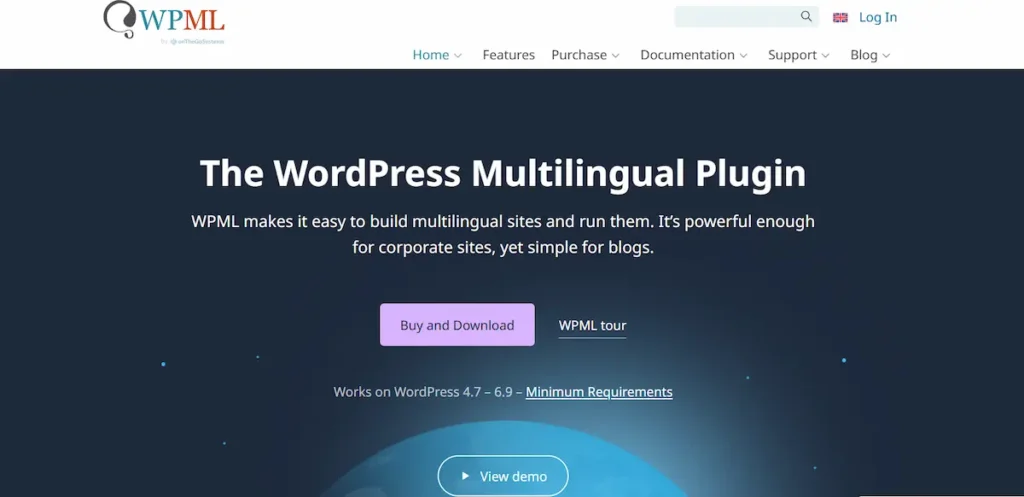
Before you create a multilingual WordPress site, verify your hosting environment. WPML requires WordPress 4.7 or later and PHP 7.0 or higher (though PHP 7.4+ is recommended for speed).
You should also increase your WordPress memory limit to at least 128 MB, as multilingual plugins process large amounts of data.
Check that your active theme and plugins are “translation-ready.” Fortunately, the vast majority of popular themes and page builders are fully compatible with WPML.
How to Install WPML Plugin on WordPress?
Unlike free plugins found in the WordPress repository, WPML is a premium solution.
- Purchase a license from the official WPML website. The “WPML Multilingual CMS” plan is recommended for full functionality.
- Download the plugin .zip file from your account area.
- Log in to your WordPress website dashboard.
- Navigate to Plugins → Add New → Upload Plugin.
- Install and activate the core WPML Multilingual CMS plugin.
You will also need to install helper components, such as WPML String Translation and WPML Media Translation, using the installer helper.
WPML Setup Wizard Explained
Upon activation, the WPML setup wizard guides you through the initial configuration. This wizard is crucial for defining how your multilingual WordPress website operates.
- Select Current Content Language: Choose the default language your site currently uses.
- Select Translation Languages: Pick the target languages you want to offer. You can add as many languages as needed later.
- Site Key Registration: Enter the site key from your WPML account to enable automatic updates.
Choosing Language Switcher Placement and Design
The language switcher is how users navigate between translated versions of your site. During the setup, you can add switchers to:
- Menus
- Widget areas
- Footers
- Content via shortcodes
Ensure the switcher is visible and intuitive. You can choose to display flags, native language names, or standard names. A clear language switcher significantly improves the UX.
Watch this video to learn how to translate your WordPress website into multiple languages using WPML, AI powered translation, and built in language switchers to reach a global audience fast.
How to Translate a WordPress Website Using WPML?
Once setup is complete, you are ready to start translating. WPML offers flexible translation methods to suit different needs.
Translating Pages and Posts with WPML
To translate pages or posts:
- Go to the post or page you wish to edit.
- Look for the “Language” box in the sidebar.
- You will see plus (+) icons following the other languages.
- Click the plus icon to add a translation, or the pencil icon to edit an existing translation.
This action opens the translation interface. You can verify the translation is complete when the icon turns into a pencil.
Using the WPML Advanced Translation Editor
The Advanced Translation Editor is WPML’s modern interface. It breaks your content into segments, letting you focus on the text without worrying about HTML or shortcodes.
It provides a side-by-side view of the original and the translation. When you click Edit Translation, this editor streamlines the workflow, ensuring no formatting is lost.
Automatic Translation vs Manual Translation in WPML
WPML offers powerful choices for how you translate:
- Manual Translation: You or a translator manually type the content. This ensures high-quality, nuanced results, especially for creative copy.
- Automatic Translation: WPML integrates with translation engines such as Google Translate, Microsoft Translator, and DeepL to automatically translate content. You can set it to “Translate Everything” or “Translate Some.”
While machine translation is fast, it is best practice to review completed translations. You can edit automatic translations to correct context or tone. This hybrid approach, using AI for speed and humans for accuracy, is a popular translation method.
Read More: Multilingual Website Design Best Practices for Global Impact
Translating Categories, Tags, and Custom Taxonomies
A complete multilingual WordPress site translates more than just articles. You must translate taxonomies (categories and tags) to keep your site structure logical in all languages.
- Go to WPML Taxonomy Translation.
- Select the taxonomy (e.g., Categories).
- Translate the terms manually or have them automatically translated. This ensures that if a user clicks a “News” category in the French version, they are taken to “Nouvelles,” not a 404 page or English archive.
Managing Translations with the WPML Translation Dashboard
For larger sites, the Translation Dashboard is your command center. Located under WPML → Translation Management, it allows you to:
- Select multiple pages/posts at once.
- Add them to a “Translation Basket.”
- Assign them to specific translators or translation services.
- Monitor the status of website content as it is processed.
Explore Further: Top WordPress Translation Plugins
Using WPML with Page Builders and WooCommerce
WPML is designed to work seamlessly with popular page builders like Elementor, Divi, and Beaver Builder.

When you translate a page built with these tools, the Advanced Translation Editor extracts text from visual elements, allowing you to translate the content without breaking the layout.
For e-commerce, WPML (specifically with the WooCommerce Multilingual add-on) is essential. It allows you to:
- Translate products, variations, and attributes.
- Display prices in different currencies based on language or region.
- Translate the checkout and cart pages. This creates a fully localized shopping experience for your global audience.
Translation Services and Language Options in WPML
If you do not have in-house speakers for your target languages, WPML connects directly to professional translation services. Through the Translation Management dashboard, you can send content directly to partners like ICanLocalize or other integrated agencies.
Alternatively, you can add your own team of professional translators as WordPress users. You assign them “Translator” roles, restricting their access to only the translation jobs you assign. This is ideal for securely managing human translation workflows.
Multilingual SEO Best Practices with WPML
Building a multilingual WordPress website is a decisive SEO move, but only if configured correctly. WPML handles most technical SEO requirements automatically.
- URL Format: Choose a URL structure that search engines prefer. The most common are directories (e.g., domain.com/fr/) or subdomains (https://www.google.com/search?q=fr.domain.com). WPML supports both. Avoid using URL parameters (?lang=fr) as they are less SEO-friendly.
- Hreflang Tags: WPML automatically injects the correct hreflang tags into your header. These tags tell search engines which language version of a page to show to users in different regions.
- Translate Meta Data: Use WPML-compatible SEO plugins to translate page titles and meta descriptions. This is critical for click-through rates in search engines.
- Translate Slugs: Ensure your page URLs (slugs) are translated (e.g., domain.com/about-us vs. domain.com/fr/a-propos). WPML allows you to translate slugs natively.
Launching, Maintaining, and Scaling a Multilingual WordPress Site
Launching your site is just the beginning. To keep a multilingual WordPress site healthy, you need a maintenance plan.
- Reviewing Content: Whenever you update the original content (e.g., English), WPML flags the translations as “needs update.” Do not let these pile up.
- Menu Synchronization: If you add a new page to your main menu, use the WPML menu sync tool to update the menus in all other languages.
- Scaling: As you add more than one language, your database grows. Keep your site clean by deleting unused media and regularly optimizing the database.
Security Backups and Performance for Multilingual WordPress
A multilingual CMS is more complex than a standard site, making performance and security paramount.

Securing a Multilingual WordPress Website
Security principles remain the same, but the attack surface is slightly larger due to added plugins. Keep WPML and all add-ons updated. Use a security plugin like Wordfence or Sucuri.
Ensure that translation management roles are strictly defined so external translators cannot access core site settings.
Backup Strategies for WPML-Powered Websites
Before you automatically translate bulk content or run major updates, always back up. A multilingual website database is complex, as it links posts to their translations.
If these links break, fixing them manually is difficult. Use a real-time backup solution like BlogVault to restore your site to a specific point in time.
Using CDN and Caching for Faster Global Performance
Since you are targeting a global audience, your server should not be the bottleneck.
- CDN (Content Delivery Network): Use a CDN like Cloudflare to serve static assets from servers closest to the user.
- Caching: Use a caching plugin like WP Rocket. WPML is compatible with major caching plugins, ensuring that the French version of a page is cached separately from the English version. This significantly speeds up load times for multilingual sites.
Conclusion
Creating a multilingual WordPress website is one of the most effective ways to expand your reach and improve user satisfaction.
By using WPML, you leverage a tool that simplifies the complex task of translation management, allowing you to focus on content quality rather than technical hurdles.
From setting up the WPML setup wizard to mastering the Advanced Translation Editor and optimizing for multilingual SEO, you now have a roadmap to success.
Whether you choose to translate automatically for speed or use professional translators for precision, the ability to speak to your customers in their native language is invaluable.
FAQs About Multilingual Website Using WPML
How does WPML help in offering multiple languages on a WordPress site?
WPML lets you create websites that support multiple languages from one dashboard. You can translate the entire site and reach a broader target audience by presenting content in the desired language.
Can visitors easily switch between different languages on my site?
Yes, WPML allows smooth language switching via a language switcher. Users can select their desired language from menus, headers, or footers without losing context.
Does WPML support different translation engine options?
WPML supports multiple translation engines, including automatic and manual methods. You can preview translations before publishing and use the complete translation button to finalize content.
Can I translate menus and custom post types with WPML?
Yes, WPML supports menu translation and custom post types. You can translate menus, categories, and dynamic content to ensure a consistent experience across the entire site.
How can I check translations before making them live?
WPML lets you preview translations in the editor. This helps ensure your content is accurate and relevant to your target audience before publishing in multiple languages.


