
Turning designs into functional websites should not feel complex. XD-to-HTML conversion helps you transform static Adobe XD layouts into fast, responsive, and user-friendly web pages. But precision matters.
Clean code, accurate spacing, and performance can make or break your final output. In this guide, you will learn how to convert XD designs into high-quality HTML that looks great, loads fast, and delivers a seamless user experience across devices.
Converting Adobe XD to HTML usually involves three common approaches: manual coding, automated export tools, or professional front end development workflows. Manual conversion provides greater control over responsive layouts, performance, and clean code structure. Export tools can speed up basic page creation but often require code cleanup and optimization. Many developers also combine design handoff tools with HTML, CSS, and JavaScript frameworks to build production ready websites that closely match the original XD design.
Preparation Before Converting XD to HTML
Before you start converting your website’s design into a fully functional website, it’s essential to thoroughly prepare your Adobe XD files.
Proper preparation ensures a smooth and efficient conversion process, reducing the risk of errors and ensuring your final HTML code closely matches your original design.
Finalize the Design
Ensure that all elements are correctly placed and that the design is complete. Review every aspect of your design, from layout and typography to colors and spacing.
Ensure all design elements are polished and there are no placeholders or unfinished components. Lastly, finalize the design at this stage to prevent unnecessary rework later and provide a clear blueprint for the conversion process.
Organize Layers
Name and group layers logically. This organization makes it easier to identify elements during the conversion process. Use descriptive names for each layer and group related layers into folders.
For example, group all navigation elements together, separate content sections, and keep components like buttons and icons in their respective folders. A well-organized layer structure simplifies the export process and helps maintain consistency throughout the project.
Export Adobe XD Assets
Export images, icons, and other graphics. Use high-quality image formats, such as PNG for images and SVG for scalable icons. Ensure that all exported assets maintain their visual integrity and are optimized for web use.
PNG files are ideal for images that require transparency and high quality, while SVG files are perfect for icons and vector graphics that need to scale without losing quality.
Save these assets in a well-organized folder structure, categorizing them appropriately (e.g., images, icons, backgrounds). This systematic organization of assets ensures they are easy to locate and integrate during coding.
Design Tokens
Consider using design tokens to maintain consistency across your project. Design tokens are variables that represent design decisions, such as colors, typography, spacing, and other design elements.
By defining these tokens in Adobe XD and exporting them, you can ensure that these values are consistently applied throughout your HTML and CSS, making your code more maintainable and scalable.
Learn: How to Convert HTML to a WordPress Theme
Responsive Design Considerations
Plan for responsive design by considering how your layout will adapt to different screen sizes. Use Adobe XD’s responsive resizing features to simulate how elements behave across devices.
Make adjustments to ensure that your design remains functional and aesthetically pleasing on mobile, tablet, and desktop screens.
This foresight will save you time and effort when implementing responsive design in HTML and CSS.
Component Library
If your design includes reusable components (e.g., buttons, form elements, cards), create a component library in Adobe XD. Define these components once and reuse them throughout your design. This practice not only speeds up the design process but also ensures consistency.
When converting to HTML, you can replicate this structure by creating reusable components in your code, making your development workflow more efficient.
Related: Essential Web Development Tools Every Website Developer Needs
Prototype and Test
Use Adobe XD’s prototyping features to create interactive prototypes of your design. Test these prototypes to identify any usability issues or design flaws.
Gathering feedback at this stage allows you to make necessary adjustments before starting the conversion process. This step ensures that your final HTML implementation meets user expectations and functions as intended.
Read: How To Convert Your Design Prototype To WordPress
Transform Your XD Designs to Stunning Websites
Let our experts convert your beautiful Adobe XD designs into functional WordPress websites.
Different Methods to Convert XD to HTML
Converting Adobe XD designs to HTML can be approached in several ways, each with its own advantages and considerations.
Here, we’ll explore different methods to help you choose the best approach for your project.
Method 1: Choose XD to HTML Conversion Service
At Seahawk, we specialize in turning your Adobe XD designs into stunning, pixel-perfect HTML websites.
Our process ensures that your beautiful designs come to life exactly as you envisioned, with added benefits of site speed optimization, security, and responsiveness.
Why Choose Seahawk Media?
Choosing Seahawk Media means choosing excellence. Here’s why our clients love us for web design and conversion:

- Experienced Team: Our developers are pros at converting XD designs into flawless HTML. We’ve tackled countless projects, delivering high-quality, bug-free code every time.
- Dedicated Project Managers and QA: From start to finish, you’ll have a dedicated project manager overseeing your project and quality assurance specialists ensuring everything is perfect.
- Pixel-Perfect Conversion: We take pride in delivering websites that look exactly like your designs. Every pixel is where it should be.
- Fast-Loading, Lightweight Code: Speed matters. Our code is optimized for performance, ensuring your site loads quickly and runs smoothly.
- Cross-Browser Compatibility: We test your site across all modern browsers and devices to ensure it looks and works great everywhere.
- Industry Best Practices: We follow the latest web standards and best practices, so your site is built on a solid foundation.
- White-Label Solutions: Need to offer web development services under your brand? We’ve got you covered with our white-label WordPress development solutions.
- SEO-Optimized Code: We write code that helps your site rank higher in search results, driving more traffic to your business.
Our XD to HTML Conversion Process
Our conversion process is designed to be simple and hassle-free:
- Place Your Order: Send us your XD design files and project details. We’ll take it from there.
- Development: Our developers will meticulously convert your XD designs into HTML/CSS, ensuring everything is functional and responsive.
- Testing: We rigorously test your website on all modern browsers and devices to ensure it works perfectly everywhere.
- Delivery: You’ll get your HTML website within the agreed timeframe, ready to go live.
- Post-Launch Support: We offer ongoing support to address any questions or issues that arise after launch.
Choosing us means you get a team dedicated to making your designs work beautifully on the web. We’re here to help you every step of the way, ensuring your website not only looks amazing but also performs flawlessly.
Method 2: Steps to Manually Convert XD to HTML
Here is a detailed, step-by-step guide for converting your Adobe XD design into HTML:
Step 1: Set Up Your Project
Create a new project folder on your computer and add subfolders for assets, CSS, and JS. Inside the project folder, create index.html, styles.css, and script.js files.
Step 2: Web Export Assets from Adobe XD
Open your Adobe XD project and select the elements you need to export. Export it to the selected location, either on the desktop or an online file. It just takes a few clicks.
Use the export panel to choose the appropriate settings (e.g., PNG for images, SVG for icons). Save the exported assets into the assets folder of your project.
Step 3: Structure Your HTML
Use this code package for a basic HTML Template:
<html lang=”en”>
<head>
    <meta charset=”UTF-8″>
    <meta name=”viewport” content=”width=device-width, initial-scale=1.0″>
    <title>Project Title</title>
    <link rel=”stylesheet” href=”css/styles.css”>
</head>
<body>
    <!– Content goes here –>
    <script src=”js/script.js”></script>
</body>
</html>
Based on your Adobe XD design, add the necessary HTML elements using semantic tags like <header>, <nav>, <main>, <section>, and <footer>.
Step 4: Style Your HTML with CSS
Ensure your CSS file is linked in the HTML <head>. In styles.css, write the necessary CSS to style your HTML elements. Use a text editor if required.
Use classes and IDs to apply specific styles:
body {
    font-family: Arial, sans-serif;
    margin: 0;
    padding: 0;
    background-color: #f0f0f0;
}
.header {
    background-color: #333;
    color: white;
    padding: 1rem;
    text-align: center;
}
/* Add more styles as needed */
Step 5: Add JavaScript for Interactivity
Ensure your JavaScript file is linked at the bottom of the <body> tag in the HTML. In script.js, write the necessary JavaScript to add interactivity. For example, you can add event listeners to buttons or implement animations:
document.addEventListener(‘DOMContentLoaded’, () => {
    const button = document.querySelector(‘.my-button’);
    button.addEventListener(‘click’, () => {
        alert(‘Button clicked!’);
    });
});
Step 6: Refining and Organizing Your Code
After exporting and writing the initial code, refine and organize it for better maintainability:
- HTML Refinement: Use semantic tags to improve the structure and accessibility of your HTML. For example, use <nav> for navigation menus and <article> for self-contained content. Remove any unnecessary or redundant HTML elements to keep your code clean and efficient.
- CSS Optimization: Break your CSS into smaller, modular files if necessary. For example, create separate files for layout, typography, and components. Minify your CSS files to reduce their size and improve load times. Tools like CSSNano or UglifyCSS can automate this process.
Step 7: Adding Interactivity
Interactivity is crucial for modern websites. Here’s how to add it:
- JavaScript Basics: Link a JavaScript file to your HTML document using the <script> tag. Use JavaScript to add interactive features like sliders, modals, and form validation. Libraries like jQuery can simplify this process.
- Using Frameworks: For more complex projects, consider using frameworks like React or Angular. These frameworks provide powerful tools for building dynamic, single-page applications (SPAs). React, for instance, allows you to create reusable components and manage the state efficiently.
Step 8: Testing and Optimizing Your Site
Testing ensures your website functions correctly across different devices and browsers. Optimization improves performance:
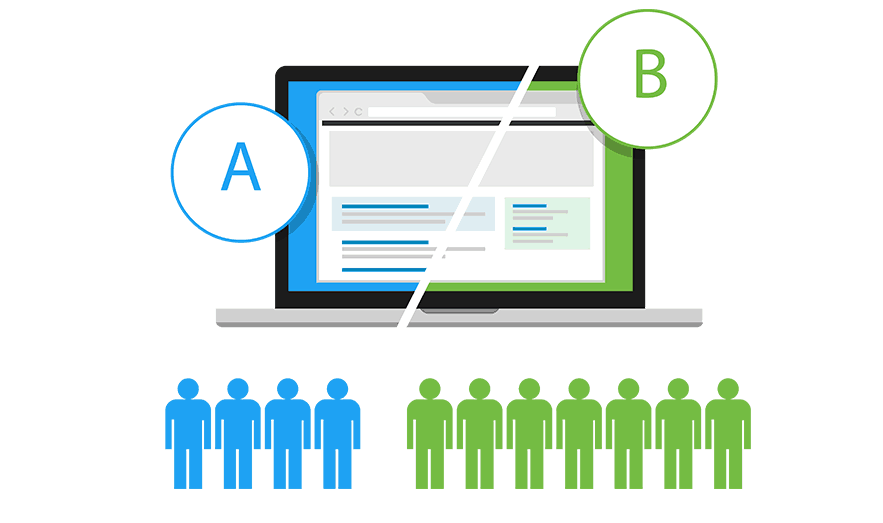
- Cross-Browser Testing: Test your site on multiple browsers (Chrome, Firefox, Safari, Edge) to ensure it looks and works consistently.
- Responsive Design: Use CSS media queries to create a responsive design. Ensure your website adapts to a range of screen sizes, from mobile phones to desktops.
- Performance Optimization: Compress images using tools like TinyPNG to reduce file sizes without sacrificing quality and functionality. Next, minify your HTML, CSS, and JavaScript files to improve load times. Tools like HTMLMinifier, CSSNano, and UglifyJS can help with this.
Step 9: Deploying Your Website
Once your website is ready, it’s time to deploy it.
Choose a Hosting Provider: Select a hosting provider that meets your needs. Some of the best options that we recommend:
Use FTP clients like FileZilla or the file managers on hosting platforms to upload your HTML, CSS, and JavaScript files. Next, sync your database and check for any breakpoints in the preview. If all looks good, launch your website.
Lastly, continuously monitor your website’s performance using tools like Google Analytics and make necessary updates based on user feedback and performance data.
Method 3: Converting XD to HTML with Plugins
Plugins can significantly streamline the XD-to-HTML conversion process, helping you build simple websites. Here are two popular plugins. Make sure to use the latest version.
Export Kit Plugin: Install Export Kit from the Adobe XD Plugin Manager.
Usage: Use the plugin to convert your XD design into HTML, CSS, and JavaScript. Follow the plugin’s guidelines for exporting and downloading the code. Export Kit can handle complex designs and generate code that closely matches your original layout or actual product.
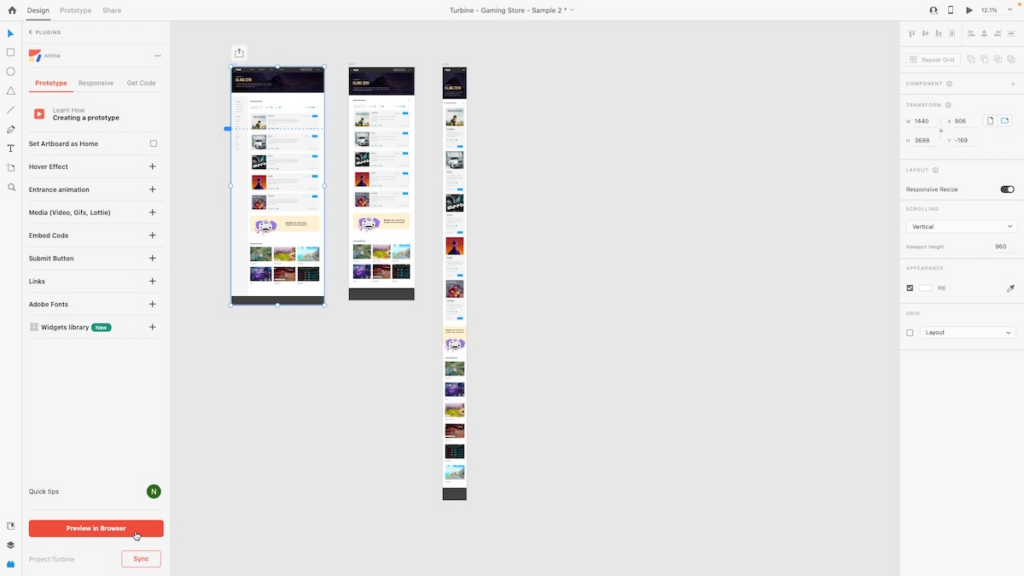
Anima Plugin: Install Anima from the Adobe XD Plugin Manager.
Usage: Anima allows you to create responsive designs and export them as clean, production-ready HTML and CSS. It also supports advanced features like animations and transitions, making it a powerful tool for developers.
Conclusion
Converting Adobe XD designs to HTML involves multiple steps, including exporting assets, refining code, and adding interactivity. By following this comprehensive guide, you can ensure a smooth transition from design to a fully functional, responsive website.
With the right tools and techniques, you’ll be able to create websites that not only look great but also perform exceptionally well. If you have any questions or need further assistance with any step in the process, feel free to reach out to us.
FAQs About Converting Adobe XD to HTML
Can Adobe XD export directly to HTML?
Adobe XD does not provide a native one-click HTML export feature. Most users convert XD designs to HTML by using coding methods, third-party plugins, or front-end development tools.
What is the easiest way to convert XD to HTML?
Using an XD-to-HTML plugin or an automated export tool is the easiest option for beginners. These tools generate basic HTML and CSS files, but developers often need to refine the code manually.
Do I need coding knowledge to convert XD to HTML?
Basic knowledge of HTML, CSS, and responsive design helps improve the final output. Automated tools reduce manual work, but coding skills are still useful for customization and optimization.
Which tools are commonly used for XD-to-HTML conversion?
Developers often use tools like Anima, Web Export, and Bootstrap for XD-to-HTML projects. Some teams also use React or Tailwind CSS during development.
How long does it take to convert an XD design to HTML?
The timeline depends on the design complexity, number of pages, animations, and responsiveness requirements. A simple landing page may take a few hours, while larger websites can take several days.


