
WordPress site slow and frustrating your visitors? Even a one-second delay can drive users away and hurt your rankings. Speed issues often come from hosting limits, heavy plugins, or poor optimization. The good news is that most problems are easy to fix once you know where to look.
In this guide, you will discover the real causes of slow performance and simple fixes to speed up your site, improve the user experience, and boost conversions.
TL;DR: Quick Fixes to Speed Up Your Website
- Limited server resources, heavy themes, and inefficient plugins often slow performance.
- Large images, unoptimized databases, and no caching increase load time.
- Test speed using tools to identify bottlenecks, such as high response times or slow scripts.
- Update PHP, clean plugins, and use better hosting for faster results.
Common Reasons for a Slow WordPress Site
Various factors can cause your WordPress admin panel to slow down, thereby affecting your WordPress website’s speed. However, the most common issue is limited server resources.

When you set up your WordPress website, you need to choose a hosting provider, which usually includes a set of resources with the hosting plan to run your WordPress website.
However, as your site grows and you attract more users, these resources might be consumed by multiple users. This causes slow loading times and performance-lagging issues with your WordPress dashboard.
The front end of your website can be easily enhanced with a WordPress plugin to fix your speed and performance issues. However, fixing a slow WordPress backend can take time and effort.
Learn More: Ways to Speed Up WordPress Site and Dashboard
Five Common Reasons for a Slow WordPress Backend
The backend is usually an area that remains uncached and requires more resources to run the website smoothly. So, if your site speed lags, something on your site is consuming your resources and needs fixing.
- Inefficient Plugins: Poorly coded or resource-intensive plugins can significantly degrade your WordPress backend performance. Identify and deactivate any plugins that are not essential or causing excessive database queries or CPU usage.
- Bloated Themes: Heavyweight or poorly optimized themes can slow down your WordPress backend. Opt for lightweight, optimized themes that prioritize performance and minimize unnecessary code.
- Extensive Database: Over time, your WordPress database accumulates unnecessary data, such as spam comments, post revisions, or unused plugins, which can slow page speed.
- Poor Web Hosting: A slow web server or shared hosting environment can negatively affect a site’s loading times. If your website shares a server with multiple other sites, it can slow down performance.
- Large Image Files: Uploading large image files without proper optimization can consume excessive bandwidth and slow down both the WordPress backend and front end.
- Insufficient Server Resources: Inadequate server resources, such as limited RAM, low processing power, or limited bandwidth, can also lead to a slow WordPress backend.
- Caching and Content Delivery: Lack of caching mechanisms and poor content delivery optimization can impact backend performance. This leads to an excess load on your site, thus causing a slow backend.
Speed Up Your WordPress Website Today
Get expert optimization to improve performance, reduce load time, and deliver a fast, seamless experience for your visitors.
How to Know if Your WordPress Website is Slow?
There might be many reasons, but below are some ways to figure out why your WordPress site is slow.

Test Your Website Speed
Before testing your website, you must check its speed to improve user experience. If your site takes longer than 2 seconds to load, it is slow; if it loads in 1-2 seconds, it is suitable for your user interface.
There are various tools available online to check your website’s speed performance. Use our Free website speed tool to check your site speed performance. Simply enter your website’s URL to see how quickly your pages load.
Take a Website Stress Test
To check your website’s performance, you must take a website stress test to determine how it performs at full capacity. For this, you can use the Seahawk Media Website Speed Test Tool, which helps you run up to 25 visits simultaneously to test how the site performs with heavy traffic. You can run the test for free on the Load Impact website.
Once you run the test, it will show you a graph of each user’s loading times over the course of the test. If there are no significant spikes in the blue lines in the chart, it means your web ghost can handle the load required to run the website smoothly.
However, if it shows a significant rise, it could mean your website needs to be optimized, the web host needs to be stronger to handle the traffic load, or you need to update your hosting plan.
If you are not ready to change your hosting provider yet, you can use a CDN (Content Delivery Network) to reduce load on your servers during heavy traffic without changing your web host.
Check if Your Images Are Optimized
High-quality photos often come with large file sizes, which can affect your site speed. However, there are ways to check whether your images are an issue and whether they are optimized. The easiest and quickest way is to use GT Metrix, a free performance testing tool.
You just need to enter your site URL and run a quick test, and it will present you with a complete breakdown of your loading times, along with solutions to improve them. You also get a list of unoptimized images on your website when expanding the tab further.
Test Your Website Themes and Plugins
The themes and plugins used on the website significantly affect your website’s performance. There are several optimized and unoptimized themes on your website. Some plugins can add too many scripts to your website, slowing page load times.
You can set up a staging copy of your website to fix this issue. Check whether your themes are optimized, and run tests on your plugins while disabling those that add extra load to your site.
The process might take a long time, but it is necessary to remove any excessive data or plugins from your website.
Discover: Best WordPress Search Plugins for Your Site
Tools for Speed Testing and Analysis
If your WordPress site is slow, the first step to fixing it is identifying what’s causing the issue.
Various speed tests and performance analysis tools can help pinpoint slow-loading elements, large image files, excessive HTTP requests, and inefficient plugins.
Here are some of the best tools for analyzing and improving your WordPress site speed:
Seahawk Website Speed Test Tool
The Seahawk Website Speed Test Tool is an easy-to-use solution for measuring your WordPress site speed and identifying performance bottlenecks. Simply enter your website’s URL to receive instant insights into your page load times.
This tool helps you detect slow-loading elements and provides actionable recommendations to optimize your site’s performance.
By using Seahawk’s speed test, you can ensure a fast, engaging experience for your visitors, reduce bounce rates, and improve search rankings.
Google PageSpeed Insights
One of the most popular speed testing tools, Google PageSpeed Insights, evaluates both mobile and desktop page speed. It provides detailed reports on CSS and JavaScript files, image-related issues, and other elements that are slowing down your site. Plus, it offers SEO recommendations to enhance Google rankings.
GTmetrix
GTmetrix analyzes your website’s loading times and provides insights into server configuration, caching plugins, and HTTP requests. It also highlights opportunities for proper optimization, such as enabling lazy loading, optimizing images, and reducing redirects.
Pingdom Tools
Pingdom is a great tool for testing WordPress platform performance. It allows you to test your site from multiple locations, analyze web server response times, and identify bottlenecks caused by outdated plugins, slow hosting companies, or multiple plugins.
WebPageTest
This tool offers advanced analytics by testing your site across different browsers and devices. WebPageTest measures first-byte time, content delivery network (CDN) performance, and multiple server requests, helping to fine-tune server setup for optimal performance.
Check More: Best WordPress Development Tools
How Slow Speed Affects Your Business?
Website speed isn’t just a technical issue; it directly impacts your business. Speed is one of the most important factors that affect your website’s overall performance.

A slow site frustrates visitors, lowers engagement, and affects your search engine ranking. Whether you run a blog, an online store, or a service-based website, slow loading times can significantly hurt conversions and user experience.
User Experience Matters
No one likes to wait. If your WordPress site is slow, users will likely abandon it before they even see your content. Studies show that even a one-second delay can lead to a higher bounce rate, meaning potential customers leave before engaging. A fast website keeps visitors happy and encourages them to explore more.
Search Engine Ranking and Organic Traffic
Google prioritizes fast-loading websites. If your WordPress site is slow, it can negatively impact your search engine ranking, pushing your website lower in search results. This means fewer people will find your site through organic search, reducing traffic and business opportunities.
Check Out: Best Web Crawlers for SEO
Slow Speeds Hurt Conversion Rates
A slow site can drastically affect conversions. Whether you’re selling products, collecting leads, or encouraging sign-ups, every extra second of load time reduces the likelihood that visitors will take action. Optimizing your website for speed ensures a smoother user experience, which in turn leads to better conversions.
Mobile Responsiveness is Key
With most users browsing on mobile devices, ensuring your website loads quickly on all devices is crucial. Mobile users are likely to abandon a slow-loading website, which can impact your mobile traffic, user engagement, and conversions.
A WordPress site slow on mobile can drive users away, impacting engagement and sales. Updating to the latest version of WordPress and optimizing for mobile speed can help provide a seamless experience across different devices.
Site Indexing and Search Engine Crawling
Search engines use bots to crawl and index websites. A slow site can make it difficult for these bots to crawl your pages efficiently, resulting in lower search visibility.
This means fewer pages are indexed, which can delay the discovery of new content. Optimizing load times and using caching tools like WP Rocket can help search engines crawl your site more effectively.
Keep Reading: Safely Update WordPress
How to Fix a Slow WordPress Website?
While many underlying issues can cause a slow WordPress backend, there are several ways to find and fix a slow WordPress. Fix it yourself:
Install WordPress Updates
With new releases come new updates. The WordPress teams keep testing various features and plugins to develop a better version for release.
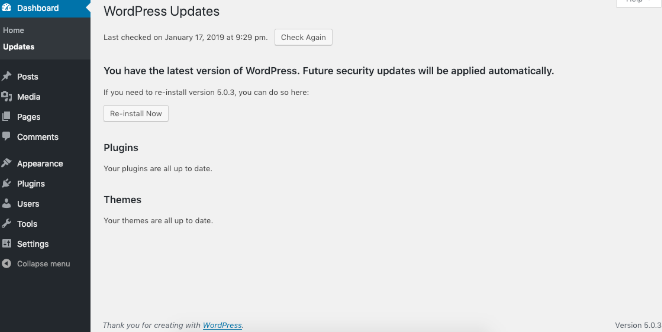
All the top WordPress themes and plugins regularly release updates that fix bugs and improve performance.
So, if you still need WordPress updates, you might miss out on the important updates to improve your overall site performance and speed.
To install updates, simply navigate to WordPress Dashboard → Updates and install any available updates.
Update the PHP Version
PHP is an open-source programming and scripting language, just like WordPress. Your WordPress sites are developed using PHP as the scripting language.
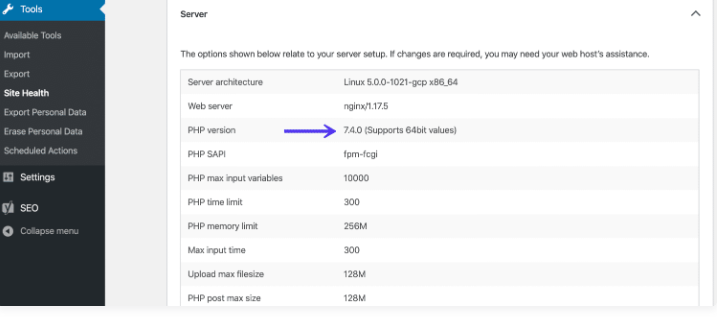
WordPress supports and runs on different PHP versions. However, it’s recommended to use PHP 8.0 or higher.
Usually, hosting providers meet the minimum requirements for running a WordPress site. That said, your current WordPress site may not be running on the latest PHP version.
To update the PHP version, you must view what PHP version your hosting provider runs on the website. For a brief guide on the same,
Know More: How to Update WordPress PHP Version here.
Optimize Your WordPress Database
Your WordPress database stores a lot of information, including sensitive access data. It may contain span content, post revisions, and other unnecessary data.
This access data can overload your website and negatively affect your database. Thus, resulting in a slowdown in WordPress performance.
Therefore, you must clear your WordPress database and see if that helps improve speed and performance. You can use a database optimization plugin for the same.
Consider Switching to a Better Hosting Provider
Most WordPress backend issues arise from the website’s overall infrastructure. If none of the above steps resolve your WordPress backend issues, you should consider upgrading your hosting services.
To enhance your WordPress website performance, look for a hosting provider that offers excellent speed and functionalities for WordPress websites.
You can also check out Seahawk’s WordPress Web Host Rankings to choose the right hosting provider for your WordPress website. Some of the best hosting options include:
- WP Engine: Offers high-performance hosting with built-in caching and security plugins, ideal for businesses and enterprises.
- Kinsta: A premium managed WordPress hosting provider known for its Google Cloud-powered servers and automatic scaling.
- Hostinger: Provides affordable hosting with multiple servers, great for improving WordPress performance on a budget.
Uninstall Bloated Plugins
WordPress plugins are essential for adding and enhancing your WordPress functionality and features. However, some WordPress plugins run in your WordPress admin area and can consume excessive resources.
This leads to slower WordPress performance, as mentioned in the steps above. To fix this issue, you must monitor your WordPress plugins’ performance, use resources carefully, and uninstall bloated plugins. You can use another WordPress plugin, Query Monitor, to review for any overconsuming or PHP errors.
Final Thoughts
In conclusion, managing a slow WordPress backend is essential to maintaining a smooth, efficient website. By following the strategies outlined in this blog, you can significantly improve the performance of your WordPress backend.
Remember to implement these solutions, test their efficacy, and refine your website’s performance to stay ahead in the competitive online landscape. With a faster WordPress backend, you can unlock your website’s full potential and deliver a seamless browsing experience for visitors.
WordPress Slow FAQs
Why is my WordPress page loading slowly, even with a good design?
A WordPress page can load slowly due to too many plugins, external scripts, or poor-quality hosting. Cheap shared hosting plans increase server load and cause slow websites, especially during traffic spikes.
How do plugins affect website speed?
Too many plugins or plugin bloat can significantly slow your entire site. Replace multiple plugins with a single plugin when possible and remove unused ones to reduce server strain.
How does image optimization improve site speed?
Large uploaded images slow page load speed and degrade image quality. Use image compression tools to automatically compress images and ensure your site loads faster on every user’s screen.
What role does hosting play in WordPress performance?
Poor quality hosting or cheap shared hosting plans can make your site extremely slow. Switching to managed hosting or a dedicated server reduces server load, improves uptime, and enhances monitoring and performance.
How can caching and Core Web Vitals improve performance?
Enable caching to create static versions of your pages and reduce server load. This improves Core Web Vitals metrics, lowers response time, and helps website visitors experience faster page load times.


