
Municipalities running on Revize eGov CMS often hit a wall. High vendor costs, limited customization, and a closed ecosystem make it hard to keep up with growing citizen expectations. A Revize eGov CMS to WordPress migration gives government teams a flexible, community-backed, and cost-effective platform to manage their public-facing content with full ownership.
This guide covers every stage of the migration, from pre-migration audit and staging setup to launch and post-launch monitoring, so your city or municipality can move to WordPress with clarity and confidence.
TL;DR: Switching Your City’s Website to a Smarter Platform
- Revize eGov CMS is purpose-built for municipalities but comes with vendor lock-in and high costs.
- WordPress offers an open ecosystem with thousands of plugins, themes, and developer support.
- A successful switch requires careful URL mapping, content restructuring, and accessibility testing.
- Post-launch monitoring is just as important as the migration process itself.
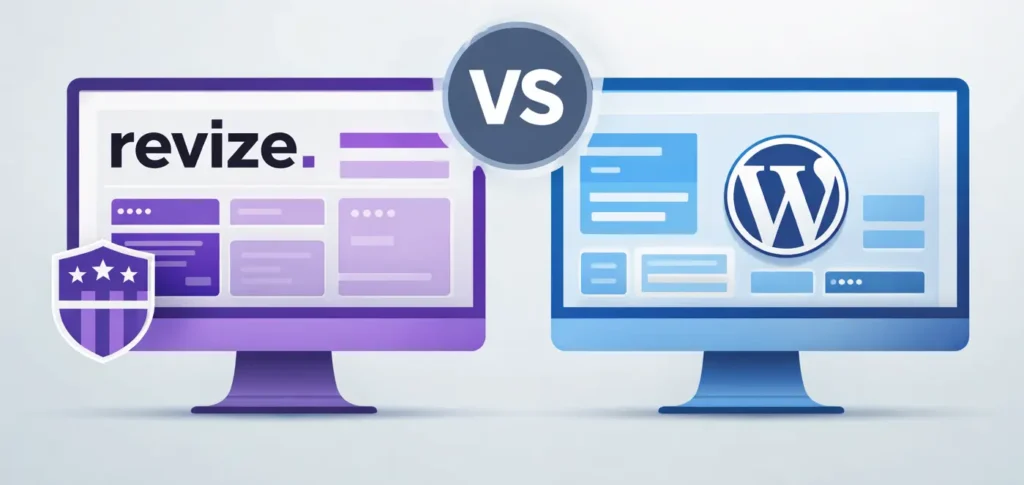
Revize eGov CMS vs WordPress CMS Comparison
Understanding what each platform does well and where it falls short makes the case for migration clearer.
What is Revize eGov CMS and How it Works for Municipalities?
Revize eGov CMS is a proprietary content management system built specifically for local governments, townships, and municipalities.
- It comes with pre-built templates for meeting agendas, news sections, emergency alerts, and resident services.
- Staff with no technical background can publish updates with ease. Revize also provides managed hosting, which removes some IT burden from smaller government offices.
However, the platform’s strengths come with serious trade-offs. It is a closed, vendor-controlled system. Every customization, integration, or feature addition requires going through Revize.
Annual licensing fees are ongoing and non-negotiable. As resident expectations for digital services grow, many municipalities find Revize too rigid to adapt quickly.
What Makes WordPress a Powerful CMS for Government Websites?
WordPress is open-source, freely available, and backed by one of the largest developer communities in the world.
For government use cases, WordPress provides a wide range of government WordPress themes built to meet accessibility, branding, and compliance standards out of the box. You can extend functionality through thousands of plugins without depending on a single vendor.
Page builders like Gutenberg and Elementor let non-technical staff update content visually. Custom post types handle structured data like meeting agendas, department directories, and service requests.
WordPress also supports multilingual content, granular user roles, and robust REST API connectivity for third-party API integrations used by government systems.
Cities that study best municipal and state website designs consistently find WordPress behind the most modern, accessible, and high-performing government portals online.
Migrate from Revize eGov CMS to WordPress
Move your government website with zero downtime, secure data transfer, and expert support tailored for performance and SEO growth.
Why Migrate From Revize eGov CMS to WordPress?
The reasons municipalities choose to leave Revize are both practical and strategic.
- Cost savings: Revize requires ongoing vendor licensing. WordPress is free. Even with managed hosting, premium themes, and plugin subscriptions, total platform spend is typically lower.
- Full content ownership: On Revize, your data lives inside a vendor-controlled environment. WordPress gives you complete ownership over your content, database, and files.
- Design flexibility: Revize restricts how much you can change your site’s appearance. WordPress lets you match any branding standard, completely customized.
- Ecosystem and support: WordPress has a global network of developers, agencies, and specialists with government experience. Help is never far away.
- Long-term scalability: Implementing proper enterprise web governance and content control on WordPress creates a sustainable publishing workflow for growing teams and expanding digital services.
- SEO and performance advantages: WordPress is built with a clean, SEO-friendly architecture that supports fast load times and modern Core Web Vitals, critical for public-facing government sites.
For municipalities that also manage learning systems or internal portals, migrating legacy LMS platforms to WordPress alongside the main site migration can consolidate systems and reduce overall overhead.
Pre-Migration Planning for Revize eGov CMS to WordPress Migration
Thorough planning is what separates a smooth migration from a disruptive one. Invest time here before touching any files.
- Audit all existing content: Catalog every page, document, image, and media file on your Revize site. Track content type, URL, last updated date, and priority level in a spreadsheet.
- Define your goals: Are you migrating primarily to reduce costs? Improve accessibility? Add new features? Your goals guide every decision downstream.
- Choose WordPress hosting: Government websites need a reliable, secure infrastructure. Review the costs of building a website to create an accurate budget that accounts for hosting, SSL certificates, premium plugins, and potential development support.
- Select a theme before you start: Choosing a WordPress theme after migration often means rework. Pick one that meets WCAG 2.1 accessibility standards and matches your government branding early.
- Assign roles: Identify who handles technical setup, who manages content import, and who signs off on final approval. Government migrations often involve multiple departments, so clear ownership matters.
- Build a staging environment: Always migrate to a staging site first. Never work directly on your live Revize domain until the WordPress site is fully tested and approved.
- Map every URL: Export a complete list of all existing Revize page URLs. You will use this list to create 301 redirects when the new site goes live. Skipping this step causes SEO issues and broken links, which can affect citizens’ ability to find services online.
Step-by-Step Revize eGov CMS to WordPress Migration Process
Follow this structured migration process to safely move your Revize eGov CMS website to WordPress without losing data, functionality, or SEO value.

Step 1: Export Content and Assets from Revize eGov CMS
Begin by extracting all content from your Revize site. Gather page text, images, PDFs, agenda archives, news posts, announcement banners, and all downloadable documents.
- Revize does not provide a standard native export tool. You may need to manually copy content or use a website crawler such as Screaming Frog to extract page data and asset URLs.
- Save everything locally, organized by content type.
This constraint is common in proprietary government CMS migrations. The process shares many similarities with a Sitefinity to WordPress migration, where structured but vendor-locked content must be manually extracted and reformatted.
Document every source URL during this phase. You will need a complete list for redirect mapping in Step 5.
Step 2: Set Up WordPress Environment and Install Required Tools
With your content safely exported, build the WordPress environment on your staging server.
Install WordPress, configure your admin credentials, and set your permalink structure to /%postname%/ for clean, SEO-friendly URLs. Set your timezone, date format, and site language.
Install these core plugins before importing any content:
- Rank Math: For meta tags and sitemap management
- Redirection: For 301 URL redirect mapping
- WP Migrate: For database portability
- Wordfence: For security hardening
Force HTTPS on your WordPress site from day one. Government websites must operate on secure connections. Install your SSL certificate, configure HTTPS enforcement in your WordPress settings, and verify that all asset URLs load over HTTPS.
Install your accessibility-compliant government theme and set up user roles to match your editorial team’s responsibilities.
Step 3: Import and Reformat Content into WordPress
Start importing content, prioritizing your highest-traffic pages: Home, services, department pages, and contact.
- For manual imports, paste content into the WordPress block editor. Clean up legacy HTML artifacts from the Revize export.
- For large content volumes, use WP All Import with a structured CSV file to efficiently create bulk pages.
- Upload all images, PDFs, and documents to the WordPress Media Library. Organize them into logical folders or use a media management plugin.
Recreate structured content types that Revize used natively. Meeting agendas can become custom post types. Public notices can become a category-filtered post archive. Plugins like The Events Calendar handle public meeting listings cleanly.
This reformatting stage is comparable to what teams face during a Storyblok to WordPress migration, where content models must be manually mapped to WordPress structures.
Apply consistent heading hierarchy to every page, H1 for page titles, H2 for major sections, H3 for subsections. This improves both accessibility and SEO.
Step 4: Recreate Design, Navigation, and Templates
Citizens expect a professional, easy-to-navigate experience on government websites. Design consistency builds trust.
- Use your chosen WordPress theme to rebuild your site structure. Recreate the header, footer, and primary navigation.
- If your Revize site used dropdown or megamenu navigation, replicate this using your theme’s built-in menu system or a plugin like Elementor.
- Build reusable page templates for service pages, department indexes, news archives, and event listings. A page builder makes this visual and repeatable.
If you want to preserve your existing visual identity during the transition, converting your current design to a WordPress theme is an effective approach. It maintains design continuity for residents while moving the site to a fully modern platform.
Apply your city’s branding: logo, typography, colors, and iconography, across all templates. Set up widget areas for department links, service shortcuts, social media feeds, and emergency alert banners.
Step 5: Implement SEO Migration Strategy and Redirects
SEO preservation is critical. Every old Revize URL without a corresponding 301 redirect is a potential loss of search ranking and citizen trust.
- Set up 301 redirects for every old Revize URL using the Redirection plugin or your server’s
.htaccessfile. Map each old URL to its closest new equivalent on WordPress. Use your URL export from Step 1 as the source.
- Update all internal links across your imported content to reflect the new WordPress URL structure. Check for any links still pointing to the old Revize domain.
- Submit your WordPress XML sitemap to Google Search Console immediately after launch. Monitor for crawl errors, coverage issues, and any dropped pages.
- Preserve all existing meta titles, meta descriptions, and image alt text. Update any that are missing or below standard.
Staying current with top AI search trends helps you adopt modern search optimization practices on the new platform right from launch.
Pay special attention to PDF and document URLs frequently linked from other government sites or cited in public records. Redirecting these prevents broken inbound links.
Step 6: Test Website Functionality, Performance, and Accessibility
Never launch without a full round of testing on your staging site.
- Functionality testing: Verify every contact form, document download, news archive, and navigation menu. Test on multiple browsers: Chrome, Firefox, Safari, and Edge. Confirm that no page returns a 404 error.
- Performance testing: Use Google PageSpeed Insights or GTmetrix to measure load times. Enable caching, compress images, and activate a CDN. Target under three seconds for all primary pages. Working with performance-focused WordPress development services helps achieve strong Core Web Vitals scores that satisfy both Google and residents alike. Implementing server-side rendering for relevant page components can further improve perceived load times.
- Accessibility testing: Government websites must meet WCAG 2.1 Level AA standards. Review ADA compliance for WordPress government websites to understand the full scope of requirements. Use WAVE or axe to audit for violations. Fix all critical issues; missing alt text, poor color contrast, unlabeled forms, and keyboard navigation failures, before go-live.
Step 7: Launch Website and Monitor Post-Migration Performance
Once your staging site passes all tests, it is time to go live.
Point your domain DNS to the new WordPress server. Deactivate any staging-mode plugins. Confirm HTTPS is active across all pages and that the SSL certificate covers your full domain.
Prioritize monitoring immediately after launch:
- Google Search Console: Watch for crawl errors, dropped pages, and manual actions
- Analytics: Track traffic trends, top landing pages, and bounce rates
- Uptime monitoring: Set up alerts for any server downtime
- Redirect checks: Verify all 301 redirects resolve without loops or chains
If citizen privacy is a concern, consider Google Analytics alternatives like Matomo or Plausible. Both offer self-hosted options that keep resident data off third-party commercial servers.
Schedule post-launch reviews at 30, 60, and 90 days. Address any content gaps, broken links, or usability issues that surface in real-world use.
Common Challenges in Revize eGov CMS to WordPress Migration
Even carefully planned migrations encounter friction. Knowing where problems typically arise helps you prepare.
- No native export tool: Revize does not offer a standard data export function. Teams often rely on manual extraction or crawlers, which are time-intensive and error-prone.
- Proprietary content structure: Revize templates do not map directly to WordPress post types. Agenda layouts, service page formats, and document archives all require manual recreation.
- URL pattern mismatches: Revize URL structures rarely translate cleanly to WordPress permalinks. This increases the complexity of redirect mapping and raises the risk of missed redirects.
- Stakeholder approval delays: Government migrations involve multiple approvals from IT directors, department heads, and, sometimes, elected officials. These cycles add time. Build them into your project plan.
- Accessibility gaps on import: Migrating content from Revize to WordPress does not automatically make it accessible. Every imported page needs a fresh accessibility review.
Best Practices for Revize eGov CMS to WordPress Migration
Following proven practices reduces risk and significantly improves outcomes.

- Back up everything before you start: Export all available content, files, and data from your Revize environment before any migration work begins.
- Migrate in phases: Move high-priority pages to the top and test them thoroughly. Then migrate secondary content. A phased approach limits the blast radius of any errors.
- Implement a content freeze: Once migration begins on the WordPress staging site, stop publishing new content on Revize. Content added to the old CMS after migration begins may be missed.
- Document every decision: Keep a log of every redirect created, every page reformatted, and every design choice made. This supports future audits and helps troubleshoot issues quickly.
- Invest in ongoing security: WordPress security requires active management. AI for WordPress maintenance and security explains how modern automated tools can continuously handle plugin updates, threat detection, and uptime monitoring.
- Train your content team: After launch, conduct hands-on training for all editors. Staff familiar with Revize will need guidance on the block editor, media library, categories, tags, and publishing workflows.
- Test on all devices: Government websites serve all residents. Verify your WordPress site on desktop, tablet, and mobile devices across operating systems before and after launch.
Conclusion
Migrating from Revize eGov CMS to WordPress is a substantial project, but one that pays dividends for years to come. WordPress gives municipalities the flexibility, scalability, and open-source community support that no proprietary government CMS can match at the same cost.
Success depends on thorough planning. Map every URL. Test every function. Train every editor. And monitor performance in the weeks and months that follow launch. Address issues quickly as they surface.
Whether your team handles the migration internally or partners with a WordPress specialist, understanding each step of the process puts your municipality in the best position to go live with confidence. You emerge with a faster, more accessible, and fully owned website on one of the world’s most trusted platforms.
The pattern holds across government and legacy CMS migrations: from MODX to WordPress to WebEdition to WordPress; the upfront effort is real, but the long-term value it delivers to your municipality and its residents is far greater.
FAQs About Revize eGov CMS to WordPress
How long does a Revize eGov CMS to WordPress migration take?
Most migrations take 5 to 7 days. Simple sites with fewer pages finish faster. Large municipal sites with document archives, department pages, and custom content types take longer to build. Stakeholder approval cycles also add time.
Will migrating to WordPress affect my search rankings?
It can; if you skip proper URL mapping. Set up 301 redirects for every old Revize URL before launch. Submit your new sitemap to Google Search Console right away. With correct redirects in place, rankings typically recover within a few weeks.
Does WordPress meet government accessibility standards?
Yes, when configured correctly. WordPress itself is accessibility-ready, but your theme, plugins, and content must also comply. You need to meet WCAG 2.1 Level AA standards. Always run an accessibility audit before going live.
Can non-technical staff manage WordPress after migration?
Yes. WordPress has a user-friendly block editor that requires no coding knowledge. Staff can create pages, upload documents, publish news, and manage menus without developer help. A short training session after launch is almost all that most teams need.
Do I need a developer to complete this migration?
Not always. Small sites with straightforward content can be migrated by an in-house team. However, larger municipal sites with complex navigation, custom content types, and strict compliance requirements benefit from working with an experienced WordPress developer or agency. It reduces errors and speeds up the entire process.


