
Migrating your Learning Management System (LMS) isn’t just a technical upgrade; it’s a strategic move toward flexibility, scalability, and long-term control. If your current LMS feels restrictive, expensive, or difficult to customize, transitioning to a WordPress LMS can unlock new growth opportunities.
With its extensive plugin ecosystem and open-source foundation, WordPress empowers organizations to build tailored learning experiences without vendor lock-in. However, a successful migration requires careful planning, precise data handling, and rigorous testing.
In this guide, you’ll learn exactly how to migrate your legacy LMS to WordPress while minimizing risk and maximizing ROI.
TL;DR: WordPress LMS Migration in a Nutshell
- Audit your existing LMS to identify content, users, and integrations before migration.
- Choose the right WordPress LMS plugin based on features and scalability needs.
- Use a hybrid migration approach for accuracy and efficiency.
- Carefully migrate users, course data, quizzes, and sales records.
- Preserve SEO by properly mapping URLs and implementing redirects.
- Reconfigure integrations and test all functionalities thoroughly.
- Perform a soft launch to reduce risks before full deployment.
- Optimize performance, SEO, and user experience post-migration.
- Choose Seahawk Media for a safe and fast LMS migration service.
Why Move to WordPress Learning Management Systems?
First and foremost, WordPress dominates the web ecosystem, powering over 43% of all websites. This widespread adoption translates into strong community support, continuous updates, and a massive plugin marketplace.
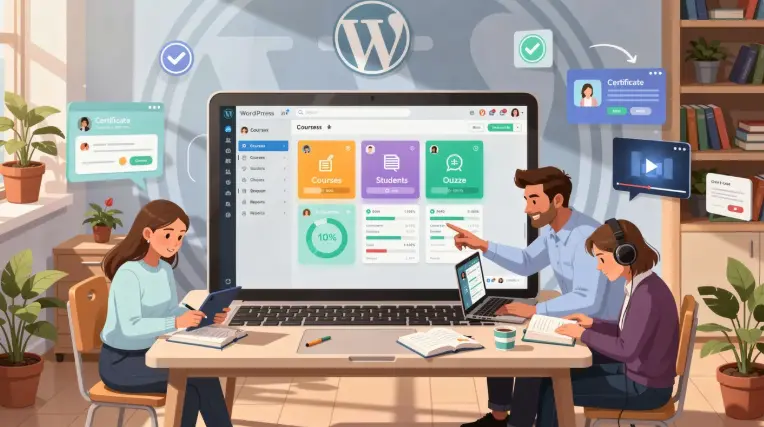
More importantly, WordPress-based LMS platforms offer:
- Flexibility: Unlike proprietary LMS platforms, WordPress allows deep customization.
- Cost Efficiency: You avoid recurring enterprise licensing fees.
- Ownership: Full control over your data and infrastructure.
- Scalability: With proper hosting and caching, you can handle high traffic effortlessly.
Additionally, WordPress integrates seamlessly with tools like CRMs, email marketing platforms, and analytics systems, making it ideal for businesses focused on growth and monetization.
Choosing the Right WordPress LMS Plugin
Selecting the right LMS plugin is a foundational decision. Each plugin differs in terms of features, pricing, and extensibility. Here are the most popular options:
- LearnDash: Enterprise-grade features, strong monetization tools.
- LifterLMS: Flexible course building and memberships.
- Tutor LMS: User-friendly UI with robust quiz builder.
- Sensei LMS: Native WordPress integration.
- Academy LMS Pro: Modern interface with SaaS-like experience.
- LearnPress: Lightweight and cost-effective.
Key Features to Evaluate in a LMS WordPress Plugin
Choosing the right LMS plugin requires evaluating core capabilities that directly impact learner experience, course delivery, and revenue potential while ensuring long-term scalability and integration flexibility.
- Content Drip and Scheduling: Controls timed content release to improve engagement, retention, and structured learning progression.
- Prerequisites and Learning Paths: Defines course progression rules to ensure learners complete modules in a logical, guided sequence.
- Quiz Engine Capabilities: Supports diverse question formats, automated grading, and performance tracking to assess learner understanding effectively.
- Certificates and Badges: Enable credential issuance to boost learner motivation, course completion rates, and professional recognition.
- eCommerce Integration: Seamlessly connects with tools like WooCommerce to manage course sales, subscriptions, and payment gateways.
- Reporting and Analytics: Provides actionable insights into learner behavior, course performance, and revenue metrics to support data-driven decision-making.
- Plugin Ecosystem: A strong add-on ecosystem enhances scalability by supporting memberships, automation workflows, and third-party integrations.
Seahawk Media Services for Legacy to WordPress LMS Migration
If you’re looking for a done-for-you solution, Seahawk Media offers specialized LMS migration services.

Our offerings include:
- End-to-End Data Migration: We handle complete data transfer, including courses, users, progress records, quizzes, and sales data. This ensures accuracy, consistency, and zero critical data loss.
- LMS Plugin Consultation and Setup: Our experts recommend and configure the right LMS plugins based on your business model, ensuring optimal functionality, scalability, and ease of use.
- Custom Development: We build tailored features and integrations to match your existing workflows, especially when your legacy LMS includes unique or proprietary functionalities.
- Post-Launch Support & Optimization: After migration, we continuously monitor, optimize performance, fix issues, and enhance user experience to ensure long-term success.
- White-Label Reselling: Agencies and hosting providers can resell our LMS migration services under their brand, enabling scalable growth without increasing operational overhead.
Make the Switch to a Smarter LMS Today
Ditch limitations and unlock scalability with a seamless WordPress LMS migration designed for speed, flexibility, and higher course revenue from day one.
Step-by-Step LMS Migration Process
A structured migration process reduces risks and ensures data integrity. Below is a comprehensive, execution-ready framework to get you started.
Step 1: Audit Your Existing LMS
Before making any changes, conduct a full system audit. Here’s what to inventory:
- Course structures (modules, lessons, quizzes)
- User roles (students, instructors, admins)
- Progress tracking data
- Certificates and achievements
- Media assets (videos, PDFs, SCORM packages)
Additionally, identify export capabilities of your current LMS, data formats (CSV, XML, API-based), and third-party integrations (payment gateways, CRM, analytics).
Why this matters: A detailed audit prevents data loss and helps define migration complexity.
Step 2: Define Migration Goals and KPIs (Often Missed Step)
Many migrations fail due to unclear objectives. Thus, set measurable goals such as:
- Improve course completion rate by X%
- Reduce LMS operational costs
- Increase course sales conversions
- Enhance reporting capabilities
This step ensures your migration aligns with business outcomes and not just technical improvements.
Step 3: Choose Hosting and Infrastructure
Your LMS performance depends heavily on hosting. So, make sure to consider the following:
- Managed WordPress hosting vs Cloud (AWS, Google Cloud)
- CDN for global content delivery
- Video hosting (e.g., Vimeo, BunnyCDN)
- Backup and disaster recovery systems
Pro tip: For media-heavy LMS platforms, prioritize high-bandwidth hosting with caching layers.
Step 4: Set Up Your WordPress LMS Environment
Before initiating data migration, establish a stable and fully configured WordPress environment.
- Start by installing WordPress and setting up your chosen LMS plugin to align with your course structure.
- Next, install essential plugins, including SEO tools such as Rank Math, security plugins like SolidWP, caching plugins like WP Rocket, and backup solutions like BlogVault, to ensure performance and data protection.
Additionally, configure your permalink structure for SEO-friendly URLs, define user roles and permissions for controlled access, and set up email notifications to manage learner communication efficiently.
Step 5: Migration Tool vs Manual Import/Export
When migrating your LMS, choosing the right data transfer approach directly impacts accuracy, flexibility, and project timelines. Broadly, you have two primary methods to consider.
Migration Tools
Automated solutions like WP All Import help streamline the migration process. They are ideal for quickly transferring standard data such as users, courses, and enrollments. However, they may have limitations when handling custom fields or complex LMS structures.
Manual Import/Export
This method offers greater control over how data is mapped and transformed. It is especially useful for complex LMS ecosystems with unique workflows or customized data structures. That said, it requires technical expertise, careful planning, and rigorous validation to avoid errors.
Best Practice: A hybrid approach works best. Use automated tools for bulk data migration, while handling custom elements manually to ensure precision and completeness.
Step 6: Data Migration Execution
Ensure accurate transfer of users, course data, quizzes, and transactions by carefully mapping, validating, and preserving relationships to maintain LMS functionality and reporting continuity post-migration.
- Users and Accounts: Migrate all user credentials, including usernames, emails, and securely hashed passwords. Additionally, reconfigure Single Sign-On (SSO) systems to ensure seamless login experiences post-migration.
- Course Progress: Accurately map lesson and course IDs to retain learner progress. Preserve completion statuses, timestamps, and activity logs to maintain continuity in the learning journey.
- Quizzes: Review and convert quiz question types where necessary. Validate grading logic, scoring systems, and attempt histories to ensure assessments function correctly in the new LMS.
- Sales Data: Transfer transaction records to platforms such as WooCommerce or Easy Digital Downloads, ensuring order history, payments, and reporting data remain intact and accurate.
Step 7: Migrate Course Content and Media
Transfer course structures, media assets, and learning resources efficiently while preserving content integrity, navigation flow, and compatibility across your new WordPress LMS environment.
- Course Content Migration: Move all course pages, lesson hierarchies, and modules while maintaining structure. Ensure embedded videos, downloadable resources, and formatting remain intact after migration.
- Internal Links and Navigation: Update internal links and menus to reflect new URLs. This prevents broken navigation paths and ensures a seamless learner experience across courses.
- Media Migration Best Practices: Use direct server transfer methods like FTP/SFTP for large files. Avoid manual uploads and systematically update URLs to eliminate broken media links.
- SCORM Compatibility: Verify whether your LMS plugin supports SCORM packages. If not, integrate third-party SCORM players to ensure continued functionality and tracking.
Step 8: URL Mapping and SEO Preservation
Preserving SEO during LMS migration is critical to maintaining your existing rankings, organic traffic, and course visibility.
- Start by creating a comprehensive URL mapping sheet that matches old URLs with their new WordPress equivalents.
- Next, implement 301 redirects to guide search engines and users seamlessly to updated pages.
- Additionally, update all internal links to reflect the new structure and ensure navigation remains intact.
This process ensures continuity in indexing and prevents traffic loss. When executed correctly, your course landing pages retain their authority, rankings, and search performance after migration.
Step 9: Integration Reconfiguration
Once the core migration is complete, it is essential to reconnect all external systems to restore full functionality.
- First, reconfigure payment gateways such as Stripe and PayPal to ensure uninterrupted transactions.
- Next, integrate your CRM platforms like HubSpot and Salesforce to maintain customer data flow and sales tracking.
- Reconnect email automation tools to continue learner communication and engagement.
- Also, set up analytics platforms like Google Analytics and Tag Manager to track performance and user behavior.
Finally, thoroughly test webhook functionality and API connections to confirm that all integrations operate smoothly without data inconsistencies.
Step 10: Testing and Quality Assurance
Ensure your migrated LMS performs flawlessly by conducting multi-layered testing that validates functionality, performance, and real-user experience before final deployment and full-scale launch.
- Functional Testing: Validate all core LMS operations, including user registration and login flows. Additionally, test course enrollment, lesson progression, quiz submissions, and certificate generation to ensure seamless learning experiences.
- Performance Testing: Evaluate system performance under different conditions. Check page load speeds, video buffering quality, and server response times to ensure your LMS handles traffic efficiently without lag.
- User Acceptance Testing (UAT): Simulate real-world usage by creating test accounts for students, instructors, and administrators. This helps identify usability issues, workflow gaps, and permission errors before going live.
After testing, document issues, resolve bugs, and re-test critical flows to ensure a stable, error-free LMS experience.
Step 11: Soft Launch (Recommended Additional Step)
Before proceeding with a full-scale rollout, it is highly advisable to conduct a soft launch with a limited audience.
- Initially, grant access to a small group of users, such as select students or instructors, to test real-world functionality.
- Next, closely monitor system performance, user behavior, and potential errors that may not have surfaced during earlier testing phases.
- Additionally, gather feedback on usability, navigation, and the overall learning experience to identify areas for improvement. As a result, you can address issues proactively.
Ultimately, this phased approach minimizes risk and ensures a smoother, more confident full deployment.
Step 12: Final Migration and Go-Live
At this stage, it’s time to execute the final cutover with precision.
- First, freeze all data on the existing LMS to prevent inconsistencies during the transition.
- Next, perform a final data sync to ensure all recent updates, user activities, and transactions are accurately transferred.
- Then, switch the DNS or domain to point to your new WordPress LMS environment.
- Also, schedule this process during low-traffic periods to minimize disruption.
Finally, monitor the system closely post-launch to quickly address any issues and ensure a smooth, successful go-live experience.
Post-Migration WordPress LMS Optimization
Optimize your new system to enhance performance, user experience, and scalability while ensuring your WordPress site supports online courses, integrations, and long-term growth.
- Performance Optimization: Fine-tune caching, CDN, and database settings to ensure your WordPress site loads quickly and handles traffic efficiently across your e-learning platform.
- SEO and Content Visibility: Optimize URLs, metadata, and indexing to improve visibility of online courses and strengthen search rankings across WordPress websites.
- Integration and Functionality: Reconnect tools and verify that all technical aspects function properly, ensuring your complete solution operates without disruptions after migration.
- User Experience Enhancement: Improve navigation, mobile responsiveness, and course accessibility to deliver a seamless online education experience for learners and instructors.
- Ongoing Support and Scalability: Leverage tech support and your development team to monitor performance, scale features, and maintain a smooth transition as your platform grows.
Conclusion
Migrating to a WordPress LMS is a high-impact move that can significantly improve flexibility, reduce costs, and enhance learner experience. However, success depends on structured execution, from auditing your current LMS to post-launch optimization.
By following a phased approach, leveraging the right tools, and prioritizing data integrity, you can ensure a seamless transition with minimal disruption.
Whether you choose to manage the migration in-house or partner with experts like Seahawk Media, the key is preparation, precision, and continuous optimization.
FAQs About WordPress LMS
How long does it take to migrate an LMS to WordPress?
The timeline typically ranges from 2 to 3 weeks, depending on the size of your data, the complexity of integrations, and the level of customization required.
Can I migrate user progress and course data without losing information?
Yes, with proper data mapping and validation, user progress, course completion status, and historical data can be preserved accurately during migration.
Will my SEO rankings be affected after the LMS migration?
SEO impact can be minimized by implementing proper URL mapping, 301 redirects, and updating internal links to maintain search rankings and traffic.
Do I need technical expertise to migrate to a WordPress LMS?
While basic migrations can be handled with tools, complex LMS setups often require technical expertise or professional services to ensure a smooth and error-free transition.


