

In web development, WordPress reCAPTCHA stands as a stalwart defender. This vital security feature acts as a formidable barrier, shielding WordPress sites from the scourge of malicious bots and relentless spam attacks with effective encryption.
As a virtual gatekeeper, WordPress reCAPTCHA effectively distinguishes genuine human users from automated scripts, ensuring that only legitimate visitors can access website maintenance-related functionalities.
Adding reCAPTCHA to WordPress during website maintenance checkups is essential to upholding online safety standards and protecting valuable digital assets.
Let’s explore how to integrate reCAPTCHA seamlessly for enhanced website security.
TL;DR: Strengthen WordPress Security with reCAPTCHA
- WordPress reCAPTCHA blocks bots, brute force attempts, spam comments, and malicious form submissions to protect your website content and data.
- You can add Google reCAPTCHA via a plugin in the dashboard, or integrate it manually using site key and secret key details.
- Protect key areas such as login, registration, password recovery, contact form, and comment sections to improve spam control.
- Choose the right version, such as v2 checkbox or v3 background verification, to balance security, performance, and user experience.
What is WordPress reCAPTCHA?
You’ve probably encountered CAPTCHA numerous times while browsing online. They come in various forms, one of the most common being distorted text that you must decipher. In contrast, others involve selecting specific images from low-resolution photos.
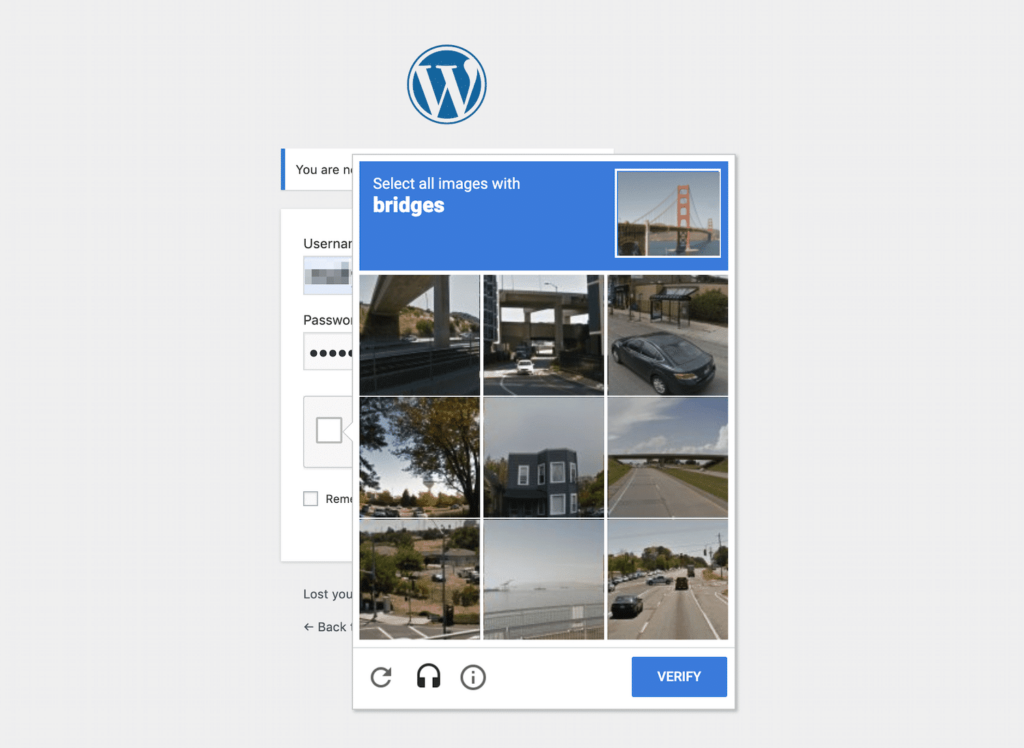
Regardless of the format, the challenge to WordPress security is typically one that most humans can easily tackle. However, even the most sophisticated bots struggle to decipher distorted text or recognize fragmented images.
When bots fail to pass the CAPTCHA test, they are effectively blocked from accessing your site or whatever else the CAPTCHA is safeguarding.
This matters because bots are employed in various scenarios that could jeopardize the security and integrity of your website.
For instance, brute-force attacks, a prevalent hacking technique, use bots to repeatedly enter credentials into your login page until they gain unauthorized access.
Cross-site scripting (XSS) is another form of cyberattack in which hackers inject malicious code into your website via forms like the login page or comment section. This could lead to malware being hosted on your site, the theft of sensitive data, and other adverse consequences.
Furthermore, bots can inundate your comment section with low-quality links, hampering your site’s Search Engine Optimization (SEO) functions and deterring genuine users.
Spam submissions are annoying and should be better reflected in your site’s security measures and monitoring.
Think Your Site Security Might Be at Risk?
Our WordPress support team can optimize your site security and functions with effective reCaptcha settings and more.
Using Google reCAPTCHA on WordPress
Below are numerous advantages that come with integrating Google CAPTCHA into WordPress websites:
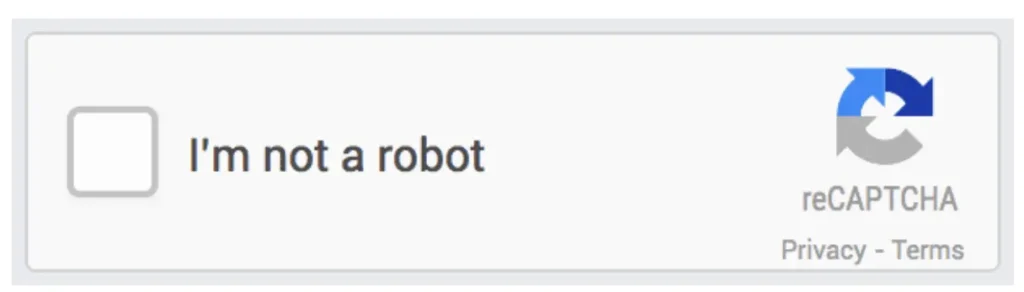
- Google CAPTCHA enhances security by preventing brute-force attacks that threaten WordPress, deterring spam comments, and protecting contact form submissions from malicious bots, thereby safeguarding website uptime.
- With its discreet operation in the background, Google CAPTCHA offers a better user experience than other security measures, thereby enhancing overall user satisfaction.
- By filtering out spam and bot activity, Google CAPTCHA helps uphold the integrity of WordPress site data, ensuring reliability and authenticity.
- WordPress users can effortlessly integrate Google CAPTCHA using a plugin at no cost, eliminating the requirement for coding expertise.
Also Read: Best WordPress Security Service Providers
Using a plugin is the easiest method to integrate a CAPTCHA into your WordPress website. Numerous excellent options are available in the WordPress Plugin Directory, so there’s no need to spend a lot to enhance your site’s security.
However, before selecting a plugin, it’s essential to consider a few key features.
First, consider the type of CAPTCHA the plugin provides. As mentioned earlier, Google reCAPTCHA is generally more user-friendly than requiring visitors to interact with images or decipher distorted text.
Additionally, ensure the chosen plugin can implement CAPTCHA across all sections of your site, not just the login page. We’ll delve deeper into this concept in Step 3. Remember that wherever there’s a form on your site, it’s advisable to employ a CAPTCHA to deter bots.
Best WordPress reCAPTCHA Plugins
Three common plugin choices fulfil the aforementioned criteria.
- Google Captcha (reCAPTCHA) by BestWebSoft is the most popular choice, boasting over 200,000 active installations. Google Captcha (reCAPTCHA) integrates a v2 or v3 Google reCAPTCHA into your login and registration pages, password reset and contact forms, and site comments and testimonial submissions. This helps combat spam while enhancing security.
- CAPTCHA 4WP is well-regarded and offers a similar feature set. This plugin provides compatibility with multisite setups and seamlessly integrates with popular membership tools like bbPress and BuddyPress. Moreover, it allows you to incorporate multiple CAPTCHA on a single page if necessary.
Lastly, you might want to explore the Advanced Google reCAPTCHA plugin. This plugin features the advanced Google reCAPTCHA and applies to login, registration, and password recovery forms.
However, it needs to be integrated with your comments section or contact forms, making it slightly less versatile than the other two plugins discussed earlier.
Also Check: BlogVault Review: The Best WordPress Backup & Security Plugin
Guide to Add reCAPTCHA Plugin to WordPress Website
Here are the steps to follow to add Google reCAPTCHA to your WordPress site:
Step 1: Install and Activate the Google reCAPTCHA Plugin
To install and activate a WordPress CAPTCHA plugin, follow this:
- Log in to your WordPress dashboard.
- Navigate to the “Plugins” section
- Click on “Add New.”
- In the search bar, type the name of the CAPTCHA plugin you want to install.
- Once you find it, click “Install Now” and then “Activate.”
- After activation, go to the plugin’s settings to configure the CAPTCHA according to your preferences.
Ensure that you save the settings and that your CAPTCHA protection is active on your WordPress site.
Step 2: Create Your Google reCAPTCHA and Add It to Your Site
After installing and activating your chosen plugin (as of Sep 1), if it utilizes Google reCAPTCHA, you’ll need to set up your Google reCAPTCHA.
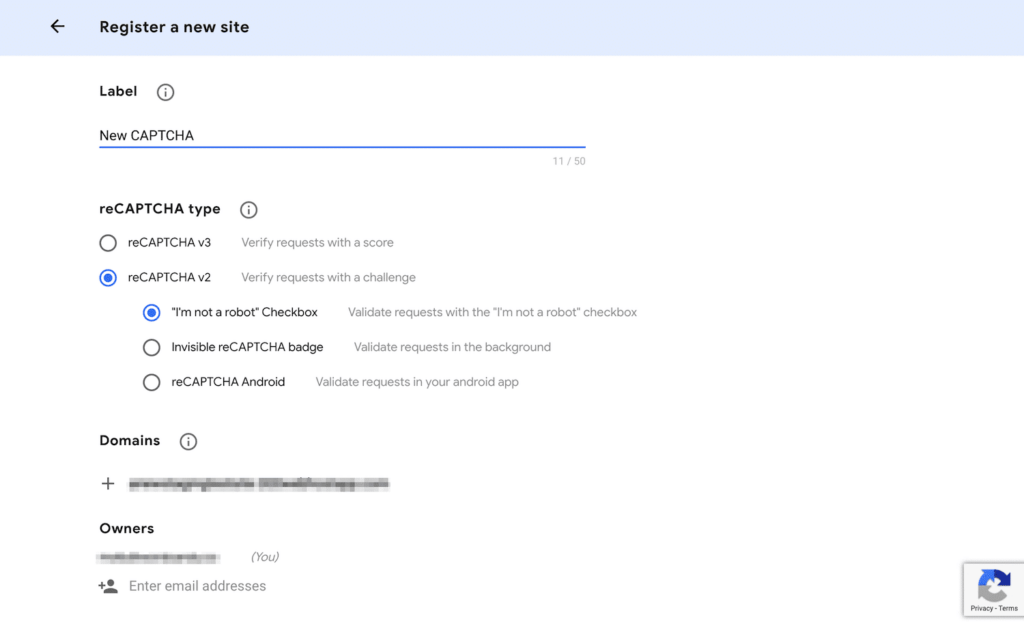
- Navigate to the Google reCAPTCHA admin console and complete the registration form.
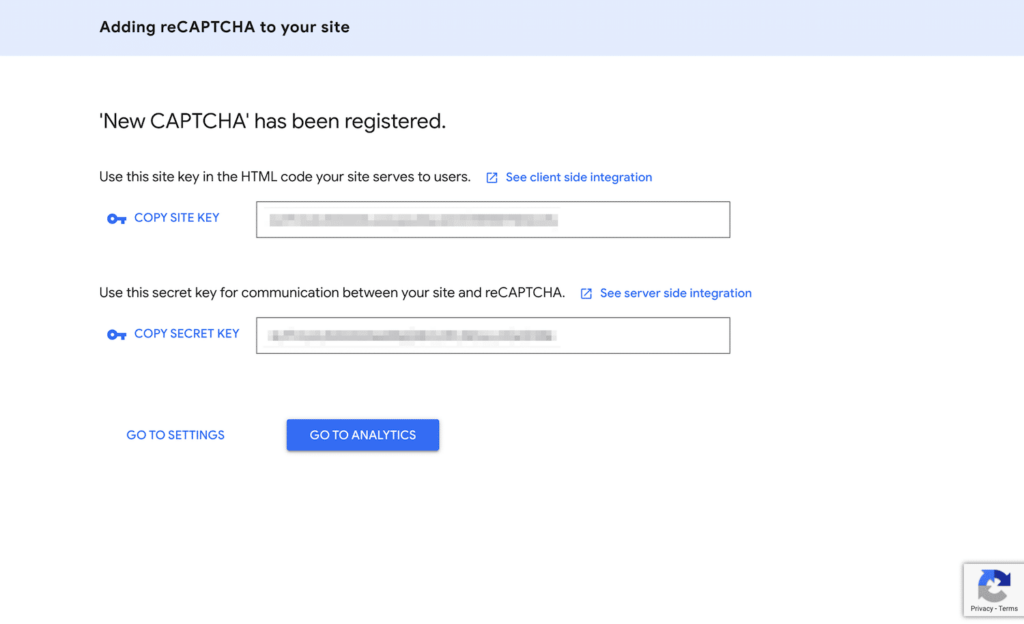
Remember that you’ll have the option to select either a v2 or v3 reCAPTCHA type, and either the checkbox or the invisible test.
The latter offers the best user experience because it doesn’t require any user action. However, the v2 reCAPTCHA checkbox typically provides more reliability.
After completing all required fields, click the Submit button. On the subsequent screen, you’ll receive a Site Key and a Secret Key to add Captcha.
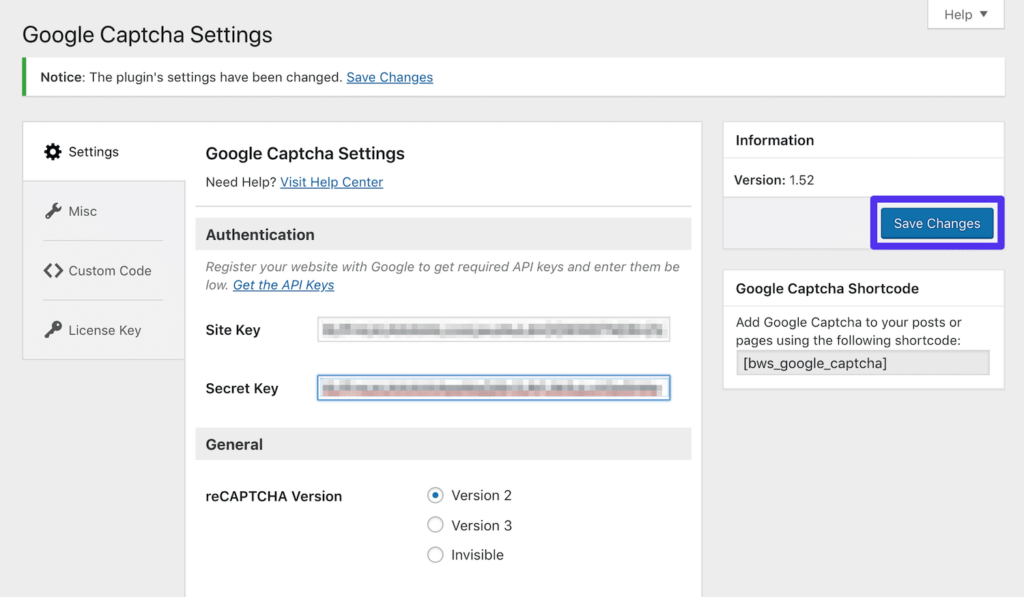
Remember to save your modifications. Additionally, consider bookmarking your Google reCAPTCHA admin console page for regular checks.
Once your site receives significant live traffic, you’ll gain access to insightful analytics concerning form submission requests.
Also Learn About: URL Blacklisting: How to Fix & Prevent It
Step 3: Configure Your Settings to Protect Key Areas
As previously discussed, there are several strategic areas for integrating your CAPTCHA to ensure optimal site protection.
Once you’ve installed your preferred plugin, you can adjust your settings to ensure all critical pages are covered.
However, Google CAPTCHA offers checkboxes in its general settings. Here, you can specify the locations where you wish to deploy your reCAPTCHA.
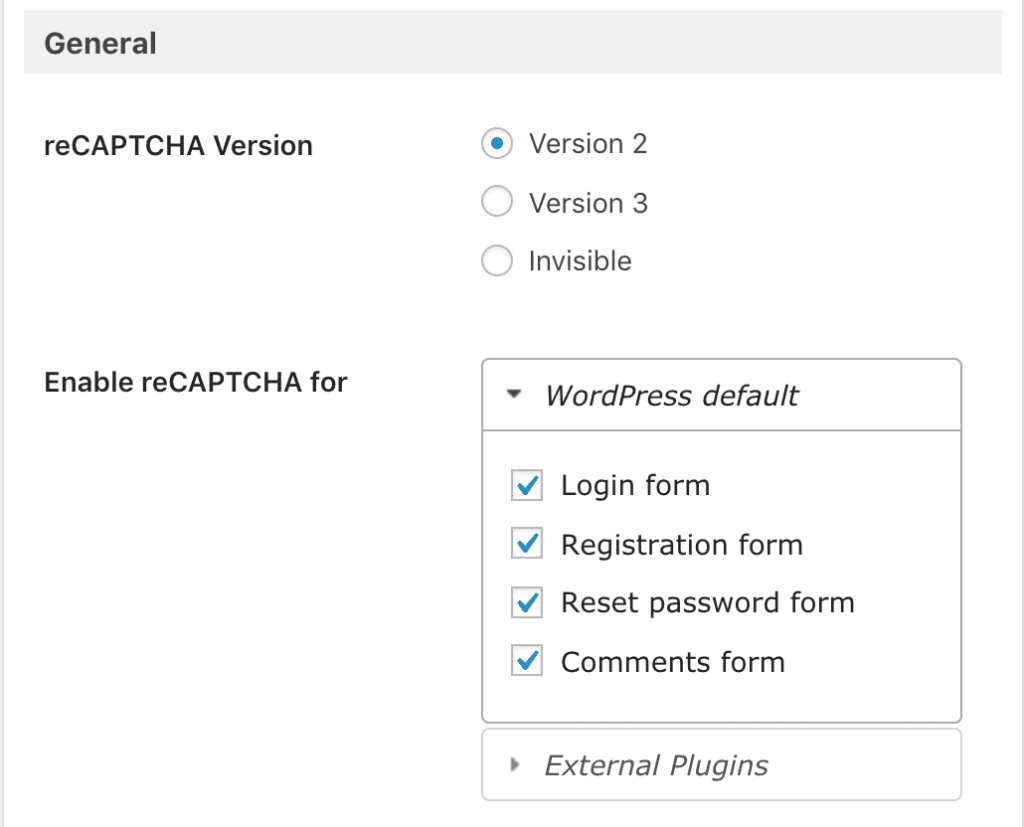
Ideally, this should encompass all forms present on your site, covering sensitive areas like:
- Your WordPress admin login page
- WooCommerce login page
- User registration form
- Password recovery form
- Contact form
Additionally, your site might feature other unique forms, such as user-generated content submissions, surveys, or email sign-ups.
In such instances, you might opt for Advanced no captcha & Invisible Captcha, which offer action hooks for seamlessly integrating a Google reCAPTCHA into any form.
More About WordPress Security: How to Enhance Your Website’s Security
Alternatively, you might consider investing in Google Captcha (reCAPTCHA) Pro. This option offers extended integrations with popular plugins like Jetpack, MailChimp for WordPress, and various form builders.
Read More: WordPress Security is an Uncompromising Strategy
How to Enable Google reCAPTCHA for WordPress Manually?
Integrating Google reCAPTCHA into your WordPress site manually is a great way to enhance security and protect your website from spam and automated bot submissions.
Although this approach requires editing your theme’s code, it provides a direct way to implement reCAPTCHA without relying on plugins. Here’s how you can do it.
Register Your Site with Google reCAPTCHA
First and foremost, visit the Google reCAPTCHA website and sign in with your Google account. Once logged in, you’ll need to register your website.
During registration, choose the type of reCAPTCHA you want to use (for example, v2 “I’m not a robot” checkbox or v3).
Enter your domain name, accept the terms of service, and submit the form to receive your Site Key and Secret Key. These keys are essential for the implementation process.
Add reCAPTCHA Scripts to Your WordPress Theme
Next, access your WordPress dashboard and go to Appearance ⟶ Theme Editor. In the Theme Editor, locate your theme’s header.php file.
Before the closing tag, insert the reCAPTCHA JavaScript code provided by Google. This will typically look like:
<script src="https://www.google.com/recaptcha/api.js" async defer></script>Including this script ensures that the reCAPTCHA features load correctly on your site.
Modify the Target WordPress Form
Then, you’ll need to modify the forms you want to protect. This could include your login, registration, or comment forms.
Locate the relevant form code within your theme files. Insert the HTML element for the reCAPTCHA widget where you want it to appear.
For reCAPTCHA v2, use:
<div class="g-recaptcha" data-sitekey="YOUR_SITE_KEY"></div>Replace YOUR_SITE_KEY with the Site Key you obtained earlier. This step ensures that reCAPTCHA is visually integrated into your form, displaying the challenge for user verification.
Validate reCAPTCHA Response
Finally, incorporate server-side validation to verify the reCAPTCHA response. This involves editing your theme’s functions.php file.
After the form is submitted, you must send a request to Google’s reCAPTCHA API with the user’s input and your Secret Key.
Here’s a simple PHP example:
$recaptchaResponse = $_POST['g-recaptcha-response'];
$secretKey = 'YOUR_SECRET_KEY';
$response = file_get_contents("https://www.google.com/recaptcha/api/siteverify?secret=$secretKey&response=$recaptchaResponse");
$responseKeys = json_decode($response, true);

if(intval($responseKeys["success"]) !== 1) {
    // Handle the failure case
    echo 'Please complete the CAPTCHA';
} else {
    // Proceed with form processing
}
This validation step is crucial because it communicates with Google to verify that the reCAPTCHA response is valid. If successful, you can proceed with processing the form data; otherwise, prompt the user to try again.
By following these steps, you can manually integrate Google reCAPTCHA, enhancing your WordPress site with robust security measures to combat spam and abuse.
Also Check: Best WordPress Malware & Security Scanners
Best Practices for Using WordPress reCAPTCHA
Google’s reCAPTCHA is a popular tool to protect WordPress sites against spam and malicious bot attacks. However, improper implementation can create friction for legitimate users.

Following best practices is crucial to strike the right balance between security and user experience:
- Choose the Right reCAPTCHA: Google reCAPTCHA v3 and invisible reCAPTCHA v2 provide a seamless experience by automatically verifying users in the background. The checkbox v2 is more obtrusive as it requires user interaction. Opt for v3 or invisible v2 unless extra verification is needed.
- Comply with GDPR: Automatic reCAPTCHA variants analyze user behavior data. A privacy statement must be included to comply with data protection laws like GDPR.
- Protect Multiple Areas: Add reCAPTCHA to critical sections like login, registration, comments, and checkout – not every page. Too many CAPTCHA prompts frustrate users.
- Test Implementation: Ensure reCAPTCHA works correctly by testing on a staging site before deploying to production. Check cross-browser and mobile compatibility.
- Combine with Other Security: While helpful, reCAPTCHA shouldn’t be the only line of defense. It should be combined with other security measures, such as firewalls, activity monitoring, and limiting login attempts.
Learn More: How to Prevent WordPress SQL Injection
Conclusion
In conclusion, integrating Google’s reCAPTCHA into your WordPress website is indispensable for fortifying security and mitigating spam attacks.
Follow this guide to seamlessly install and configure a reCAPTCHA plugin and tailor settings to protect vital areas like login pages and forms.
Adhere to best practices, such as selecting the appropriate reCAPTCHA variant, complying with data protection laws, and combining it with other security measures.
With proper implementation, reCAPTCHA can safeguard your site while ensuring a smooth user experience for legitimate visitors.
WordPress reCAPTCHA FAQs
How do I add reCAPTCHA to my WordPress website?
Start by creating a Google account. Generate your site key and secret key from the reCAPTCHA API page. Choose v3 or reCAPTCHA v2 based on your security plan.
Install a captcha plugin from the dashboard using the Add New option. Paste the api keys into plugin settings. Save changes and test the submit button on your contact, comment, or password form.
What is the difference between reCAPTCHA v3 and reCAPTCHA v2?
ReCAPTCHA v2 uses the robot checkbox or image task challenge. reCAPTCHA v3 runs in the background and assigns a score based on risk analysis.
V3 improves performance and user experience because people do not need to click a box. Site owners can adjust the score in plugin settings for better spam protection.
Where can I use reCAPTCHA on my site page?
You can add reCAPTCHA to your WordPress comment form, contact form, register page, password form, and login system. It also works on subdomains. This reduces spam comments and blocks bots from sending abuse or fake traffic.
Do I need custom code to set up reCAPTCHA?
No. Most security plugins and captcha plugin options require no custom code. You only paste the site key and secret key into the api tab. WordPress.com users may need a business plan for advanced plugin support.
How does reCAPTCHA improve spam detection?
ReCAPTCHA API uses risk analysis techniques to detect bots and spammers. It monitors behavior across thousands of computers and browsers.
It assigns a score and filters spam before the form submits. This adds a strong security layer, protecting your blog content and email address from abuse.


