

Every media file uploaded to your WordPress website ends up in one place: the wp-content/uploads folder. From your first logo to yesterday’s product photos, this single directory holds the entire media history of your WordPress site.
Yet most site owners rarely think about the WP content uploads folder until something breaks.
In this guide, we will walk you through everything: what lives inside the uploads folder, how to access it safely, how to optimize it for speed, and how to lock it down against attacks.
TL;DR: WordPress wp-content/uploads Folder
- The wp-content/uploads folder stores every media file on your WordPress site, including images, PDFs, videos, and plugin-generated assets.
- A poorly managed uploads folder can slow down your site, increase backup size, and create potential security risks.
- Correct file permissions, such as 755 for directories and 644 for files, along with blocking PHP execution, are the most important steps to secure this folder.
- You can access uploads through the WordPress media library, your hosting file manager, or SFTP, depending on what you need to manage.
- Treating this folder as a strategic asset helps you build WordPress sites that are faster, more secure, and easier to maintain.
What is the WP-Content/Uploads Folder?
The wp-content/uploads folder is a subdirectory inside the wp-content folder.
It is where WordPress stores all media uploaded through the dashboard, including images, PDFs, videos, ZIP files, and plugin-generated assets.
Unlike WordPress core files found in wp-admin and wp-includes, the wp-content directory is your site’s custom layer. It contains everything that makes your WordPress installation unique.
Think of the wp-content folder as three distinct areas: code (plugins and themes), configuration (mu-plugins), and content (uploads).
The uploads folder is the only directory that changes daily as part of normal publishing workflows, which is exactly why it deserves its own management strategy.
Here’s a quick overview of what sits inside wp-content:
| Folder | What it Contains |
| plugins/ | Active and inactive plugin code |
| themes/ | Active and inactive theme files |
| uploads/ | All media files uploaded and plugin-generated assets |
| mu-plugins/ | Must-use plugins (if configured) |
| cache/ | Created by caching plugins |
On most cPanel hosting accounts, the full path to a media file looks like this: /public_html/wp-content/uploads/2026/03/hero-image.webp
WordPress stores only the file path reference in its database. The physical file lives in the uploads folder. This is an important distinction. If you delete files here directly, images will break across every post and page on your WordPress website.
Why agencies care: For teams doing redesigns, migrations, or ongoing maintenance, the uploads folder is the first place to audit. It holds brand assets, product catalogs, and years of campaign materials that must be preserved and migrated correctly.
Fix Upload Issues and Optimize Your Website
We can help you clean up and optimize your WordPress environment the right way.
What’s Inside the WP-Content/Uploads Folder?
The WP content uploads folder is where WordPress stores all media files, including images, PDFs, videos, and plugin-generated assets uploaded to your site.
Knowing what lives inside this uploads directory helps you manage file permissions, security, and backups without breaking your WordPress site’s structure.
Year and Month Subfolders
By default, WordPress organizes all the media files chronologically. Every upload is placed in a folder based on its upload date: /wp-content/uploads/YYYY/MM/. An image uploaded in March 2026 is stored in the uploads folder at /wp-content/uploads/2026/03/.
This structure prevents the root directory from accumulating tens of thousands of files, which would slow down backups and file operations. You can disable this under Settings > Media, but keeping it enabled is strongly recommended.
Never manually rename or move these folders without updating the database references too. Doing so breaks images across your entire WordPress website. Use a search-and-replace tool or WP-CLI when reorganizing media paths.
Image Thumbnails and Multiple Sizes
When you upload images to your WordPress site, WordPress automatically creates multiple resized versions. A single upload can generate five or more files:
| Original File | Generated Derivatives |
| hero.jpg | hero-150×150.jpg, hero-300×300.jpg, hero-768×432.jpg, hero-1200×675.jpg |
If you have switched themes or page builders over the years, many of these image sizes may no longer be used anywhere, yet they still take up space and increase your backup size. Cleaning up unused image sizes periodically is a worthwhile maintenance task.
Documents, Audio, and Video Files
Non-image assets commonly stored in the uploads directory include PDF files, Word documents, zip files for downloads, MP3 audio, and MP4 video files. WordPress stores these as-is without creating derivatives.
For WordPress sites with heavy video or audio content, such as podcasts, LMS platforms, or video courses, consider offloading large files to dedicated services rather than storing them in the content uploads folder. Your web server will perform better.
Plugin-Generated Subfolders
Many plugins create their own subdirectories inside the wp-content/uploads folder for their own assets:
| Plugin Type | Typical Folder |
| Page builders (e.g., Elementor) | /uploads/elementor/ |
| Form plugins (e.g., Gravity Forms) | /uploads/gravity_forms/ |
| Contact Form 7 | /uploads/wpcf7_uploads/ |
| WooCommerce | /uploads/woocommerce_uploads/ |
| Caching plugins | /uploads/cache/ |
Pro tip: Never delete plugin folders blindly. Removing the wrong directory can break forms, galleries, or cached pages. Always take a full backup before any mass-delete operation.
How to Access Your Uploads Folder Safely?
There are three main ways to manage the wp-content/uploads folder. The right choice depends on who you are and what you need to do.
WordPress Media Library (Best for Day-to-Day Use)
For content teams handling routine uploads, the WordPress Media Library inside the dashboard is the easiest and safest option. You can upload files, add alt text, rename titles, and perform basic image cropping without accessing the server directly.
The WordPress Media Library is not suitable for bulk operations or server-level cleanup, but it is ideal for enforcing SEO best practices, such as descriptive filenames and proper alt text, across all media uploaded to your WordPress website.
Hosting Control Panel or cPanel File Manager (Good for Moderate Tasks)
Most hosts provide a file manager inside their hosting control panel. To access the uploads folder, log into your web hosting account, open the hosting provider’s file manager, and navigate to /public_html/wp-content/uploads/.
This method works well for quick file permissions fixes, manual file management, or moderate bulk operations. Keep in mind that accidental deletions here are instant and irreversible, so always create a backup first.
SFTP Clients (Best for Agencies and Developers)
Secure File Transfer Protocol (SFTP) gives you encrypted, direct access to your web server’s file system. An FTP client, such as FileZilla or Cyberduck, handles the connection.
Unlike plain FTP, SFTP encrypts all credentials and data during the file transfer protocol exchange.
SFTP is ideal for bulk uploads, scripted cleanup operations, and syncing WordPress files between staging and production environments. It is powerful enough to cause serious damage if misused, so reserve it for users with intermediate technical knowledge.
A note on WordPress admin panel file manager plugins: Plugins that expose the file system inside the WordPress admin panel can be convenient for quick edits, but they expand your attack surface. If you use one, restrict access to admin-only roles and remove it after one-off tasks to reduce risk.
How the Uploads Folder Affects Your Site Speed?
A bloated wp-content/uploads folder creates cascading problems: higher disk costs, longer backup times, and slower page loads.
WordPress sites that have been active since 2015-2020 often contain hundreds of unused image sizes from retired themes and abandoned plugins sitting in the uploads directory.

Before You Upload: Set Yourself Up for Success
A simple pre-upload checklist saves time and storage down the line:
- Resize images to realistic maximum dimensions (2,000px wide for hero images; 800–1,200px for in-content).
- Use modern formats like WebP or AVIF where your theme and browsers support them.
- Use consistent, descriptive filenames such as product-red-sneakers-front-2026.webp.
Optimizing Images Already in Your Media Library
For media files already uploaded to your WordPress media library, plugins like Imagify or ShortPixel can compress your existing content uploads in bulk without visible quality loss.
| Site Age | Typical Storage Savings After Optimization |
| 2–3 years old | 200–500 MB |
| 5+ years old | 500 MB to 2+ GB |
Offloading Large Media Files
Hosting long-form video files directly in the uploads folder is not a good idea. It wastes web server bandwidth, inflates backups, and degrades performance during traffic spikes.
Better approaches:
- Video: YouTube, Vimeo, or Wistia with embedded players.
- Audio and Podcasts: Dedicated hosts like Transistor or Buzzsprout.
- Large Downloads: S3-compatible object storage with CDN delivery.
Using a CDN for Faster Global Delivery
A Content Delivery Network caches static assets from your wp-content/uploads folder on servers around the world, reducing latency for international visitors and taking load off your origin server.
When set up correctly, CDNs integrate smoothly with the year and month folder structure, meaning you do not need to reorganize your files.
Tips for Protecting the WP-Content/Uploads Folder
The wp-content/uploads folder must stay writable so the web server can accept new media files. That same requirement also makes it a target. The primary risk is not the images themselves, but malicious code uploaded as a PHP file and executed from the uploads directory.
Real-world risk: A WooCommerce store active since 2019 has accumulated 47,000 files and has not implemented security hardening. The result was a 12 GB uploads directory, backup timeouts, and eventually a malware infection through an unprotected PHP file hidden inside the wp-content/uploads folder.
Set Correct File and Folder Permissions
Incorrect file permissions are among the most common causes of both upload failures and security vulnerabilities in any WordPress installation. Standard Linux folder permissions for WordPress look like this:
| Type | Permission | What it Means |
| Directories | 755 | Owner can read, write, and execute; others can read and execute. |
| Files | 644 | The owner can read, write, and execute; others can read and execute. |
Verify and fix file permissions via your hosting provider’s file manager or via SFTP using the chmod command. If ownership needs to be reset at the server level, your hosting provider’s support team can assist.
Disable PHP Execution Inside the Uploads Folder
This is the single highest-value hardening step. To disable PHP execution, even if a malicious PHP file is uploaded to the WP content uploads folder, it will not run and therefore cannot cause damage.
On Apache servers, create an .htaccess file inside /wp-content/uploads/ and add the following code to block PHP execution:
<Files *.php>
deny from all
</Files>
On Nginx or LiteSpeed servers, equivalent rules to disable PHP execution are configured at the server level. Your hosting provider can assist with this configuration. This step prevents attackers from using malicious scripts as a backdoor into your WordPress site.
Limit Allowed File Types
WordPress restricts dangerous file types by default, but plugins or custom code can loosen these rules. Use a whitelist approach: explicitly allow only the file types your WordPress website genuinely needs.
SVG files deserve special attention because they can contain embedded malicious scripts if not properly sanitized. Use a security plugin or a dedicated tool like Safe SVG if you need SVG support.
Keep WordPress, Themes, and Plugins Updated
Most successful attacks exploit vulnerable upload handlers in outdated plugins rather than WordPress core files. Run a regular patch cycle. For low-traffic sites, monthly updates are fine. For mission-critical sites, check for updates weekly.
Remove unused plugins entirely rather than just deactivating them. Every inactive plugin that interacts with the uploads directory is a potential attack surface that a security plugin alone cannot fully protect.
Advanced Management and Customization
Advanced management and customization let you take full control over how your uploads folder behaves in WordPress. From structuring files efficiently to applying security rules and performance optimizations, these practices help you maintain a scalable and well-organized media system.
Changing the Default Uploads Location
You can redefine where WordPress stores uploads by editing constants in wp-config.php. For example, you might move the root folder from /wp-content/uploads/ to /wp-content/media/.
Moving the content uploads folder on an existing WordPress installation requires physically relocating all WordPress files and updating every database reference using a search-and-replace tool or WP-CLI.
The parent directory’s writable status must also be confirmed before WordPress can write new uploads to the new location. Test this on a staging environment with a full backup before touching production.
Cleaning and Removing Orphaned Media
Over time, WordPress sites accumulate files in the uploads directory that are no longer used, including images from deleted posts, thumbnails from old themes, abandoned plugin folders, and leftover form attachments.
Plugins like Media Cleaner can safely identify and flag unattached media. Always take a full backup, and use your file manager or SFTP to confirm what will be deleted before permanently deleting files.
Integrating Cloud Storage and CDN
For very large WordPress sites, storing all media files in cloud object storage (such as Amazon S3 or compatible services) and serving them via a CDN provides horizontal scalability, reduced web server load, and simplified global delivery.
WordPress plugins rewrite media URLs to point to remote storage while preserving logical paths in the database.
Troubleshooting Common WordPress WP-Content/Upload Errors
WordPress upload errors can interrupt your workflow and prevent media from being added to your site. Understanding the common causes, such as file type restrictions, size limits, or permission issues, helps you quickly identify and fix problems without affecting your content.
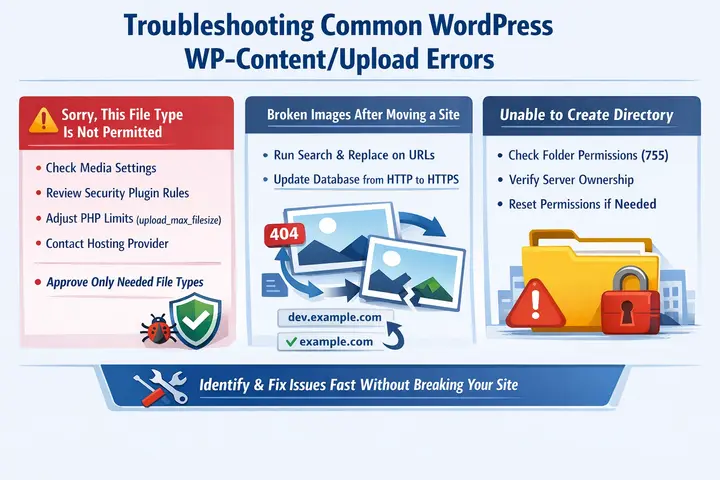
“Sorry, This File Type Is Not Permitted.”
This message means WordPress is blocking a file type, either by default settings or through a security plugin. You can start troubleshooting with the following steps:
- Check your Media settings in the WordPress dashboard.
- Review the file type restrictions for any active security plugin.
- For large files, check your PHP limits: upload_max_filesize and post_max_size in php.ini.
- Contact your hosting provider if you need to adjust server-level PHP limits via your hosting account.
Avoid broadly whitelisting all file types. Approve only what your WordPress website genuinely needs; you risk allowing malicious scripts disguised as legitimate uploads.
Broken Images After Moving or Cloning a Site
When migrating a WordPress installation from a development URL (e.g., dev.example.com) to production (example.com), hard-coded image URLs still point to the old domain.
Use a search-and-replace tool or WP-CLI to update all WordPress files and database references, including protocol changes from HTTP to HTTPS.
After every migration, spot-check random image URLs across several posts and pages to confirm the migration is complete.
“Unable to Create Directory” Permission Errors
This error means WordPress cannot write to the content uploads folder. The likely cause is incorrect file permissions or incorrect server ownership. To fix it:
- Verify that /wp-content/uploads exists and has 755 folder permissions.
- Confirm that the parent directory’s write permissions allow the web server to create new subfolders.
- Contact your host’s support if server ownership (chown) needs to be reset.
Test the fix by uploading a new image and confirming it appears in the correct year/month folder. If you can edit files and add files without errors, the permissions are correctly set.
Wrapping Up
The WP content uploads folder holds the visual and downloadable history of your WordPress site, including product images, brand assets, campaign materials, and user-facing documents collected over time. It deserves the same strategic attention as your theme, your plugins, or your database.
Organize it well. Set correct file permissions. Disable PHP execution. Optimize media files regularly.
When you treat the content uploads folder as a managed asset rather than a dumping ground, the benefits show up everywhere: faster page loads, smaller backups, cleaner migrations, and fewer security incidents on your WordPress website.
If you want help designing and operating that lifecycle, Seahawk Media is ready to partner with you.
FAQs About WP-Content/Uploads Folder
Is it safe to hide the path to the uploads folder?
Not by itself. It does not secure your site. Combine it with proper security measures, such as permissions and updates.
What should I back up if I only care about media?
Back up both the uploads folder and the database. Files alone are not enough without their references.
How big is too big for the uploads directory?
It depends on your site. Sudden size growth without new content may indicate unused files or issues.
Why do files uploaded via FTP not appear in the Media Library?
Because they are not registered in the WordPress database, use a media sync plugin to scan and add them.
Can I delete the entire wp-content/uploads folder to start fresh?
Almost never. It will break all images and downloads across your WordPress site. Delete files selectively and always back up first.


