

Imagine logging into your WordPress site one morning, only to find that hackers have been trying to break in while you slept. Sounds alarming? That’s the reality for many site owners today, which is why learning how to hack-proof WordPress site is essential.
But don’t worry, you don’t need to be a coding wizard to protect your site. In this guide, we’ll walk you through practical, non-technical steps to hack-proof your WordPress site, so you can sleep soundly knowing your site is safe.
A WordPress site can be made more resistant to security threats without coding by using strong authentication, keeping software updated, limiting user permissions, and enabling automated backups. Security plugins and managed hosting tools can also help monitor suspicious activity and block common attack attempts. While no website can be completely hack proof, following established security practices significantly reduces the risk of unauthorized access and data compromise.
Essential Tips to Hack-Proof Your WordPress Site
Follow these practical, non-technical tips to secure your WordPress site. Each step adds powerful security layers to protect your site from hackers and keep your confidential data safe.

Tip 1: Vigilantly Monitor Activity on Your Site
The first step to a hack-proof WordPress site is knowing what’s happening behind the scenes. Many site owners have no idea their site is under attack until it’s too late. By monitoring activity, you can stay ahead of potential threats.
How to do it:
- Install an Activity Log Plugin: Use a plugin like Activity Log to track who’s trying to access your site. This plugin lets you see if hackers are attempting to log in using various usernames or IP addresses.
- Regularly Review Logs: Check your activity log regularly to spot any suspicious activity, such as multiple failed login attempts from unfamiliar IP addresses.
- Act Quickly: If you notice anything suspicious, take immediate action. Change your password and consider blocking the IP address.
Real-Life Example: After installing an activity log plugin, one user discovered multiple login attempts from foreign IPs within just three hours. Prompt action likely saved their site from being compromised.
Related: Malware Removal Services Vs Website Security Services
Restore and Protect Your WordPress Site Today
Our expert team cleans malware, secures your WordPress installation, and strengthens your site’s security layers.
Tip 2: Strengthen Your Login Process
Your login page is one of the most vulnerable parts of your WordPress site. Hackers often use brute force attacks, trying thousands of username-password combinations to gain access.
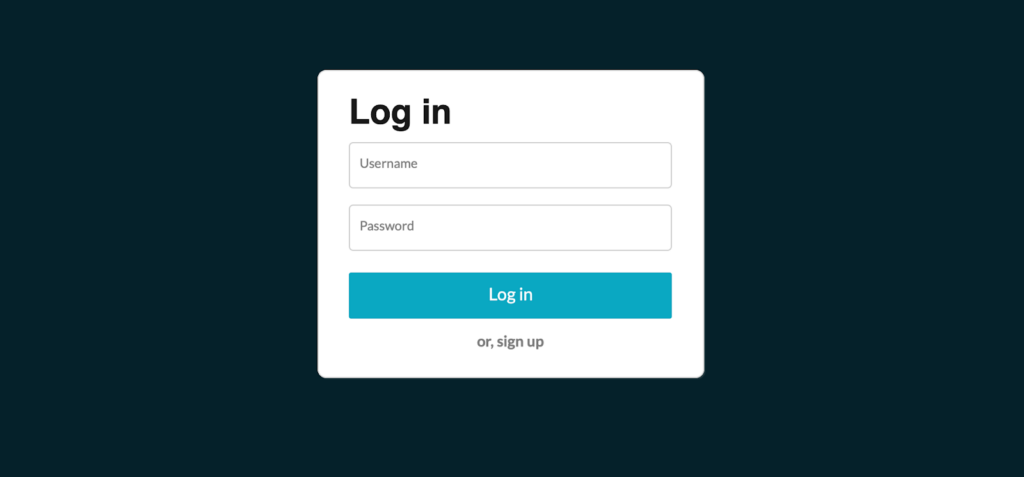
Fortunately, there are simple ways to make your login process more secure.
How to protect:
- Limit Login Attempts: Install a plugin like Limit Login Attempts Reloaded to restrict the number of login attempts a user can make before being temporarily blocked. This reduces the likelihood of a successful brute-force attack.
- Change Your Login URL: The default WordPress login URL (wp-login.php) is well-known. Change it to something unique to throw hackers off. This simple change can block many hack attempts.
- Enable Two-Factor Authentication (2FA): Add an extra layer of security by requiring users to enter a code sent to their phone in addition to their password.
Pro Tip: Combining a strong password with two-factor authentication makes it exponentially harder for hackers to gain access to your site.
Related: Best WordPress Malware & Security Scanners
Tip 3: Keep Everything Up to Date
WordPress, themes, and plugins frequently receive updates that include security patches. If you don’t keep your site up to date, you’re leaving the door wide open for hackers.
Steps to take:
- Enable Automatic Updates: Allow automatic updates for minor WordPress versions and plugins. This ensures your site stays secure without requiring manual intervention.
- Regularly Check for Major Updates: Major updates often require manual installation. Regularly check your dashboard for available updates and install them promptly. To ensure compatibility, consider testing updates on a staging site first.
- Delete Unused Themes and Plugins: Outdated themes and plugins are common entry points for hackers. If you’re not using a plugin or theme, delete it.
Bonus: Staying updated not only enhances security but also ensures your site runs smoothly and benefits from new features.
Also Relevant: Preventing Brute Force Attacks Against WordPress Websites
Tip 4: Secure Your Hosting Environment
Your hosting provider is the backbone of your website’s security. Even if your WordPress setup is secure, a weak hosting environment can expose you to risks.
What to look for:
- Robust Security Measures: Choose a provider that offers regular malware scans, firewalls, and DDoS protection. These features are essential for keeping your site safe from various online threats.
- Daily Backups: Ensure your hosting plan includes daily backups. This allows you to quickly restore your site if something goes wrong.
- Managed WordPress Hosting: Consider investing in managed WordPress hosting, which often includes automatic updates, enhanced security, and expert support tailored specifically for WordPress sites.
Pro Tip: While premium hosting might cost more, it’s a worthwhile investment compared to the potential losses from a security breach.
Tip 5: Protect Your Data with SSL
An SSL (Secure Socket Layer) certificate encrypts the data exchanged between your server and your visitors, making it difficult for hackers to intercept sensitive information.
Steps to implement:
- Get an SSL Certificate: Purchase an SSL certificate from a reputable provider or use a free option like Let’s Encrypt. SSL certificates ensure that all data transferred between your site and its visitors is encrypted and secure.
- Install the SSL Certificate: Install and activate the SSL certificate through your hosting provider’s control panel. This step is usually straightforward and often supported by hosting providers.
- Ensure Full HTTPS Redirection: After WordPress installation, make sure your site is fully redirected to HTTPS to avoid “mixed content” issues. This involves updating internal links and media to use HTTPS URLs.
Pro Tip: An SSL certificate not only secures your data but also boosts your SEO rankings, as Google prefers secure sites and ranks them higher.
Tip 6: Backup Your Site Regularly
Even with the best security measures in place, breaches can happen. Regular backups ensure that you can quickly recover your site without losing data.
How to automate backups:
- Use Backup Plugins: Install backup plugins like BlogVault to schedule automatic backups of your site. These plugins make it easy to set up regular backups and securely store them.
- Store Backups Offsite: Store your backups offsite, either in the cloud or on an external hard drive. This ensures that even if your site is compromised, your backups remain safe.
- Test Your Backups: Periodically test your backups to ensure they can be restored without issues. A backup that can’t be restored is useless.
Pro Tip: Schedule backups during low-traffic times to minimize potential impact on site performance.
Tip 7: Use Security Plugins to Monitor and Defend Your Site
Security plugins are essential tools that act as your site’s first line of defense. They monitor for suspicious activity, scan for malware, and block malicious users.
Top plugins to consider:
- Wordfence Security: Wordfence offers comprehensive protection, including a firewall, malware security scanning, and live traffic monitoring. It’s one of the most popular WordPress security plugins.
- WP Activity Log: Tracks all user and system activity on your WordPress site, helping you identify suspicious actions, monitor login attempts, and respond quickly to potential hacking attempts.
- Akismet: Protects your WordPress site from spam and malicious bots by automatically filtering comments and contact form submissions, keeping your site secure and your content trustworthy.
- Really Simple SSL: Instantly enables SSL encryption on your site, securing data between your server and visitors, protecting confidential data, and improving SEO while making your WordPress site safe.
- WP Umbrella: Monitors your WordPress installation, plugins, themes, and PHP files for vulnerabilities, alerts you to issues, and helps maintain strong security layers to prevent hackers from exploiting your site.
Pro Tip: Set up alerts for any unusual activity so you can respond quickly to potential threats. Regularly review your security plugin’s logs to spot any issues early.
Read More: Best WordPress Maintenance Service Providers
Tip 8: Educate Yourself and Your Team
Human error is often the weakest link in any security chain. Educating yourself and your team on security best practices can prevent many common attacks.
Steps to take:
- Stay Informed: Regularly review security tips and best practices. Subscribe to WordPress security blogs or newsletters to stay updated on the latest threats and solutions.
- Train Your Team: If you work with a team, ensure they are trained to identify phishing emails, recognize suspicious activity, and follow secure procedures. This includes setting strong passwords and not sharing sensitive information.
- Make Security a Habit: Integrate security into your company culture. Regular reminders and updates can go a long way in keeping everyone vigilant.
Pro Tip: Consider conducting periodic security audits to identify and address any potential vulnerabilities in your site and processes.
Learn more: WordPress XSS Attacks: How to Prevent Them
Tip 9: Remove Unused Features, Plugins, and Accounts
One of the most effective ways to protect your WordPress website is to reduce the number of entry points that hackers can exploit. Many WordPress installations accumulate unused features, plugins, and user accounts over time, posing serious security risks.
For example, the XML-RPC feature is part of the WordPress core and can be used to gain unauthorized access or launch Distributed Denial-of-Service-style attacks. If your site does not need that functionality, you should disable it to help keep your WordPress site secure.
Unused plugins and themes also create unnecessary exposure. Even when they sit inactive in your WordPress installation, they can contain vulnerable PHP file code or outdated components that invite malicious bots and hackers to insert malicious code.
Removing them makes your environment leaner and safer and ensures your valuable data and private data are not put at risk simply because old code persists on the same server as your active site.
Equally important is to clean up idle user accounts. Admin users who no longer need access are a common way hackers gain access to the WordPress admin area. Regular audits of all user roles help ensure that only necessary users with a hard-to-guess password can log in.
Use strong, unique passwords with special characters and remove accounts that are no longer used. This keeps your WordPress platform cleaner and significantly improves your overall web security posture so you can protect WordPress from common threats.
Tip 10: Protect with a Web Application Firewall (WAF)
Adding a Web Application Firewall to your WordPress site is one of the smartest steps you can take to protect WordPress without coding.

A firewall acts as a barrier between your site and malicious traffic by analysing incoming web traffic and blocking hackers before they reach your login screen or WordPress core files.
Many WAF solutions are available as part of managed WordPress security plugins or as cloud-based services that filter traffic before it even hits your server.
Without a firewall, your WordPress installation is exposed to a range of threats, including cross-site scripting, brute-force attacks, and Distributed Denial-of-Service (DDoS) attacks that aim to overwhelm your site and steal data.
A WAF uses rules to identify vulnerabilities and suspicious IP addresses and stops malicious bots from ever delivering harmful payloads or injecting malicious code into your site. It also helps prevent bad actors from gaining unauthorized access to your admin panel or from inserting malware into your site’s files.
By implementing a web application firewall, you add an active layer of defense to your WordPress security setup.
The firewall works alongside other best practices, such as using security plugins, a malware scanner, and SSL encryption enabled by free SSL certificates, to keep your WordPress site safe for you and your visitors.
A WAF gives you peace of mind because it is constantly monitoring threats and automatically blocking suspicious activity, so you can stay focused on growing your site rather than reacting to attacks.
Conclusion: Stay Vigilant, Stay Protected
Security is an ongoing process, not a one-time fix. By following these steps, monitoring your site, securing your login, keeping everything updated, choosing the right hosting, using SSL, backing up regularly, employing security plugins, and educating your team, you’ll significantly reduce the risk of your WordPress site being hacked.
Don’t wait until it’s too late. Start implementing these strategies today and enjoy peace of mind knowing your site is secure.
You don’t need to be a tech guru to hack-proof a WordPress site. These simple steps can make a world of difference in keeping your site safe from cyber threats. Stay proactive, and your site will remain a fortress against potential attacks.
FAQs About Hack-Proofing Your WordPress Website
How can I make my WordPress site secure without coding?
You can protect your site by using trusted WordPress plugins that add multiple layers of security. Limit login attempts, enable two-factor authentication, and implement a Web Application Firewall. Regularly update the WordPress core, themes, and plugins to prevent hackers from exploiting known vulnerabilities.
Should I disable file editing in WordPress?
Yes. Disabling file editing prevents hackers from injecting malicious code into PHP files via the WordPress admin panel. This simple step ensures your custom code and site’s files remain safe even if hackers gain access to an admin account.
How do I protect my site from repeated hacking attempts?
Install a security plugin that automatically identifies vulnerabilities and blocks hackers. Monitor login attempts, suspicious IP addresses, and activity logs. A combination of strong passwords, two-factor authentication, and site security plugins provides robust protection for your site.
Can a hosting provider improve my WordPress security?
Absolutely. Sites hosted on servers with strong security features, daily backups, malware scanners, and DDoS protection are less likely to be hacked. A reliable hosting provider acts as a security team, monitoring your site and protecting your confidential data.
What should I do if my site is hacked?
Immediately isolate your hacked site to prevent further damage. Scan PHP files for malicious code and remove it. Restore from a clean backup, then update all plugins, themes, and WordPress core. Then strengthen login security and review security layers to prevent future attacks.


