WordPress REST API development unlocks a whole new dimension of possibilities, from headless frontends to mobile app backends to real-time data integrations. Whether you are a solo developer or part of an agency team, mastering the WordPress REST API gives you the tools to build fast, scalable, and modern web applications.
This guide walks you through everything you need to know, from foundational concepts to advanced custom endpoint creation, authentication, headless architecture, and production-grade performance optimization.
L;DR: Building and Extending Modern WordPress APIs
- REST API development for WordPress allows you to manage and deliver content using JSON and HTTP methods.
- It powers headless websites, mobile apps, and third party integrations.
- Secure your API with proper authentication, permission callbacks, and data validation.
- Create custom endpoints and optimize performance to build scalable and flexible applications.
What is WordPress REST API Development and Why It Matters
WordPress REST API connects your website to external applications through structured data exchange. It enables seamless communication between WordPress and modern front end technologies.
Understanding RESTful architecture and JSON responses in WordPress helps you grasp how data is requested, delivered, and managed efficiently across different platforms.
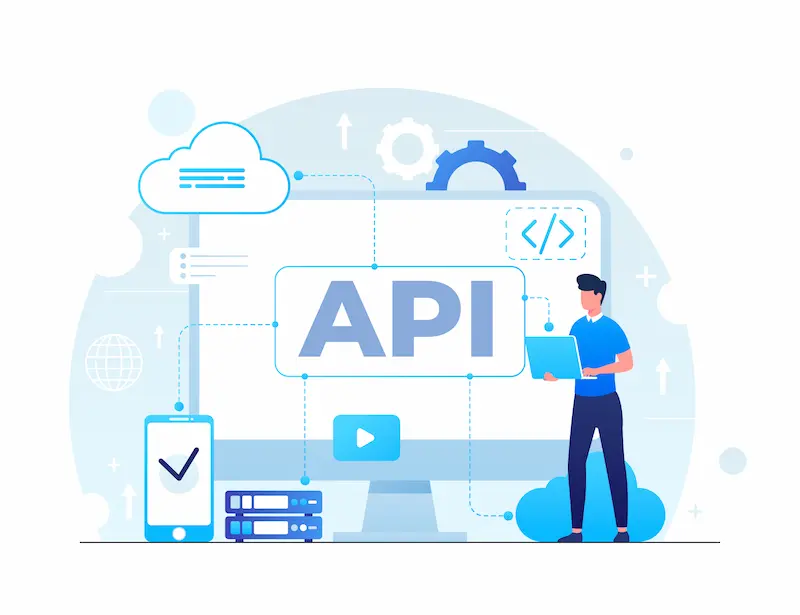
Understanding RESTful Architecture and JSON Responses in WordPress
REST stands for Representational State Transfer. It is an architectural style that defines how systems communicate over HTTP. A RESTful API uses standard HTTP methods, GET, POST, PUT, DELETE, to create, read, update, and delete data.
WordPress implements this architecture through its built-in REST API. When you make a request to a WordPress REST API endpoint, the server sends back data as JSON (JavaScript Object Notation).
JSON is lightweight, human-readable, and supported by virtually every programming language and framework, making it the ideal format for web communication.
For example, a GET request https://yoursite.com/wp-json/wp/v2/posts returns a JSON array of your posts, including titles, content, metadata, and more, no page rendering required.
How the WordPress REST API Works with Core Endpoints and Routes?
WordPress ships with a wide set of built-in endpoints, organized by route. A route is a URL pattern that maps to a specific resource. The base URL for all REST API requests is /wp-json/. From there, namespace segments wp/v2 identify the version and origin of the endpoint.
Core routes cover all major WordPress data types, including:
- Posts:
/wp-json/wp/v2/posts - Pages:
/wp-json/wp/v2/pages - Users:
/wp-json/wp/v2/users - Categories and Tags:
/wp-json/wp/v2/categoriesand/wp-json/wp/v2/tags - Media:
/wp-json/wp/v2/media - Comments:
/wp-json/wp/v2/comments
Each of these routes supports multiple HTTP methods, giving you full CRUD (Create, Read, Update, Delete) control over your content programmatically.
Ready to Develop Scalable WordPress Solutions?
Partner with our expert developers to create custom, high performance WordPress websites, APIs, and headless platforms tailored to your business goals.
Key Benefits of WordPress REST API Development for Developers and Businesses
The WordPress REST API is not just a technical convenience; it is a strategic advantage. Here is why both developers and businesses benefit from it:
- Decoupled architecture: Separates your frontend from the WordPress backend, letting teams work independently.
- Framework flexibility: Allows developers to use React, Vue, Angular, or any other frontend technology.
- Mobile app support: Feeds data to iOS and Android applications without a separate backend.
- Third-party integrations: Connects WordPress to CRMs, analytics platforms, and automation tools.
- Performance gains: Fetches only the data you need, reducing server load and improving response times.
- Future-proofing: Keeps the content layer stable while allowing frontend technologies to evolve freely.
Differences Between REST API, Admin Ajax, and Traditional WordPress Development
Before the REST API, WordPress developers relied heavily on admin-ajax.php for dynamic requests. While admin-ajax.php still works, it has significant limitations compared to the REST API.
Traditional WordPress development renders everything server-side using PHP templates, tightly coupling content and presentation.
Admin Ajax requires custom action hooks, does not follow any formal standard, and produces inconsistent data structures. It also lacks versioning, making upgrades risky.
The REST API, by contrast, follows industry-standard conventions, supports proper HTTP status codes, enables versioning through namespaces, returns clean JSON, and integrates naturally with modern JavaScript frameworks. For any new development project, the REST API is the clear choice.
Mastering WordPress REST API Development: Step-by-Step
Build scalable, secure, and future ready WordPress applications by unlocking the full power of REST driven development.
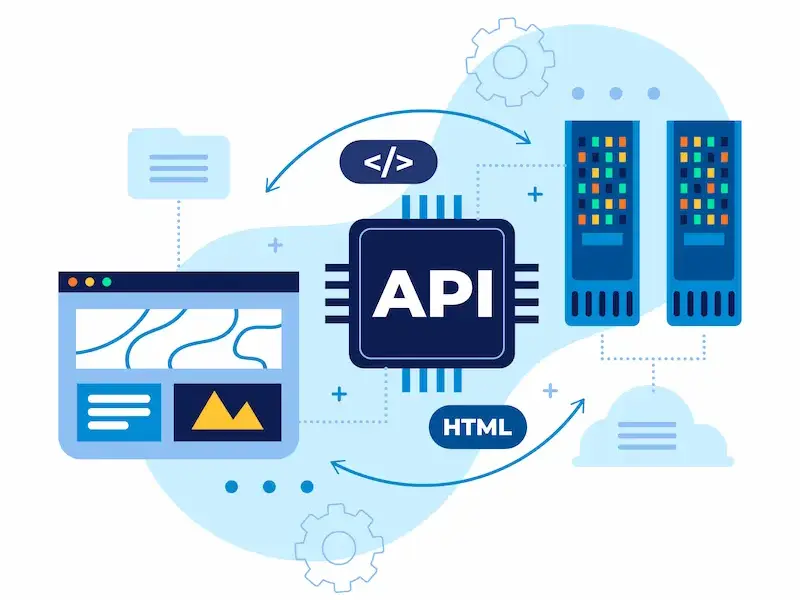
Step 1: Getting Started with WordPress REST API Setup, Tools, and Basic Requests
Lay the foundation of WordPress REST API development by understanding core endpoints, request methods, testing tools, and how data flows between your site and external applications.
Checking and Accessing Default WordPress REST API Endpoints
The REST API is enabled by default in WordPress 4.7 and later.
- You can verify if it is active by visiting
https://yoursite.com/wp-json/it in your browser. This returns a JSON index of all available routes and namespaces.
- If the API is not accessible, the most common cause is the permalink settings. Go to Settings → Permalinks and save. This refreshes the rewrite rules and usually resolves the issue.
You can also use the REST API Discovery link tag in your site’s <head>. WordPress automatically adds this for clients that need to programmatically locate the API root.
Making GET, POST, PUT, and DELETE Requests Using HTTP Methods
HTTP methods map directly to CRUD operations in the REST API:
- GET: Retrieves data. Safe and idempotent. Example: fetching all posts.
- POST: Creates a new resource. Example: publishing a new post.
- PUT: Updates an existing resource in its entirety. Example: updating an entire post.
- PATCH: Updates a resource partially. Example: changing just the post title.
- DELETE: Removes a resource. Example: deleting a specific post.
To create a new post via POST, send the request to /wp-json/wp/v2/posts with a JSON body containing fields like title, content, and status. Authentication is required for any write operations.
Read More: Mastering the WordPress Interactivity API
Testing WordPress REST API Endpoints with Postman and cURL
Postman is the most popular tool for testing API endpoints. After installing Postman, create a new GET request, paste your endpoint URL, and click Send. For authenticated requests, use the Authorization tab to set up Basic Auth with your credentials.
cURL is a command-line alternative. A basic GET request looks like this:
curl https://yoursite.com/wp-json/wp/v2/postsFor an authenticated POST request:
curl -X POST https://yoursite.com/wp-json/wp/v2/posts \
  -u username:application_password \
  -H "Content-Type: application/json" \
  -d '{"title": "My New Post", "status": "publish", "content": "Hello World"}'
Both tools are invaluable during development and debugging.
Understanding Query Parameters, Pagination, and Filtering in API Requests
The WordPress REST API supports a rich set of query parameters for filtering and paginating results. By default, requests return 10 items. You can control this with the per_page parameter (max 100).
Common query parameters include:
per_page: Number of results per request (default: 10)page: Pagination page numbersearch: Full-text search within postsorderby: Field to sort by (date, title, modified, etc.)order: Sort direction (asc or desc)categories: Filter by category IDauthor: Filter by author ID_fields: Return only specific fields, reducing response size
Pagination metadata is included in the response headers. The X-WP-Total header gives you the total record count, and X-WP-TotalPages tells you how many pages exist.
Step 2: Authentication and Authorization in Secure WordPress REST API Development
Learn how to implement secure authentication methods and enforce proper authorization controls to protect your WordPress REST API endpoints from unauthorized access.

Using Application Passwords for Secure API Authentication
WordPress 5.6 introduced Application Passwords as a native authentication method.
Go to Users → Profile, scroll down to the Application Passwords section, give your password a name, and click Add New Application Password. WordPress generates a 24-character password you use for API access.
Send this password using HTTP Basic Authentication. Most clients encode it as a Base64 string in the Authorization header. Application Passwords can be revoked individually, making them ideal for integrations and automated tools.
Implementing Cookie Authentication and Nonces in WordPress
Cookie-based authentication is used for requests made within the browser session, typically in custom admin interfaces or Gutenberg blocks.
When a logged-in user makes an API request from the WordPress admin, their browser automatically sends the authentication cookie.
For security, WordPress also requires a nonce for cookie-authenticated requests. Generate a nonce using wp_create_nonce('wp_rest') in PHP and pass it via the X-WP-Nonce header. This prevents cross-site request forgery (CSRF) attacks.
This approach is well-suited for plugins and themes that add interactive elements to the WordPress admin.
Setting Up JWT Authentication for Headless WordPress Projects
JWT (JSON Web Token) authentication is the preferred method for headless WordPress setups where cookies are not available. The most commonly used plugin for this is JWT Authentication for WP-API.
After installation and configuration, clients send a POST request /wp-json/jwt-auth/v1/token with a username and password. WordPress returns a signed JWT token.
The client then sends this token in the Authorization: Bearer <token> header for all subsequent requests.
JWTs are stateless, which means they scale well across distributed systems. However, remember to set a reasonable expiration and implement token refresh logic in your frontend application.
Managing User Roles, Capabilities, and Permission Callbacks
Every REST API endpoint should include a permission_callback function that checks whether the current user has the rights to perform the requested operation. WordPress uses its capabilities system for this.
For example, current_user_can('edit_posts') checks if the user can modify post content. You can return an WP_Error object from the permission callback when access is denied, and WordPress will automatically send a 401 or 403 response.
Never set permission_callback to __return_true on sensitive endpoints. Always explicitly define who can access what.
Step 3: Creating Custom Endpoints and Extending WordPress REST API Functionality
Explore Learn how to build powerful custom routes, return structured JSON data, and extend core capabilities to meet complex application requirements.
Registering Custom Routes with register_rest_route in WordPress
You register custom routes using the register_rest_route() function inside a callback hooked to rest_api_init. The function accepts three arguments: a namespace, a route pattern, and an arguments array.
add_action('rest_api_init', function() {
    register_rest_route('myplugin/v1', '/products', [
        'methods'             => 'GET',
        'callback'            => 'get_all_products',
        'permission_callback' => '__return_true',
    ]);
});
Use a unique namespace (typically pluginname/v1) to avoid conflicts with other plugins or WordPress core. Increment the version number (v2, v3) when introducing breaking changes.
Writing Callback Functions and Returning Custom JSON Responses
The callback function receives an WP_REST_Request object and should return either a WP_REST_Response or WP_Error. Use new WP_REST_Response($data, $status_code) to send structured JSON back to the client.
function get_all_products(WP_REST_Request $request) {
    $products = get_posts(['post_type' => 'product', 'posts_per_page' => -1]);
    return new WP_REST_Response($products, 200);
}
Always return meaningful HTTP status codes. Use 200 for success, 201 for resource creation, 400 for bad requests, 401 for unauthenticated access, 403 for forbidden access, and 404 for not found.
Validating and Sanitizing Request Data for Secure API Development
Validation and sanitization are non-negotiable in secure API development. The args key in your register_rest_route() call lets you define validation rules for every parameter.
- Validation: Use
validate_callbackto check data type, length, or format. Returntrueif valid, or aWP_Errorif not.
- Sanitization: Use
sanitize_callbackto clean incoming data before using it. WordPress provides helpers likesanitize_text_field(),absint(),sanitize_email(), andwp_kses_post().
Never use raw request data directly in database queries or output. Always sanitize inputs and escape outputs.
Adding Custom Fields and Metadata with register_rest_field
register_rest_field() lets you expose additional data on existing REST API responses without creating a new route. You can add custom fields to posts, users, terms, or comments.
register_rest_field('post', 'custom_rating', [
    'get_callback'    => fn($post) => get_post_meta($post['id'], 'custom_rating', true),
    'update_callback' => fn($value, $post) => update_post_meta($post->ID, 'custom_rating', sanitize_text_field($value)),
    'schema'          => ['type' => 'string', 'description' => 'Custom post rating'],
]);
This is ideal for exposing ACF fields, WooCommerce data, or any other metadata through the standard API response.
Step 4: Working with Custom Post Types, Taxonomies, and Meta Fields via REST API
Discover how to expose, manage, and customize dynamic WordPress content structures through REST API endpoints for scalable and flexible application deve
Enabling show_in_rest for Custom Post Types and Taxonomies
Custom Post Types (CPTs) and taxonomies do not appear in the REST API by default. You must explicitly enable this by setting show_in_rest to true when registering them.
register_post_type('product', [
    'public'       => true,
    'show_in_rest' => true,
    'rest_base'    => 'products',
    'rest_controller_class' => 'WP_REST_Posts_Controller',
    // ... other args
]);
Setting rest_base defines the URL segment (e.g., /wp-json/wp/v2/products). You can also specify a custom controller class for more granular control.
Performing CRUD Operations on Custom Content Through API
Once a CPT is REST-enabled, it inherits all the default CRUD behavior of standard posts. You can create, read, update, and delete custom post records using the same HTTP methods and endpoints structure.
A POST request to /wp-json/wp/v2/products with the appropriate fields and authentication creates a new product. A PATCH request to /wp-json/wp/v2/products/42 updates it. A DELETE request removes it.
All standard query parameters, filtering, pagination, field limiting, work on CPT endpoints out of the box.
Exposing and Updating Custom Fields and Post Meta via REST API
To expose post meta fields via the REST API, you need to register them using register_meta() with show_in_rest set to true.
register_meta('post', 'product_price', [
    'show_in_rest'  => true,
    'single'        => true,
    'type'          => 'number',
    'auth_callback' => fn() => current_user_can('edit_posts'),
]);
After registration, the meta field appears inside the meta key of the API response and can be updated via POST or PATCH requests to the post endpoint.
Real World Use Cases of WordPress REST API Development in Plugins and Themes
The REST API powers some of the most important features in the modern WordPress ecosystem:
- Gutenberg editor: The block editor communicates entirely through the REST API for saving, autosaving, and fetching blocks.
- WooCommerce: Provides a comprehensive REST API for products, orders, customers, and coupons.
- WPForms: Use the REST API for form submission handling and data retrieval.
- Mobile apps: News sites and membership platforms use WordPress as a backend CMS with native mobile frontends.
- Multisite networks: The REST API manages content across multiple sites from a central dashboard.
Step 5: Building Headless WordPress Websites Using the REST API
Transform WordPress into a powerful content engine that delivers dynamic data to any frontend, mobile app, or external platform through RESTful architecture.

Understanding Headless WordPress Architecture and Decoupled Frontends
In a headless setup, WordPress handles content management and storage, while a separate frontend application handles rendering. The frontend fetches data from WordPress exclusively through the REST API (or GraphQL via WPGraphQL).
This architecture delivers major advantages: better performance through static site generation, complete design freedom, framework flexibility, and the ability to serve the same content across web, mobile, and other platforms simultaneously.
The tradeoff is added infrastructure complexity, you now manage two separate applications instead of one.
Connecting WordPress REST API with React, Vue, and Other JavaScript Frameworks
React is the most common frontend for headless WordPress projects. Using fetch() or libraries like Axios, a React component can retrieve posts from the WordPress API and render them dynamically.
useEffect(() => {
    fetch('https://yoursite.com/wp-json/wp/v2/posts?per_page=5')
        .then(res => res.json())
        .then(data => setPosts(data));
}, []);
Vue, Next.js, Nuxt.js, SvelteKit, and Astro all work equally well. Next.js is particularly popular because it supports server-side rendering (SSR) and static site generation (SSG), both of which complement headless WordPress architectures.
Managing Authentication and Data Fetching in Headless Applications
In headless projects, authentication typically uses JWT tokens. The frontend collects user credentials, sends them to the WordPress JWT endpoint, stores the returned token (in memory or an HTTP-only cookie), and includes it in subsequent API requests.
For public data, no authentication is needed. For user-specific data, account info, orders, restricted content, include the JWT in the Authorization: Bearer header on every request.
Handle token expiration gracefully. Implement silent refresh logic that automatically requests a new token when the current one nears expiration.
Performance Considerations for Headless WordPress Projects
Headless WordPress requires careful performance planning. Every page view triggers one or more API calls, so slow API responses directly affect frontend load time.
Key performance strategies include:
- Use a CDN for both the WordPress API and the static frontend assets.
- Implement server-side rendering (SSR) or static site generation (SSG) to pre-build pages and reduce client-side fetching.
- Cache API responses at the CDN or server level using tools like Cloudflare or Varnish.
- Use the
_fieldsparameter to limit API responses to only the fields the frontend actually needs.
Step 6: Performance Optimization, Security Best Practices, and Debugging REST API
Explore how decoupled architecture, smart caching strategies, and secure endpoint management work together to build fast, scalable, and future ready WordPress applications.
Optimizing REST API Performance with Caching and Field Limiting
The REST API can become a bottleneck if left unoptimized. Use the following techniques to improve response times:
- Transient caching: Cache expensive API queries using WordPress transients with a reasonable expiration time.
- Object caching: Use Redis or Memcached for persistent in-memory caching.
_fieldsparameter: Return only the fields needed.?_fields=id,title,slugdramatically reduces payload size.
- Full-page caching: Use WP Rocket or LiteSpeed Cache to cache API responses at the server level.
- Database query optimization: Use indexed meta keys and avoid unbounded post meta queries.
Securing WordPress REST API Endpoints Against Unauthorized Access
Security must be built into every endpoint. Follow these practices:
- Always define
permission_callback: Never expose sensitive data without access control. - Disable unnecessary endpoints: If you do not need user enumeration through the API, restrict it.
- Use HTTPS: All API traffic must be encrypted. Reject HTTP requests.
- Validate all input: Treat every incoming request as potentially malicious.
- Limit exposed data: Do not return password hashes, private meta, or internal IDs unnecessarily.
- Monitor and log API activity: Use security plugins like Wordfence to track unusual API traffic patterns.
Handling Errors, Status Codes, and Debugging API Responses
Proper error handling makes your API predictable and easy to debug. Always return a WP_Error object when something goes wrong. WordPress automatically converts it to a JSON error response with an appropriate status code.
return new WP_Error('invalid_data', 'The submitted data is invalid.', ['status' => 400]);Enable the WordPress WP_DEBUG constant during development to surface PHP errors in your responses. The Query Monitor plugin is excellent for identifying slow queries and hook timing issues that affect API performance.
Rate Limiting, CORS Configuration, and API Versioning Strategies
Rate limiting prevents abuse. While WordPress does not include built-in rate limiting, you can implement it via server-level tools (Nginx, Cloudflare) or plugins like WP API Rate Limiting.
CORS (Cross-Origin Resource Sharing) is essential for headless setups. When your frontend domain differs from your WordPress domain, browsers block API requests by default. Use the rest_api_init hook to add the appropriate Access-Control-Allow-Origin headers for your specific frontend domain. Avoid using wildcard (*) in production.
API versioning protects existing clients when you update your API. Always namespace your custom routes with a version number (myplugin/v1, myplugin/v2). When introducing breaking changes, create a new version namespace and maintain the old one until clients migrate.
Best Practices to Master WordPress REST API Development
Applying these best practices puts you ahead of most WordPress developers and ensures your API-driven projects are robust, maintainable, and secure:
- Always namespace your custom routes with a unique plugin or project identifier and a version number.
- Implement
permission_callbackon every endpoint never leave it as a placeholder.
- Use the
_fieldsparameter in frontend requests to minimize payload size and speed up responses.
- Validate and sanitize all incoming data before processing or storing it.
- Follow HTTP semantics precisely use the correct HTTP method for each operation and return meaningful status codes.
- Version your API proactively plan for change before your clients depend on a stable contract.
- Cache aggressively use transients, object caching, and CDN layers to keep response times under 200ms.
- Enable REST API only for post types and taxonomies that need it less exposure means a smaller attack surface.
- Use HTTPS everywhere never allow API traffic over unencrypted connections.
- Test endpoints with Postman or cURL before integrating catch errors at the API layer rather than in the frontend.
- Document your custom endpoints use tools like Swagger/OpenAPI or even a simple README to keep your team aligned.
- Monitor your API in production set up logging and alerting to catch unexpected errors or abuse early.
Conclusion
WordPress REST API development transforms WordPress from a traditional CMS into a powerful content platform for headless sites, mobile apps, and advanced integrations.
Mastering it requires a strong grasp of REST principles, authentication methods, custom endpoint creation, security, and performance optimization.
Begin with default endpoints, then implement secure authentication using Application Passwords or JWT.
Build custom routes with register_rest_route and gradually move toward headless implementations using modern frameworks like React or Next.js.
When used strategically, the WordPress REST API becomes the foundation of scalable, flexible, and high performance applications. Investing time in learning it deeply gives developers a significant long term advantage.
WordPress REST API Development FAQs
What is WordPress REST API development used for?
WordPress REST API lets you access and manage site data using HTTP requests. Developers use it to build headless websites, mobile apps, custom dashboards, and third party integrations. It helps WordPress communicate with external systems through JSON responses.
Is the WordPress REST API enabled by default?
Yes. WordPress enables the REST API by default in modern versions. You can access it through the /wp-json/ route. Public content is accessible without authentication, while private data requires proper credentials.
How do I secure WordPress REST API endpoints?
Use Application Passwords, cookie authentication with nonces, or JWT for secure access. Always define permission callbacks when creating custom routes. Validate and sanitize all incoming data to prevent misuse.
Can I create custom endpoints in WordPress REST API?
Yes. You can register custom routes using register_rest_route(). This allows you to return custom data, process requests, and extend default API functionality based on project needs.
What is headless WordPress in REST API development?
Headless WordPress separates the frontend from the backend. WordPress manages content, while frameworks like React or Vue fetch data using the REST API. This approach improves flexibility and performance.