
Third-party APIs power some of the most dynamic WordPress websites today. They let you pull in real-time data, automate workflows, and extend functionality fast. But without the right approach, integrations can break or expose sensitive data.
The good news is you can avoid that. With the right setup, you can connect services, streamline data exchange, and build smarter experiences that scale with your site.
Third party API integration in WordPress connects external services with a website to exchange data or add specific functionality. The process usually involves obtaining API access credentials, configuring requests, adding integration code or plugins, and testing data communication. Proper setup requires reviewing API documentation, managing authentication securely, and ensuring compatibility with WordPress themes, plugins, and website requirements.
What is a Third-Party API and Why Do You Need it?
A third-party API (Application Programming Interface) is a set of protocols, routines, and tools provided by an external service or platform that allows your WordPress site to interact with that service or platform.
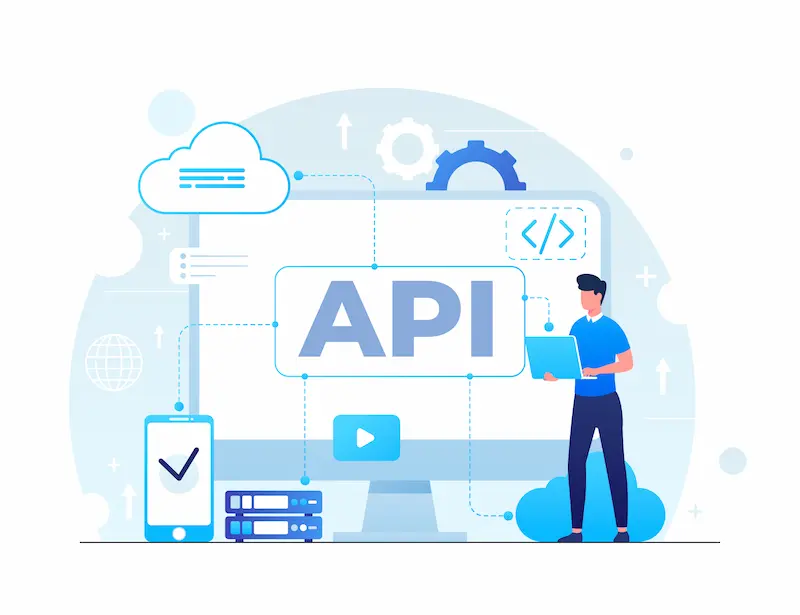
These APIs enable you to access and utilize functionalities or data from other services without having to build these features from scratch.
Why You Need Third-Party APIs?
They help you extend your site’s capabilities, streamline workflows, and deliver faster, more dynamic user experiences.
- Enhanced Functionality: APIs allow you to add features that aren’t natively available in WordPress, such as advanced payment processing or social media integration.
- Time and Resource Savings: Instead of developing complex features yourself, you can leverage existing solutions through APIs.
- Real-Time Data Access: APIs enable your site to fetch and display up-to-date information from external sources, such as stock prices and weather data.
- Improved User Experience: By integrating services users are familiar with (e.g., social login), you can create a more seamless experience.
- Scalability: APIs often handle heavy computational tasks on their servers, reducing the load on your WordPress site.
Read More: How Product UI/UX Enhances Customer Engagement
Ways to Integrate APIs in WordPress
Here are the most effective methods for connecting your site to external services and streamlining data exchange.
wp_remote_get(): This built-in WordPress function is a simple and effective way to make HTTP GET requests to APIs.
- Ideal for basic API calls without additional dependencies
- Easy to implement for developers familiar with WordPress
- Supports various HTTP request methods (GET, POST, etc.)
- Handles response parsing and error checking
- Limited to synchronous requests, which may impact performance for multiple or slow API calls
Also Read: How to Build a WordPress Maintenance Plan for Your Agency
Plugins: Using plugins for API integration offers a user-friendly approach, especially beneficial for non-developers or those seeking quick implementation.

- Provides a graphical interface for API configuration and management
- Often includes pre-built integrations with popular services
- Regularly updated to maintain compatibility with WordPress core
- May offer additional features like caching or request logging
- Could potentially slow down your site if too many plugins are used
- May have limitations in customization compared to custom code solutions
Also Read: Best WordPress Caching Plugins
Custom Code: Writing custom PHP or JavaScript to interact with APIs directly offers the most flexibility and control over the integration process.
- Allows for tailored solutions to meet specific project requirements
- Can be optimized for performance and efficiency
- Enables complex integrations that may not be possible with pre-built solutions
- Provides full control over error handling and data processing
- Requires more development time and expertise
- May need ongoing maintenance to ensure compatibility with WordPress updates and API changes
Integrate Third-Party APIs in Your WordPress Site
Explore our WordPress development services. We let you select an API according to your business and we make sure it is fully integrated.
Steps to Integrating Third-Party API with WPGetAPI Plugin
Integrating an API with a WordPress plugin is a powerful way to extend your site’s functionality without complex coding. Plugins like WPGetAPI simplify the process, allowing you to connect to third-party services, fetch data, and display it directly on your site.
Step 1: Install and Activate the WPGetAPI Plugin
WPGetAPI is a powerful tool that serves as the bridge between your WordPress site and external APIs, opening up a world of possibilities for dynamic content and functionality.
- The journey begins in your WordPress dashboard, where you’ll search for and install the WPGetAPI plugin. Once installed, activate it to unleash its potential.
- At this point, you’ll need to decide between the free version, perfect for basic needs and beginners, or the PRO version, which offers advanced features for more complex integrations.
Take some time to explore the plugin’s interface and familiarize yourself with its options, setting the stage for a smooth integration process.
Know More: How to Create a Custom Page Template in WordPress
Step 2: Set Up and Authenticate the 3rd-Party API
With the WPGetAPI plugin at your disposal, it’s time to establish a connection with your chosen API. This critical step involves inputting essential information that will serve as the backbone of communication between your WordPress site and the external service.
- Navigate to the WPGetAPI settings in your WordPress dashboard, where you’ll find fields awaiting crucial API details.
- Start by entering an API Name; this identifier will help you easily recognize and manage the API within your WordPress staging environment.
- Next, create a Unique ID for internal reference, ensuring it’s both memorable and distinct. The Base URL, typically found in the API’s documentation, serves as the foundation for all API calls and must be entered accurately.
Once you’ve carefully input and double-checked these details, save the configuration to cement this vital connection.
Also Check: URL Blacklisting: How to Fix and Prevent it
Step 3: Configure the API Endpoint Settings
With the basic API connection established, it’s time to fine-tune how your WordPress site communicates with the API.

This step is akin to specifying the exact address and communication method, ensuring you receive the data you need.
- Begin by creating another Unique ID specifically for the endpoint reference. This ID will be crucial when configuring data display on your website.
- Next, enter the specific Endpoint URL from the API documentation. This URL directs your requests to the exact location of the desired data within the API’s structure.
- Select the appropriate Method (e.g., GET for retrieving data or POST for sending data) based on your integration needs.
- Finally, choose between JSON String and PHP Array as your Result Format, considering compatibility with your chosen display method.
Save these carefully considered settings to pave the way for the testing phase.
Step 4: Test the API Configuration
Before relying on your newly integrated API, verify its functionality. Fortunately, the WPGetAPI plugin simplifies this often complex process with its built-in testing capabilities, saving you time and potential headaches.
- Initiate the test by locating and clicking the “Test Endpoint” button within the WPGetAPI interface. As the test runs, the plugin diligently checks various aspects of the API connection.
- Once complete, you’ll be presented with a comprehensive breakdown of the results, including the Full URL used for the request, the Data Output received, the Query String sent, and any Headers involved in the communication.
Carefully review this information, confirming that the API is retrieving the expected data in the correct format.
If any discrepancies are found, this is your opportunity to make adjustments and retest until you achieve a successful connection.
Discover: Best White Label Website Builders
Step 5: Display Data Received Through the API
With a robust and verified API connection in place, the final step is to bring the retrieved data to life on your WordPress site.
This stage offers flexibility in how you present the information, allowing you to choose a method that aligns with your technical skills and site requirements.
You have two primary options for displaying API data: the Template Tag method, ideal for those comfortable with PHP, and the Shortcode method, a simpler alternative requiring less technical knowledge.
- If you opt for the Template Tag approach, you’ll need to add the necessary PHP code to your theme files, giving you granular control over data presentation.
- The Shortcode method, on the other hand, allows you to simply insert a predefined shortcode into your pages or posts, making it accessible even to those with limited coding experience.
Whichever method you choose, ensure the data is properly formatted for display and, if necessary, converted to HTML.
Finally, thoroughly test the display on your live site and make any necessary adjustments to achieve optimal presentation and user experience.
WordPress Development and API Integration: How Can We Help You?
Seahawk Media delivers tailored WordPress development services that build high-performing, user-focused websites.
From custom builds to enterprise solutions, we help businesses scale with secure and flexible websites. Here’s what you will get in terms of API integration:
- Expertise in Multiple Integration Methods: Our team is experienced in both manual and plugin-based integration techniques, enabling us to select the most effective approach for your project. We’ll help you understand the pros and cons of each method to find the best fit for your needs.
- Comprehensive Technical Knowledge: We have a strong grasp of WordPress core functionalities and expertise in HTML, CSS, PHP, and JavaScript, enabling us to manage complex custom integrations smoothly with various API protocols and authentication methods.

- Customized Solutions: We tailor each integration to meet your unique business requirements. This includes creating custom endpoints, modifying existing ones, or developing bespoke plugins to achieve the exact functionality you need.
- Data Display and User Experience: We create intuitive interfaces to display API data, implement effective caching strategies, and ensure a responsive design for a seamless user experience across all devices.
- Security and Compliance: Security is paramount in our integration process. We implement secure authentication methods, ensure data protection and privacy compliance, and conduct regular security audits to keep your site safe.
- Ongoing Support and Maintenance: Our commitment continues with ongoing API performance monitoring, timely updates for WordPress changes, and quick technical support.
- Scalability and Future-Proofing: We design integrations with scalability in mind, ensuring they can grow with your business. Our team can advise on API selection for long-term compatibility and help plan for future expansions.
- Time and Cost Efficiency: Our experience and best practices help us reduce development time and minimize errors, saving you time and money. This efficiency allows you to focus on your core business activities.
Conclusion
In conclusion, integrating third-party APIs into WordPress websites can significantly enhance functionality, improve user experience, and streamline business processes.
Whether using built-in WordPress functions, plugins like WPGetAPI, or custom code solutions, API integration opens up a world of possibilities for site owners and developers.
By following the step-by-step process outlined in this article and leveraging professional WordPress development services, businesses can seamlessly connect their websites to external services, create dynamic content, and stay competitive in the digital landscape.
As web technologies continue to evolve, mastering API integration will remain a crucial skill for WordPress developers and a valuable asset for businesses looking to maximize their online presence.
FAQs About Integrating Third-Party APIs in WordPress
What are the best ways to connect WordPress with third-party APIs?
You can connect WordPress using REST API endpoints, custom code, or WordPress plugins. Use standard HTTP methods and specific URLs from API docs.
Many API providers offer SDKs in your chosen programming language. Follow actionable strategies, such as asynchronous calls and robust error handling, to ensure smooth API communication and performance optimization.
How do I handle API authentication securely in WordPress?
Use API keys, basic authentication, or application passwords to authenticate requests. Always store credentials in environment variables.
Add authorization header values securely and encrypt data during data exchange. Avoid exposing sensitive data in frontend scripts. Strong API authentication ensures enhanced security.
How can I manage API responses and external data in WordPress?
Most APIs return JSON data. Convert it to a PHP array or JSON for use in themes or plugins. Validate input and sanitize output before displaying external data. Proper input validation helps maintain robust security measures.
What are common challenges in third-party integrations?
Developers often face issues with API access limits, different APIs, and inconsistent data formats. Debug API returns using logs and follow the API docs closely. Implement error handling mechanisms and monitor usage patterns to optimize performance and fix bugs quickly.
How do I ensure secure API communications for payment gateways and services like Google Maps?
Use secure payment gateways with data encryption and HTTPS endpoints. Enable API gateways and restrict access where needed. Always authenticate requests and remove unnecessary data. These steps help protect sensitive data while allowing developers to connect WordPress safely.


