

You usually don’t get a warning before something goes wrong on a WordPress site. One day the site works, and the next you’re dealing with strange changes, login issues, or unexpected downtime. That’s where WordPress incident response starts to matter.
When you act quickly, you keep the situation under control. You limit damage, reduce downtime, and avoid losing data or trust. Knowing what to do in those first moments makes handling a security incident much easier.
TL;DR: WordPress Incident Response
- WordPress security incidents usually happen due to missed updates and weak monitoring.
- Fast incident response limits damage, downtime, and data loss.
- Most breaches start through plugins, themes, credentials, or hosting gaps.
- Proper investigation helps prevent the same issue from happening again.
- Ongoing WordPress maintenance reduces risk and speeds up recovery.
What is WordPress Incident Response?
WordPress incident response is what you do after something goes wrong on a site. It’s the process of identifying the problem, stopping further damage, fixing the issue, and making sure it doesn’t happen again.
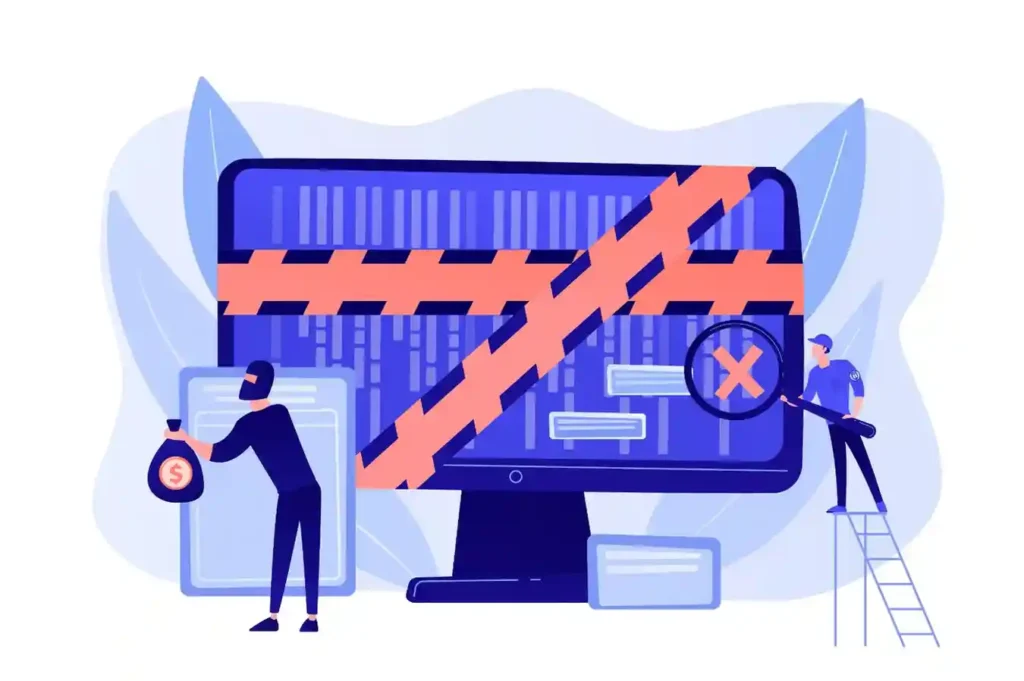
An incident in WordPress isn’t just a full site hack. It includes malware infections, data leaks, defaced pages, broken logins, or unexpected downtime. If the site behaves in a way it shouldn’t, that’s an incident and it needs a response.
Common WordPress Security Incidents You Should Prepare For
Most WordPress security problems fall into a few repeat categories. When you know how they usually start and what they affect, you can respond faster and avoid guesswork.
Malware Infections and Backdoors
Malware usually enters WordPress through outdated plugins, themes, or stolen admin credentials. Once it’s in, it hides inside core files, theme folders, or the database, which makes it easy to miss during a quick check.
What makes malware dangerous is how quietly it works. The site may still load, but spam links get injected, redirects appear, or server resources spike.
Backdoors let attackers regain access even after you remove visible malware, which is why partial cleanups often fail.
Brute Force and Credential Attacks
Brute force attacks target your login page by trying thousands of password combinations in a short time. Weak passwords, reused credentials, or missing login limits make this much easier for attackers.
Once an account is compromised, especially an admin account, attackers gain full control. They can install malicious plugins, create new users, or change site content.
These attacks also put heavy load on the server, which can trigger downtime or performance issues.
Plugin or Theme Vulnerabilities
Plugins and themes are one of the most common entry points for attackers. Vulnerabilities appear when updates are delayed, plugins are abandoned, or code isn’t properly maintained.
Some attacks use known flaws, while others exploit zero-day vulnerabilities before patches are released.
Even inactive plugins can be risky if their files are still present. One weak plugin is often enough to compromise the entire site.
Hosting or Server-Level Breaches
Not all incidents start inside WordPress. Poor server configuration, weak file permissions, or insecure shared hosting environments can expose your site before WordPress even comes into play.
In shared hosting setups, one compromised site can affect others on the same server. Exposed configuration files, outdated server software, or missing firewalls increase the risk.
When the server layer is breached, cleanup becomes more complex and often affects multiple sites at once.
How a Maintenance Partner Can Help with WordPress Incident Response?
A WordPress maintenance partner helps you stay prepared rather than react late. With structured maintenance, monitoring runs continuously, updates stay on schedule, and early warning signs don’t get missed.

When an incident happens, recovery is faster because the site is already tracked, backed up, and documented. Over time, this approach reduces repeat incidents by fixing the underlying causes, not just the symptoms.
Consistent maintenance turns incident response from a scramble into a controlled process.
Need Ongoing Support After a Security Incident?
Incident response fixes the problem, but ongoing website care helps prevent repeat issues through regular monitoring and maintenance.
First Steps to Take After a WordPress Security Incident
When a security incident happens, the goal is to stop things from getting worse. Don’t rush into cleanup yet. First, contain the damage and secure access.
- Isolate the Website: Take the site out of public access as quickly as possible. Enable maintenance mode, block suspicious IPs, or temporarily restrict traffic. This prevents attackers from continuing activity and stops further damage while you assess the situation.
- Secure Admin and Hosting Access: Reset passwords for all admin users immediately. Review user accounts and remove anything unfamiliar or unnecessary. Update hosting, FTP, database, and control panel credentials to make sure attackers can’t get back in.
- Preserve Logs and Evidence: Before changing files, save access logs, error logs, and security reports. These records help you understand how the breach happened and prevent the same issue from repeating later.
How to Investigate What Went Wrong?
Once the site is contained, the next step is to understand how the incident happened. This is about finding the entry point, not guessing.
- Identify the Entry Point: Start by reviewing plugins, themes, and WordPress core files. Look for recently modified files, unfamiliar scripts, or injected code. Check access logs to see unusual login attempts, IP addresses, or repeated requests that point to where the breach started.
- Review Recent Changes: Go through recent updates, plugin installs, theme changes, and new user accounts. Even legitimate updates can introduce vulnerabilities. Server activity logs also help spot unusual spikes, failed login attempts, or automated access patterns.
- Scan for Malware and File Changes: Run a full security scan to flag known malware and suspicious files. Follow this with manual checks on critical directories like wp-content, uploads, and configuration files. Automated malware scans help, but manual verification confirms nothing important was missed.
How to Clean and Recover a Compromised WordPress Site?
Once you know what went wrong, you can move into cleanup and recovery. This step focuses on restoring a safe, working site.
- Remove Malware and Infected Files: Delete malicious files and clean infected code from legitimate ones. Replace compromised core files, plugins, and themes with fresh copies from trusted sources. Validate file integrity to ensure nothing malicious remains.
- Restore from a Clean Backup: If cleanup is unreliable or time-consuming, restore from a backup taken before the incident. Verify the backup is clean, recent, and complete. After restoration, recheck functionality and security before bringing the site fully online.
- Patch Vulnerabilities Immediately: Update WordPress core, plugins, and themes right away. Remove unused or abandoned plugins that pose ongoing risk. Closing the vulnerability quickly prevents attackers from exploiting the same weakness again.
Best Practices to Prevent Future WordPress Security Incidents
Preventing security incidents comes down to doing the basics consistently. Most breaches don’t happen because of advanced attacks. They happen because routine maintenance gets delayed.
Keep WordPress, Plugins, and Themes Updated
Delayed updates create real risk because most vulnerabilities become public as soon as patches are released. Attackers actively scan for sites running outdated versions they already know how to exploit.
By keeping WordPress core, plugins, and themes updated, you close these known gaps early. Regular updates also reduce conflicts that can cause unexpected errors or expose new weaknesses.
Use Strong Access Controls
User access needs clear boundaries. Too many admin accounts or shared credentials make it easier for attackers to gain control.
Limit admin roles, remove unused accounts, and enforce strong passwords. Adding two-factor authentication and login attempt limits further reduces the risk of brute force or credential-based attacks.
Monitor File Changes and Activity
File changes should always have a reason. When core files, plugins, or themes change without explanation, it’s often the first sign of a compromise.
Use monitoring tools that track file changes, login activity, and suspicious behavior. Real-time alerts help you respond quickly instead of discovering issues days or weeks later.
Implement Regular Backups and Restore Testing
Backups act as your safety net, but only when they’re recent and reliable. Backup frequency should match how often the site changes, not a fixed schedule that ignores real usage.
Restore testing is just as important. Periodically test backups to make sure they work and restore cleanly. This ensures you can recover fast without surprises during a real incident.
Why Ongoing WordPress Maintenance Matters for Incident Prevention?
Most WordPress security incidents don’t happen by accident. They happen because of irregular maintenance. Updates get delayed, logs go unchecked, plugins pile up, and small warnings get ignored until something breaks.
Regular maintenance catches issues early. You spot unusual file changes, failed logins, performance spikes, or plugin conflicts before they turn into full incidents.
When WordPress stays monitored and updated, the risk drops and recovery becomes much easier if something does go wrong.
Here’s when to involve a WordPress security professional:
Some issues go beyond basic fixes. If incidents keep repeating, it’s a sign the root cause hasn’t been addressed. Cleaning the site without understanding how the breach happened only delays the next problem.
You should involve a security professional when there’s data exposure, ongoing malware, or unexplained access issues.
High-traffic sites and business-critical websites also benefit from expert help, since downtime or data loss carries real consequences that DIY fixes can’t always handle safely.
To Sum Up
WordPress security incidents are rarely random. In most cases, they grow out of small things that were ignored for too long, like delayed updates, unused plugins, or missing checks.
When something finally breaks, the damage feels sudden, but the warning signs were usually there.
A clear incident response plan keeps you in control when things go wrong. Combined with regular maintenance, monitoring, and backups, it reduces the frequency of incidents and speeds recovery when they do occur.
Staying consistent with WordPress maintenance turns security from a reaction into a routine.
FAQs About WordPress Security Incident
What qualifies as a WordPress security incident?
Any unexpected behavior like malware, hacked pages, data leaks, login takeovers, or unexplained downtime counts as a security incident.
How quickly should I respond to a WordPress security issue?
Immediately. The faster you isolate the site and secure access, the less damage the incident can cause.
Can I fix a hacked WordPress site myself?
Simple issues can sometimes be handled in-house, but repeated incidents, malware, or data exposure often require professional help.
Do backups fix WordPress security problems?
Backups help restore a site, but they don’t fix the root cause. You still need to patch vulnerabilities and secure access.
Why do WordPress sites get hacked so often?
Most hacks happen because of outdated plugins, weak passwords, or lack of ongoing monitoring, not because WordPress itself is insecure.
How can I reduce the risk of future WordPress incidents?
Keep WordPress updated, limit user access, monitor activity, run regular backups, and maintain the site consistently.


