
A lost WordPress password does not have to mean hours of frustration or an emergency call to a developer. Being locked out of your own WordPress site is one of the most stressful technical problems a site owner faces. One moment, the site is running. Next, you cannot get in. Whether you forgot your password, the reset email isn’t arriving, or you have inherited a site with no credentials, this guide provides every recovery method in the correct order, starting with the fastest and ending with full database-level access. Most users return to their dashboard within 2 minutes.
A lost WordPress password means you cannot access the admin dashboard at yoursite.com/wp-admin. Your website remains live and visible to visitors.
Losing the password does not take your site offline. It only affects your ability to log in and make changes.
Recovery depends on whether you can access your admin email, hosting control panel, or server directly.
TL;DR: Lost WordPress Password
- Your site stays live when you lose your WordPress password, and only your admin access is affected
- The fastest fix is the built-in WordPress password reset on the login page, which works in under two minutes if your admin email is accessible
- If the reset email is not arriving, the cause is almost always a wrong email address on the account, an email going to spam, or an email not configured correctly on the host
- If you have no email access at all, phpMyAdmin, WP-CLI, and an emergency PHP script are three technical recovery paths that work without email
- After recovering access, enable two-factor authentication immediately and review WordPress security hardening as a permanent prevention measure
Lost WordPress Password Recovery Methods (From Fastest to Most Technical)
Every method below is ordered from fastest to most technical. Start with Method 1 and proceed to Method 2 only if the previous method did not resolve the issue. Most users regain access before reaching Method 3.
Method 1: Reset via the WordPress Login Page
This is the correct first step for every lost password situation. It takes under 2 minutes, requires no technical knowledge, and works for most users.
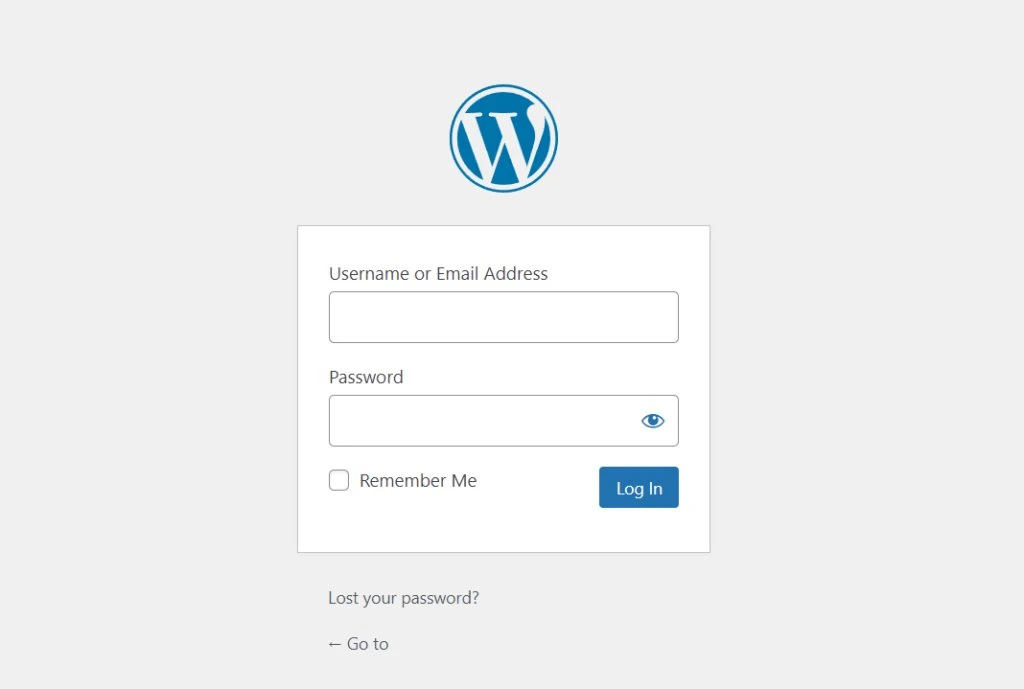
Step 1: Go to your WordPress login page.
Navigate to yoursite.com/wp-admin or yoursite.com/wp-login.php. You will see the standard WordPress login form.
Step 2: Click “Lost your password?”
The link appears below the login fields. Click it. You will be taken to a simple form asking for your username or email address.
Step 3: Enter your username or the email address on your account.
If you are unsure which email address is registered, try every email address you may have used when setting up the site. WordPress will send a reset link to the email address associated with the account.
Step 4: Check your inbox for the reset email.
The email arrives from wordpress@yoursite.com or the email address configured in your hosting settings. The subject line is typically “Password Reset Request for [Your Site Name].” Click the link inside the email and set a new password.
Step 5: Log in with your new password.
Once set, you are returned to the login page. Use the new password to access your dashboard.
If the reset email does not arrive within five minutes, do not repeat the request multiple times. Move to the section below to diagnose why the email is not arriving before trying again.
Still Locked Out of WordPress?
If none of these methods worked or you suspect your site was compromised, Seahawk’s 24/7 WordPress support team can recover access and secure your site against future lockouts. Emergency help available now.
Why the Lost WordPress Password Reset Email isn’t Arriving?
This is the most common failure point in the recovery process. Before moving to technical methods, run through these four checks in order.
Check 1: Look in your spam or junk folder.
WordPress password reset emails are frequently flagged as automated emails by spam filters. Check the spam folder of every email account registered on the site before assuming the email isn’t being sent.
Check 2: Confirm which email address is on the account.
If you have multiple email addresses, the reset email is sent only to the one registered to the specific WordPress user account. If you are unsure, ask the person who set up the site, check your original welcome email from your host, or try all email addresses you commonly use.
Check 3: Check whether your hosting server is configured to send email.
Many shared hosting accounts and freshly set up servers are not configured to send email from WordPress by default. WordPress uses the PHP mail() function to send emails, and many hosts block this for spam prevention. The fix is to install and configure an SMTP plugin, such as WP Mail SMTP, but this requires accessing the site first, creating a chicken-and-egg problem. In this case, move directly to Method 3 or Method 4 to recover access, then configure SMTP email afterward.
Check 4: Verify that the reset email was sent by reviewing your hosting email logs.
Most hosting control panels, including cPanel and Plesk, have an email delivery log. Log in to your hosting control panel and check whether the reset email was sent successfully. If it shows as sent, but you never received it, the issue is with your email provider filtering it. If it does not appear in the log at all, WordPress is not sending it because of the server’s email configuration.
Method 2: Reset via WordPress User Settings (If You Have Another Admin)
If there is a second administrator account on the site, this is the fastest recovery path and requires no technical steps.
Log in to WordPress using the second admin account. Go to Users in the left navigation. Find the account you are locked out of. Click Edit under that user. Scroll to the Account Management section. Click Generate Password or type a new password manually. Click Update User.
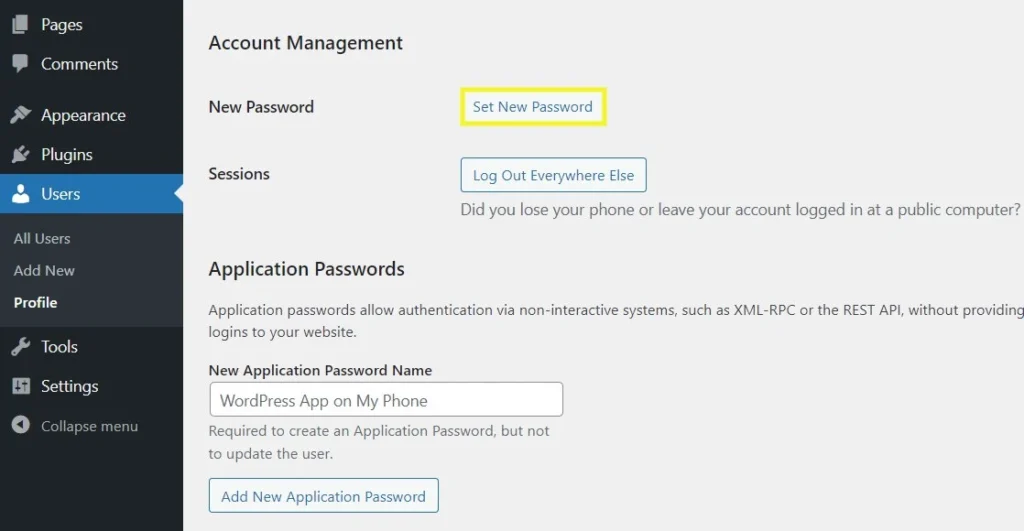
You can now log out of the second account and log in to your primary account with the updated password.
This method also works if a developer, colleague, or agency partner has admin access to the site. A team providing 24/7 WordPress support with admin access can reset a password in under a minute, without requiring any server-level access.
Method 3: Reset via Hosting Control Panel
Some hosting providers offer WordPress password resets directly from the hosting dashboard, bypassing email entirely.
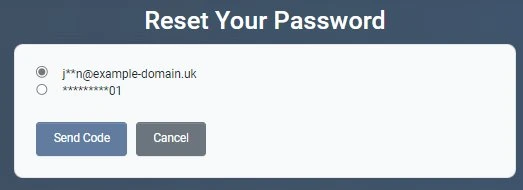
cPanel with WordPress Toolkit: Log into cPanel. Find WordPress Toolkit. Select your WordPress installation. Click the Manage button. Look for a “Reset Password” or “Admin Credentials” option. Set a new password directly from the hosting interface.
Softaculous: Log in to your hosting control panel. Open Softaculous. Find your WordPress installation under My Installations. Click the Edit Details icon. Find the Admin Password field. Set a new password and save. Log in to WordPress using the new password.
Plesk: Log into Plesk. Go to WordPress under the Applications section. Select your installation. Click Configure. Reset the admin password from there.
This method works entirely through the hosting interface and requires no database access or technical knowledge. If your host provides WordPress Toolkit or Softaculous, this is the fastest technical recovery path after the standard login page method.
Method 4: Reset via phpMyAdmin (Database Method)
Use this method if you have no email access and your hosting control panel does not offer a direct WordPress password reset. This method accesses the WordPress database directly and updates the password at the database level. It looks more technical than it is. Follow each step exactly, and you will be done in under five minutes.
Step 1: Log in to your hosting control panel.
Access cPanel, Plesk, or your host’s equivalent control panel using your hosting credentials. These are separate from your WordPress credentials and were provided when you signed up for hosting.
Step 2: Open phpMyAdmin.
In cPanel, phpMyAdmin is under the Databases section. Click it to open the database management interface.
Step 3: Select your WordPress database.
On the left sidebar, you will see a list of databases. Click the one that belongs to your WordPress site. If you are unsure which database your WordPress installation uses, check your wp-config.php file. It lists the database name in the DB_NAME line. You can view wp-config.php through the File Manager in your hosting control panel.
Step 4: Open the wp_users table.
Inside your WordPress database, find and click the table named wp_users. If your WordPress installation uses a custom table prefix, the table may be named differently, for example, mywp_users. Look for the table containing users rather than the default wp_ prefix.
Step 5: Find your admin user and click Edit.
You will see a list of users in the table. Find the row with your admin username. Click the Edit button on the left of that row.
Step 6: Update the user_pass field.
Find the field named user_pass. This contains your current password as a hash. Delete the existing value. In the Function dropdown next to the user_pass field, select MD5. In the value field, type your new password in plain text. phpMyAdmin will convert it to an MD5 hash automatically when you save.
Step 7: Save the changes.
Click Go at the bottom of the edit form. phpMyAdmin saves the new password hash to the database.
Step 8: Log in to WordPress.
Go to yoursite.com/wp-admin and log in using your username and the new plain-text password you entered in Step 6.
Important note on password hashing: WordPress uses a more secure hashing algorithm than MD5 by default. Setting the password via MD5 in phpMyAdmin works for logging in, but WordPress immediately re-hashes the password with its own stronger algorithm on first login. There is no security concern with using MD5 as an intermediary step here. It is a standard recovery technique used across the WordPress ecosystem.
Method 5: Reset via WP-CLI
Use this method if you have SSH access to your server. WP-CLI is the WordPress command-line interface, and it allows you to manage every aspect of WordPress, including user passwords, directly from the terminal. This is the fastest method of all for developers and technically confident users.
Step 1: Connect to your server via SSH.
Open your terminal. Connect using the credentials provided by your host.
ssh username@yoursite.comStep 2: Navigate to your WordPress installation directory.
cd /path/to/your/wordpressThe path is typically /public_html, /www, or /var/www/html depending on your server configuration.
Step 3: Run the password reset command.
wp user update admin --user_pass=yournewpasswordReplace “admin” with your actual username and “yournewpassword” with your chosen password. WP-CLI handles all hashing correctly, and the password is ready to use immediately.
Step 4: Log into WordPress.
Go to yoursite.com/wp-admin and log in using your username and the new password.
WP-CLI also lets you list all users on the site with the wp user list command, which is useful if you have forgotten your username or password.
Method 6: Emergency Password Reset Script (Last Resort)
Use this method only if all other methods above have failed. This involves creating a PHP file on your server, running it once to reset the password, and then deleting it immediately. Leaving the file on the server is a security risk, and deleting it after use is mandatory.
Step 1: Create a new file named emergency-reset.php.
Using your hosting control panel’s File Manager or an FTP client, navigate to the root directory of your WordPress installation, the folder containing wp-config.php, and create a new file named emergency-reset.php.
Step 2: Paste this code into the file.
<?php
require( './wp-load.php' );
wp_set_password( 'yournewpassword', 1 );
echo 'Password successfully reset.';
?>
Replace ‘yournewpassword’ with your chosen password. The number 1 refers to the user ID of the first admin account. If your admin account is not user ID 1, check the wp_users table in phpMyAdmin to find the correct user ID.
Step 3: Run the script.
In your browser, go to yoursite.com/emergency-reset.php. You will see the message “Password successfully reset” on a blank page.
Step 4: Delete the file immediately.
Go back to File Manager or your FTP client and delete emergency-reset.php from the server right now. Do not leave it there. A PHP script with password-setting capability sitting in a publicly accessible directory is a critical security vulnerability.
Step 5: Log in to WordPress.
Go to yoursite.com/wp-admin and log in using your username and the new password.
What to Do Immediately After Recovering WordPress Access?
Getting back in is only half the job. Once you are logged in, follow these five steps to properly secure the account.
Update your password to a strong one.
If you used a simple password during the recovery process, change it immediately to a strong one. Go to Users, click your profile, and update the password to a randomly generated 16-character or longer string. Use a password manager to store it.
Check for unauthorized administrator accounts.
Go to Users in the WordPress dashboard and look at the list of users with the Administrator role. If you see any accounts you do not recognize, delete them immediately. An unauthorized admin account on your site indicates that access was compromised before you were locked out.
Enable two-factor authentication.
Install a two-factor authentication plugin such as WP 2FA or Google Authenticator for WordPress. This ensures that even if your password is compromised in the future, an attacker cannot log in without the second factor. Two-factor authentication is the single most effective protection against unauthorized admin access and is a standard inclusion in a properly configured WordPress security setup.
Review your WP-Admin login URL.
The default WordPress login URL at /wp-admin is the most targeted path for brute-force attacks. Changing or obscuring this URL is a standard step in WordPress security hardening and significantly reduces automated login attempts.
Run a malware scan immediately.
If you were locked out unexpectedly and do not know why, run a malware scan right away. An unexpected lockout can be a sign that an attacker changed your password or created a new admin account. Plugins such as Wordfence or MalCare will scan your files and flag any changes made recently.
How to Prevent Losing Your WordPress Password Again?
Recovery is a stressful experience. Prevention is a five-minute setup that means you never go through this again.
Use a password manager. LastPass, 1Password, Bitwarden, and Dashlane all store WordPress credentials securely and autofill the login form. You never type the password manually, so you never forget it. Most are free for personal use.
Store admin credentials in a secure shared location. For business sites managed by a team, credentials should be stored in a shared password manager vault or a secured internal document rather than in Slack messages, email threads, or spreadsheets.
Enable two-factor authentication. Covered above. Install it now, regardless of whether you just recovered from a lockout.
Configure email correctly so password resets actually arrive. Install WP Mail SMTP and connect it to a transactional email service such as SendGrid, Mailgun, or your Google Workspace account. This ensures that password reset emails, order confirmations, and contact form notifications all send reliably. Correct email configuration is one of the most commonly missed items in a thorough WordPress maintenance checklist.
Use a WordPress maintenance plan that includes security hardening. A professional WordPress maintenance service includes limiting login attempts, protecting admin URLs, monitoring file integrity, and conducting regular security audits. All of these reduce the risk of both lockouts and unauthorized access.
Run regular database backups. A complete backup taken before any major update means that, in the worst case of a corrupted database, a compromised account, or a failed update, you can restore the entire site, including all user credentials, to a known good state. WordPress care plans that include daily database backups make this automatic, so you don’t have to do any manual work.
Understand what ongoing site protection looks like. Site owners who invest in ongoing WordPress maintenance rather than waiting to react to problems after they occur rarely experience unexpected lockouts because security hardening, user permission audits, and login monitoring are part of the regular maintenance cycle. Reviewing what the best WordPress maintenance service providers include in their plans gives a clear picture of the protection level a professionally maintained site carries.
Still Locked Out? When to Call in Expert Help?
If you have worked through every method above and still cannot get in, there are three situations where calling in a professional is the right call.
You cannot access your hosting control panel. If you have lost both your WordPress and hosting credentials, contact your hosting provider directly to verify your identity and regain control panel access before any WordPress recovery method will work.
You suspect the site was hacked. If the lockout was unexpected, if you see unfamiliar admin accounts, or if a security scanner flags suspicious files, this is not just a lost password. It is a security incident. Emergency WordPress malware removal and site recovery is the appropriate response here rather than a DIY password reset that leaves the underlying compromise unresolved.
The database is corrupted. In rare cases, a failed update, a server crash, or a botched migration corrupts the wp_users table, and none of the phpMyAdmin steps work correctly. Database repair requires server-level access and MySQL expertise that goes beyond what hosting control panel tools provide.
Seahawk’s 24/7 WordPress support team handles all three scenarios and can recover access without data loss regardless of how the lockout occurred.
Frequently Asked Questions
Will I lose my website content if I reset my WordPress password?
No. Resetting a WordPress password only changes the login credentials for that user account. All posts, pages, media, settings, plugins, and themes remain completely untouched. Your site continues running normally for all visitors during and after the password reset process.
What if I forgot both my WordPress username and password?
If you have forgotten both your username and your password, go to the WordPress login page and click “Lost your password.” Enter the email address registered on your account. You do not need the username to receive a reset link. Alternatively, open the wp_users table in phpMyAdmin to see all usernames on the site, then reset the password for the correct account.
Why is my WordPress password reset email not arriving?
The four most common reasons are that the email went to your spam folder, the email address on your WordPress account is different from the one you are checking, your hosting server is not configured to send email via PHP mail(), or your hosting provider blocks outgoing email on shared plans. Check the spam folder first, verify the email address on the account in phpMyAdmin, then configure WP Mail SMTP to use a proper transactional email service.
Can I reset my WordPress password without email access?
Yes. Three methods work without email access. The phpMyAdmin database method, the WP-CLI command line method, and the emergency PHP reset script. All three are covered in detail above with step-by-step instructions. The phpMyAdmin method is the most accessible for non-developers as it only requires your hosting control panel login.
Is it safe to use phpMyAdmin to reset a WordPress password?
Yes, when done correctly. The only risk is accidentally editing or deleting the wrong row in the database. Follow the steps exactly, only edit the user_pass field, and select MD5 as the function. WordPress will re-hash the password with its own stronger algorithm on first login. Always take a database backup before making any changes in phpMyAdmin.
How do I reset the password for a WordPress multisite network?
For a multisite network, the Super Admin password can be reset using the same methods above. The login page, phpMyAdmin, and WP-CLI all work for multisite. For WP-CLI, use wp user update with the –url flag to specify the network URL. The wp_users table in phpMyAdmin contains all users across the network, so you can reset any account at the database level.
What is the fastest way to recover a lost WordPress password?
The fastest method is to reset the built-in WordPress login page at yoursite.com/wp-login.php. Click Lost your password, enter your username or email address, and click the reset link in the email that arrives. This takes most users under two minutes. If the email does not arrive, the next fastest method is using WordPress Toolkit or Softaculous in your hosting control panel to reset the password without any database access.
How do I prevent getting locked out of WordPress again?
Store your credentials in a password manager, enable two-factor authentication using a plugin like WP 2FA, configure WP Mail SMTP so password reset emails arrive reliably, and run a WordPress maintenance plan that includes security hardening and login protection. These four steps together make a future lockout almost impossible.


