
WordPress security problems rarely begin with advanced exploits or sophisticated attackers. In most cases, breaches happen because of simple oversights. Outdated plugins. Weak passwords. Unused themes left behind. Poor hosting choices. These small gaps add up and create easy entry points.
Hardening WordPress security without plugins is about reducing those gaps. It is not about adding more tools or chasing every possible threat. It is about building a predictable, well maintained environment that limits what attackers can exploit.
This approach works especially well for long term websites, agency managed installs, and businesses that value stability. Fewer plugins mean fewer moving parts. Fewer moving parts mean fewer vulnerabilities.
In this guide, we focus on the fundamentals that actually prevent real -world WordPress breaches. These steps do not require advanced security knowledge. They require consistency, awareness, and a willingness to clean up what does not belong.
Who This Guide Is For?
This guide is written for website owners and teams who want stronger WordPress security without relying on additional plugins.
If you manage your own business website, these steps help you avoid common mistakes that often lead to hacks. Agencies and teams responsible for multiple WordPress installs can use the same practices to standardize security across projects. For growing websites, this approach protects long term stability without adding unnecessary complexity.
You do not need to be a developer to follow this guide. Most steps focus on maintenance habits and configuration decisions rather than custom code. Where technical changes are involved, they are explained clearly so you understand why they matter before making them.
WordPress Security That Stays Strong Over Time
Security hardening is the foundation. Ongoing care keeps it effective. Seahawk helps monitor updates, errors, backups, and site health so your WordPress site stays secure as it grows.
Steps to Harden WordPress Security Without Using Plugins
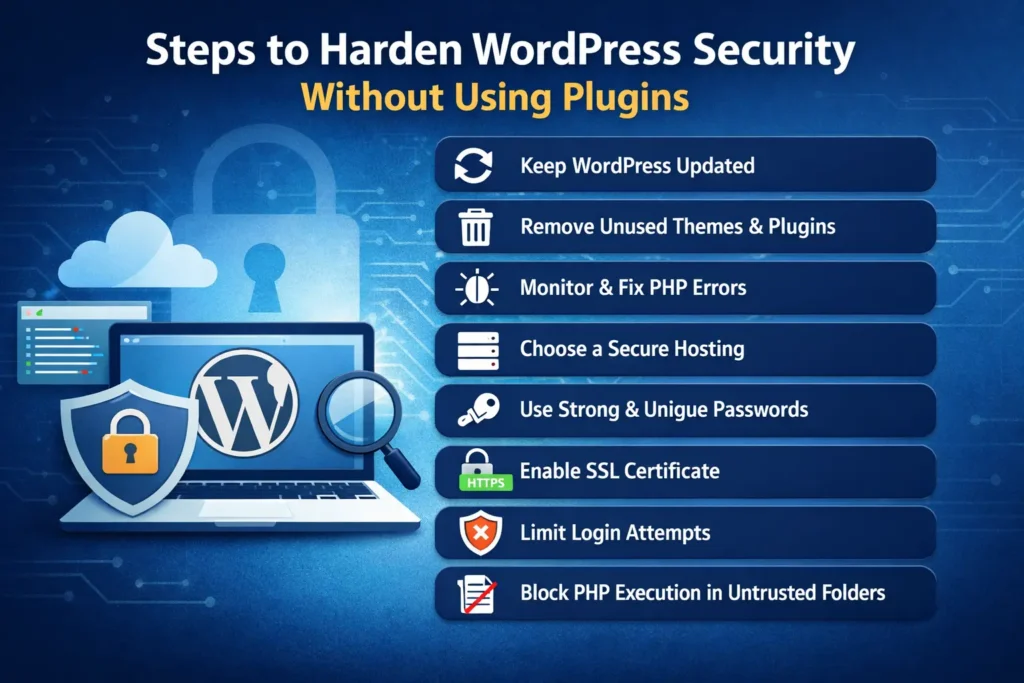
The following steps focus on reducing your attack surface. Each one removes a common weakness that attackers rely on. Individually they improve security. Together they create a far more resilient WordPress setup.
Step 1: Keep WordPress Core Themes and Plugins Updated
Keeping WordPress up to date is the single most effective security action you can take.
Most WordPress attacks target known vulnerabilities. These vulnerabilities are not dangerous until they are discovered and publicly documented. Once that happens, automated attacks begin scanning for sites that have not applied the fix. Updates close those doors.
Themes and plugins are especially important. Even inactive themes remain accessible on the server. Unused plugins still contain code that attackers can exploit if a vulnerability exists.
A secure WordPress setup includes only what is actively used. Anything else should be removed entirely. Fewer components mean fewer opportunities for something to go wrong.
Regular updates do more than patch security holes. They also improve compatibility, stability, and performance. Treat updates as routine maintenance, not a task to delay.
Step 2: Remove Unused Plugins Themes and Files
Inactive does not mean harmless.
Many WordPress sites accumulate unused plugins, old themes, and leftover files from experiments or previous designs. These components are easy to forget but difficult to defend.
Attackers do not care whether a plugin is active. If the code exists on your server and contains a vulnerability, it can be targeted. This is why cleanup is a critical part of security hardening.
A lean WordPress installation is easier to monitor and easier to protect. Remove any plugin you are not actively using. Delete old themes except for one default fallback. Avoid keeping backup copies of files inside the WordPress directory.
Security improves when your site contains only what it actually needs.
Step 3: Monitor and Fix PHP Errors Early
PHP errors are often ignored until something breaks. That is a mistake.
Many plugins and themes generate minor warnings or notices. While some are harmless, others point to deeper problems such as deprecated functions, compatibility issues, or unsafe behavior. Over time, these errors can escalate into downtime or expose information that attackers can use.
Monitoring PHP errors allows you to catch issues early. It helps you identify problematic plugins, poorly written themes, or server misconfigurations before they become security risks.
Fixing PHP errors also improves performance and stability. A site that runs cleanly is easier to secure because it behaves predictably. Unexpected behavior is what attackers exploit most.
Treat PHP errors as signals. The sooner you address them, the stronger your foundation becomes.
Step 4: Choose a Secure Hosting Environment
WordPress security starts before WordPress loads.
Your hosting environment controls how your files are isolated, how access is managed, and how attacks are blocked at the server level. Even a perfectly maintained WordPress site can be compromised if the hosting layer is weak.
A secure hosting setup includes firewalls, encrypted access methods, regular backups, and proper isolation between accounts. It limits what attackers can do even if they manage to exploit an application level issue.
Good hosting also reduces your workload. Server level protections stop many attacks before they ever reach WordPress. That means fewer emergencies and fewer surprises.
When evaluating hosting, security features should be a priority, not an afterthought.
Step 5: Use Strong and Unique Passwords Everywhere
Password reuse is one of the fastest ways to lose control of multiple systems at once.
If you use the same password for your WordPress admin, hosting dashboard, email, or FTP access, a single breach can cascade across everything. Many attacks do not start with WordPress at all. They start with leaked credentials from unrelated services.
Every access point should have a unique, strong password. That includes WordPress users, hosting accounts, database access, and file transfers.
Password managers make this manageable. They remove the temptation to reuse passwords and help you maintain secure credentials without memorizing them.
Strong passwords are not optional. They are foundational.
Step 6: Enforce Strong Passwords for All WordPress Users
Security is only as strong as the weakest account.
On multi user WordPress sites, contributors, editors, and administrators all have access to different parts of the system. A single weak password can give attackers a foothold they can escalate.
Every user should follow the same password standards. That means long, unique passwords and regular updates. Password policies are not about distrust. They are about protecting shared responsibility.
When team members leave or roles change, access should be reviewed immediately. Old accounts are common entry points for attacks because they are rarely monitored.
Consistent user management keeps your WordPress environment controlled and predictable.
Step 7: Install and Enforce SSL
An SSL certificate encrypts the connection between your website and its visitors. This prevents sensitive data from being intercepted while it is being transmitted.
Without SSL, login credentials, form submissions, and user data travel in plain text. This makes them easy targets on unsecured networks. Modern browsers now actively warn users when a site does not use HTTPS, which immediately damages trust.
SSL is no longer optional. It is a baseline requirement for security, credibility, and search visibility. Search engines favor secure websites, and users are far less likely to interact with sites flagged as unsafe.
Once SSL is installed, it should be enforced across the entire site. Every page, not just login or checkout pages, should load securely. This ensures consistent protection and eliminates mixed content issues that can weaken security.
Step 8: Limit WordPress Login Attempts Manually
Brute force attacks rely on volume, not intelligence.
By default, WordPress allows unlimited login attempts. This gives attackers the ability to test thousands of username and password combinations until something works. Even strong passwords can eventually be compromised if attempts are not restricted.
Limiting login attempts stops this behavior early. After a few failed tries, access is temporarily blocked. This dramatically reduces the effectiveness of automated attacks and protects user accounts from constant probing.
When implementing manual login limits, backups are essential. Any change to authentication logic should be reversible. Once in place, this protection works quietly in the background, blocking abuse without affecting legitimate users.
This single change removes one of the most commonly exploited weaknesses in WordPress.
Step 9: Block PHP Execution in Untrusted Folders
Not every folder in WordPress should be able to run PHP code.
Folders such as uploads are designed to store media files. They are not meant to execute scripts. Attackers often exploit this by uploading malicious PHP files disguised as images or documents. Once executed, these files give them persistent access.
Blocking PHP execution in folders that do not need it prevents this entire class of attacks. Even if a malicious file is uploaded, it cannot run. This turns a potentially severe breach into a harmless failed attempt.
This step is especially important because file based attacks can remain hidden for long periods. Blocking execution removes the risk before it becomes visible damage.
Step 10: Disable File Editing From the WordPress Dashboard
WordPress includes built in editors for themes and plugins. While convenient, they are dangerous from a security perspective.
If an attacker gains access to an administrator account, the file editor gives them direct control over your site’s code. They can inject malicious scripts, create backdoors, or redirect traffic without touching the server directly.
Disabling file editing removes this capability entirely. Even if admin access is compromised, the attacker cannot modify core files through the dashboard.
This change does not affect normal site operation. It simply removes an unnecessary risk that offers little benefit in production environments.
Step 11: Change WordPress Security Keys and Salts
WordPress uses security keys and salts to protect authentication data. These values help encrypt cookies and login information so credentials cannot be reused if intercepted.
Over time, these keys should be rotated. This is especially important after a malware cleanup or if unauthorized access is suspected. Changing them immediately invalidates existing sessions and forces users to log in again.
Regular rotation makes stolen data useless. Even if credentials were captured in the past, they stop working once keys change.
This practice mirrors password rotation. It reduces long term exposure and strengthens your authentication system.
Step 12: Secure the wp config File
The wp config file contains your database credentials and critical configuration values. If attackers gain access to it, they gain full control of your site.
This file should never be publicly accessible. Blocking direct access ensures that even if someone knows its location, they cannot retrieve its contents through a browser.
Securing wp config is one of the most important hardening steps because it protects the core of your WordPress installation. It also prevents accidental exposure through server misconfiguration.
This step takes minutes but significantly improves your security posture.
Why These Steps Work Better Together Than Any Single Plugin
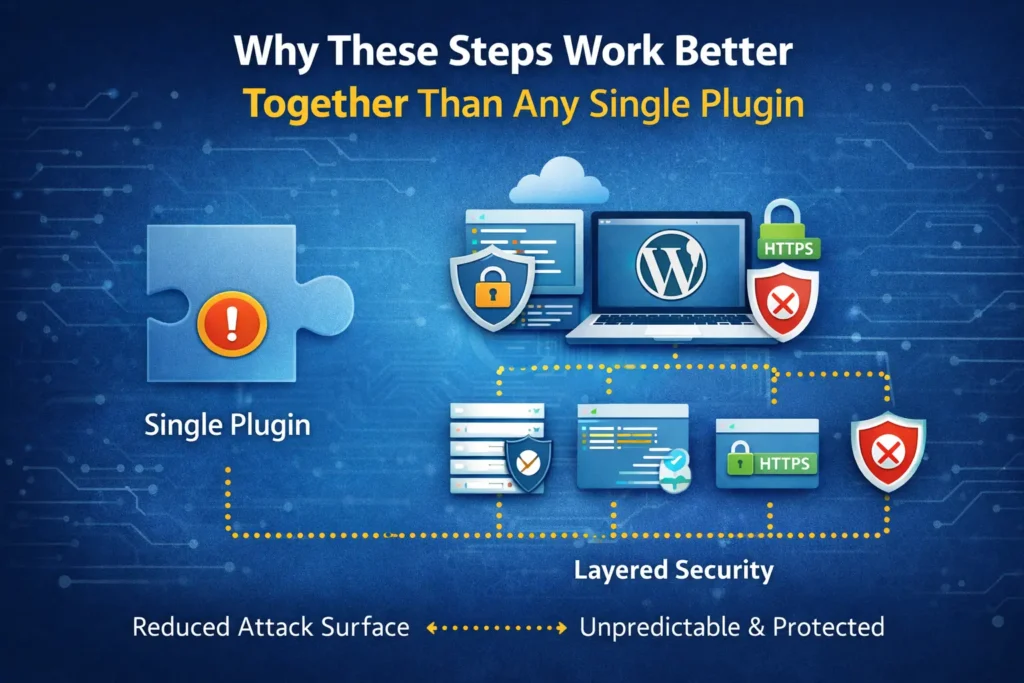
Security works best in layers.
Each step in this guide removes a specific weakness. Updates close known vulnerabilities. Cleanup reduces attack surface. Login limits stop automation. PHP restrictions block hidden threats. Together, they create an environment that is predictable and difficult to exploit.
Plugins often focus on detection after something goes wrong. Hardening focuses on prevention. It reduces the number of situations where detection is even necessary.
A well maintained WordPress site attracts fewer attacks because it offers fewer opportunities. Attackers move on when effort outweighs reward.
When Manual Hardening Is Not Enough
As websites grow, so does complexity.
Managing multiple WordPress installs, monitoring uptime, tracking errors, and maintaining backups becomes time consuming. At scale, manual processes break down. This is where professional WordPress maintenance becomes valuable.
Ongoing care ensures updates are applied safely, errors are monitored, and issues are resolved before they escalate. It provides visibility and accountability without replacing the fundamentals covered in this guide.
Hardening is the foundation. Maintenance keeps that foundation strong over time.
Final Thoughts
Hardening WordPress security without plugins is not about doing something extreme. It is about doing the basics consistently and correctly.
None of these steps are complicated on their own. Together, they dramatically reduce your risk and make your site easier to manage. They also create confidence. You know what is running on your site, who has access, and how it is protected.
Security is not a one time task. It is an ongoing habit. When built into how you manage WordPress, it stops being stressful and starts being reliable.
That reliability is what keeps websites online, trusted, and growing.
FAQs About Hardening WordPress Security Without Plugins
Is updating WordPress enough to stay secure?
Updates are critical but not sufficient on their own. They should be combined with strong passwords, secure hosting, access control, and file level protections for best results.
How often should WordPress security keys be changed?
Security keys should be changed after a breach, malware cleanup, or periodically as part of routine security hygiene. Regular rotation limits long term exposure.
Do I need technical skills to secure WordPress without plugins?
Most steps require basic familiarity with WordPress and hosting. Only a few changes involve editing configuration files, and these can be done safely with proper backups.
Are WordPress vulnerabilities mostly caused by plugins?
Yes. The majority of known WordPress vulnerabilities originate from themes and plugins. The risk increases when they are outdated or poorly maintained. Removing unused components and applying updates quickly reduces exposure significantly.
What is the best way to harden WordPress security without plugins?
The most effective approach is to keep WordPress, themes, and plugins updated, remove anything unused, enforce strong passwords, secure hosting, install SSL, limit login attempts, block PHP execution in untrusted folders, disable file editing, rotate security keys, and protect the wp config file.


