

Ever stumbled upon a 409 conflict error while working on your website or application? It’s one of those frustrating moments that can leave you scratching your head, wondering what went wrong.
This error is not just a random glitch but a specific signal from your server indicating a conflict that prevents your request from being processed. Think of it as trying to enter an already occupied room, your server essentially tells you, “Hold on, there’s a clash here!”
In this article, we’ll dive into what exactly a “409 Conflict” error is, why it happens, and, most importantly, how to fix it and prevent it from happening in the future.
Understanding the “409 Conflict” Error
If you’ve ever encountered the dreaded “409 Conflict” error while managing your website or application, you’re familiar with its frustrating nature. But what exactly is this error? Let’s find out:
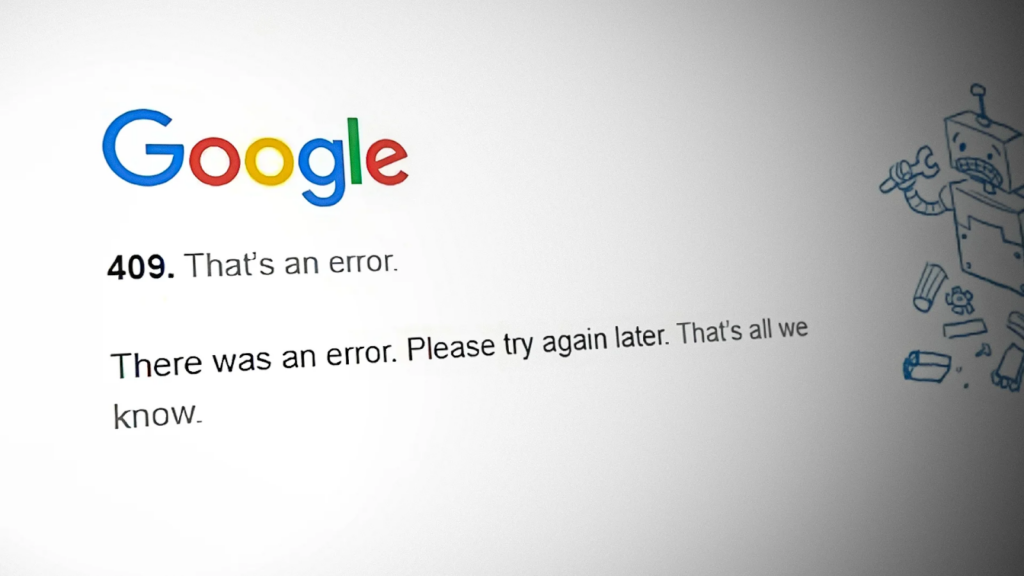
What is the 409 Conflict Error?
The 409 Conflict Error is an HTTP status code that means something on your website or server isn’t lining up the way it should. Specifically, it happens when a client attempts to request something that conflicts with the target resource’s current state.
For example, you might be trying to upload a post or file, but the server responds with an error message because that resource already exists or was changed recently.
This error usually pops up when using PUT requests or when working with systems that have version control conflict issues. If you’re a WordPress site owner, you might see this while managing the plugins page, making updates, or using tools like the Backups tab in a staging environment or live site.
It’s often temporary and fixable, but understanding what’s causing it is key to preventing it from coming back.
Say Goodbye to Website Errors!
Get expert website maintenance at your fingertips. Enjoy support, regular site health checks, and enhanced website performance & UX!
Read Our Guide: Most Common WordPress Errors
What Causes the “409 Conflict” Error?
So, why does the “409 Conflict” error happen in the first place? Several common scenarios can trigger this error:
- Duplicate Data: If you’re trying to create a resource that already exists, the server will throw a 409 error. For example, if you attempt to register a user with an email that’s already taken, you’ll encounter this conflict.
- Concurrent Updates: When multiple users try to update the same resource simultaneously, their changes might conflict. The server can’t decide which update to prioritize, leading to a 409 error.
- Resource Editing Issues: This occurs when the state of the resource you’re trying to edit has changed since you last fetched it. For instance, if you retrieved data, made changes, and then tried to save it while someone else has already updated it, you’ll run into a conflict.’
The server uses this error to tell you that your request can only be completed once the conflict is resolved. By identifying the cause of the error, you can take steps to fix it and prevent it from happening again.
Explore: How to Fix the 500 Internal Server Error in WordPress (10 Quick Fixes)
How to Locate the “409 Conflict” Error
Finding the root cause of the 409 Conflict error can be a bit of a detective job. Here’s how to track it down:
- Check Server Logs: Start by examining your server logs. Look for entries that mention the 409 error. These logs often provide details about the request that triggered the conflict.
- Use Debugging Tools: Debugging tools or plugins can help you trace the error. These tools can provide insights into the requests being made and the responses returned by the server.
- Review Application Logs: Application logs can also be a goldmine of information. They often capture the application’s state when the error occurred, which can help you understand what went wrong.
- Recreate the Error: If possible, try to recreate the error in a controlled environment. This can help you understand the conditions that lead to the conflict.
By systematically checking these sources, you can understand where the error is occurring and why. Once you know the cause, you’re well on your way to fixing it.
Read: Best Solutions to Backup Multiple WordPress Websites
Impact of 409 Conflict Error
The 409 Conflict error can have several negative impacts on your application and user experience:
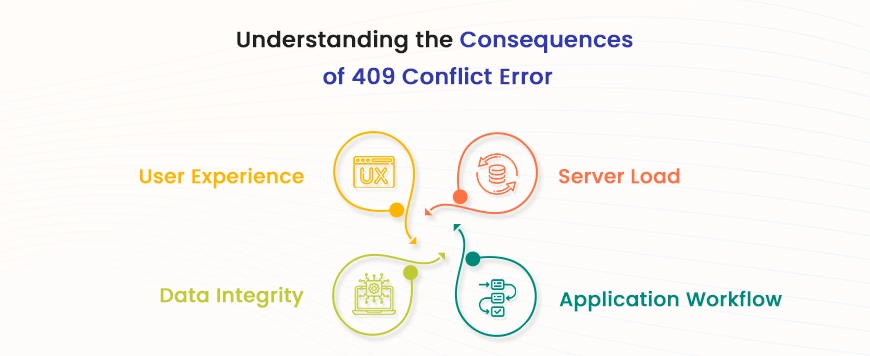
- Disrupted Functionality: This error can prevent users from completing actions, such as submitting forms or saving data, disrupting the overall functionality of your application.
- Data Integrity Issues: Conflicts in data can lead to inconsistencies, where the data shown to users is not the most up-to-date or accurate. This can cause confusion and mistrust.
- User Frustration: Users who encounter frequent errors are likely to become frustrated and may abandon your application or service. This can lead to a loss of user engagement and potentially affect your business.
- Operational Delays: For businesses that rely on real-time data updates, 409 errors can cause operational delays, resulting in reduced productivity and efficiency.
Given these impacts, it’s crucial to address and resolve 409 Conflict errors promptly to maintain a smooth and reliable user experience.
Read: WordPress Security Checklist
Fixing the “409 Conflict” Error: 6 Simple Solutions
Ready for action: How do you resolve the “409 Conflict” error? Here are six straightforward methods:
First, Check the Obvious
Before diving deep, make sure to check the basics. Are you sending duplicate requests by mistake?
Sometimes, the simplest explanation is the right one. Ensure your requests are distinct and do not overlap or conflict with each other. Double-check your code to ensure that no loops or conditions are causing multiple identical requests to be sent.
Sync Up Your Requests
Imagine four people trying to talk over each other; it’s a mess, right? Synchronize your requests so they don’t overlap.
Use timestamps or locking mechanisms to ensure requests are handled in the right order. Implementing a system that ensures requests are processed sequentially can prevent many conflicts.
For instance, if you’re working with a database, using transactions can help manage updates in a way that avoids conflicts. This ensures that each operation is completed fully before the next one begins.
Read: How to Repair and Fix WordPress Database
Ditch the Duplicates
Got duplicate data causing chaos? It’s time to clean the house. Go through and remove any duplicates that might be causing the server to throw up its hands in confusion. A clean data set means fewer conflicts. Use tools or scripts to identify and merge duplicate entries.
For example, check if the email or username already exists in a user registration system before creating a new account. This proactive approach can prevent the conflict before it even happens.
Read: Fix “There Has Been a Critical Error on Your WordPress Site”
Master Your Versions
Think of versioning as a librarian keeping track of book editions. Use proper versioning techniques to manage concurrent updates. This way, your updates don’t clash like two books claiming the same spot on the shelf. Implement optimistic concurrency control to handle version conflicts gracefully.
Each time you retrieve a resource, you get a version number. When you update the resource, you include this version number. If the version number doesn’t match the current version on the server, you know there’s been a conflict, and you can handle it accordingly.
Learn How to Fix the “Error Establishing a Database Connection” in WordPress
Clear Out Stale Data
Stale data can be a sneaky culprit. Regularly clean out outdated information that might be tripping up your server. It’s like getting rid of expired food in your fridge, which is necessary for keeping things fresh and functional. Regularly review and update your data to ensure it’s current and accurate.
For applications that deal with frequent updates, implement automated scripts that archive or delete outdated entries. This keeps your database lean and reduces the chances of conflicts.
Read: Best WordPress Security Service Providers
Ensure Consistency
Ensure your resource states are consistent across all requests. Picture it like keeping your story straight; if everyone’s on the same page, there’s less chance of misunderstanding. Consistency is critical to avoiding conflicts. Use tools that enforce data integrity and consistency checks.
Implementing constraints and validation rules within your database can help maintain consistency. For example, ensure that all related data entries are updated, preventing partial updates that could lead to conflicts.
Keep Reading: Monitoring WordPress: Ultimate Guide
How to Prevent 409 Conflict Error
Prevention is better than cure, right? Here are some proactive measures to avoid running into the 409 Conflict error in the first place:
- Implement Strong Validation: Validate your data before processing it to ensure it meets all the required criteria and doesn’t conflict with existing data.
- Use Optimistic Concurrency Control: This technique helps manage access to resources by multiple users without locking resources, reducing the likelihood of conflicts.
- Regular Data Cleanup: Regularly review and clean your data to remove duplicates and outdated entries, maintaining a clean and efficient database. The Advanced Database Cleaner plugin can help with this.
- Educate Your Users: Provide clear instructions and feedback to users on what caused the conflict and how they can avoid it in the future. This can help reduce the occurrence of disputes caused by user actions.
- Test Thoroughly: Conduct thorough testing of your application, especially in scenarios involving concurrent data updates, to identify and resolve potential conflicts before they reach your users.
- Monitor and Log: Continuously monitor your application for conflicts and log detailed information about any errors that occur. This helps in quickly identifying and resolving disputes when they arise.
Learn: Top-Notch WordPress Website Maintenance and Support Providers
To Sum Up
The 409 Conflict error can be a real headache, but understanding its causes and how to resolve it can make a significant difference. By checking the apparent issues, synchronizing requests, eliminating duplicates, managing versions, clearing out stale data, and ensuring consistency, you can tackle this error head-on.
More importantly, implementing preventive measures can significantly reduce the likelihood of encountering this error, ensuring your application runs smoothly and your users remain happy.
Remember, every error is an opportunity to improve your system and provide a better user experience. So, next time you face a “409 Conflict” error, you’ll be ready to handle it confidently.
FAQs About 409 Conflict Error
What does the 409 Conflict error code mean in an API response?
The 409 Conflict error code means the server cannot process a webrequest due to a conflict with current records. It often appears when an API post or update clashes with existing information, such as duplicate names, file versions, or property values.
Is a 409 Conflict error caused by the user or the developer?
Both can cause the issue. A user may submit a form twice or use an outdated browser page. A developer may send conflicting code, an incorrect URI, or unsynced data from an app, WordPress dashboard, or client system.
How does a 409 Conflict error affect website activity and reputation points?
This error can block tasks, comments, or email submission. Repeated conflicts harm user experience, lower reputation points, and erode trust among viewers. It can also impact cookies, login password actions, and overall computer based activity.
Can a 409 Conflict error be fixed without advanced technical knowledge?
Yes. Clear your browser’s cookies, refresh the page, and try the method again. Check the URL, list entries, and form data for duplicates. These options solve many common cases without deep research or coding knowledge.
How can teams prevent 409 Conflict errors in the future?
Teams should sync API requests, validate records, and manage versions carefully. Clear communication, proper response messages, and regular testing help avoid the problem. This simple solution saves time. Thanks for reading.
What is a 409 undocumented error conflict?
It’s a 409 error that appears without a clear explanation. It usually involves missing response representation or incorrect http requests. Website owners should check the if-match headers, server settings, or message body for issues.


