
To embed a PDF in WordPress, you have three options: the built-in File block, a dedicated plugin, or an iframe with Google Drive. All three work without touching code and take under five minutes to set up.
Most WordPress users upload PDFs as downloadable files without realizing they can display them directly on the page. The right way to add a PDF to WP keeps visitors on your site, improves engagement, and works well for brochures, menus, reports, and any document you want readers to view without downloading. Here is exactly how to do it.
TL;DR
- You can share a PDF on WordPress without any plugin using the built-in File block.
- For a professional viewer with Zoom, navigation, and download controls, use a PDF embed plugin.
- For large or externally hosted files, use an iframe with Google Drive or Dropbox.
- Always compress your PDF to under 5MB before uploading to avoid slowing your page.
- Test your embed on mobile before publishing, as browser rendering varies across devices.
Why Embed a PDF in WordPress Instead of Just Linking to it?
Linking a PDF opens it in a new tab or triggers a download. Embedding it keeps the visitor on your page, inside your layout, with your branding visible. That difference matters more than most people realize.

Here is why embedding is the better choice in most situations.
- Better User Experience: Visitors read the document without leaving your site. No new tabs, no downloaded files cluttering their device.
- Higher Engagement: Embedded documents keep users on the page longer, boosting dwell time and reducing bounce rate.
- More Control: You decide whether visitors can download, print, or only view the document, depending on the plugin or method you use.
- SEO Benefit: The surrounding page content, headings, and context you write around the embed are indexable by Google. The PDF content itself is harder for search engines to read, so embedding with supporting text improves overall page relevance.
- Professional Presentation: A styled, responsive PDF viewer looks far more polished than a raw download link.
What Do You Need Before You Start?
Before you insert a PDF into a website, a little preparation saves you time and prevents the most common issues. Run through this quick checklist before you open your editor.
- A Compressed PDF File: Large PDFs slow down page load time. Use Smallpdf or iLovePDF to compress your file before uploading. Aim for under 5MB for inline viewers.
- Access to Your WordPress Editor: You need editor or administrator access to the page or post where the PDF will appear.
- Hosted on WordPress: Upload directly to your Media Library and reference the file URL in your block or plugin.
- Hosted Externally: Use Google Drive, Dropbox, or another platform and pull the file in using an iframe or plugin shortcode.
- A Decision on Download Permissions: Decide upfront whether visitors can download the file. This affects which method and plugin you choose.
What are the 3 Methods to Embed a PDF in WordPress?
There are three reliable ways to load a PDF in WP. The right one depends on where your file is hosted, how much control you need over the viewer, and whether you want to install a plugin.
| Method | Best For | Plugin Needed |
| File Block | Quick embeds, no setup | No |
| PDF Embed Plugin | Professional viewer with controls | Yes |
| iFrame or Google Drive | Externally hosted or large files | No |
Method 1: Use the WordPress File Block (No Plugin Needed)
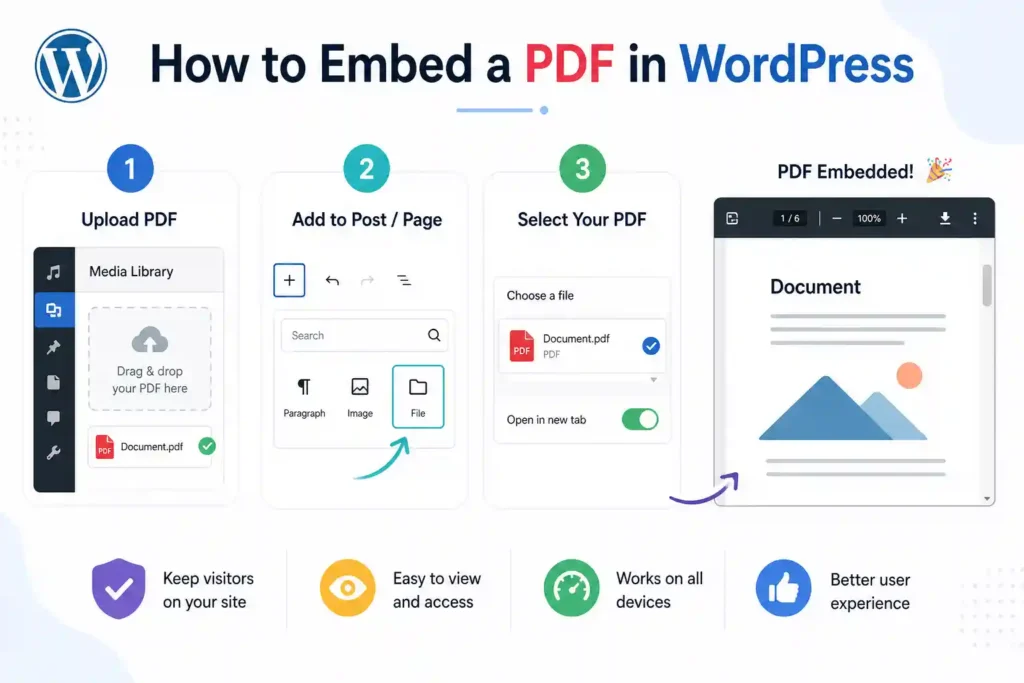
The fastest way to upload and display a PDF in WP is with the built-in File block in the Gutenberg editor. This method requires no plugin and works on any self-hosted WordPress site running version 5.0 or later.
The File block displays a PDF viewer directly on the page using the visitor’s browser, with a download button below.
How to Embed a PDF Using the File Block?
- Open the page or post where you want to embed the PDF.
- In the block editor, click the plus icon, search for File, and select it from the results.
- Select the File block, then click Upload to add your PDF, or choose one from your Media Library.
- Once uploaded, toggle on Inline File View in the block settings panel on the right.
- Adjust the viewer height using the Height in pixels field to suit your document length.
- Click Update or Publish to save.
The PDF renders inside the page content using the browser’s built-in PDF viewer. No extra setup needed.
What are the Limitations of the File Block?
The built-in File block works well for simple use cases, but has a few constraints worth knowing before you commit to this method.
- Browser Dependency: The viewer relies on the visitor’s browser. On some mobile browsers, it defaults to a download prompt instead of displaying inline.
- No Styling Control: You cannot customize the viewer’s appearance, toolbar, or navigation buttons.
- Always Shows a Download Button: There is no option to disable downloads with this method.
If any of these limitations are a problem for your use case, Method 2 solves them all.
Method 2: Use a PDF Embed Plugin
A dedicated PDF embed plugin gives you a properly styled, responsive viewer with controls for zoom, page navigation, download permissions, and full-screen mode. This is the best option when presentation and control matter.
Which are the Best WordPress PDF Embed Plugins?
Several plugins handle this well. These are the most reliable options available.
- PDF Embedder: A lightweight, well-maintained plugin that embeds PDFs using a clean, responsive viewer. Works via a block or shortcode. The premium version adds zoom controls, full-screen mode, and page jump navigation. Best all-round choice for most sites.
- Embed Any Document: Supports PDFs, Word documents, Excel files, and PowerPoint presentations. Uses Google Docs Viewer or Microsoft Office Online as the rendering engine, which solves most cross-browser and mobile compatibility issues.
- Real3D FlipBook: The best option for a magazine-style flipbook viewer with page-turn animations. Ideal for brochures, catalogs, and lookbooks where visual presentation is a priority.
How to Embed a PDF Using PDF Embedder?
- Go to Plugins⟶ Add New, search for PDF Embedder, and install it.
- Activate the plugin and go to Settings to configure the default width and height.
- Open the page or post where you want the PDF to appear.
- Add a new block and select PDF Embedder, or use the shortcode: [pdf-embedder url=”YOUR PDF URL”]
- Upload your PDF to the Media Library and copy the file URL.
- Paste the URL into the block or shortcode.
- Preview the page to confirm the viewer displays correctly, then publish.
The viewer renders on your page, with navigation arrows, a page counter, and optional zoom controls, depending on your settings.
Method 3: Embed a PDF Using an iFrame or Google Drive
If you want to embed a PDF hosted outside WordPress, such as one on Google Drive or Dropbox, an iframe is the most flexible option. This method also works well when the PDF file is too large to host on your own server.
How to Embed a PDF from Google Drive?
- Upload your PDF to Google Drive.
- Right-click the file, choose Open with Google Docs, navigate to the File menu at the top, and select Publish to the web.
- Select Embed and copy the iframe code provided.
- In your WordPress editor, add a Custom HTML block.
- Paste the iframe code into the block.
- Adjust the width and height values in the code to fit your layout. A good starting point is width=”100%” height=”600″.
- Publish the page.
The PDF displays inside a Google Docs viewer embedded directly in your page. Visitors see the full document with navigation controls, and Google handles the rendering.
How to Embed a PDF from Dropbox?
- Upload the PDF to Dropbox and open the file.
- Click Share and generate a direct link.
- Change the URL’s query parameter from dl=0 to raw=1 to get a direct file link.
- Use this URL in the PDF Embedder shortcode or paste it into the iframe src attribute in a Custom HTML block.
When Should You Use the iFrame Method?
Not sure which method fits your situation. The right choice comes down to three things: where your file is hosted, how much control you need over the viewer, and whether you want to install a plugin. Use this as your decision guide.
- Externally Hosted Files: The PDF lives on Google Drive, Dropbox, or another platform, and you do not want to duplicate it on your server.
- Large File Sizes: The file is too large for your media library or would affect your hosting storage limits.
- Cross-Browser Compatibility: You need Google to handle rendering without installing a plugin.
- Auto-Updating Documents: Updates to the Google Drive file are automatically reflected in the embedded version, without requiring edits to the WordPress page.
How Do You Choose the Right Method?
Getting the embed live is only half the job. How you set it up directly affects page speed, mobile experience, and whether search engines can understand the content around it.

These practical tips make a real difference.
- Use the File Block: If you need a quick embed, have a small PDF, and do not mind the default browser viewer with a visible download button.
- Use a PDF Embed Plugin: If you need a professional viewer, want to disable downloads, or need zoom and full-screen controls for a better reading experience.
- Use iFrame or Google Drive: If the PDF is hosted externally, the file is large, or you want Google to handle cross-browser rendering without a plugin.
Tips for Embedding PDFs in WordPress
Even with the right method in place, a few problems come up regularly. Most are quick to fix once you know what is causing them. Here is what to look for and how to resolve each one fast.
- Compress Before Uploading: Large PDFs add to page load time. Compress the file to under 5MB using Smallpdf or iLovePDF before uploading to WordPress.
- Set a Height That Suits Your Content: A height of 500-700 pixels works for most short documents. For longer reports, 800 pixels provides enough space for comfortable reading.
- Test on Mobile Before Publishing: PDF viewers on mobile can behave unpredictably. Test your embed on a phone and consider adding a download link alongside the viewer if the mobile experience is poor.
- Write Supporting Content Around the Embed: Search engines cannot reliably read PDF content. Write a short summary of the document’s content on the page near the embed to improve SEO and accessibility.
- Disable Downloads Where Needed: If the PDF contains proprietary or sensitive content, use PDF Embedder Premium or a similar plugin to disable the download button.
What are the Common Issues When Embedding PDFs in WordPress?
Even with the right method in place, a few problems come up regularly. Here is how to fix them quickly.
- PDF Not Displaying Inline: Ensure the Inline File View is enabled in the File block settings. If using a plugin, confirm the file URL is correct and the PDF is publicly accessible.
- Blank White Box on Mobile: This usually means the browser is not rendering the PDF inline. Switch to Embed Any Document or use the Google Drive iframe method for better mobile compatibility.
- PDF Loading Very Slowly: The file is too large. Compress it using Smallpdf or iLovePDF before re-uploading. Anything over 5 MB will noticeably slow down the page.
- Download Button Will Not Disappear: The free File block always shows a download button. You need PDF Embedder Premium or a similar paid plugin to remove it.
- iFrame Showing a Login Screen: Your Google Drive file is not set to public. Go to Drive, right-click the file, click Share, and set access to Anyone with the link before copying the embed code.
Conclusion
Embedding a PDF in WordPress is straightforward once you know which method suits your needs. Use the File block for quick no-fuss embeds, a plugin for professional presentation and download control, and an iframe for large or externally hosted files.
Whichever method you choose, compress your file first, test on mobile before publishing, and add supporting text around the embed to help with SEO. These three steps alone will put your embedded PDF ahead of most implementations on competing pages.
FAQs
What is the easiest way to display a PDF on a WordPress page?
The File block is the easiest option for most users. It is built into the WordPress editor, requires no plugin, and takes less than 2 minutes to set up. Upload your file, add the block, and toggle on Inline File View to display it directly on the page.
Which method gives the most control over how the PDF looks?
A dedicated plugin like PDF Embedder gives you the most control. You can set the viewer dimensions, enable or disable the download button, add zoom controls, and customize the navigation experience without touching any code.
Does the file need to be uploaded to WordPress, or can it be hosted elsewhere?
Both options work. Files hosted in your Media Library load directly from your server. Files hosted on Google Drive or Dropbox can be embedded using an iframe, keeping large files off your server and improving page load time.
Will my PDF display correctly on all devices?
It depends on the method you use. The built-in File block relies on the visitor’s browser, which can cause issues on mobile. Using a plugin or an iframe from Google Drive produces a more consistent experience across phones, tablets, and desktops.
How do I make sure my PDF does not slow down my page?
Compress the file to under 5MB before uploading using a tool like Smallpdf or iLovePDF. For larger documents, host the file on Google Drive and use an iframe rather than uploading it directly to your WordPress media library.


