
A WordPress site can go from fully functional to completely broken in seconds. A plugin update pushed at the wrong time, a database server that crashes overnight, or a malware injection that goes undetected for weeks can take your site offline, suppress organic traffic, and stop revenue cold.
Emergency WordPress maintenance is the structured process of diagnosing and resolving critical WordPress failures fast, in the right order, with the right tools. This guide covers every major emergency scenario, the step-by-step fix for each, and the prevention layer that stops most of these situations from recurring.
Before a crisis hits, understanding what WordPress website maintenance actually costs puts the cost of professional emergency support into proper context relative to the cost of unmanaged downtime.
Emergency WordPress maintenance is unscheduled, immediate technical support for active WordPress site failures.
It covers site outages, hacked sites, fatal errors, broken checkout flows, and database connection errors that make a site inaccessible or harmful to visitors.
It differs from routine maintenance in one way: it responds to an active crisis rather than running on a preventive schedule.
Professional emergency WordPress maintenance at Seahawk starts at $39 per hour with no retainer required.
What is Emergency WordPress Maintenance, and When Do You Need It?
Emergency WordPress maintenance covers any critical failure requiring immediate intervention outside a scheduled maintenance window. It is reactive, time-sensitive, and triggered by an active problem, not a calendar.
A situation qualifies for emergency WordPress maintenance when one of these conditions is met:
- The site is completely inaccessible to visitors
- The site is redirecting visitors to malicious URLs
- Checkout, booking, or lead capture has stopped working
- Google Search Console is showing security warnings or blacklist alerts
- A database error has made both the frontend and admin dashboard unreachable
Everything else is a maintenance task, not an emergency.
Site Down? Hacked? Throwing Errors?
Seahawk resolves most critical WordPress issues in under 2 hours. No retainer. No long-term contract. Just fast, expert emergency WordPress maintenance from $39/hr.
The Six Critical Issues That Require Emergency WordPress Maintenance
Discover the warning signs that signal your WordPress site needs immediate attention before damage spreads. From security breaches to performance crashes, learn the issues you cannot afford to ignore.
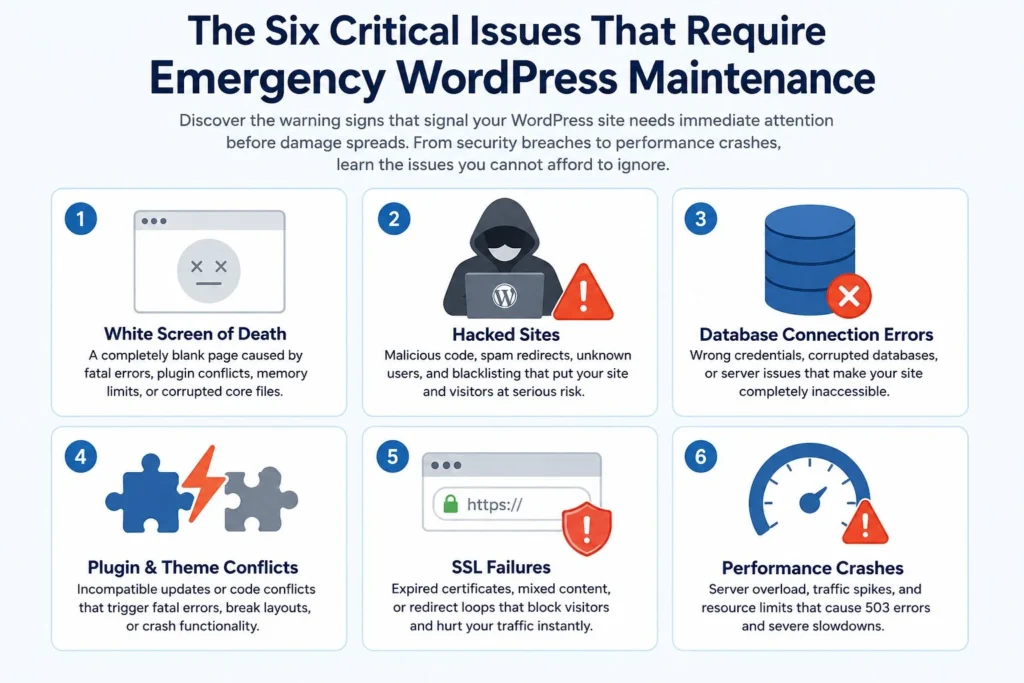
White Screen of Death Demands Immediate Emergency WordPress Maintenance
The WordPress White Screen of Death displays a completely blank page with no error messages. It is one of the most common reasons site owners need emergency WordPress maintenance because the blank screen gives nothing to work from.
PHP hitting a fatal error is almost always the cause. Common triggers include a plugin conflict from a recent update, a theme function incompatible with the current PHP version, an exhausted memory limit, or a corrupted core file.
Enable debug mode immediately by adding this to wp-config.php via FTP:
define('WP_DEBUG', true);
define('WP_DEBUG_LOG', true);
define('WP_DEBUG_DISPLAY', false);
Check debug.log in wp-content for the exact error, file, and line number. If a plugin is the culprit, rename /wp-content/plugins to /wp-content/plugins-disabled via FTP. If the site loads, rename it back and reactivate plugins one by one.
If the memory limit is the cause, add define('WP_MEMORY_LIMIT', '256M'); to wp-config.php.
Most site owners dealing with a WordPress white screen error overlook file permission conflicts and PHP text processing limits as secondary causes once the obvious plugin fix does not work.
Hacked Sites Require the Most Intensive Emergency WordPress Maintenance
A hacked site is the most serious emergency WordPress maintenance scenario. Many compromises are silent for weeks. Malicious code sits in theme files, uploading spam pages, harvesting form data, or waiting to activate a redirect.
Signs that emergency WordPress maintenance is needed due to a security breach include spam redirects visible to visitors, unknown admin accounts in the user list, Google blacklist warnings in Search Console, unexpected JavaScript in the page source, and hosting account suspensions.
Step-by-step emergency WordPress maintenance for a hacked site:
Enable maintenance mode immediately via FTP so visitors do not interact with infected pages during cleanup.
Run independent scans using Wordfence and Sucuri SiteCheck. Download a fresh WordPress core from WordPress.org and replace /wp-admin and /wp-includes completely via FTP. Any file that does not match the clean copy has been modified and must be replaced.
Scan all plugin and theme files for base64_decode, eval(), and obfuscated JavaScript in functions.php, index.php, and .htaccess. Clean the database by searching wp_options for malicious siteurl values and wp_users for unauthorized admin accounts.
Reset every credential immediately: WordPress admin passwords, FTP, database, and hosting panel. Generate new security keys in wp-config.php.
Sites that get hacked through an unpatched WordPress vulnerability are almost always re-infected within days if the backdoor is not removed as part of the cleanup.
When a hack targets WooCommerce checkout specifically, WordPress phishing attacks modify payment scripts at the database level rather than the file level, requiring a different cleanup approach than standard malware removal.
For sites where manual cleanup has failed, or the infection scope is too complex, Seahawk’s hacked WordPress site repair service covers full removal, backdoor elimination, and post-repair hardening.
Database Connection Errors Shut Down Everything Simultaneously
“Error establishing a database connection” causes the frontend and admin dashboard to be cut off simultaneously. The site is completely unreachable from every angle.
The most common causes are wrong database credentials in wp-config.php, a crashed or corrupted database, a temporarily offline server, or a database that has hit its connection limit.
Emergency WordPress maintenance steps for database errors:
Open wp-config.php via FTP and verify DB_NAME, DB_USER, DB_PASSWORD, and DB_HOST against your hosting control panel values.
If credentials are correct and the error persists, add define('WP_ALLOW_REPAIR', true); to wp-config.php and visit yoursite.com/wp-admin/maint/repair.php. Run both repair and optimize options. Remove that line immediately after.
If the database server is offline, this is a hosting-level issue that requires direct contact with the provider. A WordPress site that has gone completely down because of server failure requires a different triage than an application-level crash.
Plugin and Theme Conflicts Trigger the Most Frequent Emergencies
Plugin conflicts account for over 52 percent of WordPress troubleshooting requests. Most are caused by an update applied directly to a live site without testing on staging first.
A conflict surfaces immediately after an update: fatal errors on the frontend, an inaccessible admin dashboard, or broken functionality on specific pages.
If the dashboard is accessible, deactivate all plugins and reactivate one by one until the conflict reproduces. If the dashboard is inaccessible, rename the plugins folder via FTP and access the dashboard once the site loads.
For theme conflicts, switch to a default WordPress theme via FTP. If the site loads with the default theme active, the issue is in the active theme’s functions.php.
A WordPress fatal error triggered by a plugin or theme sometimes involves PHP memory exhaustion or core file corruption that goes beyond the standard deactivation workflow.
SSL Failures Cause Immediate Traffic Loss
An expired SSL certificate produces full-page browser security blocks. Chrome, Firefox, and Safari all prevent visitors from reaching the site entirely. The traffic impact is instantaneous.
The most common SSL emergencies are certificates that did not auto-renew, mixed content errors where assets load over HTTP on an HTTPS site, and redirect loops after a site migration.
Renew the certificate in your hosting control panel immediately. For mixed content, run a search-replace using Better Search Replace to update all http:// references to https:// across the database. Clear all caches afterward.
For redirect loops, check .htaccess for duplicate HTTPS redirect rules. A server-level redirect, combined with a second rule in .htaccess, creates a loop that results in an infinite redirect error.
Performance Crashes Require Immediate Server-Level Action
A traffic spike from a press mention or campaign launch can push a shared server to 100 percent resource usage within minutes. The result is a 503 error or page loads stretching to 30 to 60 seconds.
This is a server resource exhaustion problem, not a WordPress application problem.
Activate a full-page caching plugin, such as WP Rocket or W3 Total Cache, immediately. This reduces server load by up to 90 percent for cached pages within minutes of activation.
If caching does not resolve the issue, contact the hosting provider to request a temporary increase in resources. Enable a CDN like Cloudflare to remove static asset delivery from the origin server entirely.
A WordPress server that throws 500 or 503 errors under load behaves differently from one that crashes due to a plugin conflict, and the diagnostic paths for each are completely different.
Emergency WordPress Maintenance Diagnosis in Under 10 Minutes
Every emergency WordPress maintenance session starts with the same structured sequence. Skipping steps is the most common reason simple problems take hours to resolve.
Step 1: Read the exact error code. Open browser developer tools, go to the Network tab, reload the page, and check the status code. A 500, 503, and database connection error each requires a different resolution path.
Step 2: Check the server error log. Access it via the hosting control panel or FTP. It contains the exact PHP error, file path, and line number. This is the fastest diagnostic tool available during any emergency.
Step 3: Identify what changed last. Check the WordPress activity log for the most recent plugin, theme, or core update. Most emergencies are directly related to a recent change.
Step 4: Check your hosting provider’s status page. If nothing in WordPress has changed and the site is down, the host may be experiencing a server outage. Always check before touching the WordPress installation.
Step 5: Enable WP_DEBUG. If the error is application-level, debug mode displays the exact PHP error within 2 minutes, without any guesswork.
Emergency WordPress Maintenance: Quick Reference
| Deactivate all plugins via FTP, and reactivate one by one | Most Common Cause | First Action |
|---|---|---|
| White Screen of Death | Plugin conflict or PHP memory | Enable WP_DEBUG, deactivate plugins via FTP |
| Database Connection Error | Wrong wp-config.php credentials | Verify DB credentials, run repair tool |
| 500 Internal Server Error | Corrupt .htaccess or memory limit | Rename .htaccess, increase memory limit |
| 503 Service Unavailable | Server resource exhaustion | Activate caching, contact host |
| Malware Redirect | Injected code in files or database | Scan, clean files and database, reset credentials |
| SSL Error | Expired cert or mixed content | Renew SSL, run search-replace for HTTP references |
| Plugin Conflict | Incompatible update | Deactivate all plugins via FTP, reactivate one by one |
| Critical Admin Error | PHP fatal error | Check debug.log, deactivate plugin or theme via FTP |
When multiple critical WordPress errors appear simultaneously, the resolution order matters. Database and server errors take priority over application-level errors because they affect every other diagnostic step.
WooCommerce stores where checkout has stopped processing orders need a separate diagnostic track because payment gateway failures, cart plugin conflicts, and SSL misconfigurations produce identical visible symptoms but require different fixes.
When to Stop DIY Emergency WordPress Maintenance and Call a Professional?
There is a point in every emergency where continued DIY troubleshooting creates more risk than it resolves.
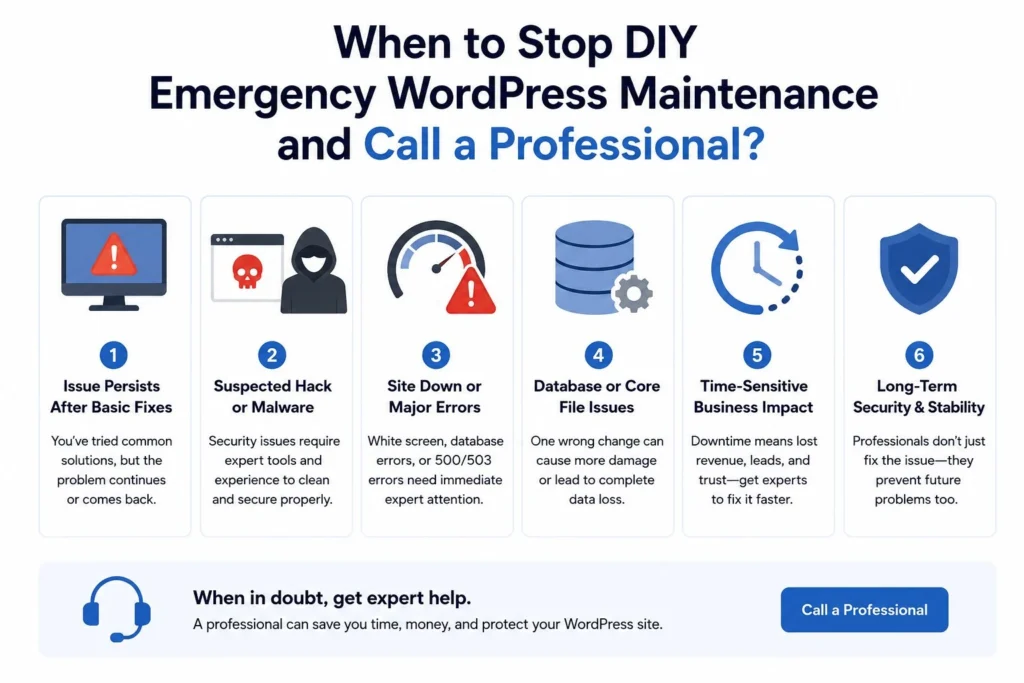
Call a professional immediately when:
- The site has been down for more than 30 minutes without an identified cause
- The issue involves database corruption, where a wrong edit permanently destroys data
- The site was hacked, and the initial cleanup has not stopped the malicious behavior
- A restored backup went down again within 24 hours, meaning the root cause was not addressed
- Revenue is being lost, and every additional minute of downtime has a direct cost attached
Site owners who keep troubleshooting past this point often create secondary problems: disabling the wrong plugin breaks additional functionality, incorrect wp-config.php edits take the entire site offline, and restoring the wrong backup wipes recent customer data.
Businesses that lose revenue during a WordPress crash almost always spend more in opportunity costs during extended DIY troubleshooting than they would have paid for a professional resolution from the start.
Prevention: The Maintenance Layer That Stops Most Emergencies Before They Start
Most WordPress emergencies are preventable. Sites that run a consistent maintenance schedule experience significantly fewer critical incidents than sites that update manually or sporadically.
Weekly staged updates. Apply all plugins, themes, and core updates to a staging environment before the live site. Testing on staging catches conflicts before they affect real visitors.
Daily off-site backups with 90-day retention. The single most common reason an emergency becomes a multi-day disaster is the lack of a recent clean backup. When a backup exists, most emergencies resolve in under an hour.
Continuous uptime monitoring. A service checking the site every five minutes fires an immediate alert the moment it goes offline, reducing the window between when a problem starts and when emergency WordPress maintenance begins.
Regular malware scanning. Most infections sit dormant for weeks. Weekly scanning catches them when removal is cleanest and least expensive.
PHP version compatibility checks. PHP version mismatches between the server and installed plugins are one of the most common causes of sudden crashes. Checking compatibility before a server upgrade eliminates this category entirely.
Running WordPress security maintenance as an ongoing process rather than a reactive one is the most cost-effective approach to maintaining site stability. Sites with active malware scanning in place catch infections at a fraction of the cleanup cost of late-stage removals.
Getting WordPress monitoring and emergency support protocols in place before a crisis means the detection and response infrastructure is already in place when something goes wrong.
A WordPress maintenance plan starting at $49 per month delivers weekly updates, daily backups, uptime monitoring, and malware scanning: the full prevention layer that eliminates most emergency scenarios before they reach the site.
Emergency WordPress Maintenance Pricing
Professional emergency WordPress maintenance at Seahawk is billed at $39 per hour. No retainer. No minimum commitment beyond one hour.
| Issue Type | Typical Hours | Estimated Cost |
|---|---|---|
| White Screen or 500 Error | 1 to 2 hours | $39 to $78 |
| Malware Removal | 2 to 4 hours | $78 to $156 |
| Failed Update Rollback | 1 hour | $39 |
| SSL Fix | 1 hour | $39 |
| Database Error | 1 hour | $39 |
| Migration Recovery | 2 to 3 hours | $78 to $117 |
| Performance Crash | 1 to 3 hours | $39 to $117 |
Business and VIP maintenance plan clients receive malware removal and hack recovery at no additional charge. VIP clients receive 24/7 triage and same-day emergency response as part of the plan.
Stop the Next Emergency Before It Starts
Emergency WordPress maintenance resolves the issues that are currently broken. Routine maintenance prevents the next breakdown. The most cost-effective approach to site stability is to have both layers in place: a maintenance plan that handles preventive work on a consistent schedule, and emergency support available at $39 per hour for situations that maintenance cannot fully anticipate.
A WordPress maintenance plan starting at $49 per month delivers weekly updates, daily backups, uptime monitoring, and malware scanning to prevent the majority of the emergency WordPress maintenance situations covered in this guide.
Frequently Asked Questions About Emergency WordPress Maintenance
What is emergency WordPress maintenance?
Emergency WordPress maintenance is unscheduled, immediate technical support for active WordPress failures: site outages, hacked sites, fatal errors, broken checkout flows, and database failures that make the site inaccessible or actively harmful to visitors.
How long does emergency WordPress maintenance take?
Single-cause emergencies like plugin conflicts, database credential errors, and SSL failures typically resolve in one to two hours. Malware removal takes two to four hours. Multi-layer issues involving simultaneous conflicts, database corruption, and security incidents can take four to eight hours.
Can emergency WordPress maintenance recover a site with no backup?
Yes, but the process is significantly more complex and expensive. Without a backup, recovery requires manually cleaning every infected file and database table rather than restoring a clean state and patching the entry point.
What causes repeated emergencies on the same site?
Repeated emergencies almost always point to missing prevention infrastructure: no staged updates, no regular backups, no malware scanning, and no uptime monitoring. A single maintenance plan addresses all four simultaneously.


