

You have traffic coming to your WordPress site. But are people clicking your call-to-action buttons? Are they reading past the fold? Are they ignoring your most important content?
Traffic data alone cannot answer these questions. That is exactly where heatmaps come in.
Adding heatmaps to your WordPress site gives you a visual picture of how real users interact with your pages. You stop guessing and start making decisions backed by real behavioral data.
This guide walks you through everything you need to know, what heatmaps are, which tools to use, how to install them on WordPress, and how to turn the data into actionable improvements.
Heatmaps can be added to a WordPress site by installing a dedicated plugin, pasting a tracking script via the Insert Headers and Footers plugin, or deploying through Google Tag Manager. Microsoft Clarity offers a free, plugin-based setup requiring no code. Tools like Hotjar and Mouseflow use a JavaScript snippet added to the site header.
Once installed, heatmaps record clicks, scroll depth, and mouse movement, displaying the data as color-coded overlays on each page.
What Are Heatmaps and Why Do They Matter for WordPress Websites?
Before you add heatmaps to your WordPress site, it helps to understand what they actually do and why they are worth your time.

What is a Website Heatmap?
A website heatmap is a visual data overlay that shows where users click, scroll, and move their mouse on a page. Areas with the most activity appear in warm colors, red and orange. Areas with little to no activity appear in cool colors, blue and green.
Think of it as a thermal image of user behavior. Instead of reading rows of numbers in an analytics report, you see a color-coded map that tells you exactly what’s capturing attention and what’s being completely ignored.
Heatmaps do not replace traditional analytics. They complement them. Where Google Analytics tells you how many people visited a page, a heatmap tells you what those people actually did on that page.
How Do Heatmaps Visualize User Behavior?
Heatmaps work by recording user interactions through a small tracking script placed on your site. This script collects data in real time as visitors browse, then aggregates and visualizes it in the heatmap dashboard.
For example, if 500 users visit your homepage and 400 of them click the same image that isn’t even a link, you will see a bright red hotspot there. That tells you users expect something clickable, and you should probably make it one.
The conversion rate optimization value of this data is immense. You can identify exactly what is working and what is broken in your page design without relying on guesswork.
Types of Heatmaps You Should Track
There are several types of heatmaps, each revealing a different layer of user behavior.
- Click Heatmaps show you where users click on your page. This helps you find dead zones where users try to click, but nothing happens, and identify which buttons or links get the most attention.
- Scroll Heatmaps reveal how far down the page users scroll before leaving. If your scroll map shows most users drop off at 40% of the page, anything below that point may as well not exist for most visitors.
- Move Heatmaps (or mouse movement maps) track where users hover their cursor. Research suggests that cursor movement loosely correlates with eye movement, making this useful for understanding reading patterns and visual attention.
- Rage Click Maps highlight areas where users repeatedly click in frustration. These spots often indicate broken links, confusing UI elements, or unclickable items that users expect to be interactive.
- Session Recordings are not technically heatmaps, but most heatmap tools include them. They let you replay individual user sessions to see exactly what someone did on your page, where they paused, what they skipped, and where they left off.
Turn Heatmap Insights into Higher Conversions
Improve user experience, fix technical issues, and boost performance with our expert Technical SEO services.
Why Add Heatmaps to Your WordPress Site?
Data from Google Analytics tells you what is happening numerically. Heatmaps visually show you why it is happening. Together, they give you a complete picture of your site’s performance.
Here are the core reasons to add heatmaps to your WordPress site:
- Identify UX problems before they hurt conversions. A high-bounce page might have a confusing layout, a poorly placed CTA, or content that does not match user intent. A heatmap reveals the problem in seconds.
- Validate design decisions. If you recently redesigned a page, heatmaps confirm whether the new layout is performing better. You get objective data instead of relying on opinions.
- Improve landing page performance. Dynamic landing pages are designed to convert, but they only do so if users engage with the right elements. Heatmaps show whether your headline, form, or CTA is getting the attention it needs.
- Reduce bounce rates. If your scroll map shows a steep drop-off early on, you know you need to improve above-the-fold content. This directly impacts bounce rate reduction and session depth.
- Make data-driven CRO decisions. Heatmap insights help you prioritize what to fix, test, and improve, all backed by real user data rather than assumptions.
- Support A/B testing. Run heatmaps before and after a design change to understand which version drives better engagement on the specific elements you changed.
For any WordPress maintenance and performance strategy, heatmaps are one of the most cost-effective tools available. They help you squeeze more value out of existing traffic rather than spending more money to acquire new visitors.
Best Heatmap Tools for WordPress Sites
Several heatmap tools work seamlessly with WordPress. Each has its own strengths. Here is a breakdown of the top options.
Microsoft Clarity
Microsoft Clarity is a completely free heatmap and session recording tool. It has no data limits, no session caps, and no paid tiers. For WordPress users on a budget, it is the most accessible starting point.

Clarity provides click heatmaps, scroll maps, and full session recordings. It also includes built-in rage-click detection and dead-click reporting. Its dashboard is clean and easy to read, even for beginners.
Since it is a Microsoft product with enterprise-level infrastructure, privacy compliance is strong. Clarity also integrates directly with Google Analytics 4, so you can link heatmap data to your broader analytics setup.
For most small-to-medium WordPress sites, Clarity offers everything needed to get started with heatmap analysis at no cost.
Hotjar
Hotjar is one of the most popular heatmap tools available. It offers click maps, scroll maps, move maps, session recordings, and on-site feedback polls, all in one platform.

The free plan allows up to 35 daily sessions and basic heatmap functionality. Paid plans unlock more sessions, longer recording storage, and advanced filtering. Hotjar’s interface is particularly friendly for beginners, with clear visualizations and helpful tooltips.
One standout feature is Hotjar’s funnel analysis. You can track how users move through a multi-step process and see where they drop off, a powerful tool for e-commerce sites and lead generation pages.
Mouseflow
Mouseflow is a premium heatmap tool focused on deep analytics. It offers six types of heatmaps: click, scroll, movement, attention, geo, and live. The attention heatmap is unique; it shows where users spend actual time, not just where they move their cursor.

Mouseflow also includes friction detection, which automatically identifies pages with unusually high click rates or high form abandonment rates. This makes it faster to find problem areas without manually reviewing every recording.
The tool integrates with WordPress through a simple tracking script. Its reporting features are more granular than most competitors, making it a good fit for teams that want detailed data analysis.
Crazy Egg
Crazy Egg is one of the oldest heatmap tools and remains widely used. It offers click maps, scroll maps, overlay reports, and a granular click map that segments clicks by traffic source, device type, and referral.
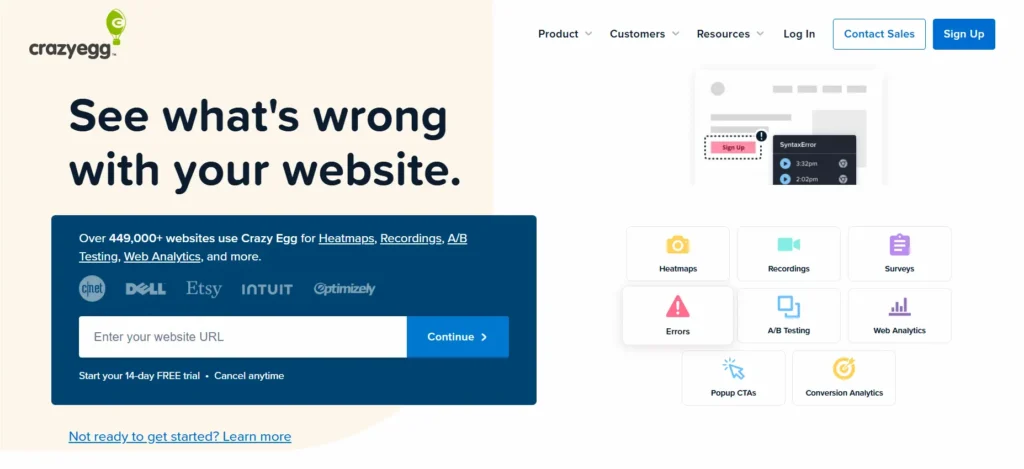
The confetti report is particularly useful for understanding how different user segments behave. For example, you might discover that mobile users from social media click in very different places than desktop users from organic search.
Crazy Egg also includes a basic A/B testing tool, which lets you test two versions of a page directly within the platform. This makes it useful for web design process decisions where you want to validate changes with real data.
Plans start at $49/month, which makes it a mid-tier investment compared to free tools like Clarity.
Lucky Orange
Lucky Orange is a comprehensive user behavior analytics tool that combines heatmaps, session recordings, polls, live chat, and real-time visitor tracking into a single platform.

Its standout feature is the Dynamic Heatmaps capability. Unlike static heatmaps that capture data for a single URL, Lucky Orange can generate heatmaps for pages with dynamic content, making it useful for WordPress sites with personalization, filtered results, or interactive elements.
Lucky Orange also offers a WordPress plugin for easy installation. Plans start at $32/month, with a free plan that includes 100 monthly sessions.
How to Add Heatmaps to Your WordPress Site?
There are four main methods to install heatmaps on a WordPress site. The right one depends on which tool you choose and your comfort level with code.
Method 1: Using Microsoft Clarity Plugin
Microsoft Clarity has an official WordPress plugin that handles the entire setup without any code.
- Step 1: Go to your WordPress dashboard and navigate to Plugins > Add New.
- Step 2: Search for “Microsoft Clarity” in the plugin search bar.
- Step 3: Install and activate the official Microsoft Clarity plugin.
- Step 4: Go to Settings → Microsoft Clarity in your dashboard.
- Step 5: Log in to your Microsoft Clarity account at clarity.microsoft.com. If you do not have one, create a free account.
- Step 6: Create a new project in Clarity and copy your Project ID.
- Step 7: Paste the Project ID into the Clarity plugin settings in WordPress and save.
That is all it takes. Clarity will start recording sessions and automatically build heatmaps. Data typically appears within a few hours of activation.
This is the easiest method and the best starting point for WordPress beginners who want to avoid development mistakes.
Method 2: Using Hotjar
Hotjar does not currently have an official WordPress plugin, but installation is still straightforward through the Insert Headers and Footers method.
- Step 1: Create a Hotjar account at hotjar.com and set up your site.
- Step 2: Hotjar will provide you with a tracking script, a small piece of JavaScript code.
- Step 3: In your WordPress dashboard, go to Plugins → Add New and install “Insert Headers and Footers” by WPBeginner.
- Step 4: Activate the plugin and go to Settings → Insert Headers and Footers.
- Step 5: Paste your Hotjar tracking script into the “Scripts in Header” box.
- Step 6: Save changes.
Hotjar will begin collecting data immediately. You can verify the installation using Hotjar’s built-in verification tool from your dashboard.
Method 3: With a Tracking Code
This method applies to any heatmap tool that provides a JavaScript tracking snippet. It does not require a specific plugin.
- Step 1: Get the tracking code from your heatmap tool’s dashboard (e.g., Mouseflow, Crazy Egg, Lucky Orange).
- Step 2: In WordPress, go to Appearance > Theme Editor (or use a child theme for safety).
- Step 3: Open the
header.phpfile and locate the closing</head>tag.
- Step 4: Paste your tracking code just before the
</head>tag.
- Step 5: Save the file.
Alternatively, use the Insert Headers and Footers plugin (as described above) to avoid editing theme files directly.
Editing theme files directly can cause your tracking code to be lost after a theme update. The plugin method is safer and more maintainable.
If you are concerned about site performance, you can also load heatmap scripts asynchronously to prevent them from blocking page rendering. This aligns with best practices for page speed optimization.
Method 4: Through Google Tag Manager
Google Tag Manager (GTM) is a powerful tool for managing tracking scripts without editing your site’s code. Once GTM is installed on WordPress, you can add and remove heatmap tools from within the GTM interface.
- Step 1: Set up a GTM account and container at tagmanager.google.com.
- Step 2: Follow the steps to add Google Tag Manager to your WordPress site. This involves placing the GTM container snippet in your site’s header and body.
- Step 3: In the GTM dashboard, click “Add a New Tag.”
- Step 4: Choose “Custom HTML” as the tag type.
- Step 5: Paste your heatmap tool’s tracking code (e.g., from Hotjar, Mouseflow, or Crazy Egg) into the Custom HTML field.
- Step 6: Set the Trigger to “All Pages” (or a specific URL if you only want heatmaps on certain pages).
- Step 7: Save, preview, and publish the tag.
GTM is the most flexible method. It allows you to run multiple tracking tools, control which pages they fire on, and update scripts without touching your theme or plugin files. It is the preferred method for sites using multiple analytics tools simultaneously.
How to Read and Analyze Heatmap Data Effectively?
Collecting heatmap data is only half the work. Knowing how to interpret it is what drives results.

- Start with scroll depth. Check your scroll heatmap first. Find the point where most users stop scrolling; this is your “fold line” for the average visitor. Any critical content or CTA below this line is at risk of being missed. Aim to place your most important elements in the top 50-60% of the page, where most users reach.
- Look for click patterns on non-links. If users click on images, headings, or text blocks that are not links, they expect those elements to be interactive. This is a clear signal to either make them clickable or redesign the area to reduce confusion.
- Identify cold zones in important areas. If your primary CTA button appears in a blue or green zone, it is not getting enough attention. This might be a color, placement, or copywriting issue. Use this data to inform your next design adjustment.
- Check rage clicks. High rage click areas signal user frustration. Common causes include forms that do not submit, slow page elements, or confusing navigation. Addressing rage clicks can dramatically improve the user experience, which, in turn, supports better Core Web Vitals scores.
- Compare device segments. Most heatmap tools allow you to filter data by device type. Mobile and desktop users behave differently. A button that performs well on a desktop might be too small or poorly positioned on mobile. Always review mobile responsiveness separately from desktop.
- Cross-reference with session recordings. When a heatmap shows an unexpected pattern, watch 5-10 session recordings from that page. You will often see the exact behavior causing the anomaly, and that gives you a concrete problem to fix.
- Collect enough data before acting. Do not make design decisions based on 10 sessions. Wait until you have at least 500-1,000 sessions on a page before drawing conclusions. Low-traffic pages may need weeks to accumulate meaningful data.
Practical Ways to Use Heatmaps to Improve Your WordPress Site
Knowing how to read data is one thing. Using it to drive real improvements is another. Here are the most impactful ways to act on heatmap insights.
Fix Ignored CTAs
If your call-to-action button gets low engagement, test moving it higher on the page, changing its color, or rewriting the copy. Heatmaps give you before-and-after proof of which change actually worked.
Simplify Your Navigation
If users are clicking navigation links you expect no one to care about, or ignoring the links you thought were most important, your navigation structure may not match how users think about your site. Reorganize based on what the data shows, not what seems logical to you.
Optimize Forms
High click rates on form fields often indicate field confusion, broken validation, or an unclear submit button. Even small form improvements can significantly improve lead capture rates, especially on payment or checkout pages.
Remove or Reposition Distracting Elements
Sidebars, pop-ups, or autoplay videos can sometimes draw attention away from your main content or CTA. If heatmaps show high engagement with distracting elements and low engagement with your conversion elements, consider removing or repositioning them.
Validate New Page Designs
When you redesign a page, run heatmaps for at least 2 weeks before and 2 weeks after to objectively measure the impact. This removes subjectivity from your web design decisions.
Improve Mobile UX
Compare click heatmaps on mobile vs. desktop. If mobile users are tapping in the wrong areas, your tap targets may be too small or too close together. This is a quick win for responsive design improvements.
Prioritize Content that Gets Skipped
Scroll maps that show sharp drops at certain sections reveal content users are skipping. Either improve or remove that content, or restructure the page so that high-value content appears higher.
Heatmap Best Practices for Accurate User Behavior Analysis
Getting accurate data from heatmaps requires more than just installing a tool. Follow these best practices to ensure your analysis is reliable.
- Exclude your own visits. Most heatmap tools allow you to filter out traffic from specific IP addresses. Exclude yourself, your team, and your developers. Your behavior as the site owner is not representative of your audience and will skew the data.
- Filter out bot traffic. Bots account for a significant portion of web traffic. Most reputable heatmap tools automatically filter bots, but verify that this setting is enabled in your tool’s configuration.
- Set up heatmaps on your highest-traffic pages first. These pages collect data faster, so you can act on insights sooner. Start with your homepage, top landing pages, and key conversion pages. This also aligns with tracking key web development KPIs, such as engagement and conversion rate.
- Run heatmaps during normal traffic periods. Avoid collecting data during unusual periods such as a viral spike, a major sale, or a promotional campaign, unless you specifically want to analyze behavior during those events. Abnormal traffic skews your baseline data.
- Test across multiple devices. Collect separate heatmaps for desktop, tablet, and mobile. User behavior differs significantly across devices. What works for desktop visitors may be completely ineffective for mobile users, who now represent the majority of web traffic.
- Use heatmaps alongside SEO tools and analytics. Heatmap data is most powerful when combined with keyword intent data, page-level analytics, and conversion tracking. A page might have good scroll depth but poor conversions; your analytics can tell you why users arrived, and your heatmap tells you what went wrong after they did.
- Revisit your heatmaps regularly. User behavior changes as your site evolves. A page that performed well six months ago may have problems today. Set a recurring schedule, monthly or quarterly, to review heatmaps on your most important pages. This is part of a broader WordPress maintenance checklist that keeps your site performing at its best.
- Do not rely on heatmaps alone for major redesigns. Heatmaps show you what users do, but not always why. Combine heatmap data with user surveys, on-page polls, and qualitative feedback before making large structural changes to your site.
Final Thoughts on Adding Heatmaps to Your WordPress Site
Adding heatmaps to your WordPress site is one of the most practical decisions you can make as a site owner. The data is visual, the tools are accessible, and the insights are immediately actionable.
Start with Microsoft Clarity if you want a free, no-limit option that is easy to install. Move to Hotjar, Mouseflow, or Crazy Egg as your needs become more advanced, and your budget allows.
Install the tool using the plugin method or Google Tag Manager for the cleanest, most maintainable setup. Then wait for data to accumulate, at least 500 sessions per page, before drawing conclusions.
When analyzing your heatmaps, focus on scroll depth first, then click patterns, and finally rage clicks. Use session recordings to explain anything surprising. Compare desktop and mobile separately.
Most importantly, act on what you find. A heatmap that sits unread in a dashboard does nothing. One that informs a single layout change could meaningfully improve your conversion rate across thousands of future visitors.
Heatmaps work best as part of a broader approach to performance-focused WordPress development, one where every design decision is informed by real data and tested before being treated as permanent.
Start simple. Start free. And let the data guide what you build next.
FAQs About Adding Heatmaps to Your WordPress Site
What is a heatmap in WordPress?
A heatmap is a visual tool that shows how visitors interact with your WordPress site. It highlights where users click, scroll, and move their cursor. This data helps you understand user behavior and improve page performance.
What is the best heatmap tool for WordPress?
The best tool depends on your needs. Microsoft Clarity is a popular free option with heatmaps and session recordings. Hotjar, Mouseflow, Crazy Egg, and Lucky Orange also offer advanced user behavior insights and conversion tracking features.
Do heatmaps affect WordPress website performance?
Most modern heatmap tools have minimal impact on site speed. However, using multiple tracking scripts can affect performance. Choose a reliable tool and monitor your website speed regularly.
How can heatmaps improve conversions on my website?
Heatmaps show which elements attract attention and which users ignore. You can use this information to optimize calls to action, improve layouts, fix navigation issues, and increase conversion rates.
Are heatmaps useful for SEO?
Heatmaps do not directly improve SEO rankings. However, they help enhance user experience, engagement, and content placement. Better user behavior signals can support your overall SEO and conversion optimization efforts.


