Is your website losing visitors before it even loads? Speed matters more than ever. Google PageSpeed Insights helps you understand how fast your pages load and how real users experience them. It shows what slows your site down and what to fix first.
A quicker site improves engagement, boosts trust, and supports stronger search visibility. With clear metrics and actionable insights, this free tool makes performance optimization easier for site owners, marketers, and developers. If you want better rankings and happier users, page speed is not optional. It is essential.
TL;DR: Google PageSpeed Insights Explained
- Page speed directly affects user experience and search visibility.
- Google PageSpeed Insights evaluates key performance metrics to support better decision-making.
- Faster pages lead to higher engagement and more organic traffic.
- The tool supports optimization from both user experience and keyword ranking perspectives.
PageSpeed Insights (PSI) Tool
For speed tests, the best tools are Google PageSpeed Insights, WebPageTest, and Website Speed Test. With PageSpeed Insights, you can make decisions that enhance your website’s performance.
According to Google’s Page Speed Test, your website will perform better on mobile and desktop devices if you follow industry best practices based on the latest standards.

Key Features of Google PageSpeed Insights
Google PageSpeed Insights offers detailed performance analysis and actionable recommendations to help improve your website’s speed and user experience.
Detailed Page Reporting
Prioritize your website’s opportunities for improvement by sorting your page reports by Page Speed Score.
Page reports provide quick access to the most critical data to improve your site’s performance, with easy-to-read visualizations that highlight what’s important to you.
Report Summaries
It is imperative to note that Google PageSpeed Insights includes a powerful and exclusive feature called Report Summaries. As part of the summary, you will see your average Page Score, the most prominent areas for improvement across ALL reports, and the pages that perform the best and the worst.
In addition, depending on the filtering settings, you can narrow down results by Pages, Posts, Categories, Custom URLs, and Custom Post Types.
Desktop and Mobile Page Reports
Site performance best practices can vary significantly depending on whether the site is viewed on a desktop or a mobile device. Insights from Google PageSpeed can be configured to generate desktop reports, mobile reports, or both!
Report Snapshots
By combining Report Summaries and Snapshots, you can generate a historical snapshot of your website’s performance on a “Point In Time” basis.
Take a snapshot of any Report Summary screen to store that data for future retrieval. Add comments to your snapshots to provide additional meaning, such as “Before Installing W3 Total Cache.” Additionally, filter a Report Summary before taking a Snapshot to save the filtered data.
Snapshot Comparison Tool
The Snapshot Comparison Tool is a fantastic utility that lets you visualize side-by-side results from two similar Report Snapshots.
Take a Report Snapshot before installing new plugins or implementing performance recommendations. Then, take another snapshot when you are finished and compare your results to measure the effect of your changes.
Add/Import Custom URLs
Easily add additional URLs for inclusion in PageSpeed Reports. Even add URLs for non-WordPress sites, even if they are not hosted on your server. URLs can be added manually or uploaded to a properly formatted XML sitemap to add multiple pages simultaneously.
Custom URLs can be tagged and filtered in Report Summaries. Take Report Snapshots of your Custom URLs just like any other report type.
Scheduled Report Checks
Configure Insights from Google PageSpeed to automatically recheck your site on a Daily, Weekly, Bi-Monthly, or Monthly basis.
With each scan, any new pages or posts will be discovered, and existing reports will be updated to reflect any changes to your site and the Pagespeed recommendations.
Core Web Vitals with Real Metrics and Their Impact
Google PageSpeed Insights goes beyond providing a single performance score by analyzing Core Web Vitals, key metrics that measure a page’s loading experience, interactivity, and visual stability.
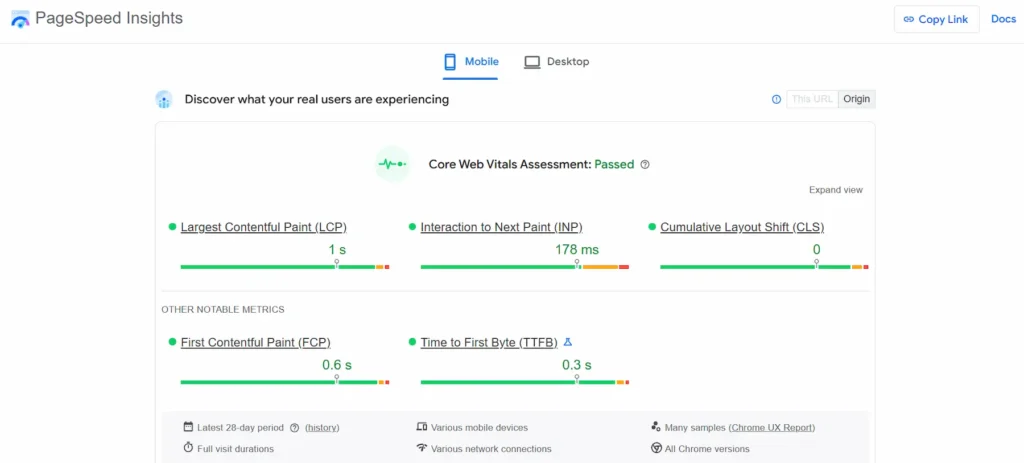
These metrics are crucial because they focus on what real users experience when visiting your website. Understanding these metrics helps you diagnose performance issues and make targeted improvements to your site’s user experience across desktop and mobile.
The three main web vitals metrics evaluated by PSI include:
- Largest Contentful Paint (LCP): This metric measures the time to load the largest visible content above the fold, such as images, videos, or large text blocks. An optimal LCP ensures that users see the main content quickly, reducing the chance of a poor user experience. Techniques such as lazy-loading images, optimizing your media library, and using a content delivery network can help reduce LCP.
- Interaction to Next Paint (INP): Replacing the older First Input Delay, INP measures how responsive a page is to user interactions, including clicks, taps, and keyboard inputs. Minimizing delays requires reducing JavaScript files, deferring offscreen images, and eliminating render-blocking resources that can slow mobile performance and desktop versions alike.
- Cumulative Layout Shift (CLS): CLS tracks visual stability by measuring unexpected layout shifts during page load. High CLS scores indicate that above-the-fold content moves while users are interacting with the page. Fixing this involves setting image size attributes, optimizing CSS files, and reducing third-party scripts that may cause layout shifts.
Along with these, PSI also reports other notable metrics such as Speed Index, initial server response time, and key requests, giving a comprehensive core web vitals assessment.
By addressing these metrics, you not only improve your PageSpeed Insights score but also enhance your site speed for real users across all devices.
How PSI Data is Used and Why Real-World Data Matters
One of the most important aspects of Google PageSpeed Insights is its use of both lab data and real user data to provide actionable insights. The lab data comes from a controlled environment using.
Lighthouse reports the environment block, which simulates a mid-tier device on a wired connection to measure the page’s performance. This helps you diagnose performance issues, evaluate critical requests, and test changes before applying them to the entire site.
However, the real-world data is sourced from the Chrome User Experience Report, which collects field data from actual visitors. This data reflects real user experience, including variations in loading and server response times, and user interactions across different networks and devices.
By combining lab data with real-world data, PSI ensures your pagespeed insights report accounts for mobile versions and desktop versions, revealing performance issues that affect real users.
The tool highlights areas where you can optimize resources, such as minimizing main thread work, deferring offscreen images, and reducing third-party code. It also provides detailed insights into render-blocking resources, including JavaScript and CSS files that slow page load.
By following the actionable tips in the report, you can improve web vitals metrics, optimize key requests, and enhance your site’s user experience, ultimately boosting mobile and desktop performance and your PageSpeed Insights score.
In short, the combination of lab data and real user data ensures that your core web vitals assessment is accurate, actionable, and directly tied to improving your site speed for actual visitors, not just theoretical performance.
Conclusion
Google PageSpeed Insights is more than just a free tool for checking your website speed. It provides a comprehensive performance report that combines lab and real-world data to help you understand core web vitals and other key metrics that affect your site’s user experience.
By focusing on Largest Contentful Paint, Interaction to Next Paint, and Cumulative Layout Shift, you can optimize page load times, enhance visual stability, and ensure fast user interactions across desktop and mobile.
With actionable insights on eliminating render-blocking resources, optimizing CSS and JavaScript files, and leveraging lazy loading or a content delivery network, you can significantly improve mobile performance, reduce initial server response time, and boost your Pagespeed Insights score.
Regular monitoring of your web vitals metrics helps you maintain a high-performance site, deliver a seamless user experience, and prevent poor user experience for real users. Incorporating these practices ensures your website not only loads faster but also retains visitors and improves overall SEO performance.
FAQs About Google PageSpeed Insights
What are Core Web Vitals metrics and why do they matter?
Core Web Vitals metrics measure a page’s loading performance, interactivity, and visual stability. They include three metrics: Largest Contentful Paint (LCP), Interaction to Next Paint (INP), and Cumulative Layout Shift (CLS). These metrics help you understand how users experience your page content across desktop and mobile. Optimizing them improves real user experience data and your site’s user experience.
How does Google PageSpeed Insights collect performance metrics?
PageSpeed Insights uses two data sources: lab data from the Lighthouse report’s environment block and real-world data from actual visitors. Lab data is measured in a controlled environment using simulated user requests, while real data reflects the experience of real users. Together, they give a complete picture of metric scores and page load performance.
Can PageSpeed Insights help improve both desktop and mobile versions?
Yes, the automated tool analyzes desktop and mobile versions separately. It identifies unnecessary elements, slow-loading scripts, and key requests that delay page content. By following the recommendations, you can reduce server response times and improve the Google PageSpeed Insights score on all devices.
What common issues affect the Google PageSpeed Insights score?
Common issues include unnecessary elements, render-blocking resources, large images, and unoptimized JavaScript files. These slow user requests increase page load time and lower metric scores. Optimizing these areas improves Core Web Vitals metrics and real user experience data.
How often should I check my PageSpeed Insights performance metrics?
It is recommended to run checks regularly, either automatically or manually. Frequent testing helps track performance metrics, identify new unnecessary elements, and monitor desktop and mobile versions. This ensures your page content loads quickly for real users and maintains a strong Google PageSpeed Insights score.