Converting a Cursor website to WordPress is the best way to turn static or AI-generated code into a fully manageable, scalable website. It allows you to move from a code-heavy setup to a flexible platform where you can easily update content, improve performance, and manage everything without relying on manual edits.
If your current setup feels limited or hard to maintain, switching gives you more control, better SEO capabilities, and access to powerful plugins. This guide walks you through the exact process so you can smoothly convert your site without breaking its structure or losing functionality.
TL;DR
- You can convert a Cursor-built site by restructuring code into a WordPress setup.
- Export HTML, CSS, JavaScript, and assets before starting the process.
- Choose between a custom theme, a page builder, or a hybrid approach.
- Manual conversion gives control, while builders make it easier.
- SEO setup, like redirects and metadata, is critical after conversion.
- Testing and optimization ensure your site performs well after launch.
What is a Cursor Website?
A Cursor website is typically built using AI-assisted coding inside the Cursor editor, where the entire site is generated or managed through code. Many users are now adopting Cursor for WordPress projects to streamline development.
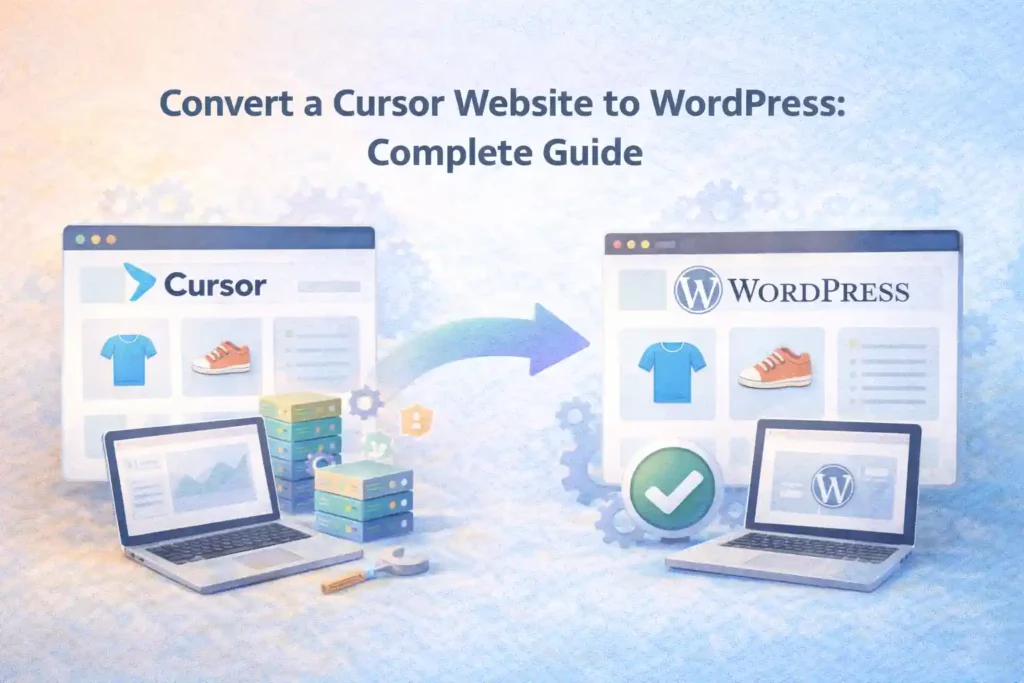
These websites use a code-first approach based on HTML, CSS, and JavaScript, which means content updates require manual edits.
Cursor features an AI assistant with tools like Chat for interactive help, Composer for editing multiple files, and Bug Finder for code analysis.
Unlike WordPress, it is not CMS-based, making it less flexible for ongoing content management, SEO updates, and scalability.
Why Convert a Cursor Website to WordPress?
Converting your site gives you more flexibility, better control, and easier long-term management. It helps you move from a static, code-heavy setup to a dynamic platform that is easier to scale and maintain.
- Better Content Management: You can easily update pages, blog posts, and media using a dashboard, without editing code. This makes ongoing content updates faster and more efficient.
- Plugin Ecosystem: WordPress offers a large library of plugins and themes that let you customize your WordPress website with advanced features like forms, analytics, security, caching, and integrations without custom coding.
- SEO Control: You get full control over metadata, URLs, schema, and on-page SEO elements, helping improve search visibility and indexing. Maintaining a secure WordPress website is easier with vetted plugins.
- Scalability: You can expand your site with new pages, features, and integrations as your business grows without rebuilding from scratch.
- Easier Updates: Changes can be made quickly through the admin panel, reducing the need for developers for small updates and fixes.
Plugins should follow WordPress coding standards and may require review by experienced developers to ensure security and compatibility, especially when developed with AI tools like Cursor.
Move Your Cursor Website to WordPress Seamlessly
Get expert help to migrate your website smoothly, preserve your design, and launch a WordPress setup that is ready to grow.
What to Prepare Before Converting Your Site to WordPress?
Proper preparation ensures a smooth conversion process and reduces the chances of errors, broken layouts, or missing data during migration.
- Access to Cursor Project Files: Ensure you have complete access to all source files, including HTML, CSS, JavaScript, images, and assets used in your site.
- Export HTML, CSS, JS: Download and organize your code files properly so they can be reused when creating your WordPress theme or layout. Preparing a detailed Product Requirements Document (PRD) at this stage will help guide the conversion and significantly improve the quality of code generated by Cursor.
- WordPress Hosting Setup: Set up a reliable hosting environment and install WordPress to ensure your new site is ready before starting the conversion. Remember, the WordPress environment requires PHP, so static sites should avoid backend dependencies like Node.js.
- Theme or Builder Selection: Choose whether you want a custom theme, Gutenberg blocks, or a page builder like Elementor based on your technical comfort level.
- Backup Files: Create a full backup of your existing site and code to protect against data loss and allow rollback if needed.
Steps to Convert a Cursor Website to WordPress
Converting a Cursor-based site into WordPress involves restructuring code, setting up a CMS environment, and rebuilding functionality. The goal is to retain design while making the site easier to manage and scale.
Follow these steps carefully to ensure a smooth transition without breaking layout, performance, or SEO structure.
Step 1: Export Cursor Website Files
Start by exporting all your website files from the Cursor project. This includes HTML, CSS, JavaScript, and all assets used in your layout, such as images, fonts, and media files.
Make sure everything is well-organized before moving forward. A clean file structure and properly linked assets will make the conversion process easier when integrating into WordPress.
Step 2: Set Up WordPress
Install WordPress on your hosting server and configure the basic settings. After installation, log in to the WordPress admin area to set your site title, permalink structure, timezone, and other essential options.
A proper setup ensures your WordPress environment is ready to accept your converted design. It also helps avoid issues later when adding themes, plugins, and content.
Step 3: Choose Conversion Method
Decide how you want to convert your site into WordPress. You can either create a custom theme from your code or use a page builder like Elementor or Gutenberg.
A custom theme gives full control and better performance, while page builders make the process easier without deep coding. Choose based on your technical skills and the project’s complexity; some methods are straightforward, while others can be complicated for beginners.
Step 4: Convert HTML to WordPress Theme
Break your HTML structure into WordPress theme parts, such as the header, footer, and template files. Then convert static HTML into dynamic PHP templates using WordPress functions.
Integrate your CSS and JavaScript properly so styles and interactions remain intact. This step is critical for maintaining design consistency and functionality.
Step 5: Recreate Pages in WordPress
Create pages inside WordPress and start adding your content based on the original layout. Copy text, images, and structure carefully to match your existing design.
Ensure spacing, sections, and layout align correctly. This step helps maintain visual consistency and ensures your site looks the same after conversion.
Step 6: Add Functionality with Plugins
Use plugins to add features that were previously handled through code. This includes contact forms, SEO tools, caching, and performance optimization.
Plugins simplify functionality management and reduce the need for custom coding. Choose lightweight and well-supported plugins to maintain performance.
Step 7: Test and Optimize
Test your website across devices to ensure mobile responsiveness and layout consistency. Check all pages, links, and interactive elements for proper functionality, and test for edge cases to ensure robustness and handle unexpected scenarios.
Optimize page speed, fix SEO elements, and ensure everything is indexed correctly, reviewing the output to confirm everything is working as expected. Final testing ensures your site is stable, fast, and ready for launch.
Best Methods to Convert Cursor Code to WordPress
There are multiple ways to migrate a code-based site to WordPress, and the right approach depends on your technical skills, project complexity, and desired flexibility. Each approach offers a different balance between control, ease, and performance.
Manual Theme Conversion
Manual conversion involves turning your HTML, CSS, and JavaScript files into a fully functional WordPress theme. This process includes editing the backend and writing code that follows best practices, ensuring your layout is split into template files and integrated using PHP and WordPress functions.
This method gives you maximum control over design, performance, and structure. It is best suited for developers or advanced users who want a clean, optimized, and scalable WordPress setup.
Page Builder Approach
This method involves recreating your design using a page builder like Elementor or Gutenberg. Many page builders offer free versions, so you can start building without any upfront cost. Instead of converting code, you visually rebuild pages using drag-and-drop elements.
It is easier and faster compared to manual conversion, making it ideal for beginners or non-developers. However, it may add extra code overhead and slightly affect performance if not optimized properly.
Hybrid Method
The hybrid approach combines both manual coding and page builders. You convert core parts like header, footer, and layout into a theme, then use a builder to manage content sections. Additionally, you can use AI tools to generate code or features for your WordPress site, streamlining development.
This method offers a balance between flexibility and ease of use. It allows you to maintain performance while still having the convenience of visual editing for ongoing updates.
Common Problems When Converting Code to WordPress
Converting a code-based site to WordPress can involve technical and structural challenges. Identifying these early helps you avoid delays, broken layouts, and performance issues.
- Code Compatibility: Not all HTML, CSS, or JavaScript works seamlessly in WordPress themes, especially when converting static code into dynamic templates.
- Layout Mismatch: Design elements may not align perfectly after conversion, requiring adjustments to spacing, sections, and responsiveness.
- Missing Dynamic Features: Static code lacks dynamic functionality like forms, search, or CMS-driven content, which must be recreated using WordPress features or plugins.
- Performance Issues: Improper integration of scripts, styles, or heavy builders can slow your site and affect load time.
SEO Checklist After Converting to WordPress
Maintaining SEO during and after conversion is critical to avoid traffic loss and ranking drops. Proper setup ensures your site remains visible and continues to perform well in search results.
- URL Structure: Keep URLs consistent or properly map changes to avoid broken links and indexing issues.
- Metadata: Transfer title tags, meta descriptions, and other SEO elements to maintain relevance and search visibility. Include a clear description in your plugin or theme header to improve SEO and usability.
- Redirects: Set up 301 redirects to guide users and search engines from old URLs to new ones without losing authority.
- Indexing: Ensure your site is properly indexed by search engines and submit updated sitemaps if needed.
Best Tools for Cursor to WordPress Conversion
Using the right tools simplifies the conversion process and helps you manage code, design, and functionality more efficiently. These tools support different stages of the transition.
- Code Editors: Tools like VS Code help you clean, edit, and restructure HTML, CSS, and JavaScript before converting them into WordPress themes.
- WordPress Builders: Page builders like Elementor or Gutenberg let you create layouts visually without deep coding.
- Migration Plugins: Plugins help import content, manage data, and simplify parts of the conversion process, especially for larger sites. You can find and submit plugins through the official WordPress plugin directory, which ensures plugins meet security and quality standards.
Conclusion
Converting a Cursor-based setup into WordPress gives you more control, flexibility, and long-term scalability. While the process requires careful planning and technical handling, the result is a website that is easier to manage, update, and optimize.
If you follow the right steps and focus on structure, performance, and SEO, you can recreate your site without losing design or functionality. The key is to choose the right method based on your skills and ensure everything is tested before going live.
Frequently Asked Questions
How do you convert a Cursor website into WordPress?
You convert it by exporting HTML, CSS, and JavaScript files, then integrating them into a WordPress theme or rebuilding the layout using a page builder.
Is it possible to move a Cursor-based site to WordPress without coding?
Yes, you can rebuild the design using a page builder like Elementor or Gutenberg, which reduces the need for coding.
Is it possible to move a Cursor-based site to WordPress without coding?
The easiest way is to use a page builder to visually recreate your layout rather than manually convert code into a theme.
Will converting to WordPress affect search rankings?
It can affect rankings if URLs, metadata, and redirects are not handled properly. Correct SEO setup helps maintain visibility.