
Managing multiple usernames and passwords across tools is a real headache. Whether you run a membership site, a team intranet, or a large WordPress network, juggling logins creates friction and security risks at the same time. WordPress Single Sign-On (SSO) solves both problems in one move. In this guide, we will walk you through exactly how SSO works, why it matters, and how to set it up on your site step by step.
TL;DR: Set up SSO in WordPress
- WordPress SSO lets users log in once and access multiple tools without re-entering passwords.
- SAML 2.0 is the most secure and widely supported SSO protocol for WordPress, ideal for teams and enterprise setups.
- SSO reduces password reuse, centralizes user management, and makes compliance audits significantly easier.
- You need a self-hosted WordPress.org site with HTTPS enabled before you can set up SSO.
- The miniOrange SAML SSO plugin is the easiest way to connect WordPress to providers like Google Workspace, Okta, or Microsoft Azure AD.
- On a WordPress multisite network, you only need to configure SSO once on the main site.
- Always test your configuration on staging before pushing it to production.
- Set the default user role to Subscriber, not Editor or Administrator.
What is Single Sign-On (SSO) on WordPress?
Single Sign-On is an authentication method that lets users log in once and access multiple tools, apps, or websites without re-entering their credentials.
Instead of WordPress storing and verifying every password on its own, it delegates that job to a trusted external system called an Identity Provider, or IdP.
Think of it like a master keycard. Instead of separate keys for every door, one card opens everything. For teams using Google Workspace, Microsoft Azure AD, or Okta, this means employees can access WordPress with the same account they use for email, project tools, and everything else.
SSO is especially valuable for organizations, membership platforms, e-learning sites, and any WordPress setup where multiple users need access across several systems.
How Does SAML SSO Work with WordPress?
SAML stands for Security Assertion Markup Language. It is an open standard that handles the secure exchange of authentication data between two parties: the Identity Provider (IdP) and the Service Provider (SP).
In a WordPress SSO setup, your WordPress site acts as the Service Provider. Here is how the flow works in practice:
- A user tries to access your WordPress site.
- WordPress redirects them to the IdP login page.
- The user enters their credentials there.
- The IdP verifies the identity and sends a signed SAML assertion back to WordPress.
- WordPress reads that assertion and automatically logs the user in.
At no point does WordPress store or validate the password directly. That is what makes SAML SSO significantly more secure than standard WordPress logins.
SAML vs OAuth vs OpenID Connect
These three protocols all enable SSO but serve different use cases.
- SAML 2.0 is the preferred choice for enterprise environments, corporate intranets, and B2B portals. It is robust, highly secure, and supported by nearly every major IdP.
- OAuth 2.0 is better suited for consumer-facing apps that need social login functionality.
- OpenID Connect sits on top of OAuth and is a solid middle ground for membership sites and SaaS products with high user traffic.
For most WordPress sites with team access, enterprise clients, or internal tools, SAML is the right pick.
Why Should You Set Up SSO on Your WordPress Site?
Before jumping into the setup, it helps to understand what you actually gain. SSO is not just a convenience feature. It changes how access management works across your entire operation.
Better Security, Fewer Passwords
When users use a single strong password instead of many, they stop reusing weak credentials across multiple platforms. Password reuse is one of the most common causes of credential theft. SSO removes that vulnerability by removing WordPress passwords from the equation entirely.
Simplified User Management
As an admin, you can grant or revoke access through your IdP, and the changes apply instantly across all connected platforms. When an employee leaves, you deactivate one account, and they lose access to everything. No need to manually hunt down and disable accounts across separate systems.
Less Friction for Your Team
Faster access to tools means a more productive team. Fewer forgotten passwords also mean fewer support tickets. For agencies managing multiple client sites or enterprises running large WordPress networks, this adds up quickly. Users simply log in once and get to work.
Compliance and Audit Readiness
SSO centralizes authentication logs in a single location. That makes GDPR and HIPAA compliance considerably easier to manage. Every login event is tied to the IdP, giving you a clear audit trail without needing separate logging setups on each platform.
How Seahawk Media Can Help You Set Up WordPress SSO?
Setting up SSO involves more than clicking through a plugin wizard. Proper IdP configuration, attribute mapping, role management, and production testing all require careful attention. A misconfiguration at any step can lead to login failures or unintended access.
At Seahawk Media, we work with agencies, enterprises, and growing WordPress businesses to implement secure, reliable SSO setups that fit how your team actually works.
Whether you are migrating an existing site to SSO or building a new authenticated portal from scratch, our team handles the technical details so you can focus on your business.
Reach out to us to talk about your WordPress security and access management needs.
Let Seahawk Media Handle Your WordPress SSO Setup
From IdP configuration to role mapping and production testing; we get it right the first time so you do not have to troubleshoot later.
What You Need Before Getting Started?
Running through this checklist before you start will save time later.
- You need a self-hosted WordPress.org installation. WordPress.com does not support custom SAML plugins, so this setup only works on sites you host yourself.
- HTTPS must be enabled on your site. SAML requires encrypted communication, so a valid SSL certificate is not optional.
- You also need administrator access to both WordPress and your chosen Identity Provider.
For this guide, the example uses Google Workspace, but the same principles apply to Okta, Microsoft Azure AD, OneLogin, and other identity providers.
Steps to Set Up Single Sign-On (SSO) on WordPress
The easiest way to enable WordPress Single Sign-On is with the miniOrange SAML SSO plugin. It supports over 50 Identity Providers, works with WordPress multisite networks, and has a free tier that covers most standard setups.
Step 1: Install the SAML SSO Plugin on WordPress
Log in to your WordPress dashboard and go to Plugins, then Add New. Search for “miniOrange SAML Single Sign On” and install it. Once activated, navigate to miniOrange SAML 2.0 SSO in your sidebar. This is where all the configuration happens.
The plugin turns your WordPress site into a SAML-compliant Service Provider. That means it can receive and validate SAML assertions from any compatible Identity Provider you connect it to.
Step 2: Find Your Service Provider Metadata
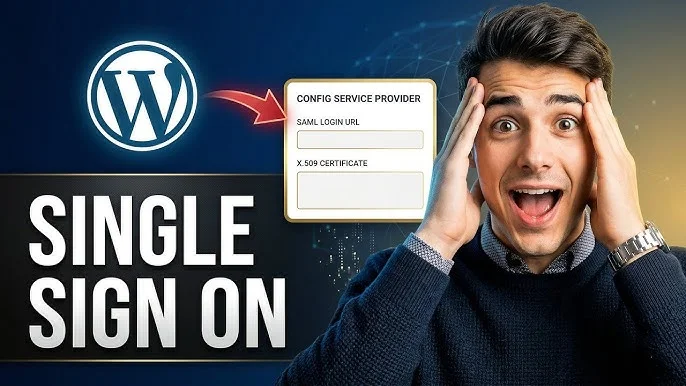
Inside the plugin, click on the Plugin Configuration tab and then open the Service Provider Metadata tab. You will see two important values here: the ACS URL (Assertion Consumer Service URL) and the Entity ID.
Keep this page open. You will need to copy these values into your Identity Provider in the next step. The ACS URL specifies where the IdP sends the SAML assertion after a successful login. The Entity ID uniquely identifies your WordPress site to the IdP.
Step 3: Connect Your Identity Provider (Google Workspace Example)
Log in to your Google Admin Console at admin.google.com. In the sidebar, go to Apps and then click Web and Mobile Apps. Open the Add App dropdown and select Add Custom SAML App.
- Give your app a clear name, something like “WordPress SSO,” and click Continue. On the next screen, click Download Metadata. This downloads an XML file containing your IdP details. Save it, you will need it shortly.
- Scroll down and click Continue to reach the Service Provider details form. Go back to your WordPress dashboard and copy the ACS URL and Entity ID from the miniOrange plugin. Paste them into the corresponding fields in Google Admin Console. Make sure to check the Signed Response box as well.
- For the Name ID format, select EMAIL, and set the Name ID to Basic Information, then Primary Email. Click Continue, add any attribute mappings you need, such as first name and last name, then click Finish.
- The last step in Google Admin Console is activating the app. Find the toggle that says OFF for everyone and switch it to ON for everyone. Save your changes.
Note that Okta, Azure AD, and OneLogin follow a very similar flow. The plugin documentation covers the specific steps for each IdP if you are using something other than Google Workspace.
Step 4: Upload Your IdP Metadata to WordPress
Head back to the miniOrange plugin in WordPress.
- Go to Service Provider Setup and select Google Apps as your IdP. Navigate to the Upload IDP Metadata tab.
- Enter a name for your identity provider, then upload the XML file you downloaded from Google Admin Console. Click Upload.
The plugin will parse the metadata and automatically fill in the IdP details. Use the Test Configuration button to verify that the connection is working before you touch anything else. Fix any errors flagged here before moving forward.
Step 5: Map User Attributes and Assign Roles
Switch to the Attribute/Role Mapping tab inside the plugin. This is where you tell WordPress how to map the user information from the IdP to WordPress user fields.
- Map the first name, last name, and email fields to their corresponding WordPress attributes.
- Scroll down to the Role Mapping section and choose a default role for new users who sign in through SSO. Set this carefully.
- Subscriber is the safest default for most setups. You can always manually promote individual users to higher roles.
- Assigning Editor or Administrator as the default role is a significant security risk. Click Update to save your settings.
From this point forward, users who visit your login page will see a Login With button that redirects them to your IdP for authentication.
Setting Up SSO on WordPress Multisite
If you manage a WordPress multisite network, the setup is much simpler than it sounds. Configure SSO once on the main network site, and the authentication extends automatically to every subsite in the network. There is no need to repeat the setup on each individual site.
This makes SSO especially useful for agencies managing multiple client sites under a single network, or for large organizations running department-specific subsites. Users log in to the main site and carry their session across any subsite they have access to.
Common SSO Setup Mistakes to Avoid
Most SSO issues come down to a few avoidable errors. Knowing what to watch for saves a lot of troubleshooting time.
Mismatched Email Domains
The email address associated with a WordPress user must exactly match the email registered in the IdP. If a team member uses a personal Gmail address in WordPress but logs in through a corporate Google Workspace account, the SSO will not link the accounts correctly. Always align email addresses before enabling SSO for existing users.
Skipping the Test Before Going Live
The Test Configuration button in the plugin exists for a reason. Use it on a staging environment before enabling SSO in production. A misconfigured assertion or wrong ACS URL can lock you and your users out of the site entirely. Test first, always.
Assigning the Wrong Default Role
New users created through SSO automatically receive the default role you configure in the plugin. Leaving this set to Editor or Administrator means that anyone in your IdP who visits your site automatically gets elevated permissions. Start with the Subscriber and assign higher roles manually to specific users.
SSO vs Social Login on WordPress: What is the Difference?
Social login and SSO are related but built for different audiences.
Social login lets visitors sign in with their existing accounts on platforms like Google or Facebook. It works well for consumer-facing websites, blogs, and e-commerce stores where reducing sign-up friction is the main goal.
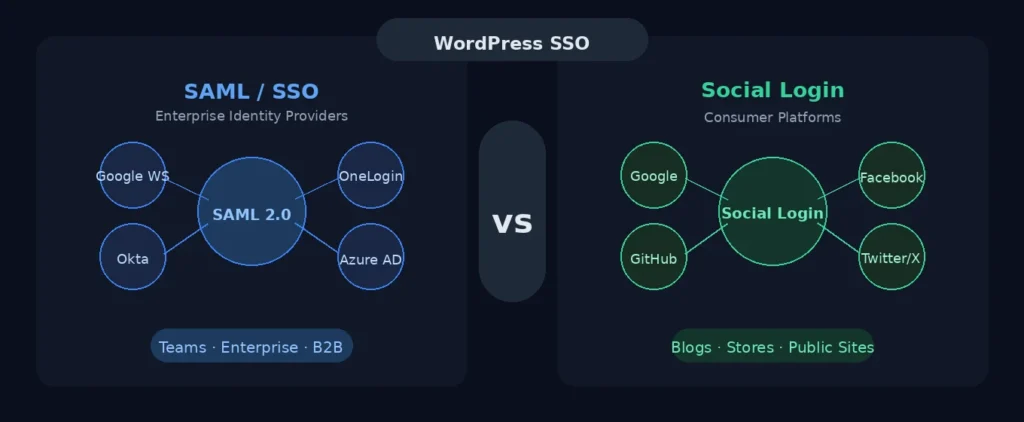
SAML SSO is designed for organizations that require centralized access control and security policies.
It integrates with enterprise IdPs such as Azure AD and Okta, supports role-based access management, and provides the audit trails that regulated industries require.
If you are running a public membership site, social login might be sufficient. If you are managing internal team access or enterprise client portals, SAML SSO is the right choice.
Wrapping Up
WordPress Single Sign-On simplifies life for everyone involved. Users stop juggling passwords, admins manage access from one place, and your site becomes significantly more secure in the process.
Start with the SAML SSO plugin, connect your Identity Provider, thoroughly test the configuration, and layer on 2FA for stronger protection.
If you want help getting this right the first time, Seahawk Media is here. We specialize in WordPress security, performance, and custom setups for agencies and businesses that cannot afford to get it wrong.
FAQs About SSO on WordPress
Is SAML SSO free for WordPress?
The miniOrange SAML SSO plugin has a free version that supports one Identity Provider and covers most standard setups. Advanced features like multiple IdP support, custom attribute mapping, and role-based access controls require a paid plan. For teams with straightforward Google Workspace or Okta setups, the free tier is a solid starting point.
Does WordPress.com support SAML SSO?
No. SAML SSO requires a self-hosted WordPress.org installation that supports installing and configuring custom plugins. WordPress.com does not allow this level of customization on standard plans. If you need SSO, you need to host it yourself.
Can I set up SSO on WordPress without a developer?
For straightforward configurations using Google Workspace or Okta, a non-developer can follow the plugin wizard and get things working.
The setup becomes more technical when you need custom attribute mapping, complex role assignments, or integration with enterprise-grade IdPs like Microsoft Azure AD. In those cases, having a WordPress developer involved saves time and reduces the chance of configuration errors.
What is the difference between SSO and two-factor authentication?
SSO and two-factor authentication (2FA) are complementary, not interchangeable. SSO controls where and how users authenticate. It lets one login session carry across multiple platforms. 2FA adds a second verification step on top of the login, such as a one-time code sent to a phone.
Using both together gives you the convenience of SSO and the added protection of a second security layer. Jetpack and SolidWP both offer 2FA options that pair well with SSO.


