
Planning a MijoShop to WooCommerce migration is one of the smartest moves a growing store owner can make. WooCommerce gives you access to a bigger plugin library, stronger SEO tools, and a far larger support community than MijoShop can offer.
Making the switch takes careful planning. But with the right steps and the right help, you can move your entire store, products, customers, and orders, without losing data or hurting your search rankings.
TL;DR: What You Need to Know Before You Switch
- WooCommerce offers far greater flexibility, scalability, and plugin options than MijoShop.
- Always back up your store data and run a demo migration before the full transfer.
- Set up 301 redirects after the move to protect your existing search engine rankings.
- Professional migration services from companies like Seahawk Media start at $499 and include a zero-downtime guarantee.
What is MijoShop to WooCommerce Migration and Why Does it Matter?
It involves moving your store from a Joomla-based MijoShop setup to WooCommerce on WordPress for better flexibility, control, and growth.
Overview of MijoShop and WooCommerce Platforms
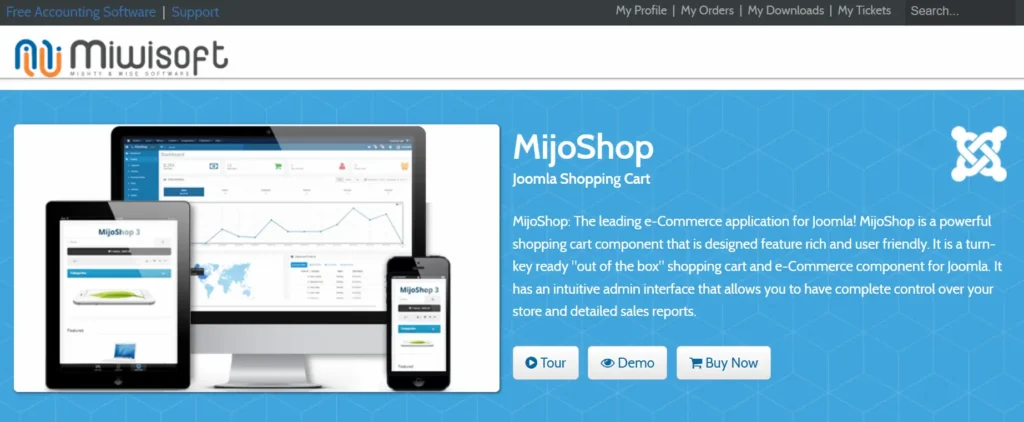
MijoShop is an eCommerce extension built for Joomla, developed by Miwisoft. It lets Joomla users run an online store without switching their CMS. MijoShop’s core engine is based on OpenCart, so it feels familiar to users of that platform.
WooCommerce is the world’s most popular open-source eCommerce plugin. It runs on WordPress and powers over 30% of all online stores globally.
WooCommerce is free to install and supports thousands of extensions, payment gateways, and theme options. The future of WordPress points strongly toward continued WooCommerce dominance in online retail.
Key Differences Between MijoShop and WooCommerce
| Feature | MijoShop | WooCommerce |
|---|---|---|
| Platform | Joomla | WordPress |
| Plugin Ecosystem | Limited | Thousands of options |
| Theme Library | Small | Vast |
| Community Support | Small | Massive |
| SEO Tools | Basic | Advanced |
| Payment Gateways | Limited | 100+ integrations |
| Scalability | Moderate | High |
WooCommerce wins on almost every front. Its open-source nature, combined with the WordPress ecosystem, gives merchants far more freedom than MijoShop allows.
Other Joomla-based eCommerce platforms like JooCart face the same limitations, which is why many store owners are choosing WooCommerce instead.
Migrate From MijoShop to WooCommerce Easily
Move your store to WordPress with zero downtime, expert handling, and complete SEO preservation.
What Data Can Be Migrated From MijoShop to WooCommerce?
Most of your core store data can be transferred during migration:
- Products: Names, SKUs, descriptions, prices, images, and variants
- Categories: Including hierarchy and full structure
- Customers: Names, email addresses, and account details
- Orders: Order history, statuses, and billing records
- Reviews: Product ratings and customer comments
Some data, like custom Joomla modules or MijoShop-specific configurations, may not transfer automatically. A developer’s help may be needed for those elements.
Why Migrate From MijoShop to WooCommerce
There are several strong reasons to make this switch.
- Better Plugin Ecosystem WooCommerce has thousands of plugins for shipping, payments, marketing, and inventory management. MijoShop’s extension library is far more limited by comparison.
- Superior SEO Capabilities WordPress gives you access to powerful WordPress SEO plugins like Yoast SEO and Rank Math. These tools make on-page optimization fast, intuitive, and scalable.
- More Theme Choices WooCommerce works with thousands of free and paid WordPress themes. You can also start with the fastest WordPress themes to give your store a speed advantage from day one.
- Better Scalability: WooCommerce handles growth well. Whether you sell ten products or ten thousand, the platform scales without forcing a CMS change later.
- Easier Content Management The WordPress block editor (Gutenberg) makes creating product pages, blog posts, and landing pages intuitive. No technical knowledge required for most tasks.
- Stronger Payment Gateway Support WooCommerce supports over 100 payment gateways, including PayPal, Stripe, and Square. Merchants migrating from similar platforms, like those moving from WiziShop to WooCommerce, cite payment flexibility as a top reason for switching.
- Larger Support Community WooCommerce runs on WordPress. That means an enormous community of developers, agencies, and documentation to support your business.
How Seahawk Media Helps with WooCommerce Migration?
Seahawk Media is a trusted WordPress migration agency. Our team of 50+ WordPress experts has completed over 1,000 migrations since 2016.

We migrate from any platform, including Joomla, Drupal, Shopify, Wix, and custom CMS builds, to WordPress with zero downtime. Our migration services start at $499. Here is how our proven 5-step process works:
- Pre-Migration Audit: We audit your existing site, reviewing files, databases, plugins, and custom elements. A tailored migration plan is built from this audit.
- Secure Backup: Complete backups are created before migration begins. This allows for a fast rollback if anything goes wrong.
- Environment Setup: We configure the new WordPress hosting environment, including PHP versions, database setup, and server optimization.
- Data Migration and Testing: All site files, themes, plugins, and databases are transferred and tested for broken links, conflicts, and full functionality.
- DNS Update and Launch: Once everything is confirmed to be working, DNS settings are updated. A post-launch review follows to ensure smooth performance.
We protect your SEO throughout the migration, and our team also handles Sitecore to WordPress migration, Magento to WordPress, PrestaShop to WooCommerce, and dozens of other platform moves.
Pre-Migration Checklist for MijoShop to WooCommerce
Complete each of these steps before starting the migration:
- Back up your entire MijoShop store, database, and all files.
- List all the data you need to move products, orders, customers, and reviews.
- Identify custom Joomla modules or features that need to be rebuilt.
- Set up a staging WordPress environment for safe testing.
- Choose a reliable WordPress hosting provider.
- Install WordPress and the WooCommerce plugin on your new server.
- Select your migration method: tool, manual export, or professional service.
- Document your current MijoShop URL structure for redirect mapping.
- Record current SEO rankings and traffic baselines in Google Search Console.
A thorough pre-migration plan is the single best way to prevent data loss. Skipping any step adds unnecessary risk. If you are unsure whether to handle this yourself or hire a specialist, review this comparison of DIY vs professional website migration to make an informed decision.
Steps to Migrate From MijoShop to WooCommerce
Follow this step-by-step process to transfer your store data, preserve SEO, and ensure a smooth and error-free migration to WooCommerce.

Step 1: Set Up Your WooCommerce Store
Start by choosing a reliable WordPress hosting provider. Managed WordPress hosts work best for WooCommerce stores. Install WordPress, then add the free WooCommerce plugin from the official WordPress plugin repository.
Run through the WooCommerce setup wizard. This wizard walks you through store location, currency, payment options, and shipping settings. Do not add products yet; that step comes after migration.
Step 2: Backup and Prepare MijoShop Data
Back up everything on your MijoShop store. This includes your Joomla database, product images, customer records, and full order history. Use your hosting control panel or a dedicated backup tool.
Export your product catalog in CSV format where possible. Also, document your current MijoShop URL structure carefully. You will need these URLs later when setting up redirects.
Step 3: Choose a Migration Method
You have three main options:
- Migration Tool: Platforms like Cart2Cart or LitExtension automate data transfer between MijoShop and WooCommerce. They support field mapping and handle the most common data types.
- Manual Migration: Export data from MijoShop as CSV files and import them into WooCommerce. This works for small stores but becomes tedious for large or complex catalogs.
- Professional Service: Hiring an agency like Seahawk Media delivers speed, accuracy, and built-in SEO protection. This is the best choice for large stores or businesses that cannot afford downtime.
Step 4: Connect Source and Target Stores
If you are using a migration tool, install the required connector bridge on your Joomla or MijoShop site. Then configure your WooCommerce store as the target destination. This connection allows the migration tool to read data from MijoShop and write it to WooCommerce in the correct format.
Step 5: Select Data to Migrate
Choose which data entities you want to transfer. Standard options include:
- Products and product categories
- Customer accounts and personal data
- Order records and statuses
- Product reviews and ratings
- Tax rules and shipping zones
Most migration tools offer field mapping to match MijoShop data fields with their WooCommerce equivalents. Review these mappings carefully before proceeding.
Step 6: Run Demo Migration
Always run a demo migration before the full transfer. This moves a small data sample, usually a few products, customers, and orders, to your WooCommerce store. Review the results closely. Check product names, prices, descriptions, and images. Look for missing fields or formatting issues before running the full migration.
Step 7: Perform Full Migration
Once the demo results look clean, run the full migration. Depending on your store size, this can take anywhere from a few minutes to several hours. Do not make any changes to your live MijoShop store during this time. New orders or edits made after migration begins will not be transferred automatically.
Step 8: Verify and Test Data
After migration completes, review your new WooCommerce store carefully. Verify the following:
- Products are listed correctly with accurate pricing
- Category pages display and filter properly
- Customer accounts are accessible and complete
- Order history is intact and accurately reflects past transactions
- Product images load correctly on all pages
Place a test order to confirm the full checkout flow works end-to-end. If some media files did not transfer, take time to fix broken images in your WooCommerce store before going live.
Step 9: Set Up SEO Redirects
This step is critical for protecting your search rankings. Your old MijoShop URLs will differ from your new WooCommerce URLs. Without redirects, both visitors and search engines will encounter 404 errors.
Set up 301 redirects that map each old MijoShop URL to its new WooCommerce equivalent. You can redirect WordPress URLs with or without a plugin, depending on your technical comfort level. Both methods are reliable when done correctly.
Step 10: Launch Your WooCommerce Store
Once everything checks out, update your DNS settings to point your domain to the new WordPress hosting server. Monitor your store closely during the first 24-48 hours after launch. Check Google Search Console for any crawl errors. Watch your analytics for traffic fluctuations. Have your team ready to respond to any issues that come up quickly.
Post Migration Tasks After Moving to WooCommerce
Migration does not end at launch. These post-migration tasks are equally important:

- Submit your sitemap: Send your XML sitemap to Google Search Console so new WooCommerce URLs get indexed faster.
- Test forms and checkout flows: Confirm contact forms, checkout pages, and account creation all work correctly.
- Check mobile responsiveness: Confirm your store looks and works great on smartphones. You can quickly identify display issues by fixing mobile view problems that sometimes appear after a platform change.
- Check page speed: WooCommerce stores can be resource-heavy. Install a caching plugin and optimize images to improve load times. If your store feels sluggish, look into why your WordPress site is slow and how to fix it.
- Configure email notifications: Verify that order confirmations, shipping updates, and customer account emails are sending correctly.
- Monitor SEO rankings: Track keyword positions for 4-6 weeks post-launch. Small fluctuations are normal. Larger drops may indicate redirect or indexing issues that require immediate attention.
- Apply content pruning strategies: Use content pruning to recover lost traffic after Google updates if you notice a drop in organic visibility in the weeks following launch.
- Set up security: Install a security plugin to protect your eCommerce site from hacking. Keep WordPress, WooCommerce, and all plugins updated regularly.
- Rebuild custom features: Any Joomla-specific features that did not migrate must be rebuilt using WooCommerce extensions or custom development.
Expert Tips for MijoShop to WooCommerce Migration
Apply these tips to make the process smoother and lower the risk of issues:
- Never test on a live site. Always use a staging environment first. This protects your live store from accidental data changes.
- Map your URL structure before starting. Knowing which old URLs map to new ones saves hours of redirect work later.
- Run a demo migration. A small test batch helps you catch errors before the full transfer runs.
- Migrate during low-traffic hours. Schedule migration for nights or weekends to minimize disruption for customers.
- Verify product images manually. Automated migration tools sometimes skip images or upload them in the wrong formats. Always check after migration.
- Keep MijoShop live for 30 days. Use it as a backup reference while your WooCommerce store stabilizes.
- Use a child theme in WooCommerce. This prevents you from losing design customizations during future theme updates.
- Document everything throughout. Keep notes on what was migrated, what was skipped, and any errors encountered.
- Check your WordPress error logs. Reviewing WordPress error logs after migration can surface hidden issues that don’t show up in front-end testing.
Troubleshooting MijoShop to WooCommerce Migration Issues
Even with careful planning, problems can surface. Here are the most common issues and how to fix them:
- Missing product images: Automated migration tools sometimes skip images that are loaded dynamically. Download images from MijoShop manually and upload them directly to your WooCommerce media library.
- Broken links and 404 errors: This usually means redirects are incomplete or misconfigured. Audit your redirect rules and fix broken links after migration using a redirect plugin or .htaccess edits.
- Missing orders or customer accounts: Field mapping errors are the most common cause of missing data. Re-check your field mapping settings in your migration tool and re-run the migration for affected records.
- Slow WooCommerce store performance: Hosting limitations or too many active plugins can drag performance down. Upgrade your hosting plan if needed and use a caching plugin to speed things up.
- Payment gateway not working after migration: Migration often resets payment gateway settings. Reconfigure all payment gateways in WooCommerce settings after the migration is complete.
- Duplicate products in WooCommerce: This usually happens when migration runs more than once. Delete duplicates and switch the migration tool to “update existing records” mode before re-running.
Complex CMS migrations, such as moving from Mura CMS to WordPress or Strapi to WordPress, often face similar data-mapping challenges. The same troubleshooting approach applies across platforms.
Conclusion
MijoShop has served Joomla users well, but its limitations become clear as stores grow. WooCommerce offers a richer plugin ecosystem, stronger SEO tools, broader payment support, and greater scalability. Moving to WooCommerce sets your store up for long-term growth and a better customer experience.
The migration process follows a clear path: set up your new WooCommerce store, back up your MijoShop data, choose your migration method, run a demo migration, complete the full transfer, verify data accuracy, configure SEO redirects, and go live. Following each step carefully protects your data and preserves your SEO performance.
Working with a professional team like Seahawk Media makes the entire process far more reliable. With 1,000+ completed migrations, a zero-downtime guarantee, and services starting at just $499, Seahawk handles all the technical work while you stay focused on your business.
A well-planned MijoShop-to-WooCommerce migration is an investment in your store’s future. With the right plan and the right team, the transition can be smooth, fast, and growth-enabling.
FAQs About MijoShop to WooCommerce Migration
What data can I migrate from MijoShop to WooCommerce?
You can migrate products, categories, customers, orders, images, and basic SEO data. Some custom fields or extensions may need manual handling.
Will my SEO rankings be affected after the migration?
Rankings can drop if you skip SEO steps. Use 301 redirects, maintain consistent URL structures, and migrate metadata to protect your traffic.
How long does the MijoShop to WooCommerce migration take?
It depends on store size and complexity. Small stores may take a few hours. Larger stores can take several days to test and fix.
Do I need technical skills for this migration?
Basic skills help for manual migration. Automated tools simplify the process. For complex stores, hiring experts ensures accuracy and saves time.
Can I run my store during the migration process?
Yes, in most cases. Use a staging environment and run the migration in the background. Schedule the final sync and launch during low-traffic hours to avoid disruption.


