
When you first set up a WordPress site, you choose a theme and activate it. That theme is called a parent theme. But as soon as you want to customize that theme, you face a critical decision: do you edit the parent theme directly, or do you create a WordPress child theme?
This decision has lasting consequences. Making the wrong choice can cost you hours of rework every time the theme is updated. This article explains exactly what parent and child themes are, how they differ, and when to use each one.
TL;DR: Parent and Child Themes Simplified
- A parent theme is a complete theme that controls your site’s design, layout, and core functionality.
- A child theme inherits everything from the parent while allowing safe design and code customizations.
- Direct edits to the main theme can be lost during updates, while changes in the child layer remain intact.
- Using this structure helps maintain updates, organize code changes, and keep the website stable over time.
Understanding WordPress Theme Architecture and Customization
Every WordPress theme is a collection of files stored in the wp-content/themes directory. These files include PHP templates, CSS stylesheets, JavaScript files, and a functions.php file that registers theme features.

WordPress uses a template hierarchy to determine which PHP file to load for each page type: single posts, archive pages, category pages, and so on.
The theme’s folder structure defines this hierarchy. The style.css file in the theme’s root folder contains the theme’s metadata header, which tells WordPress the theme name, version, author, and description.
Understanding this architecture is the foundation for grasping the difference between a parent and child theme. Both use the same folder structure and file types, but their relationship to each other changes how WordPress loads and applies them.
Build Custom WordPress Theme the Right Way
Our WordPress theme developers build clean, update-safe, child-theme-ready websites tailored to your brand.
WordPress Parent Theme Explained: Definition, Features, and Role
A parent theme is a complete, standalone WordPress theme. It contains every file required for WordPress to render your website without depending on any other theme.
When you install and activate a theme directly from the WordPress theme repository or from a ZIP upload, you are activating a parent theme.
The parent theme defines the following:
- Visual structure: Headers, footers, sidebars, and layout grids.
- CSS stylesheets: Typography rules, color schemes, spacing, and responsive breakpoints.
- Core functionality: Custom menus, widget areas, and featured images registered in the functions.php file.
- Template hierarchy: PHP template files for different page types (home page, single post, archive, search, etc.).
A parent theme can be a full-featured multipurpose theme or a lightweight starter framework.
WordPress theme frameworks like Genesis or Underscores are purpose-built parent themes designed to be extended by child themes. They provide the foundation without prescribing every design detail.
One critical point: a parent theme is self-sufficient. It does not need another theme to function. It operates as the active theme on any WordPress site without any modification.
However, editing a parent theme directly carries a significant risk. Any changes you make to the parent theme’s files, whether in the CSS, PHP templates, or functions.php, are overwritten when the theme receives an update. Every update wipes out your custom code.
This is precisely why child themes exist.
WordPress Child Theme Explained: Meaning, Structure, and Functionality
A WordPress child theme is a sub-theme that inherits all the design and functionality from a parent theme while allowing you to make your own customizations.
It acts as an overlay, sitting on top of the parent theme and extending or overriding its features without altering the parent theme’s files.
To create a child theme, you need two things at a minimum:
- A new folder inside your wp-content/themes directory with a unique folder name.
- A style.css file containing a stylesheet header with the Template: field pointing to the parent theme’s folder name.
Here is a basic example of a child theme’s style.css header:
/* Theme Name: My Child Theme Template: twentytwentyfour Version: 1.0 */
The Template: line tells WordPress this is a child of the specified parent theme. Without it, WordPress treats it as a standalone theme.
Most child themes also include a functions.php file to enqueue the parent theme’s stylesheet and add custom PHP functionality. WordPress loads the child theme’s functions.php first, before the parent’s.
When you activate a child theme, WordPress checks the child theme folder first for every template file. If a template exists in the child theme, WordPress uses it.
If not, it falls back to the parent theme’s version. This selective fallback system is the core mechanism that makes child themes so powerful and safe.
Read More: Know the Future of WordPress Theme Development
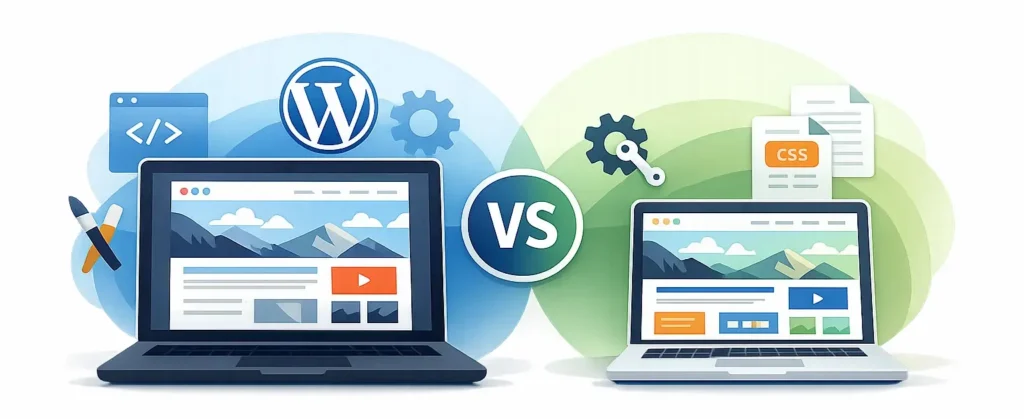
WordPress Child Theme vs Parent Theme
The following sections break down the critical differences between a WordPress child theme and a parent theme.
Theme Dependency and Relationship Structure
A parent theme is fully independent. It requires no other theme to function and can serve as the active theme on its own.
A child theme, on the other hand, is entirely dependent on its parent. It cannot function without the parent theme installed alongside it. If you deactivate or delete the parent theme, the child theme breaks immediately.
This dependency is intentional. The child theme inherits all the functionality and styles from the parent, giving you a fully operational theme from day one without duplicating any code.
Customization Method and Code Modification
With a parent theme, you customize by editing the theme’s files directly. This means modifying the style.css file, adjusting HTML in PHP templates, or writing functions in functions.php.
With a child theme, you customize without touching the parent theme’s files.
You add your custom CSS to the child theme’s style.css, override template files by copying them into the child theme folder and modifying the copy, and add PHP functions to the child theme’s own functions.php.
This clean separation is the foundation of a professional custom WordPress theme development workflow. All modifications live in one dedicated, organized location.
Theme Updates and Impact on Custom Changes
This is where the biggest practical difference between a parent and child theme lies.
When a parent theme receives an update, WordPress replaces the theme’s files with the new version. Any edits made directly to the parent theme’s files are completely erased. You lose all your customizations the moment the update runs.
With a child theme, your customizations are stored in a separate folder. The parent theme updates freely without touching the child theme directory.
Your custom CSS, modified template files, and PHP functions remain fully intact. Following WordPress themes and plugin update best practices becomes far safer when a child theme handles this separation.
Code Inheritance of Templates, CSS, and Functions
A child theme inherits the full template hierarchy from the parent theme. Every PHP template file, CSS rule, and registered function in the parent theme is automatically available to the child theme.
This inheritance works selectively. If you copy a template file, for example, single.php, into your child theme folder and modify it, WordPress uses your version. Files you do not copy remain controlled by the parent.
CSS inheritance also works in layers. The parent theme’s stylesheet loads first. The child theme’s CSS loads on top, so child-theme rules override parent styles by specificity. You never need to duplicate the entire parent stylesheet.
In PHP, you can remove or override functions using add_action() or add_filter() in the child theme’s functions.php file. If a function is declared with function_exists() checks, you can replace it in the child theme before the parent theme loads it.
Development Workflow and Customization Process
When you work with a parent theme alone, the workflow is simpler but riskier. You open the theme files, make your changes, and test. No extra setup is required.
Building a child theme requires upfront structure. You need to:
- Create a new folder inside wp-content/themes with a descriptive folder name.
- Add the style.css file with the correct stylesheet header, including the Template: reference to the parent.
- Add a functions.php file to enqueue the parent theme’s stylesheet using wp_enqueue_scripts.
- Install and activate the new child theme through the WordPress Appearance → Themes menu.
After this setup, every change you make is saved in the child theme’s dedicated files. The original theme stays untouched throughout the entire project lifecycle.
Flexibility and Scalability in Theme Development
A child theme offers greater long-term flexibility than a modified parent theme.
Because a child theme contains only the files you have changed, it stays lightweight by default. It is also easy to reuse the same child theme structure across multiple projects when using the same parent framework.
As your project grows, with new template pages, additional CSS modifications, and custom post type templates, everything slots neatly into the child theme without cluttering the parent. This approach scales well for complex WordPress builds.
If you are converting an HTML site to a WordPress theme, layering your design changes in a child theme means your customizations stay protected regardless of what happens to the parent theme.
Maintenance and Long-Term Website Stability
A website built on a directly modified parent theme is fragile over time. Every update decision becomes a trade-off: apply the update and lose customizations, or skip it and accumulate security debt.
A website built with a child theme sidesteps this trade-off entirely. You can apply parent theme updates regularly, keeping the parent’s core code secure and compatible with the latest version of WordPress, while your child theme customizations remain untouched.
Understanding how to safely update WordPress without breaking your site becomes far simpler when a child theme handles the separation of concerns.
Performance Impact on Website Speed
A common concern is whether using a child theme adds performance overhead. The answer is: minimally, if set up correctly.

When a child theme enqueues the parent stylesheet once via wp_enqueue_scripts in functions.php, rather than using an @import rule inside style.css, there is no extra HTTP request penalty. The child theme simply extends the parent with one additional, lightweight CSS file.
In contrast, a bloated parent theme with large, unnecessary CSS and JavaScript adds far more performance weight than a well-structured child theme ever would.
Choosing a lightweight parent theme, as profiled in the roundup of the fastest WordPress themes, dramatically reduces the baseline performance impact.
You can also review strategies to speed up WordPress page loading time to further optimize the parent and child theme stack.
Protecting Custom Code from Theme Updates
One of the most practical benefits of a child theme is that it acts as a protection layer for all your custom code.
When theme developers release updates for bug fixes, security patches, or new features, those updates overwrite the parent theme’s files in their entirety. If your customizations are stored in those files, they are lost without warning.
With a child theme, your custom code lives in a separate folder. Updates to the parent never touch it.
You can apply security patches through a proactive WordPress plugin and theme vulnerability management without any fear of losing your work.
Faster Development Using Existing Parent Themes
Building a WordPress theme completely from scratch is time-intensive. Creating custom WordPress themes from scratch involves setting up the full template hierarchy, registering menus, configuring widget areas, and writing all CSS.
A child theme eliminates most of that setup. You start with a fully functional parent theme, one that already has all the features you need, and add only the changes your project requires.
A developer can set up a working child theme in under five minutes: a new folder, a style.css header, and a functions.php file.
This speed advantage compounds on large projects, where you build multiple sites with a consistent parent framework and unique child-theme customizations per site. It is a core part of scalable development planning.
Safe Testing and Reversible Customizations
A child theme doubles as a safe testing environment for your website.
If you want to try a new layout, test a custom template, or experiment with PHP changes, you can write the code in the child theme and observe the result live.
If something breaks, you can simply deactivate the child theme. Your site instantly reverts to the parent theme’s original appearance and functionality. No damage done.
This instant rollback ability does not exist when you edit the parent theme directly. Once you overwrite a parent theme file and something goes wrong, recovering the original code requires re-downloading the entire theme.
Advantages of Using a WordPress Child Theme for Customization
Using a child theme is the recommended approach for almost all WordPress customization scenarios. Here is a concise summary of the key advantages:
- Update safety: Parent theme updates never overwrite all your customizations, no matter how many there are.
- Clean code separation: All modifications are kept in a dedicated child theme folder, making them easy to track.
- Inherits all the features: The child theme inherits all the functionality of the existing theme without requiring you to rebuild it.
- Faster development: Start from a fully functioning parent theme and extend it with only the code you need.
- Reversible changes: Deactivate the child theme to instantly revert to the original theme’s appearance.
- Scalability: Extend the child theme folder as your site grows, without affecting the parent theme.
- Security: Apply parent theme security patches and version upgrades without risking your custom code.
For website owners who want fully bespoke customizations without managing code directly, professional WordPress customization services offer a structured approach to implementing both parent and child themes correctly from the start.
When to Use a WordPress Child Theme vs Editing the Parent Theme
There are clear situations where each approach makes sense.
Use a child theme when:
- CSS modifications must remain intact after theme updates.
- Specific template files, such as header, footer, or single post templates, need to be overridden.
- Custom PHP functions are required to extend or modify existing functionality.
- The website requires long-term maintenance and regular theme updates.
- A third-party or premium theme is used as the base design framework.
- Changes need to be tested safely without affecting the live site.
Edit the parent theme directly only when:
- The same developer develops and maintains the theme, managing its updates.
- Development takes place in a controlled local environment without external theme updates.
Note: One caveat worth addressing is the rise of Full Site Editing and block themes. Even with a block-based theme in the WordPress Site Editor, using a child theme for CSS and PHP customizations remains the safest and most maintainable approach.
For developers building e-commerce stores, the same architecture applies. A solid parent theme provides the WooCommerce foundation, and a child theme layers in the brand-specific design. The WooCommerce theme development guide explores this setup in detail.
If you are starting fresh and want to write your own parent theme base before applying child theme customizations, learning how to create a blank WordPress theme gives you full control over the entire structure from the ground up.
Not all themes are created equal; many premium themes offer built-in child theme support and include documentation to help users extend them safely.
Always reference the theme developer’s documentation before writing any custom code.
You can update WordPress automatically and manually depending on your maintenance plan, but always ensure a child theme separates your custom code from the update cycle first.
Conclusion
The choice between a WordPress child theme and a parent theme is not really a contest between two alternatives. It is a decision about how you manage customization safely over time.
Understanding the parent-child theme relationship is one of the most foundational skills in WordPress development.
Whether you are a site owner managing your own WordPress site or a developer building for clients, getting this architecture right from the start saves significant time, prevents the risk of losing your customizations, and makes your website far easier to maintain for years to come.
FAQs About WordPress Child vs Parent Theme
What is the main difference between a WordPress child theme and a parent theme?
A parent theme is a standalone, complete theme. A child theme inherits all the styles and functionality from the parent theme, letting you customize without editing the parent’s files.
Will I lose my customizations if I update the parent theme?
Yes, if you edit the parent theme directly. Updates overwrite the parent theme’s files and erase all your custom code. Use a child theme to protect your work from any updates.
How do I create a child theme in WordPress?
To create a child theme, add a new folder inside your wp-content/themes directory. Inside the child theme folder, add a style.css file with a header that includes the Template: field referring to the parent theme’s folder name. Then add a functions.php file to enqueue the parent stylesheet.
Do I need to paste all the parent theme’s CSS into my child theme?
No. You only add the CSS rules you want to change or override. The child theme automatically inherits all the parent’s existing styles, so there is no need to copy or paste the full stylesheet.
Can I refer to the parent theme’s template files by URL in my child theme?
No. WordPress uses the folder path, not a URL, to locate template files. WordPress checks the child theme folder first, then automatically falls back to the parent theme’s files.


