
When WordPress is not sending emails, it can disrupt contact forms, alerts, order updates, and password resets. This issue usually happens because the default mail system isn’t reliable on most hosting servers.
You can fix it quickly by switching to SMTP or connecting a trusted email provider. This helps your messages send correctly instead of getting blocked or landing in spam.
This guide explains the easiest steps to get your WordPress emails working again so every message reaches the right inbox without issues.
Top Reasons Why Your WordPress Website Is Not Sending Emails
There are several reasons why your WordPress website might not be sending emails properly. From built-in limitations to external factors like server restrictions, understanding these key causes will help you troubleshoot the issue efficiently.

Hosting Provider Restrictions
Your hosting provider could be the culprit when your WordPress emails are not going through.
Many hosts place restrictions on how many emails can be sent in a given timeframe, especially shared hosting services, to prevent their servers from being used for spam.
These restrictions can either throttle the number of emails sent or block them altogether, depending on the hosting provider’s security protocols.
If you’re on a shared hosting plan, it’s highly likely that your email-sending capacity is limited, causing your emails to vanish into thin air.
Find Out: WordPress Debugging Tools For Troubleshooting
PHP Mail() Function Fails
The PHP mail() function, which WordPress uses by default, is notoriously unreliable. Why? This function doesn’t use proper authentication, which is essential in today’s email landscape.
Without authentication, your emails are more likely to be flagged as spam or rejected by your recipient’s email server altogether.
Additionally, some web hosts disable the PHP mail() function entirely due to its limitations and the potential for abuse by spammers. This can lead to your WordPress website being unable to send any emails at all.
Interesting to Read: How to Troubleshooting PHP Errors in WordPress?
Misconfigured Email Settings
Even small misconfigurations in your email settings can prevent your WordPress website from sending emails properly.
A common mistake is using a “From” email address that doesn’t match your domain, which can cause mail servers to reject your emails.
Similarly, incorrect SMTP settings, email encryption errors, or mismatches in sender names can wreak havoc on your email deliverability. These tiny mistakes can quickly escalate into major problems if not addressed.
Explore: How to do Emergency WordPress Troubleshooting of Issues
Outdated Plugins or Themes
Keeping your plugins and themes up to date isn’t just important for security reasons; it can also affect email functionality.
Outdated plugins or themes might not be compatible with the latest WordPress version or may contain bugs that interfere with email sending.
For example, a contact form plugin that isn’t updated might fail to pass the email data properly, causing your forms to fail silently without sending any notifications.
SPF/DKIM Authentication Problems
SPF (Sender Policy Framework) and DKIM (DomainKeys Identified Mail) are two vital email authentication methods used to verify the legitimacy of your emails. Without these records properly configured in your domain’s DNS settings, your emails may be flagged as spam or completely rejected by email servers. These authentication methods help mail servers confirm that the email is actually coming from your domain and not being spoofed by spammers.
If you haven’t set up SPF and DKIM, it’s a good bet that your emails are getting blocked for this reason.
How to Properly Configure WordPress Website to Send the Emails
Now that we’ve covered the reasons why WordPress not sending emails, let’s dive into how to fix these issues.
Check Email Sending Logs
The first step in troubleshooting is to enable email logging. Email logs help you see exactly what’s happening behind the scenes.
Plugins like WP Mail Logging allow you to track sent emails, failed emails, and error messages to give you insights into the problem.
Install and Set Up an SMTP Plugin
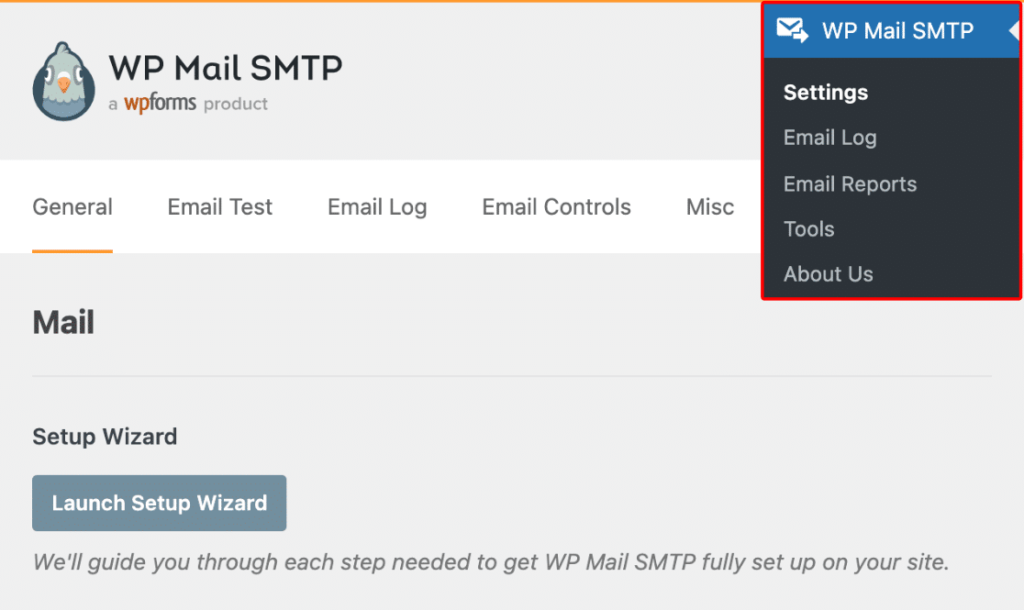
The best way to fix WordPress not sending email issues is by using an SMTP (Simple Mail Transfer Protocol) plugin. SMTP is a much more reliable method for sending emails than PHP mail. Plugins like WP Mail SMTP or Post SMTP allow you to configure SMTP settings and authenticate your emails.
Here’s a quick step-by-step guide:
Install the WP Mail SMTP plugin from the WordPress repository.
Go to the plugin settings and configure it with your SMTP provider’s details (e.g., Gmail, SendGrid, Mailgun).
Add your SMTP server, port number, and encryption settings (SSL or TLS).
Test your connection by sending a test email to ensure everything is working.
Testing Email Delivery
After setting up SMTP, always test your email delivery. You can use the plugin’s built-in test tool to send emails to your own inbox. If they arrive promptly, your configuration is correct.
If they don’t, double-check your SMTP settings or consult your hosting provider.
Use a Dedicated Email Service
For sites that send a high volume of emails, it’s worth investing in a dedicated email service like SendGrid, Mailgun, or Amazon SES.
These services specialize in email deliverability, offering advanced features to ensure your emails are sent quickly and avoid being marked as spam.
Fix Your WordPress Email Issues Today
Get expert support to solve email problems fast and keep your site running smoothly.
Avoiding the Spam Folder: How to Prevent WordPress Emails From Going to Spam
Even when your WordPress emails are being sent, they might land in the spam folder. Here’s how to prevent that from happening:
Authenticate Your Domain with SPF and DKIM
SPF (Sender Policy Framework) and DKIM (DomainKeys Identified Mail) are email authentication methods that prove your email’s legitimacy. Most SMTP plugins provide fields to enter your SPF and DKIM records.
Adding these protocols to your DNS settings helps email providers verify that your emails are trustworthy.
Check More: How to Fix the “Update Failed: -1” Error in WordPress: Actionable Tips
Use a Professional Email Address
Sending emails from an unprofessional address like noreply@gmail.com can cause spam filters to flag your messages. Instead, use an email address with your own domain name, like hello@yourdomain.com.
This boosts the credibility of your emails and increases the chances of them landing in the inbox.
Check Your Email Content
Spam filters are sensitive to certain content triggers. Avoid using excessive exclamation marks, all caps, or too many links in your emails.
Keep the tone professional, and make sure your content is relevant to the recipient.
Test for Spam
There are tools available, such as MailTester or GlockApps, that allow you to check if your email is likely to be flagged as spam.
These tools analyze your email content and provide suggestions on how to improve it to avoid the spam folder.
How to Confidently Send Emails from Your WordPress Site
Once you’ve set everything up, here’s how to ensure your emails are delivered correctly and consistently:
Configure Form Plugins Correctly
If you use form plugins like Contact Form 7 or WPForms, make sure they are configured to send the emails through your SMTP server.
Double-check the email settings in these plugins to ensure that the “From” address matches the domain name and that the SMTP configuration is applied.
Set Up BCC & CC Safely
Avoid sending multiple emails to different recipients using CC or BCC when possible. This can cause your email to be flagged as spam or not delivered at all.
Instead, try sending separate emails or using dedicated email marketing services for bulk emailing.
Monitor Email Deliverability
Keep an eye on your email performance using tools like Mailtrap or SMTP.com. These platforms allow you to track sent emails, monitor deliverability, and receive real-time feedback on your email campaigns. R
egularly checking these reports can help you spot any issues before they become bigger problems.
Maintain Regular Backups
Finally, always keep a backup of your email configurations. Whether it’s SMTP settings or form plugin setups, having a backup ensures you can restore your email functionality quickly in case something goes wrong.
Also Read: Best WordPress Backup Plugins
Conclusion: Take Control of Your WordPress Emails
Fixing WordPress not sending emails issues becomes much easier once you switch to SMTP and use the right email settings. These changes solve most delivery problems quickly.
Check your DNS records, especially SPF and DKIM, to make sure email providers can trust your messages. Correct authentication helps prevent emails from going to spam or failing to send.
After everything is set, run test emails now and then to confirm everything still works. A reliable email setup keeps your site running smoothly and your users informed.
Frequently Asked Questions
Why is WordPress not sending emails?
This usually happens because WordPress uses the PHP mail function, which many hosts block. Switching to SMTP fixes the issue in most cases.
What is the best way to fix WordPress email problems?
The most reliable fix is to install an SMTP plugin and connect a trusted email provider. This improves deliverability and sends emails the right way.
Can I use Gmail to fix WordPress not sending emails?
Yes. You can connect Gmail SMTP or Google Workspace through a plugin. It works well for small sites and basic email needs.
Why are my WordPress emails going to spam?
Your domain may not have proper authentication. Add SPF, DKIM, and DMARC records to improve trust and keep emails out of spam folders.
Do I need a third-party email service for WordPress?
If your site sends many emails or uses WooCommerce, a service like SendGrid, Mailgun, or Amazon SES gives better performance and fewer delivery issues.
How do I test if my WordPress emails are working?
Use the test email option inside your SMTP plugin. If it fails, check your SMTP login details, DNS records, and provider restrictions.


