
Locked out of your site at the worst possible moment? Knowing how to bypass WordPress login can save time and prevent panic.
Whether you forgot your credentials, faced a plugin conflict, or encountered a broken login page, there are safe and effective ways to regain access.
In this guide, you will discover simple methods that work, without risking your website’s security or data. Get back in control quickly and keep your workflow moving without disruption.
TL;DR: Quick Fixes to Regain Dashboard Access
- Login issues often come from forgotten passwords, plugin conflicts, or broken pages.
- Start with simple fixes, such as default URLs or password reset options.
- Advanced methods include database edits, disabling plugins, or creating a new admin.
- Regular backups and security checks help you avoid getting locked out again.
When Do You Need to Bypass WordPress Login?
There are moments when your regular login just doesn’t work, no matter how many times you try. Perhaps your password appears correct, but WordPress still rejects it.
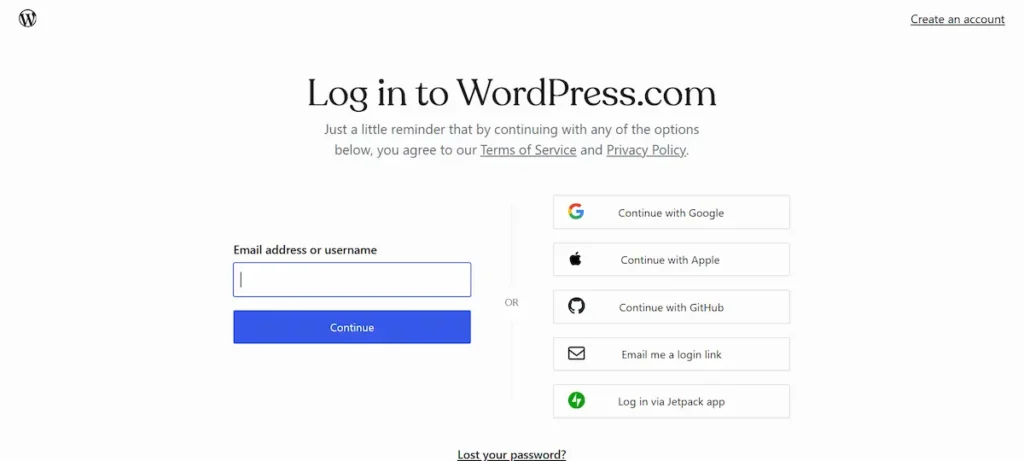
Maybe the wp-login page won’t even load. Or worse, your site has locked you out entirely after multiple failed authentication attempts.
In most cases, these issues stem from a block on your user account. It could be an outdated plugin, a broken redirect, or a change you made to your admin panel that backfired.
Even a strong two-factor authentication setup can lock you out if the verification step fails.
At other times, the problem originates at the hosting level. A misconfigured setting in your hosting control panel might be affecting access to key WordPress files. Or perhaps you updated a plugin without realizing it changed your login process.
Whatever the reason, the result is the same. You’re stuck and need a way back in. Bypassing the login isn’t about hacking or shortcuts.
It’s about using the right tools and knowledge to safely restore your site access and get your administrator account back up and running.
Let’s walk through each method that can help you do exactly that.
Locked Out of WordPress? Get Expert Help Fast
Skip the stress of login issues, security risks, and maintenance gaps by handing your WordPress website care to Seahawk’s SeaCare experts.
Methods to Regain WordPress Access Without Logging In
If you’re locked out and need to bypass WordPress login, don’t panic. There are tried-and-tested methods you can follow to get back in. Here are some easy ways to regain access without using the regular login screen.
Method 1: Try the Default Login URL First
Before diving into anything technical, verify that you’re using the correct login page. WordPress comes with default login paths.
Sometimes, simply typing the correct URL can help you bypass the login screen if you’re already logged in or if a plugin is just hiding the usual form.
Here are the default URLs you can try in your browser:
- www.yoursite.com/wp-admin/
- www.yoursite.com/wp-login.php
- www.yoursite.com/admin/
- www.yoursite.com/login/
Simply replace yoursite.com with your actual domain name. If you still have an active session, visiting /wp-admin/ may take you directly to the dashboard without prompting for your password. If the page fails to load, move to the next tip.
Method 2: Reset Password Using the Forgot Password Link
One of the quickest ways to regain access is by resetting your password. On the login screen, click “Lost your password?” and enter your username or email.
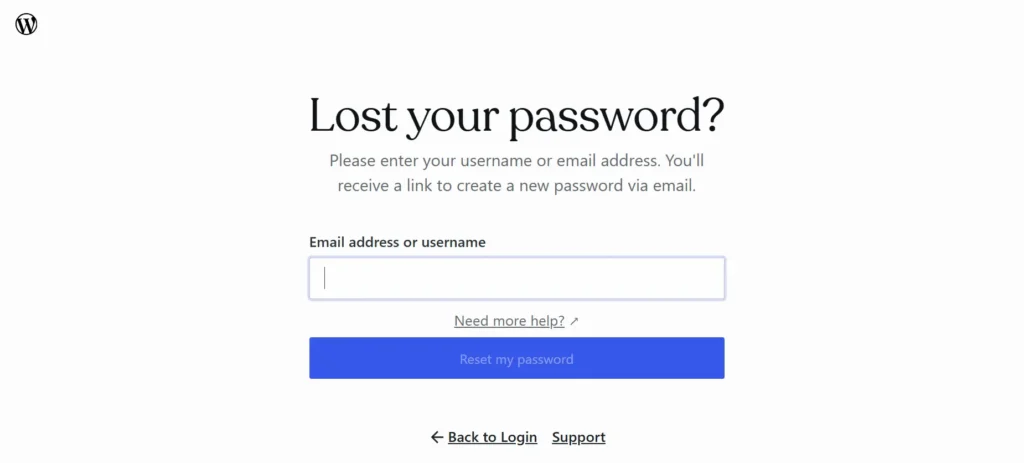
WordPress will send a reset link to the email address associated with your account. Click that link and choose a new password. Easy.
If the email doesn’t arrive, don’t forget to check your spam or junk folder. Sometimes your hosting provider blocks emails, or your site isn’t set up to send them correctly. In that case, you’ll need a more direct method using your database.
Method 3: Change Password from Database (phpMyAdmin)
If the password reset email fails, you can update it manually from the database using phpMyAdmin. It’s not as scary as it sounds.
Here’s how:
- Log in to your hosting account
- Go to the control panel and open phpMyAdmin
- Select your WordPress database from the left side
- Click on the wp_users table (yours might have a different prefix)
- Find your username and click Edit
- In the user_pass field, select MD5 as the function and enter your new password
- Click Go to save changes
Now try logging in with your new password. It should work.
Note: Always back up your database before making changes. Even a small mistake in phpMyAdmin can cause issues on your site.
Method 4: Disable Problem Plugins via FTP
Sometimes, a plugin can block access. Security plugins are the usual suspects. You can disable them without logging in by using FTP.
Here’s how:
- Connect to your site using an FTP client like FileZilla
- Navigate to /wp-content/plugins/
- Find the folder of the plugin you want to disable
- Right-click and rename the folder to something like wordfence-disabled
This will deactivate the plugin instantly because WordPress won’t be able to find it. Try revisiting your login page. If the plugin was the issue, you should now have access. If not, move to the next step.
Method 5: Create a New Admin Account from Database
Another powerful way to bypass WordPress login is to create a new admin account directly in your database.
Here’s what to do: Open phpMyAdmin in your hosting panel, then select your WordPress database. Click the wp_users table, go to the Insert tab, and fill in the fields:
- ID: pick a new, unique number
- user_login: your new username
- user_pass: enter the password and select MD5
- user_email: your email
- user_registered: current date and time
- user_status: 0
- display_name: your preferred name
Click Go to save. Now open the wp_usermeta table and add a new row with:
- user_id: same ID from above
- meta_key: wp_capabilities
- meta_value: a:1:{s:13:”administrator”;b:1;}
Add another row with:
- meta_key: wp_user_level
- meta_value: 10
That’s it. You can now log in using your new admin credentials.
Method 6: Restore a Working Backup
If nothing else works, your best option might be to restore a backup. This is helpful when a recent change, update, or hack has completely blocked access.
You can restore backups using plugins like BlogVault. Alternatively, you can restore manually by uploading your old files and importing your saved database.
Most premium hosts also offer one-click restore points. If you’re unsure, reach out to your host’s support. They can usually help bring your site back online quickly. Once restored, you should be able to access your site as usual.
Quickest Way to Bypass WordPress Login
If all of this feels too technical or overwhelming, you’re not alone. Not everyone is comfortable diving into plugin folders, databases, or FTP tools, and that’s completely okay.
Sometimes, the fastest and least stressful way to bypass WordPress login is to ask for help. Most reliable hosting providers offer technical support that can guide you through the issue or fix it for you.
Simply log in to your hosting account (not your WordPress site) and contact them via their chat or ticket system. Many login issues, especially those related to server errors or user accounts, can be resolved on their end.
If your site was hacked or you suspect something more serious, it’s even more important to get professional help. A login problem might be the first sign of something more serious, such as malware, broken authentication, or a corrupted user role.
This is where a dedicated WordPress support team makes a big difference. At Seahawk Media, our team helps website owners who are locked out of their sites, even when all standard login methods fail.
Whether it’s fixing your admin panel, removing a faulty security plugin, or restoring access after a cyberattack, we step in and get your site back up and running.
You don’t have to spend hours troubleshooting or risk making things worse. With just a few clicks, you’ll have someone experienced looking into your issue.
Need support? We offer on-demand WordPress help for login recovery, security cleanup, and site troubleshooting. It’s fast. It’s reliable. And most importantly, it works.
How to Prevent Future Lockouts?
Bypassing the WordPress login is a valuable skill in challenging situations, but it’s even better to avoid getting locked out in the first place. A few simple habits can enhance the security and accessibility of your WordPress website.
Here are practical tips to prevent future login issues:
- Bookmark Your Default Login Page: Always save a copy of your site’s default login page. If you’re using a custom login URL, write it down or store it securely so you don’t forget.
- Don’t Rely on Memory for Passwords: Use a password manager to store your WordPress credentials. This prevents failed login attempts and keeps your admin panel safe from brute-force attacks.
- Avoid Conflicts with Security Plugins: Some tools, such as the Really Simple Security plugin, are great for protection but can accidentally block you out. Before activating any plugin, carefully review its settings.
- Keep Track of Plugin Changes: If you update or install new security tools, make sure they don’t restrict login access. Occasionally, check your plugin folder for anything suspicious or unfamiliar.
- Enable Two Factor Authentication: Add a second layer of login protection with a plugin that sends a code to your phone or email. This keeps your user accounts more secure.
- Create a Backup Admin Account: Set up a secondary administrator account and store the login details safely. It can help you recover access if your main account is locked.
- Take Regular Site Backups: Use a backup plugin to automatically back up your site. If anything goes wrong, restoring a working version is easier than troubleshooting broken login functions.
Small changes now can help you avoid bigger problems later.
Final Thoughts
Bypassing the WordPress login may feel like a big task, but with the following steps, it becomes manageable. Each method shared in this tutorial is a real-world solution, not just a theoretical concept.
For example, if your URLs don’t work, it might be due to a new URL set by a plugin that you forgot. Always keep track of changes like that.
Sometimes, login issues arise from plugin errors, user permissions, or even security vulnerabilities that allow attackers to tamper with your account. A spam-filled comment section or an outdated plugin can easily cause your admin panel to fail.
That’s why staying prepared matters. Keep a backup. Save your credentials. Monitor what you install.
You don’t need to be a developer to keep your WordPress site safe. You just need to know where to look when something breaks, and now, you do. Your site’s back in your hands. Let’s keep it that way.
FAQs About Bypassing WordPress Login
Is it safe to bypass the WordPress login to regain access?
Yes. It is secure when you are the admin user and are fixing access issues on your own WordPress website. Use trusted methods, such as phpMyAdmin or FTP.
Avoid shortcuts that bypass security without permission. These steps help restore access and protect against brute-force attacks.
What is the quickest way to regain access to the WP login.php?
The fastest option is to use the ‘Forgot Password’ link, provided the URLs are functional. If email fails, then reset the password directly from the site’s database using PHP. This method works well when plugin settings block login.
Can plugins stop me from logging in to my WordPress website?
Yes. A security plugin or a broken plugin can lock an admin user out. You can disable problem plugins via FTP by renaming the plugin’s folder or file. This restores access without changing core files.
How do I create a new admin user without dashboard access?
You can create a new admin user from the site’s database using phpMyAdmin. Add a user with admin rights. This is useful when the original account is corrupted or deleted.
How can I prevent future WordPress login issues?
Use strong passwords and enable a trusted security plugin. Set up regular backups and limit login attempts to prevent unauthorized access. Keep plugin settings updated.
Contact your hosting support team if the issue persists. This beginner’s guide approach ensures long-term stability and helps you publish every new post without stress.


