Moving from Adobe Experience Manager to WordPress might sound like a big leap, but for many businesses, it is a smart and timely decision. AEM has long been seen as a powerful enterprise solution, offering deep customization and scalability. But with that power often comes a lot of complexity, steep learning curves, and hefty price tags.
WordPress, on the other hand, offers a refreshing contrast. It is easier to manage, more affordable, and flexible enough to support everything from startups to global brands. For companies looking to gain more control over their website, reduce maintenance costs, and simplify daily operations, WordPress stands out as a reliable option.
This guide walks you through the WordPress migration process. We will explore why businesses are making the shift, what steps to take, and how to make the move smooth and successful. If you are considering the switch, this is your starting point.
Migrating from Adobe Experience Manager (AEM) to WordPress involves auditing your existing content, exporting pages and assets, importing data into WordPress, rebuilding the website design, and implementing 301 redirects to preserve SEO performance.
Most AEM to WordPress migrations take between 8 and 16 weeks, depending on the size of the site, content volume, custom integrations, and design requirements.
A structured migration plan helps ensure content accuracy, uninterrupted functionality, and minimal impact on search rankings during the transition.
What is AEM to WordPress Migration?
AEM to WordPress migration is the process of moving a website built on Adobe Experience Manager (including all content, media, design templates, custom features, and integrations) to the WordPress CMS. It involves exporting structured content from AEM, rebuilding layouts and components in WordPress, and implementing redirect and SEO preservation strategies to ensure no traffic or rankings are lost in the transition.
For most businesses, this migration is also an opportunity to reduce licensing costs, give non-technical teams direct control over content, and simplify day-to-day website operations.
Looking to Move from AEM to WordPress with Confidence?
Seahawk’s WordPress Migration Services make the switch seamless, secure, and SEO-friendly—perfect for businesses ready to take control.
What Makes AEM Powerful But Problematic?
Adobe Experience Manager is purpose-built for enterprise needs. It supports complex content workflows, advanced personalization, and deep integration with other Adobe tools. Large organizations rely on it for managing high volumes of content across multiple channels and markets.

But AEM comes with significant trade-offs. The platform carries steep licensing fees, often running into six figures annually. Routine updates, such as adding a page or changing a layout, typically require skilled Java developers, creating bottlenecks for marketing and content teams. Most organizations end up using only a fraction of AEM’s capabilities while bearing the full cost of the platform.
For businesses that need speed, agility, and lean operations, AEM quickly becomes a burden rather than an asset. That is where WordPress offers a compelling alternative.
Why WordPress is the Smarter Choice Today?
WordPress powers more than 43% of all websites on the internet. It is open-source, which means no licensing fees and full ownership of your platform. Its intuitive dashboard allows content editors, marketers, and non-technical users to create and publish content without developer intervention.
The plugin ecosystem is unmatched. There are over 60,000 plugins available, covering everything from SEO and e-commerce to editorial workflows and performance optimization. Businesses can replicate virtually all AEM features in WordPress, often with better tooling and far less complexity.
Major enterprises, including TechCrunch, BBC America, and Sony Music, already rely on WordPress for their digital presence. WordPress VIP, the enterprise-grade tier, is trusted by Fortune 500 companies and high-traffic media brands worldwide.
AEM vs WordPress at a Glance
| Factor | Adobe Experience Manager | WordPress |
| Cost | $100,000+ annual license | Free (open-source) |
| Ease of use | Requires developer support | Non-technical teams can manage |
| Customization | Limited without custom dev | 60,000+ plugins and themes |
| SEO tooling | Requires custom development | Native via Yoast, Rank Math |
| Time to publish | Multi-step internal process | Minutes |
| Scalability | Enterprise-grade | Scales from startup to Fortune 500 |
AEM to WordPress Migration: What to Expect
Switching from AEM to WordPress is more than moving content from one CMS to another. It involves rethinking how your website is structured, who manages it, and how it serves your business goals. The process covers content mapping, layout rebuilding, recreating custom features, reconnecting integrations, and preserving SEO.
How long does the AEM to WordPress migration take?
For most enterprise implementations, the migration takes 12 to 16 weeks. Simpler sites can be completed in 8 to 10 weeks. Highly complex implementations with extensive custom development may require 20 or more weeks. Working with an experienced migration partner like Seahawk can significantly reduce timelines while minimizing risks.
The key to a successful migration is planning. When done correctly, businesses not only avoid losing SEO rankings but also gain them. They often see improvements because WordPress’s architecture, faster load times, and native SEO tooling give migrated sites a structural advantage.
Pre-Migration Checklist: What to Do Before You Start
Before touching a single file, spend time planning. This preparation phase prevents costly mistakes and keeps the migration on track.
1. Conduct a full content audit: List every page, post, media file, and custom component on your AEM site. Tools like Screaming Frog can crawl your site and export a full URL inventory. Categorize content by type, priority, and whether it should be migrated as-is, updated, or retired.
2. Back up your AEM site completely: Take a full backup of all content, media, templates, and integrations before beginning. This gives you a reliable fallback in case anything goes wrong.
3. Define migration goals and scope: Are you doing a like-for-like rebuild, or redesigning while you migrate? Identify must-have features, document SEO benchmarks (organic traffic, keyword rankings, page speed), and clarify which integrations need to carry over.
4. Establish a baseline for SEO: Before the migration, record your current organic traffic, keyword rankings, Core Web Vitals scores, and backlink profile. This data lets you verify SEO performance has been preserved post-migration.
5. Map AEM URLs to WordPress URLs: Document every important URL and its new WordPress equivalent. Where URLs change, plan 301 redirects. This mapping document becomes critical for developers and SEO during the transition.
6. Audit third-party integrations: List every tool connected to your AEM instance: CRMs, analytics platforms, marketing automation systems, and payment gateways. Identify WordPress-native equivalents or API-based replacements for each.
7. Plan the timeline in phases: Large migrations should be executed in phases. Start with high-traffic pages, then move to lower-priority content. This reduces risk and allows teams to course-correct before moving forward.
Step-by-Step Guide to Migrating from AEM to WordPress
Breaking the migration into clear, sequential steps makes the process far easier to manage and reduces the risk of missing something critical. Follow these ten steps to move from AEM to WordPress in the right order, with full control at every stage.
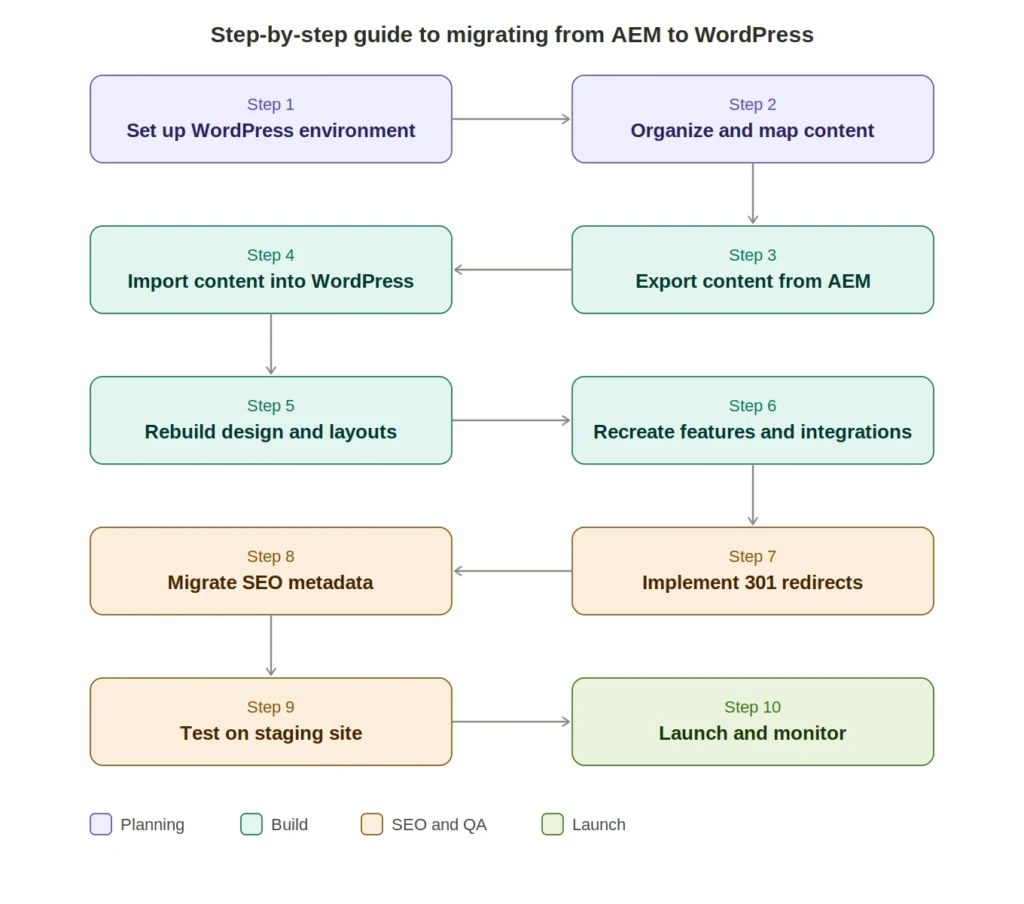
Step 1: Set Up Your WordPress Environment
Install WordPress on your hosting environment and configure the basic settings. Choose a hosting provider that can handle your traffic and performance requirements. Install and configure essential plugins for SEO (Rank Math), security (Wordfence), performance (WP Rocket), and backups (Blogvault). Set your permalink structure to match your AEM URL architecture as closely as possible to reduce redirect complexity.
Step 2: Organize and Map Your Content
Create a master content map that assigns every AEM content item to its WordPress equivalent. Static pages become WordPress pages. Blog articles become posts. Media files are stored in the WordPress Media Library. AEM content fragments and experience fragments need to be reviewed individually and planned as Gutenberg blocks or custom post types.
Step 3: Export Content from AEM
Use AEM’s built-in export tools to extract content in XML, JSON, or CSV format. For large sites, developers can build automated export scripts to improve speed and accuracy. For smaller sites, manual export may be sufficient for straightforward content types.
Step 4: Import Content into WordPress
Use a tool like WP All Import to bring exported files into WordPress. Map fields from your export to the correct WordPress fields: titles, body content, categories, tags, custom fields, and metadata. After import, manually review a representative sample of pages to verify that text, images, and internal links have transferred correctly.
Step 5: Rebuild Your Design and Layouts
Recreate your site’s visual design in WordPress using Gutenberg blocks, Elementor, or a custom theme. This is also an opportunity to modernize your design for current performance standards. Ensure full responsiveness across desktop, tablet, and mobile. Rebuild AEM’s custom UI components as Gutenberg blocks or custom page templates, which often yields a more flexible, editor-friendly experience.
Step 6: Recreate Custom Features and Integrations
Identify every custom feature from your AEM site (interactive elements, complex forms, dynamic content modules, personalization layers) and find WordPress equivalents. Gravity Forms handles complex form logic. Advanced Custom Fields covers structured content needs. Most CRM and analytics integrations are available as native WordPress plugins or via API connection. For features without a direct plugin equivalent, custom WordPress development can replicate them exactly.
Step 7: Implement 301 Redirects
Set up 301 redirects from every old AEM URL to its new WordPress equivalent. Configure server-level redirects in the .htaccess file for optimal performance. Use a plugin like Redirection as a secondary layer. Test every redirect before going live. Missing or broken redirects directly cause SEO ranking loss, so this step deserves dedicated QA time.
Step 8: Migrate and Verify SEO Metadata
Transfer all title tags, meta descriptions, alt text, schema markup, and canonical tags to WordPress. Use Rank Math to apply these at scale. Ensure Open Graph tags and structured data are preserved. Generate a new XML sitemap and prepare it for submission to Google Search Console.
Step 9: Test Everything on a Staging Site
Before going live, run the complete site on a staging environment. Check every page for content accuracy, broken images, missing links, and layout issues across all devices and browsers. Test all forms and interactive features. Run Google PageSpeed Insights and Core Web Vitals checks. Fix everything before launch day.
Step 10: Launch and Monitor
When everything checks out on staging, coordinate the go-live. Update DNS settings, enable SSL, and submit the new sitemap to Google Search Console. Monitor organic traffic and rankings closely in the first four to six weeks. Set up Cloudflare or another CDN if not already in place. Track Core Web Vitals, crawl errors, and indexing status through Search Console.
Common AEM to WordPress Migration Challenges
Challenge: Moving large volumes of content without errors: AEM sites often contain thousands of pages and assets. Attempting to migrate everything at once increases the risk of data loss or formatting errors. Migrate in phases, starting with high-priority pages first, and use automated tools with manual verification checks.
Challenge: Preserving SEO rankings during the transition: URL structure changes are the most common cause of ranking drops during migration. Set up comprehensive 301 redirects mapped from old AEM URLs to new WordPress URLs. Preserve all existing metadata. Submit the new sitemap to Google Search Console immediately after launch. Monitor Search Console for crawl errors and coverage issues daily in the first two weeks.
Challenge: Rebuilding custom AEM components in WordPress: AEM’s content fragments, experience fragments, and custom components lack direct WordPress equivalents out of the box. Evaluate each component individually. Many can be rebuilt as Gutenberg blocks. Others may need custom plugin development. Prioritize components used on high-traffic pages and build lightweight alternatives where possible.
Challenge: Replicating AEM’s personalization capabilities: WordPress supports sophisticated personalization through plugins and integrations, often matching or exceeding AEM’s native capabilities. Tools like If-So, FunnelKit, and CRM integration enable dynamic content delivery without the enterprise overhead.
Post-Migration Checklist: AEM to WordPress Migration
Going live is not the finish line. Use this checklist to verify your WordPress site is fully functional, properly indexed, and protected before you start driving traffic to it.

Content and Functionality
- Verify every page loads correctly and displays the right content
- Confirm all internal and external links are working
- Test all forms, CTAs, and interactive elements
- Check that navigation menus and footer links are complete
SEO and Indexing
- Confirm all 301 redirects are in place and returning correct status codes
- Submit the new XML sitemap to Google Search Console
- Check that meta titles, descriptions, and alt text are present on all key pages
- Verify structured data and schema markup using Google’s Rich Results Test
- Monitor keyword rankings against the pre-migration baseline
Performance
- Run Core Web Vitals audit using Google Search Console and PageSpeed Insights
- Install and configure a caching plugin (WP Rocket or W3 Total Cache)
- Optimize images using Smush or ShortPixel
- Connect to Cloudflare CDN for global performance
Security
- Install Wordfence or Sucuri for malware protection and login security
- Enable HTTPS and verify SSL is working across all pages
- Set up automated backups via Blogvault or BackupBuddy
- Keep WordPress core, themes, and plugins updated
When to Hire a WordPress Migration Expert?
Some migrations are straightforward. Others are not. If your AEM site has custom components, complex editorial workflows, large content volumes, or multiple third-party integrations, bring in an expert.
Professional migration teams understand the architecture of both AEM and WordPress. They know how to export content cleanly, rebuild components in a way that content editors can actually use, and implement redirect strategies that protect your SEO investments. They run everything in a staging environment before launch day, so you don’t discover problems in production.
What a migration expert does that in-house teams often cannot:
- Build automated export and import scripts for large content volumes
- Rebuild AEM experience fragments as fully functional Gutenberg blocks
- Implement server-level 301 redirects with comprehensive testing
- Conduct pre- and post-migration SEO audits to verify ranking preservation
- Handle DNS cutover and staging-to-production deployment with minimal downtime
The cost of professional migration is almost always less than the cost of fixing a poorly executed one. SEO ranking drops, broken integrations, and missing content are expensive to recover from.
Seahawk’s WordPress Migration Services handle the full AEM to WordPress transition (content, design, integrations, SEO, and post-launch support) so your team can focus on the business, not the technical details.
What Businesses Gain After Moving to WordPress?
The benefits of migrating from AEM to WordPress go beyond cost savings. Teams that previously relied on developers for every content update can now publish, edit, and optimize independently. Marketing moves faster. Content operations become leaner. And organizations regain full ownership of their digital platform.
On the technical side, WordPress’s SEO-friendly architecture, performance optimization plugin ecosystem, and modern Gutenberg block editor give migrated sites a genuine advantage over their AEM predecessors. Many businesses see measurable improvements in page speed, Core Web Vitals scores, and organic traffic within the first quarter after migration.
Most importantly, businesses stop paying for a platform they do not fully use and start building on one that grows with them.
Final Thoughts: AEM to WordPress Migration
Migrating from Adobe Experience Manager to WordPress is a practical and strategic decision for businesses seeking greater control, lower costs, and a simpler path to digital growth. The process is complex, but with proper planning, phased execution, and the right migration partner, it is also entirely manageable.
If your team is spending more time working around AEM’s limitations than building your business, the migration conversation is worth having now. The sooner you start planning, the smoother the transition will be.
Frequently Asked Questions: AEM to WordPress Migration
Will my SEO rankings drop after migrating from AEM to WordPress?
Not if the migration is handled correctly. With comprehensive 301 redirects, preserved metadata, and proper sitemap submission, most businesses maintain or improve their rankings after migration. WordPress’s faster load times and SEO-native architecture often result in ranking improvements within the first few months post-launch.
How much does an AEM to WordPress migration cost?
Migration costs vary based on site size, content volume, and the complexity of custom features. For most enterprise sites, professional migration services range from a few thousand dollars for straightforward projects to significantly more for complex implementations. This is typically recovered within the first year through the elimination of AEM licensing fees.
Can WordPress handle enterprise-level traffic after AEM migration?
Yes. With proper hosting infrastructure, caching, and CDN configuration, WordPress supports the same traffic volumes as AEM. WordPress VIP powers some of the world’s highest-traffic websites, including major media companies and Fortune 500 brands.
How do I migrate AEM content fragments to WordPress?
AEM content fragments are best translated into WordPress custom post types or Gutenberg blocks, depending on how they are used. Structured content fragments are typically implemented as custom post types with Advanced Custom Fields. Presentation-oriented fragments become reusable Gutenberg block patterns. Your migration partner should map each fragment type individually during the planning phase.
What happens to my AEM integrations after migration?
Most CRM, analytics, and marketing automation platforms have native WordPress integrations or can be connected via API. Salesforce, HubSpot, Google Analytics, Marketo, and other major enterprise tools all have active WordPress plugin ecosystems. Audit your integrations during pre-migration planning, so alternatives are ready before go-live.
Is it possible to migrate from AEM to WordPress without downtime?
Yes. The best approach is to build the new WordPress site in a staging environment while the AEM site remains live. DNS is updated only after the WordPress site is fully tested and approved. With this approach, the live transition takes minutes, not hours.