
Most WooCommerce stores do not fail to scale because they lack tools. They fail to scale because they add the wrong tools in the wrong order.
Scaling a WooCommerce store means different things at different stages. At $5,000 per month in revenue, scaling means fixing performance bottlenecks before they cost you sales. At $50,000 per month, it means automating operations before they require additional headcount. At $150,000 per month, it means infrastructure that holds under sustained load without developer intervention.
The priority order changes at each stage. This guide tells you what that order is, which tools to use at each stage, and what to do first, regardless of where you are now.
Scaling a WooCommerce store means growing traffic, orders, products, and revenue without creating performance issues, operational bottlenecks, or rising costs that outpace growth.
Successful scaling involves three areas: technical performance to handle increased demand, operational efficiency through automation and streamlined workflows, and revenue optimization to increase conversion rates, average order value, and customer lifetime value.
The most successful WooCommerce stores strengthen their technical foundation first, automate operations second, and optimize revenue generation third.
Signs Your WooCommerce Store Needs to Scale Right Now
Before deciding what to scale, confirm that you actually need to scale. Not every slow site needs a server upgrade. Not every growing store needs new automation tools.
Scale your infrastructure when:
- Page load times exceed three seconds on mobile
- Your server CPU usage consistently exceeds 80%
- Your store goes down or slows dramatically during promotional events
- Admin pages (especially the Orders screen) take more than five seconds to load
- Time to First Byte (TTFB) consistently exceeds 600ms
Scale your operations when:
- You spend more than three hours per day on order fulfillment and customer communications
- You are manually sending follow-up emails to abandoned carts or post-purchase customers
- Inventory errors and overselling are happening regularly
- Your team cannot maintain the current order volume during high-traffic periods without working overtime
Scale your revenue when:
- Your store conversion rate is below 2% with healthy traffic
- Your average order value has not increased in six months
- Less than 20% of customers make a second purchase
- You have no automated email flows running for abandoned carts, post-purchase, or win-back
What to Do First: The Scaling Priority Order
This is the most important section in the guide. Most stores scale in the wrong order, which is why scaling efforts often fail to produce measurable results.
Fix Your Foundation Before Adding Traffic
If your store converts at 1% and loads in 5 seconds, paid traffic won’t change those numbers. It will amplify the problem at additional cost. Every visitor you pay to send to a broken or slow store is a conversion you paid for but didn’t get.
Before investing in any traffic acquisition channel, verify:
- Your mobile page load time is under three seconds
- Your checkout completes without errors on iOS Safari and Android Chrome
- Your cart abandonment rate is below 70% (industry average is around 70%, which is a sign that your checkout is not actively broken)
- Your server does not degrade under 50 to 100 simultaneous visitors
This verification takes hours, not weeks. Run your store through Google PageSpeed Insights and GTmetrix. Complete a test purchase on mobile from start to confirmation. Check your WooCommerce error log for recurring PHP errors. Fix what you find before spending on traffic.
Optimize Before You Advertise
Once your foundation is solid, optimize conversion before scaling traffic. A conversion rate improvement from 1.5% to 2.5% is worth more than doubling your ad budget.
Conversion optimization for WooCommerce:
- Reduce checkout steps (enable one-page checkout)
- Enable guest checkout (Baymard Institute research shows 26% of users abandon because a site requires account creation)
- Add trust signals at checkout: SSL badge, return policy, customer reviews
- Optimize your product pages: clear images, scannable descriptions, visible delivery estimates
- Set up cart abandonment recovery (this alone recovers 5% to 15% of abandoned carts)
Automate Before You Hire
Operational scaling through automation is almost always cheaper than operational scaling through headcount. Email automation, order routing, inventory alerts, and customer service chatbots can replace dozens of hours of manual work per week.
The right automation stack for most WooCommerce stores:
- Cart abandonment recovery (three-email sequence as described in our WooCommerce cart recovery guide)
- Post-purchase email sequence (thank you, usage tips, review request, loyalty offer)
- Low stock alerts are routed to your inventory management system
- Support ticket routing with AI triage for common questions
This automation layer can be built with FluentCRM, Klaviyo, or a similar tool and typically takes two to three days to configure. Once running, it operates without ongoing attention.
Ready to Scale Your WooCommerce Store the Right Way?
Seahawk handles WooCommerce performance optimization, HPOS migration, caching setup, cart recovery, and revenue automation. No contracts. No retainers.
Phase 1: Technical Scaling for WooCommerce
These are the infrastructure changes that your store needs to handle growth without degrading performance.
Upgrade to Scalable WooCommerce Hosting
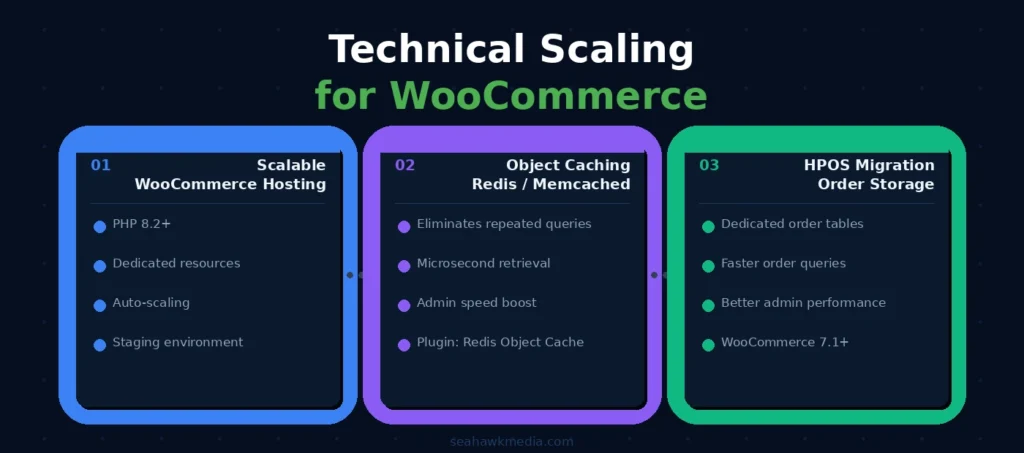
The single most impactful infrastructure decision for a WooCommerce store is the hosting environment. Shared hosting is the most common source of WooCommerce performance bottlenecks. It limits CPU, memory, and database resources and prevents the server-level caching configurations that WooCommerce needs to perform under load.
For a WooCommerce store processing 100+ orders per month, move to managed WooCommerce hosting. The leading options are Kinsta, DreamHost, Pressable, and Cloudways. Each offers dedicated resources, server-level caching (Nginx FastCGI or similar), automatic scaling under traffic spikes, and staging environments for safe updates.
When selecting a host, prioritize these technical specifications:
- PHP 8.2 or 8.3 (significantly faster than PHP 7.x for WooCommerce workloads)
- MySQL 8.0 or MariaDB 10.6+
- Redis or Memcached object caching is available
- Server-level caching (Nginx FastCGI Cache, LiteSpeed Cache, or similar)
- Staging environment included
- Daily automated backups with one-click restore
Enable Object Caching with Redis or Memcached
Object caching is the most impactful server-level performance upgrade for WooCommerce. Without it, WordPress and WooCommerce repeat expensive database queries on every page load. With it, the results of those queries are stored in memory and retrieved in microseconds rather than milliseconds.
Redis is the preferred object caching solution for most managed WordPress hosts. Enable it through your hosting control panel (Kinsta: Redis add-on; Cloudways: Redis from server settings; WP Engine: Global Edge Caching). After enabling, install the Redis Object Cache plugin to connect WordPress to the Redis instance.
For stores without managed hosting that supports Redis, Memcached is an alternative available through most cPanel-based hosts.
The performance difference on WooCommerce stores with large product catalogs and active orders is significant. Admin page load times, product list page rendering, and checkout processing all improve measurably.
Migrate to HPOS for Order Management
WooCommerce has historically stored order data in the WordPress posts table alongside blog posts, pages, and custom post types. This design made sense for small stores but creates database query bottlenecks as order volume grows.
HPOS (High-Performance Order Storage) moves order data to dedicated, properly indexed database tables designed specifically for eCommerce operations. The result is dramatically faster order queries, a faster WooCommerce admin orders screen, and better performance for any reporting or automation that reads order data.
To migrate to HPOS, go to WooCommerce > Settings > Advanced > Features and enable the High-Performance Order Storage option. Run the compatibility check first to confirm that your installed plugins support HPOS. Most major WooCommerce extensions have been updated for HPOS compatibility. Plugins that have not been updated will be flagged as incompatible and should be updated or replaced before migration.
Phase 2: Performance Scaling
Once your infrastructure foundation is in place, these optimizations extend performance under higher traffic loads.
Implement Full-Stack Caching
WooCommerce caching has specific challenges. Product pages, category pages, and the shop page can be cached. Cart, checkout, and My Account pages cannot. A misconfigured caching setup that caches cart and checkout pages will break the shopping experience.
The correct caching stack for WooCommerce:
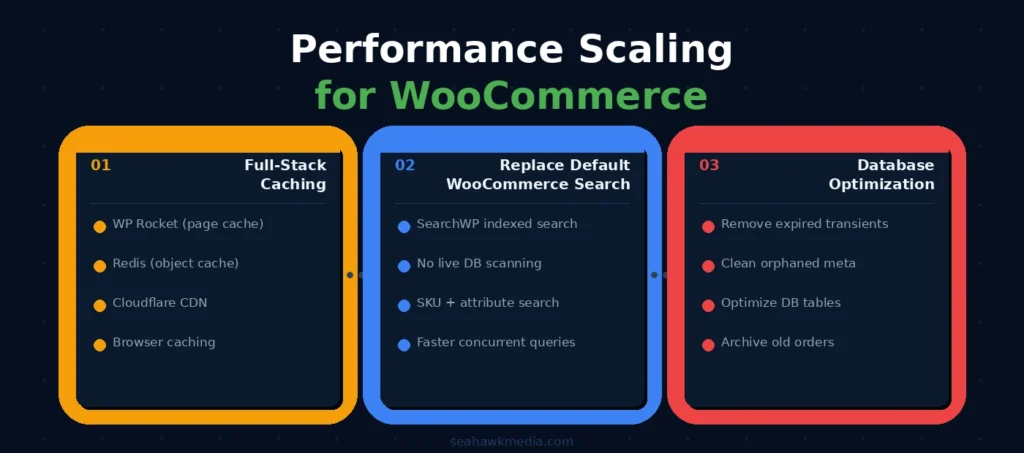
Page caching: WP Rocket is the most WooCommerce-compatible caching plugin. It automatically excludes the cart, checkout, and account pages from caching, respects WooCommerce cookies, and invalidates the cache when product updates occur. Configure WP Rocket to cache all pages, except those on the WooCommerce exclusion list, which is pre-configured in the plugin.
Object caching: Redis or Memcached as described above.
Browser caching: Instruct browsers to store static assets (images, CSS, JavaScript) locally. WP Rocket and most hosting providers automatically configure this.
CDN: Serve all static assets from a CDN rather than your origin server. Cloudflare is the standard choice. It distributes assets from servers close to each visitor’s location, reducing latency globally. WP Rocket integrates with Cloudflare with a single API connection.
Replace Default WooCommerce Search
The default WordPress search scans every word of every product description in the database on every search query. On a store with hundreds or thousands of products and multiple simultaneous searches, this is a significant database bottleneck.
SearchWP indexes your product data in an optimized search index outside the posts table. Searches run against the index rather than the database, delivering results faster and reducing database load for concurrent searches.
Install SearchWP and configure it to index product titles, descriptions, SKUs, categories, tags, and custom attributes. The default WordPress search is automatically replaced. Configure SearchWP’s relevance weighting to prioritize exact SKU matches and product title matches over description matches.
For stores with very large product catalogs (10,000+ SKUs), consider Elasticsearch via ElasticPress, which runs search queries against a dedicated Elasticsearch server entirely outside WordPress.
Optimize Your WooCommerce Database
WooCommerce databases accumulate unnecessary data over time: expired transients, orphaned order meta, spam order data, draft products, and post revisions. This accumulated data increases query times on every database operation.
Run monthly database optimization using WP-Optimize. Configure it to clean expired transients, remove orphaned metadata, optimize database tables, and limit post revisions. For WooCommerce stores, run the WooCommerce-specific cleanup to remove order notes from old canceled and failed orders, which accumulate significantly over time.
For stores with more than five years of order history, archive old order data. WooCommerce does not provide a native archiving tool, but plugins like WooCommerce Order Archiver move historical orders to a separate table, keeping the active orders table lean.
Phase 3: Revenue Scaling
Technical performance sets the ceiling for the revenue your store can generate. Revenue scaling raises how close you get to that ceiling.
Set Up WooCommerce Cart Recovery
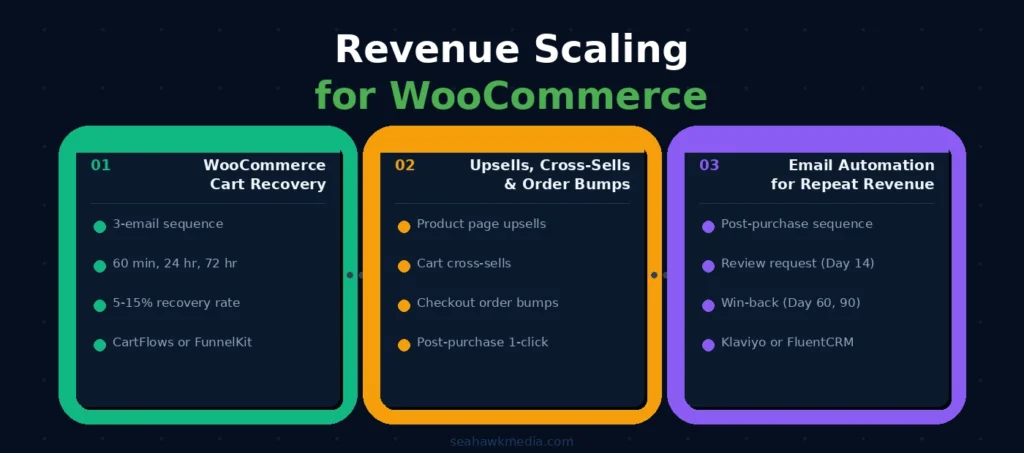
Cart abandonment affects every WooCommerce store at a rate of 60% to 80% of initiated carts. A properly configured three-email recovery sequence recovers 5% to 15% of those abandoned carts, generating revenue from customers who already expressed purchase intent.
The optimal cart recovery sequence:
- Email 1: 60 minutes after abandonment. Simple reminder with cart contents and a restore link. No discount.
- Email 2: 24 hours after abandonment. Add social proof: reviews, testimonials, guarantee reminder
- Email 3: 72 hours after abandonment. Last chance message with a time-limited discount (10% or free shipping)
Install WooCommerce Cart Abandonment Recovery by CartFlows (free) for straightforward email sequences. For more advanced segmentation and multi-channel sequences (email + SMS), FunnelKit Automations handles the full workflow. Connect to WP Mail SMTP before activating any cart recovery sequence to ensure emails reach inboxes rather than spam.
Add Upsells, Cross-Sells, and Order Bumps
Increasing average order value requires no additional traffic or advertising. It requires showing customers relevant additional products at the moment they are already buying.
Product page upsells: WooCommerce has built-in upsell fields on every product. Add two to three higher-value alternatives or complementary products. These appear below the product description.
Cross-sells at cart: WooCommerce’s built-in cross-sell feature shows related products in the cart. Add cross-sells to your most purchased products.
Order bumps at checkout: A checkbox offer shown at checkout for a small add-on product at a reduced price. CartFlows and FunnelKit both add this functionality to WooCommerce checkout. Order bumps on WooCommerce checkout pages convert at 15% to 30%, making them among the highest-converting revenue additions available.
Post-purchase upsell: Display a one-click upsell offer on the thank-you page after a purchase. The customer’s card is already charged. One additional click adds the upsell to their order without requiring them to re-enter payment information. CartFlows Pro handles this natively.
Build Email Automation for Repeat Revenue
Repeat customers cost 5 to 7 times less to sell to than new customers and convert at significantly higher rates. An automated email sequence for existing customers generates recurring revenue without recurring acquisition cost.
The standard WooCommerce email automation stack:
Post-purchase welcome sequence (Days 1, 3, 7): Thank the customer, provide usage tips or content relevant to their purchase, and invite them to follow you on social media or join a loyalty program.
Review request (Day 10 to 14): Automated request for a product review. Klaviyo and FluentCRM both trigger this from WooCommerce order status changes.
Win-back sequence (Days 60 and 90 after the last purchase): For customers who have not returned, send a personalized offer. Reference their previous purchase. Offer a relevant complementary product or a loyalty discount.
Birthday or anniversary emails: Customers who receive a personal offer on their birthday have a significantly higher conversion rate than those who receive standard promotional emails. Klaviyo handles this natively for WooCommerce.
Essential Tools for Scaling a WooCommerce Store
| Category | Tool | Purpose | Starting Price |
| Hosting | Kinsta, WP Engine, Cloudways | Scalable managed WordPress hosting | From $35/month |
| Object caching | Redis Object Cache plugin | Connect WordPress to Redis | Free |
| Page caching | WP Rocket | WooCommerce-compatible caching | $59/year |
| CDN | Cloudflare | Global static asset delivery | Free tier available |
| Search | SearchWP | Replace default WooCommerce search | $99/year |
| Database | WP-Optimize | Database cleanup and optimization | Free / $49/year |
| Cart recovery | CartFlows Cart Abandonment | Three-email recovery sequences | Free |
| Advanced automation | FunnelKit Automations | Email + SMS, visual workflow builder | $99/year |
| Email marketing | Klaviyo or FluentCRM | Customer lifetime value automation | From free |
| Order bumps | CartFlows Pro | Checkout and post-purchase upsells | $99/year |
| HPOS | WooCommerce built-in | High-performance order storage | Free (WooCommerce 7.1+) |
| Analytics | Metorik | WooCommerce-specific revenue analytics | From $20/month |
WooCommerce Scaling Roadmap by Store Size
| Revenue Stage | Priority 1 | Priority 2 | Priority 3 |
| Under $5,000/month | Fix performance (hosting, caching) | Set up cart recovery | Add upsells to top products |
| $5,000 to $20,000/month | Migrate to managed hosting + Redis | HPOS migration | Email automation stack |
| $20,000 to $50,000/month | Full caching stack + CDN | SearchWP for product search | Post-purchase upsells + Klaviyo |
| $50,000 to $150,000/month | Dedicated hosting, database optimization | Headless or decoupled front-end | Revenue analytics (Metorik) |
| Over $150,000/month | Custom infrastructure review | Elasticsearch for search | ERP integration and full automation |
Final Thoughts on Scaling a WooCommerce Store
Scaling a WooCommerce store is not about having all the tools. It is about having the right tools applied in the right order.
Fix your performance foundation before you scale traffic. Automate your operations before you scale the team. Optimize your revenue levers before you assume the problem is acquisition.
Most WooCommerce stores that feel impossible to scale are simply being scaled out of order. A store that is slow, breaks under promotional traffic, and has no recovery mechanisms for abandoned carts will not grow from more advertising. It will just burn more budget on the same broken experience.
Work through the three phases. Monitor your conversion rate, your page load time, and your revenue per visitor. Those three numbers tell you whether your scaling actions are working. When they improve, keep going. When they do not, go back to the previous phase.
If you need help implementing any of these scaling changes on your WooCommerce store, Seahawk’s eCommerce development team handles the full technical and operational setup.
Frequently Asked Questions About Scaling WooCommerce
Can WooCommerce actually scale to enterprise volume?
Yes. WooCommerce scales to enterprise volume with the right hosting, caching, and database configuration. The claim that WooCommerce cannot scale applies only to misconfigured stores on shared hosting without object caching or proper database optimization. Stores processing tens of thousands of orders per month run on WooCommerce with the infrastructure described in this guide.
What should I do first to scale my WooCommerce store?
Fix your performance foundation before adding traffic or tools. Verify that your mobile page load time is under 3 seconds, that your checkout completes without errors, and that your server handles 50 to 100 simultaneous visitors without degrading. Once performance is solid, set up cart abandonment recovery and then move to operational automation. Adding traffic to a broken or slow store wastes every advertising dollar.
How much does it cost to scale a WooCommerce store?
The cost depends on your current stage. Moving from shared to managed hosting costs $35 to $200 per month, depending on the provider and plan. Adding Redis object caching is typically included or costs $25-$100 per month as an add-on. WP Rocket costs $59 per year. Cart recovery automation with CartFlows is free. Klaviyo for email automation starts at free and scales with list size. A complete technical and automation scaling stack for a store doing $20,000 to $50,000 per month typically costs $200 to $500 per month in tools.
What is HPOS, and why does it matter for scaling WooCommerce?
HPOS (High-Performance Order Storage) is WooCommerce’s newer order storage system that keeps orders in dedicated database tables rather than the WordPress posts table. As order volume grows, the posts table becomes congested with mixed data types, slowing every order-related database query. HPOS moves orders to properly indexed dedicated tables, dramatically improving the orders dashboard load time, order query speed, and any reporting or automation that reads order data. Enable it under WooCommerce > Settings > Advanced > Features after running the compatibility check.
What is the best hosting for a scaling WooCommerce store?
Kinsta, WP Engine, Pressable, and Cloudways are the leading managed WordPress hosts for scaling WooCommerce stores. Each offers PHP 8.2+, server-level caching, Redis object caching, staging environments, and daily automated backups. The right choice depends on your budget and technical requirements. Kinsta offers the best performance at the higher end. Cloudways offers the most flexibility and best value for mid-size stores.
How do I increase WooCommerce store revenue without more traffic?
Increasing revenue without traffic requires optimizing conversion rate and average order value. Set up cart abandonment recovery to capture the 60% to 80% of carts that are abandoned without purchase. Add order bumps at checkout (which convert at 15% to 30%). Set up post-purchase upsells on the thank-you page. Build an email automation sequence for repeat purchase promotion. When combined, these four actions can increase revenue by 20% to 40% from existing traffic within 60 days of implementation.


