

Google Consent Mode V2 marks a significant evolution in data privacy compliance for websites utilizing Google services.
Introduced as a response to evolving global regulations and heightened user expectations for privacy, this updated version emphasizes enhanced transparency and user control over data collection and processing.
Effective from March 2024, its implementation is mandatory for all websites using Google services, which makes it essential to understand its features and implications.
In this guide, we will look into the key aspects of Google Consent Mode V2 and provide helpful insights to ensure seamless integration and compliance with data privacy standards.
What is Google Consent Mode?
Google Consent Mode (GCM) is a tool developed by Google to help website owners comply with data privacy regulations such as the General Data Protection Regulation (GDPR) in the European Union and the California Consumer Privacy Act of 2018 (CCPA) while using Google services like Google Analytics and Google Ads.
Here’s a brief overview of it:
- Purpose: It allows websites to adjust how Google tags behave based on user consent preferences regarding data collection and processing.
- Implementation: It integrates with Google Tag Manager, allowing for the dynamic configuration of tags based on user consent status.
- User Consent Handling: GCM provides options to control data sharing with Google services based on user consent preferences, ensuring compliance with privacy regulations.
- Enhanced Flexibility: It allows customization of consent settings, enabling websites to tailor user experiences while respecting privacy choices.
- Improves User Transparency: It also enhances transparency by providing users with information about data collection and processing practices.
- Seamless Integration: Designed to integrate seamlessly with existing Google services implementation, GCM minimizes disruption to website functionality.
Learn: Implement Cookie Consent (GDPR/CCPA/EU Cookie Law) in WordPress
How Does it Work?
Google Consent Mode uses Google Tag Manager to dynamically adjust the behavior of tags based on user consent preferences regarding data collection and processing. Here’s how it works:
- Websites using Google Consent Mode prompt users to provide consent for data collection and processing, typically through consent banners or pop-ups.
- Upon obtaining user consent, Google Consent Mode determines the user’s consent status (i.e., consent given or not given).
- Google Tag Manager then adjusts the configuration of Google tags (such as Google Analytics 4 and Ads tags) based on the user’s consent status.
- Tags are either activated or deactivated accordingly, allowing Google services to collect data only from users who have given consent in compliance with privacy regulations.
Additionally, as user consent preferences may change over time, Google Consent Mode continuously monitors and updates tag configurations in real time based on the latest consent status.
Primary Parameters in Google Consent Mode
The primary parameters in Google Consent Mode encompass:
- ad_storage: Controls the storage of data related to advertising activities.
- analytics_storage: Manages storage for analytics data collection.
- functionality_storage: Oversees storage for functionality-related data.
- personalization_storage: Regulates storage for personalized data.
- security_storage: Handles storage for security-related data.
New Parameters of Google Consent Mode v2
With the transition to Google Consent Mode v2 as of March 2024, two additional parameters are introduced:
- ad_user_data: Indicates whether the user consents to the utilization of their personal data for advertising purposes.
- ad_personalization: Reflects the user’s consent for their data to be employed in remarketing.
This aligns with Google’s ongoing commitment to fostering a privacy-centric advertising space. Google is reinforcing the enforcement of its EU user consent policy, which requires advertisers to adhere to this policy to utilize ad personalization effectively.
In 2024, Google’s enforcement actions will extend to measurement features, impacting data from:
- Websites: Including tags that transmit data to Google.
- Apps: Encompassing SDKs that relay data to Google.
- Data uploads: Covering tools facilitating the upload of data from non-Google sources, such as offline conversion imports or store sales.
To continue utilizing measurement, ad personalization, and remarketing features, it is imperative for advertisers to obtain consent for the use of personal data from end users located in the European Economic Area (EEA) and to share consent signals with Google.
These requirements also pertain to using Google Analytics 4 data in conjunction with any Google service.
Is Your Website Ready for the New EEA Regulation?
Don’t risk penalties and lose valuable traffic & revenue. Let us help ensure your site is up-to-date and compliant.
Google Consent Mode v2: Basic and Advanced Consent Mode
With the enforcement and regulation of the European Digital Markets Act (DMA) commencing in March 2024, digital corporations such as Google are required to take measures to comply with its provisions.
In response, Google has launched Google Consent Mode V2.
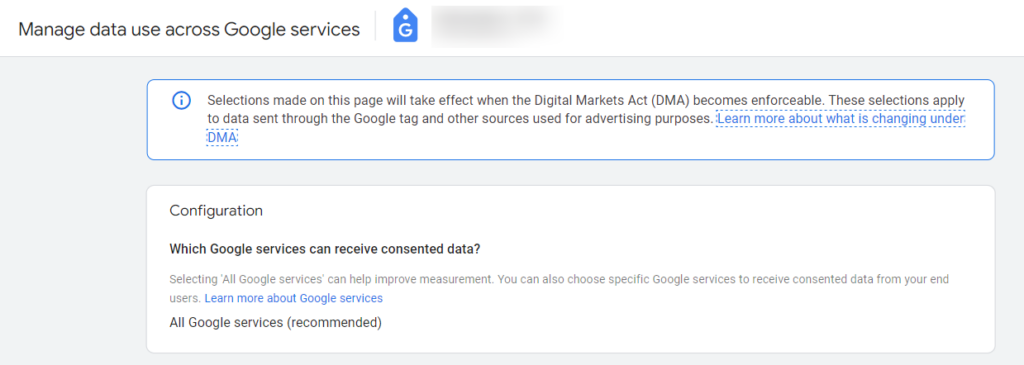
Under the DMA, advertising platforms such as Google and Meta are required to obtain user consent.
To comply with this regulatory framework, Google is mandating the adoption of Google Consent Mode V2 for advertisers targeting users within the European Economic Area (EEA).
This ensures advertisers can ascertain whether users have consented to online cookie tracking.
Google Consent Mode v2 offers two implementation options:
Basic Consent Mode: In this mode, the Tags remain inactive until a user interacts with the consent banner, ensuring that no data is transmitted to Google before user consent is given.
- Upon consent, Google tags load and transmit consent states to Google, initially sending default consent states and then updated ones.
- If a user declines consent, no data or consent status is sent to Google, effectively blocking Google tags.
Also, if a user declines consent, then conversion modeling in Ads relies on a general model.
Advanced Consent Mode: In this mode, Google tags load upon the user’s initial interaction with the website or app.
- Default consent settings are typically set to deny consent unless customized otherwise.
- While consent is denied, Google tags send cookieless pings.
- Upon user consent, complete measurement data is transmitted by Google tags.
This mode offers enhanced modeling capabilities by allowing advertiser-specific models, thereby improving accuracy compared to the Basic mode.
How to Implement Google Consent Mode v2 on a Website?
Below is a detailed guide on implementing Google Consent Mode v2 on a website using Google Tag Manager (GTM).
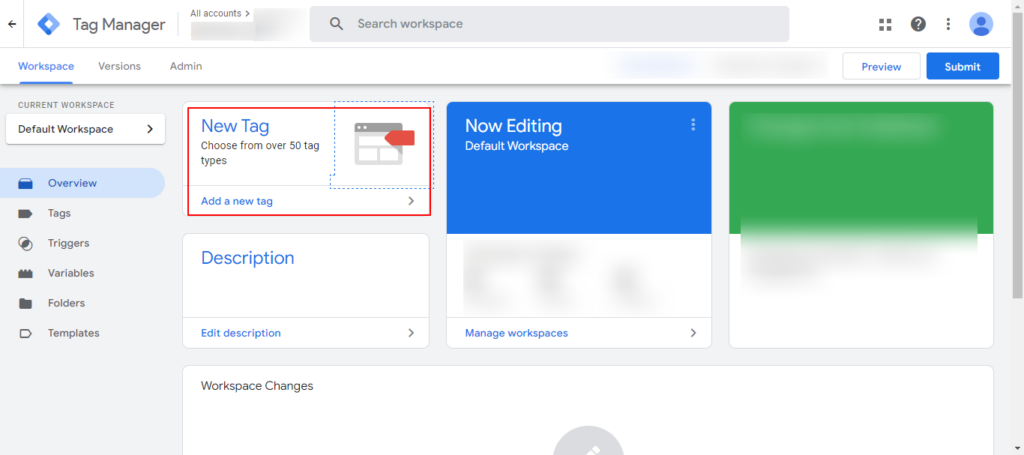
Step 1: Access Google Tag Manager
Log in to your Google Tag Manager account and navigate to the “Tags” section in GTM. Click on “New” to create a new tag.
Step 2: Configure Tag Type
Choose a tag type that supports Google Consent Mode v2, such as “Custom HTML” or “Custom Image.”
Step 3: Implement Basic or Advanced Mode
Decide whether to implement Basic or Advanced Consent Mode.
- For Basic Mode, set the tag to load only after user consent is obtained.
- For Advanced Mode, configure the tag to load on the page with default consent states.
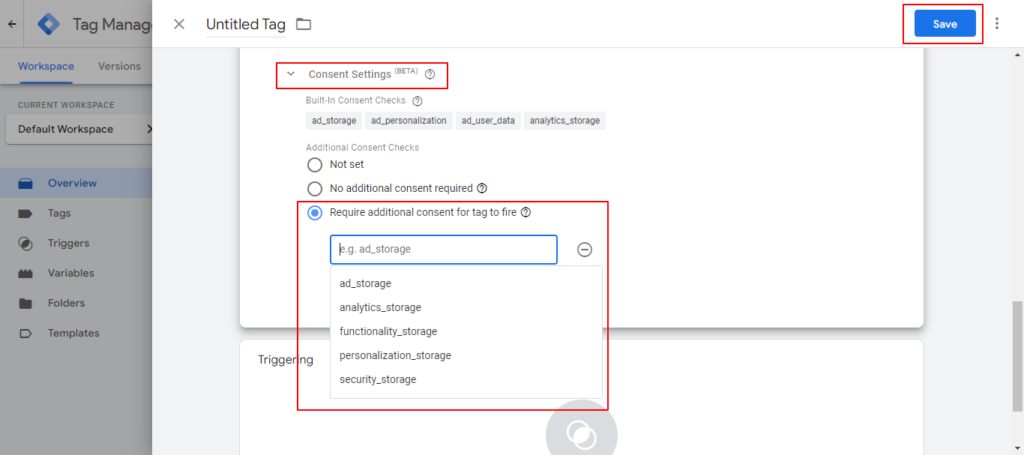
Step 4: Set Consent Mode Parameters
Configure the tag to include the necessary parameters for Google Consent Mode v2.
Parameters may include ad_storage, analytics_storage, ad_personalization, etc. Set default consent states based on your privacy policy.
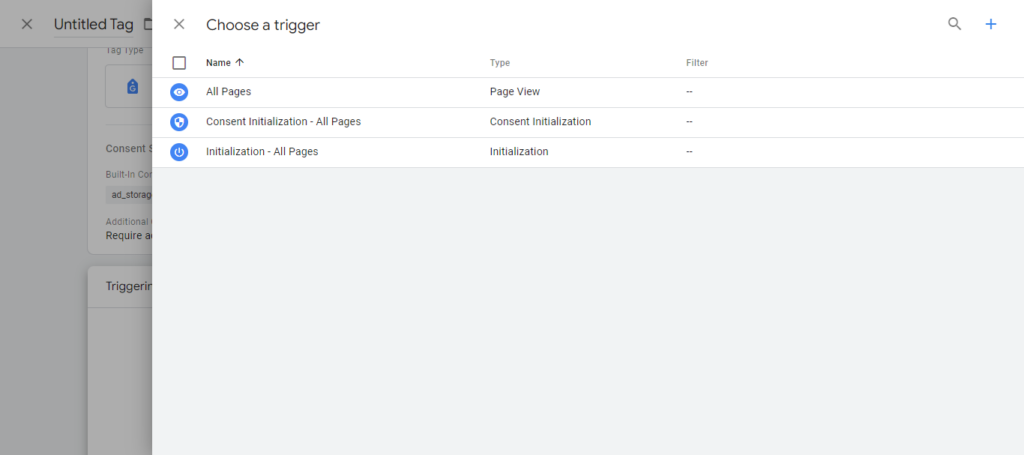
Step 5: Add Trigger
Create a trigger to determine when the consent banner should appear. This trigger could be based on page load or user interaction.
Step 6: Test the Implementation and Publish the Tag
Use GTM’s preview mode to test the implementation. Verify that the consent banner appears as expected and that tags are loaded according to the chosen mode.
Once testing is successful, publish the tag to make it live on your website.
Additionally,
- Monitor and Update: Regularly monitor your site’s performance of Google Consent Mode v2. Update default consent states or tag configurations as needed based on changes in privacy regulations or user preferences.
- Document Implementation: Document the implementation process, including tag configurations and consent settings. Keep detailed records of consent status and user interactions for compliance purposes.
- Stay informed: Be aware of updates and changes to Google Consent Mode v2 and other relevant data privacy regulations. Continuously review and update your implementation to ensure ongoing compliance and user transparency.
Further reading: Best HIPAA-Compliant WordPress Hosting Services
What Happens if Google Consent Mode is Not Activated?
If Consent Mode is not activated or implemented correctly, Google tags may load regardless of the user’s consent status.
Tags may collect and transmit data to Google even before the user interacts with the consent banner. This scenario poses a risk of non-compliance with data privacy regulations, as user consent preferences are not respected.
Without Consent Mode, websites may face legal consequences for unauthorized data collection and processing activities.
Thus, activating Google Consent Mode is essential. It ensures that Google tags behave responsibly by respecting user consent preferences, thereby promoting compliance with data privacy regulations and maintaining user trust.
Struggling With Implementing Google Consent Mode v2?
Our team can help ensure compliance and protect user data through the seamless implementation of Consent Mode v2.
How to Make Sure Your WordPress Site is Compliant?
Ensuring compliance with data privacy regulations on a WordPress site involves several steps, particularly in integrating Google Consent Mode V2 and Cookie Compliance. Here’s a detailed guide:
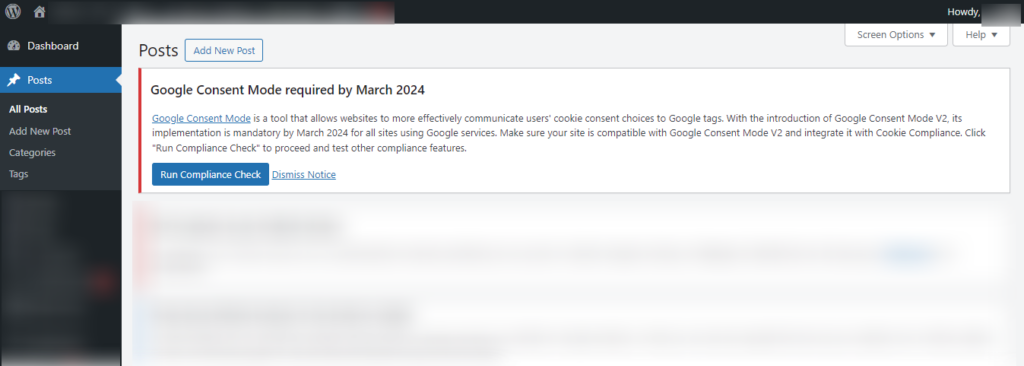
- Log in to your WordPress site’s admin panel. If you encounter a default message prompting compliance upon logging in, address it promptly. This message typically suggests running a compliance check.
- Verify that your WordPress site is compatible with Google Consent Mode V2. Review the specifications and requirements for Google Consent Mode V2 to ensure compatibility.
- Choose a Cookie Compliance plugin suitable for your WordPress site. Install & activate the plugin from the WordPress plugin repository.
- Configure the plugin settings according to your website’s requirements, including the appearance of the consent banner and cookie settings.
- Run Compliance Check: After integrating the Cookie Compliance plugin, navigate to the compliance settings or dashboard. Look for the option to “Run Compliance Check” or a similar option. Click on the option to initiate the compliance check process.
- Test Other Compliance Features: After initiating the compliance check, the plugin will evaluate various compliance aspects, including Google Consent Mode V2 integration and cookie compliance. Test the plugin’s other compliance features, such as data consent management and privacy policy generation.
- Review Compliance Reports: After completing the compliance check, review the compliance report generated by the plugin. Address any issues or recommendations highlighted in the report to ensure full compliance with data privacy regulations.
Know more: accessiBe Review: Best Solution for Web Accessibility and ADA Compliance.
Conclusion
The introduction of Google Consent Mode V2 represents a significant step forward in data privacy compliance. With its enhanced features, including granular control over data collection and processing based on user consent preferences, Google Consent Mode V2 empowers both users and advertisers.
Prioritizing transparency and user choice also fosters a privacy-centric digital environment, which is crucial for maintaining trust and compliance with evolving regulations such as GDPR.
Implementing Google Consent Mode V2 has become indispensable for businesses to safeguard user privacy while responsibly leveraging the benefits of digital advertising. So, get started on this now. If you require any help, feel free to contact us.
Google Consent Mode v2 FAQs
What is Google Consent Mode v2, and why is it essential under EEA regulations?
Google Consent Mode v2 helps websites align with data privacy laws by adjusting how Google tags behave based on user consent choices. It ensures that conversion tracking and Google Ads performance continue while respecting consent categories, such as analytics and advertising cookies.
How does consent mode v2 interact with my Consent Management Platform (CMP)?
Consent Mode v2 connects directly with your CMP to receive signals when a user grants or denies consent. The CMP sends consent updates to the Google Tag Manager container, allowing built-in consent checks before firing any Google scripts.
What is the difference between basic and advanced consent mode?
The Basic mode limits data collection until consent is granted, whereas the Advanced mode sends anonymous pings to Google Ads and Analytics even without permission. Implementing advanced consent mode enables better data modeling while complying with applicable privacy laws.
How do I test and verify my consent mode implementation?
You can use your browser’s developer tools to inspect network requests, confirm consent mode signals, and ensure tag behavior changes correctly when users adjust their consent choice on the cookie banner or landing page URLs.
What happens if consent mode v2 is not implemented correctly?
Without proper implementation, Google’s advertising and conversion tracking may lose valuable conversion data. This can disrupt measurement accuracy, affect Google Ads cookies, and reduce insights for spam and fraud management purposes.


