A slow website costs you traffic, conversions, and revenue. WordPress speed optimization is one of the most important investments you can make for your site’s long-term success. Every second of delay pushes visitors away and signals to search engines that your site is not ready to rank.
Most WordPress owners don’t spot speed problems until the damage is already done. This guide walks you through the most common speed mistakes, explains why each one matters, and shows you exactly how to fix them.
TL;DR: What You Need to Know
- Page load speed is a confirmed Google ranking signal that directly affects search visibility.
- The biggest performance killers include poor hosting, unoptimized images, and missing caching.
- Fixing these issues improves user experience, boosts conversions, and lifts your SEO rankings.
- Speed is not a one-time fix; regular audits and maintenance keep your site competitive.
How WordPress Speed Optimization Impacts SEO Rankings?
Speed and SEO are deeply connected. A slow WordPress site affects far more than just user experience. It directly impacts how search engines discover, crawl, and rank your pages.
Why Page Speed is a Google Ranking Factor?
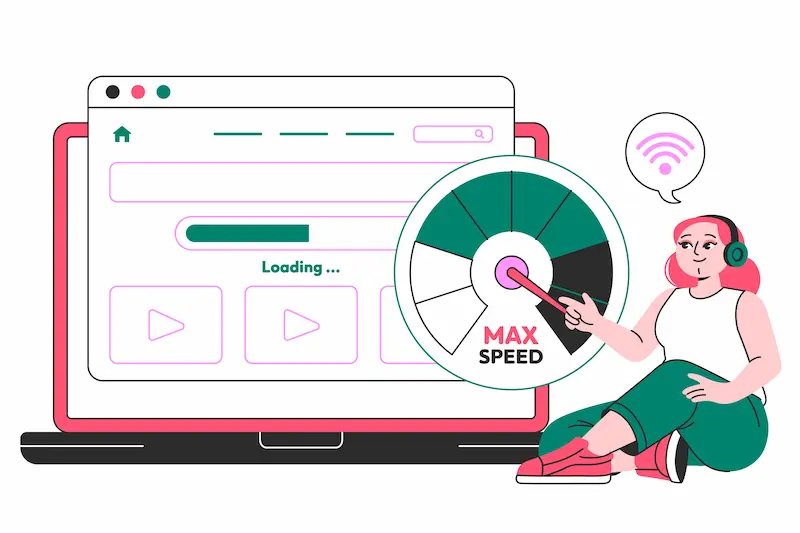
Google confirmed page speed as a ranking signal in its 2018 Speed Update, which applied specifically to mobile searches. Since then, speed has remained a core part of Google’s page experience signals.
Sites that load in under two seconds consistently rank higher than slower competitors. Faster load times mean lower bounce rates, more crawled pages, and better overall performance in organic search.
How Slow WordPress Websites Affect UX and Conversions?
A slow site drives people away. Research shows that 53% of mobile users abandon a page that takes longer than three seconds to load. Each additional second of delay can reduce conversions by up to 7%.
When you improve your WordPress user experience, speed is one of the first things to address. Fast pages keep visitors engaged, reduce frustration, and increase the likelihood they will take action.
Technical SEO and WordPress Speed Optimization Connection
Speed is a central pillar of technical SEO. Slow server response times, inefficient rendering, and heavy pages waste Google’s crawl budget. This means fewer of your pages get indexed in each crawl cycle.
Following proven technical SEO tips always starts with site speed. Faster pages ensure search engines can efficiently discover and rank your content without wasted resources.
Speed Up Your WordPress Site Today
Improve load time, boost Core Web Vitals, and enhance SEO performance with professional WordPress speed optimization.
Why Choose Seahawk Media for WordPress Site Speed Optimization?
Seahawk Media is a globally trusted WordPress agency that has delivered speed optimization for over 1,000 brands.

Our speed optimization process begins with a full performance audit using Seahawk’s Page Speed Test, along with tools such as GTMetrix and Google PageSpeed Insights.
We offer two pricing tiers. The Essentials plan starts at $499 and includes caching configuration, CDN setup, image optimization, minification of CSS, JS, and HTML, lazy loading, and performance enhancements such as script deferral and database auto-loading optimization.
The Comprehensive plan at $999 includes everything in Essentials, plus advanced resource hinting such as preload, preconnect, and prefetch, as well as core database optimization.
Every engagement includes a staging environment. Your live site remains unaffected while changes are tested and validated. Once you approve the results, changes are pushed live safely. A before-and-after performance report documents every improvement made.
If you’re evaluating which service provider to trust with your site, understanding how to pick a WordPress agency will help you make the right call.
Benefits of Fixing WordPress Speed Optimization Mistakes
Fixing speed problems delivers compounding returns across your entire website.
- Faster Load Times: Optimized pages load in under two seconds. This directly reduces bounce rates and improves time on site.
- Higher Conversion Rates: Speed is one of the most impactful factors in conversion. Faster pages lead to more purchases, form completions, and sign-ups.
- Better Search Rankings: Speed improvements work in tandem with a solid WordPress SEO strategy to push your pages higher in organic search results.
- Improved Core Web Vitals: Fixing speed mistakes directly lifts your LCP, INP, and CLS scores, Google’s key page experience metrics.
- Web Accessibility Compliance: Well-optimized sites load faster on assistive technologies too, supporting accessibility compliance with WCAG standards.
- Stronger Brand Credibility: A fast, reliable site builds trust, especially for small businesses where the website is often the first customer touchpoint.
Steps to Identify WordPress Speed Optimization Issues
Before you fix anything, you need a clear picture of the problem.
- Step 1: Run a Speed Test. Use Google PageSpeed Insights, GTMetrix, or Seahawk’s built-in speed testing tool. These tools measure load time, Time to First Byte (TTFB), and specific performance bottlenecks.
- Step 2: Conduct a WordPress Site Audit. A thorough WordPress site audit reviews hosting quality, plugin load, image sizes, database bloat, and code efficiency. It gives you a prioritized list of what to fix.
- Step 3: Compare Mobile vs Desktop Performance. Always test on both platforms. Google uses mobile-first indexing, so mobile speed matters more than most people realize. A site can load fast on a desktop but still fail on mobile.
- Step 4: Review Core Web Vitals. Check your Largest Contentful Paint (LCP), Interaction to Next Paint (INP), and Cumulative Layout Shift (CLS) scores in Google Search Console. For larger sites, analyzing core web vitals for enterprise websites requires a more systematic approach.
- Step 5: Prioritize by Impact. Not all issues carry equal weight. Fix the highest-impact problems first, typically, hosting quality, image sizes, and caching setup.
Common WordPress Speed Optimization Mistakes and How to Fix Them
Identify the most common performance issues slowing down your WordPress site and apply proven fixes to improve speed, user experience, and SEO rankings.
Choosing Poor or Unoptimized WordPress Hosting
Your hosting environment is the single biggest factor in your site’s raw speed. Many site owners choose the cheapest option without understanding the performance cost.

Shared hosting puts hundreds of websites on the same server. This creates resource competition and inflated server response times. Poor hosting is the most common cause of a slow Time to First Byte (TTFB), which delays every page load.
The Fix: Upgrade to a managed WordPress hosting plan. Compare the fastest WordPress hosting companies to find one that offers SSD storage, dedicated resources, and built-in page caching.
Understanding the difference between shared hosting and WordPress hosting makes the performance gap clear from the start. For small business owners specifically, choosing the right hosting is a crucial early decision that shapes every aspect of site performance.
Using Too Many or Poorly Coded WordPress Plugins
Every active plugin adds PHP code, database queries, and in many cases, external CSS and JavaScript files. Installing too many plugins, or using bloated ones, dramatically increases page weight and HTTP requests. Even plugins that aren’t actively used on a specific page can still load their scripts across your entire site.
The Fix: Audit your active plugins. Deactivate and delete anything unused. Replace multiple plugins doing similar jobs with one well-coded alternative. When custom functionality is required, work with trusted WordPress plugin development companies rather than stacking generic plugins.
Not Using a Lightweight and Optimized WordPress Theme
Heavy themes come loaded with demo content, visual builders, external font libraries, and dozens of scripts. Even if you only use 10% of a theme’s features, all that extra code still loads for every visitor. Theme bloat silently slows every page on your site.
The Fix: Choose a theme built for speed from the ground up. Options like Astra, GeneratePress, and Kadence are among the fastest WordPress themes available.
If your business needs a unique look, investing in custom WordPress theme development gives you full control over performance from day one. Modern WordPress block themes also offer excellent performance with minimal overhead.
Unoptimized Images and Media Files Slowing Down WordPress
Images are typically the heaviest elements on any page. Uploading full-resolution photos without compression adds unnecessary kilobytes, or even megabytes, to every page load. Large images also delay Largest Contentful Paint (LCP), which directly impacts your Core Web Vitals score.
The Fix: Always compress images before uploading. Convert images to modern formats like WebP for maximum compression without quality loss. Enable lazy loading so images below the fold only load when scrolled into view. If you already have oversized or corrupted media live on your site, knowing how to fix broken images in WordPress is an immediate priority.
Ignoring Caching and Browser Caching in WordPress
Without caching, WordPress rebuilds every page from scratch for each visitor. PHP processes execute, database queries run, and HTML is generated fresh on every single request. This is slow and resource-intensive.
The Fix: Enable server-side caching through your hosting provider or a plugin like WP Rocket, W3 Total Cache, or LiteSpeed Cache. Also, enable browser caching, which stores CSS, JavaScript, and images in a visitor’s browser so repeat visits load much faster. Seahawk Media’s Essentials plan includes full caching configuration as a standard deliverable.
Not Using a Content Delivery Network CDN
A CDN distributes your site’s static files, images, CSS, and JavaScript across a global network of servers. When a visitor loads your site, those files are served from the server geographically closest to them.
Without a CDN, every request is routed to your single origin server, regardless of the visitor’s location. This adds latency for users far from your server’s physical location.
The Fix: Implement a CDN like Cloudflare, Bunny CDN, or StackPath. CDN setup is included in Seahawk’s speed optimization plans and typically delivers immediate, measurable reductions in page load time for international visitors.
Poor WordPress Database Optimization and Cleanup Issues
Over time, your WordPress database accumulates junk: post revisions, orphaned meta records, transients, spam comments, and unused data. This bloat slows down every database query your site makes.
The Fix: Use tools like WP-Optimize or Advanced Database Cleaner to remove unnecessary data. Limit post revisions in your wp-config.php file. Schedule monthly automated cleanups.
A lean database queries faster, reduces server load, and makes your entire site more responsive. Reviewing your WordPress error logs can also reveal database-related issues before they compound.
Not Minimizing CSS, JavaScript, and HTML Files
Raw CSS and JavaScript files contain white space, comments, and formatting that humans need but browsers don’t. Sending these full files over the network wastes bandwidth on every page load.
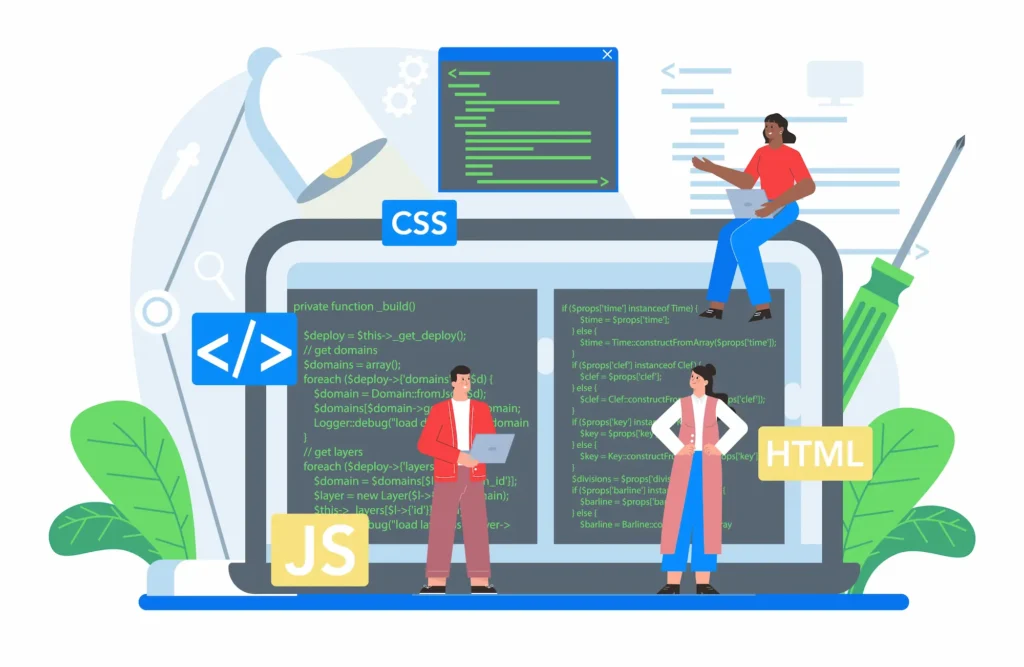
Render-blocking JavaScript is especially costly; scripts that load before the page paints block everything from appearing until they finish executing.
The Fix: Minify your CSS, JavaScript, and HTML files to remove unnecessary characters. Defer JavaScript execution to avoid blocking page rendering.
Combine multiple small CSS or JS files into fewer requests to reduce HTTP overhead. Seahawk includes CSS, JS, and HTML minification along with deferred JavaScript as part of every speed optimization plan.
Ignoring Mobile Optimization and Responsive Design
Google uses mobile-first indexing. This means it crawls and evaluates your mobile version first, then uses that data to determine your rankings across all devices. A site that performs poorly on mobile will rank lower even for desktop users.
The Fix: Use a responsive WordPress theme that adapts seamlessly to all screen sizes. Test all key pages on real mobile devices. Compress mobile assets specifically. Reduce tap target sizes and ensure fonts render without delay. Consider a complete SMB website redesign if your current theme is fundamentally non-responsive.
Not Enabling GZIP Compression and HTTP Optimization
GZIP and Brotli compression reduce the size of files your server sends to browsers. Without compression, full-sized HTML, CSS, and JavaScript files are sent across the network uncompressed, adding unnecessary load time to every request.
The Fix: Enable GZIP or Brotli compression at the server level. This typically reduces file transfer sizes by 60–70%. Also, ensure your server supports HTTP/2 or HTTP/3, which allows multiple requests to run simultaneously and significantly reduces connection latency.
Slow External Scripts and Third-Party Integrations
Live chat widgets, ad scripts, Google Tag Manager, social media embeds, and analytics tools all introduce external requests. These scripts load from servers you don’t control, and if those servers are slow, your page waits for them.
The Fix: Audit all third-party scripts on your site. Remove anything non-essential. Load remaining scripts asynchronously or defer them to avoid blocking initial page rendering. Self-host fonts and icons, where possible, to eliminate external dependencies.
Ignoring Core Web Vitals and Performance Metrics
Core Web Vitals are Google’s official performance metrics. They measure three specific dimensions of user experience: Largest Contentful Paint (LCP) for loading, Interaction to Next Paint (INP) for responsiveness, and Cumulative Layout Shift (CLS) for visual stability. Poor Core Web Vitals scores are a direct penalty on your search visibility.
The Fix: Monitor your Core Web Vitals in Google Search Console at least once a month. Address failing metrics systematically. LCP is usually fixed by optimizing your hero image and server response time.
CLS requires fixing layout shifts caused by images or ads without defined dimensions. INP improves when you minimize JavaScript execution on interaction.
No Regular WordPress Maintenance and Updates
WordPress core, themes, and plugins release updates frequently. Outdated software creates compatibility issues, security vulnerabilities, and in many cases, measurable performance regressions.
Neglecting updates is one of the most overlooked speed mistakes. Older plugin versions often contain inefficient code that newer versions have already optimized.
The Fix: Schedule regular WordPress maintenance, at a minimum, monthly. Keep all software updated. Review your WordPress error logs after updates to catch issues early. If bugs appear after an update, a reliable WordPress bug fix service can resolve them quickly without disrupting your live site.
The WordPress platform itself continues to evolve, and staying current ensures you benefit from the latest performance improvements.
Looking ahead, understanding the future of WordPress reveals how the platform is advancing, with performance and block-based architecture at its core.
Conclusion
WordPress speed optimization is not a one-time project. It is an ongoing discipline that requires regular attention, smart tooling, and a clear understanding of what affects your site’s performance.
The mistakes covered in this guide, from poor hosting and bloated themes to unoptimized images and missing caching, each silently drag your site’s speed, rankings, and conversions downward. The good news is that every mistake has a clear, actionable fix.
Start with a speed audit to identify your biggest performance gaps. Then work through the issues systematically, prioritizing hosting, images, and caching first before addressing minification, third-party scripts, and Core Web Vitals.
If you need professional help, Seahawk Media delivers measurable speed improvements through a structured, audit-first process. Our transparent before-and-after reporting ensures you see exactly what improved and by how much.
FAQs About WordPress Speed Optimization
What are the most common WordPress speed optimization mistakes?
The biggest mistakes include using poor hosting, installing too many plugins, failing to optimize images, and skipping caching. Heavy themes and unoptimized code also slow down your site.
How can I check if my WordPress website is slow?
Use tools such as the Seahawk’s Page Speed Test, Google PageSpeed Insights, or GTmetrix. These tools show load time, Core Web Vitals, and specific performance issues.
Do plugins really slow down WordPress websites?
Yes, especially poorly coded or unnecessary plugins. Each plugin adds extra scripts and database requests. Always keep only essential and optimized plugins.
Does hosting affect WordPress website speed?
Yes, hosting plays a major role. Cheap or shared hosting often leads to slow server response times. Managed WordPress hosting improves speed and stability.
How often should I optimize my WordPress website speed?
You should monitor performance regularly. Run speed tests monthly and after major updates. Continuous optimization helps maintain fast loading and better SEO results.