If you’ve built a site on Replit, chances are you started fast, experimented freely, and deployed quickly. However, as your project grows, limitations around scalability, SEO control, and content management can start holding you back. That’s where the Replit website to WordPress migration comes in.
WordPress offers a flexible, SEO-friendly, and highly customizable ecosystem suited for both developers and non-technical users. In this guide, you’ll learn how to convert a Replit website to WordPress step by step, without losing structure or functionality, so you can scale your site with confidence and ensure better performance.
TL;DR: Migration from Replit to WordPress
- Start by exporting your Replit project as a ZIP file with all assets.
- Then, set up WordPress hosting and install a clean theme.
- Next, convert static HTML into WordPress theme files (header, footer, index).
- After that, properly integrate CSS and JavaScript using the enqueue methods.
- Rebuild pages using the WordPress editor or page builders. Replace custom features with plugins where possible.
- Thoroughly test design, functionality, and performance.
- Finally, deploy your site and monitor SEO, speed, and user experience.
Understanding Replit vs WordPress: Why Make the Switch?
Replit is an excellent platform for rapid prototyping, coding, and deploying small applications. Its free tier allows users to quickly create and test projects in languages such as JavaScript, HTML, and CSS. However, it’s not designed to handle complex, content-heavy websites or long-term growth.
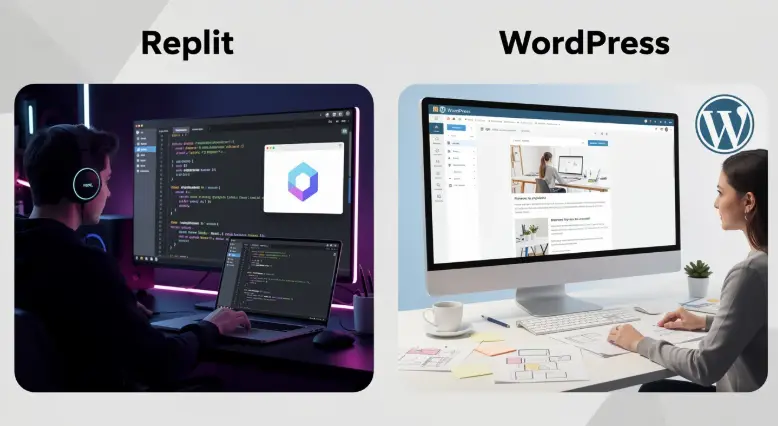
Key limitations of a Replit website:
- Limited scalability for high-traffic sites
- Lack of built-in SEO tools
- No native CMS for easy content updates
- Restrictions on database flexibility
- Not ideal for eCommerce or dynamic content
On the other hand, WordPress powers over 43% of the web. Benefits of switching to WordPress:
- Easy content management for non-technical users
- Thousands of themes and plugins
- Built-in SEO capabilities
- Scalable hosting options
- Strong support for eCommerce (via WooCommerce)
- Full control over site structure and functionality
So, if your goal is to grow your website, improve SEO, or simplify management, migrating from Replit to WordPress is a strategic move.
How Seahawk Media Simplifies Replit to WordPress Migration?
If the manual process feels overwhelming, working with professionals can save time and reduce risk.

We specialize in converting custom-coded websites, including Replit projects, into fully functional WordPress sites. What you get:
- Complete website migration without data loss
- Custom theme development based on your existing design
- Performance optimization
- SEO-ready setup
- Ongoing support and maintenance
We ensure your new WordPress site not only looks identical, but performs significantly better.
Struggling to Convert Your Replit Website into a Scalable WordPress Site?
Book a consultation with us today and get a seamless, SEO-optimized migration tailored to your business needs. Take the first step toward a better website experience now.
Pre-Migration Checklist: Set Yourself Up for Success
Before you begin the migration process, it’s critical to properly prepare your assets and environment. This ensures a smooth transition without data loss or downtime.
- Audit Your Existing Replit Project: Review your HTML, CSS, and JavaScript files. Next, identify reusable frontend components (header, footer, layout). Also, note down any dynamic functionality or database connections.
- Export Your Website Files: Download your Replit project as a ZIP file, and ensure all assets (images, scripts, stylesheets) are included.
- Choose Your WordPress Hosting: Select a reliable hosting provider that supports one-click WordPress installations, PHP & MySQL, and SSL certificates for security.
- Install WordPress: Use your hosting provider’s installer and set up your admin account. Next, configure basic settings (site title, permalinks).
- Backup Everything: Always keep a backup of your original Replit files and database (if applicable).
Steps to Convert a Replit Website to WordPress
Migrating from a Replit project to a WordPress site requires a structured approach. Below is a streamlined, conversion-focused process to help you transition efficiently while preserving design, functionality, and performance.
Step 1: Set Up a New WordPress Environment
First, establish a stable WordPress environment with reliable hosting, proper configurations, and essential settings to ensure your migrated website runs smoothly and efficiently.
- Choose the Right Hosting: Start by selecting a hosting provider that supports WordPress installations, PHP, and MySQL. This forms the backbone of your website.
- Install WordPress: Use one-click installation tools to deploy WordPress quickly. Then, configure your admin account, permalinks, and basic settings.
- Select a Lightweight Theme: Choose a minimal theme as your base. This makes customization easier when replicating your Replit website structure.
Step 2: Upload Your Replit Files
Next, export your Replit website files and upload them to your WordPress environment to begin rebuilding your site’s frontend and structure.
- Export Your Replit Project: Download your entire project as a ZIP file, ensuring all HTML, CSS, JavaScript, and media assets are included.
- Organize Your Files: After extraction, categorize files into folders such as assets, scripts, and styles to simplify the migration process.
- Upload to WordPress: Use FTP or the media library to upload images and essential files. Maintain proper file paths for consistency.
Step 3: Convert HTML into WordPress Theme Structure
Break down your static HTML into WordPress theme components like header, footer, and index files to align with WordPress’s dynamic architecture and templating system.
- Split Core Files: Divide your HTML into reusable parts such as header.php, footer.php, and index.php. This ensures modularity.
- Add WordPress Hooks: Insert WordPress functions like wp_head() and wp_footer() to enable plugin compatibility and dynamic features.
- Create style.css and functions.php: Define your theme metadata in style.css and manage scripts and features via functions.php.
Step 4: Integrate CSS and JavaScript
After structuring your theme, properly integrate CSS and JavaScript files to maintain your design and ensure scripts function correctly within the WordPress ecosystem.
- Add Stylesheets: Copy your CSS into style.css or separate files. Then, enqueue them properly using WordPress functions.
- Enqueue JavaScript Files: Avoid inline scripts. Instead, register and enqueue JavaScript files via functions.php for better performance and compatibility.
- Validate Frontend Design: Ensure your layout, fonts, and responsiveness match those of your original Replit website.
Step 5: Rebuild Pages in WordPress
Now, recreate your website pages within WordPress by transferring content from static HTML files into dynamic pages using the block editor or page builders.
- Create Core Pages: Set up pages such as Home, About, Services, and Contact directly in WordPress.
- Transfer Content: Copy text, images, and layout elements from your HTML files into WordPress pages.
- Use Page Builders: If needed, use tools like Elementor to visually replicate your original design without heavy coding.
Step 6: Handle Database and Dynamic Features
If your Replit project includes dynamic features, recreate them using WordPress plugins or custom integrations to ensure functionality remains intact after migration.
- Set Up MySQL Database: WordPress uses MySQL by default. Configure your database through your hosting panel.
- Replace Custom Code with Plugins: Instead of rewriting code, use plugins for forms, SEO, security, and eCommerce functionality.
- Reconnect Features: Rebuild login systems, forms, or APIs using WordPress-compatible solutions.
Step 7: Test Your New Site Thoroughly
Before going live, thoroughly test your WordPress site to identify and fix errors, ensuring optimal performance, responsiveness, and seamless user experience across all devices.
- Check Responsiveness: Test your site on mobile, tablet, and desktop to ensure a consistent design.
- Validate Functionality: Ensure all buttons, links, forms, and scripts work as expected.
- Optimize Performance: Compress images, enable caching, and test page load speed with performance tools.
Step 8: Deploy Your WordPress Site
Finally, launch your WordPress site by connecting your domain, making it live, and monitoring performance to ensure a smooth transition from your original Replit deployment.
- Connect Your Domain: Update DNS settings to point your domain to your new WordPress hosting server.
- Go Live: Remove any maintenance mode settings and make your site publicly accessible.
- Monitor and Optimize: After deployment, track performance, fix bugs, and continuously optimize for SEO and user experience.
By following these structured steps, you can successfully convert a Replit website into a fully functional WordPress site. Moreover, this transition not only enhances scalability but also improves SEO, usability, and long-term manageability.
Common Challenges and How to Solve Them
During migration, you may encounter technical and performance issues. However, identifying these challenges early and applying the right fixes ensures a smooth and efficient transition.
Broken Layouts: Often, your design may appear distorted after migration due to incorrect file paths or missing styles.
Solution: Verify CSS file links and ensure they are properly enqueued in WordPress. Then, check image paths and responsive settings to restore layout consistency.
JavaScript Not Working: Sometimes, scripts fail to execute because WordPress handles JavaScript differently than static environments like Replit.
Solution: Instead of using inline scripts, enqueue JavaScript files via functions.php. Additionally, resolve conflicts by checking dependencies and loading order.
SEO Drops: After migration, rankings may decline due to URL changes, missing metadata, or improper redirects.
Solution: To prevent this, maintain the same URL structure wherever possible. Moreover, use SEO plugins and implement 301 redirects to preserve search visibility.
Missing Functionality: Custom-coded features from your Replit project may not work directly within WordPress.
Solution: Replace custom features with reliable plugins or rebuild them using WordPress-compatible code to restore full functionality.
Conclusion
Converting a Replit website to WordPress is more than just a technical shift; it’s a strategic upgrade. While Replit is excellent for development and experimentation, WordPress provides the infrastructure needed for growth, scalability, and long-term success.
By following a structured migration process, starting from exporting your project to rebuilding it within WordPress, you can retain your design while unlocking powerful features. And if you prefer a faster, risk-free approach, partnering with experts like Seahawk Media ensures a smooth, future-ready transition.
FAQs About Replit to WordPress Migration
Will my live site be affected during migration?
No, your live site remains unaffected if you build the WordPress version separately. Once ready, you can safely switch without downtime.
Do I need to start a new WordPress project?
Yes, you’ll create a new project environment in WordPress and then import or recreate your existing Replit website structure and content.
How does migration impact my Google rankings?
If handled correctly, with proper redirects and SEO setup, your Google rankings can be maintained or even improved over time.
Can I edit posts and maintain functionality easily in WordPress?
Absolutely. WordPress makes it simple to edit any post or page while preserving functionality using plugins and built-in tools.