If you’re trying to build stunning pages with Elementor but find yourself staring at a loading screen that just won’t budge, you’re not alone. The Elementor stuck on the loading screen issue is frustratingly common among WordPress users, both free and Pro users.
The good news is that it is usually caused by common problems such as plugin conflicts, outdated PHP, or server limits. This guide walks through more than twenty practical fixes to help you identify the cause and get Elementor working smoothly again.
TL;DR: Quick Fixes for Elementor Loading Screen Issues
- Elementor getting stuck on the loading screen is usually caused by plugin conflicts, outdated PHP, server limits, or theme issues.
- Start troubleshooting by disabling installed plugins, switching to a default theme, and checking browser extensions or console errors.
- Increasing the PHP memory limit, enabling the switch editor loader method, and regenerating Elementor CSS often resolve the problem.
- If the issue persists, review server settings, caching tools, and firewall rules, or restore a previous backup to restore the editor to normal.
Key Pre-requisites to Use Elementor Smoothly in WordPress
Using Elementor effectively requires certain prerequisites to ensure a smooth and optimal experience. Here are the key prerequisites:
- WordPress Installation: Elementor is a WordPress plugin, so you must have a WordPress website. Ensure that you have the latest version of WordPress installed.
- Supported WordPress Version: Check Elementor’s official documentation for the recommended and supported WordPress version. Keep both WordPress and Elementor up to date to benefit from the latest features, improvements, and security patches.
- Server Requirements: Ensure your hosting server meets the minimum requirements for running WordPress and Elementor. This includes having a compatible PHP version (usually PHP 7.0 or higher) and sufficient server resources.
- PHP Memory Limit: Elementor may require a higher PHP memory limit than the default setting. Verify that your server’s PHP memory limit is set to a value compatible with Elementor’s requirements. You can adjust this in your server’s PHP configuration or by editing the wp-config.php file.
- Browser Compatibility: Elementor is generally compatible with popular web browsers. However, it’s recommended to use a frequently updated browser for the best performance. Commonly supported browsers include Google Chrome, Mozilla Firefox, Safari, and Microsoft Edge.
- Internet Connection: Ensure a stable, reliable connection. A slow or unstable connection may impact the loading and saving of your Elementor pages.
- Responsive Theme: While Elementor is compatible with most WordPress themes, it’s advisable to use a responsive theme. This ensures that the designs you create with Elementor will look good on various devices and screen sizes.
- Install the Elementor Plugin: Go to Plugins → Add New in your WordPress dashboard, then search for Elementor.
Optional: Elementor Pro: The Pro version offers advanced functionalities. If you choose to use Elementor Pro, you’ll need to purchase a license and install the Pro version on your WordPress site.
Elementor Stuck on a Loading Screen?
Don’t waste time trying to fix it yourself. Call in the PROs and save yourself the frustration. Seek professional help now!
The Root Causes Behind Elementor Stuck on Loading Error
When Elementor gets stuck on the loading screen, it’s usually a sign that something behind the scenes isn’t working as it should.

To fix the issue effectively, it’s crucial to understand what’s causing it in the first place.
- Plugin or Theme Conflicts: One of the most common causes behind Elementor failing to load is a conflict with other plugins or your active WordPress theme. This is especially true for users running both the free and Pro versions of Elementor alongside third-party tools that may interfere with its JavaScript or CSS loading.
- PHP Configuration Issues: Elementor requires specific PHP settings to function correctly. Running an outdated version of PHP can lead to unexpected behavior. Always ensure your server is running the latest PHP version (at least 7.4) to avoid compatibility issues and improve overall performance.
- Server Environment Misconfiguration: If your hosting environment isn’t properly configured, Elementor may struggle to load. This includes limits on memory or execution time, as well as issues with file permissions. A lack of server resources often results in the editor or widget panel loading incompletely.
- Cloudflare Rocket Loader Conflicts: If you’re using Cloudflare, the Rocket Loader feature may interfere with how Elementor loads JavaScript files. While Rocket Loader is designed to improve site speed, it can conflict with page builders.
Elementor Stuck on Loading Screen Error: Methods to Fix it
Many Elementor stuck-on-loading-screen issues, according to the Elementor Developer, are caused by plugin incompatibilities. However, this isn’t always the case. Here are some ways of resolving these issues:
Method 1: Make Sure There Are No Plugin Conflicts
Since Elementor claims that add-on plugins are the source of these loading issues, it’s best to start here. Third-party add-ons are usually the cause of the ‘Elementor not loading’ problem. There are many Elementor add-ons available, and if you use one that isn’t well written, you may run into issues like this.
Here are some add-on plugins that are known to cause conflicts with Elementor:
- Elementor Premium Addons
- Elementor kit lite
- Ultimate add-ons
- Google XML Sitemaps
- Elementor Addon Elements
- Essential Addons for Elementor
- Premium Addons Plugin
- Powerpack elements
- Elementor version Conflicts
- Conflict Between Elementor Free and Pro Version
If you can’t figure out what’s causing the Elementor Stuck on Loading problem, deactivate these plugins and see if the problem goes away. Try to disable Elementor Pro & the free version. Sometimes, the plugin version may cause conflicts.
Begin activating plugins one at a time, checking Elementor as you go. If the loading problem reappears after enabling a plugin, you’ve discovered the source of the problem.
Disable any Elementor add-on plugins on your website and see whether the problem disappears.
Learn More: How to Fix Slow WordPress Backend
Method 2: Increase PHP Memory Limit
One of the leading causes of the Elementor Stuck on Loading Error is a limited PHP Memory Limit. It is adjusted to 40M by default. However, a minimum of 64 MB and a maximum of 128 MB is required to run Elementor smoothly.

For those who are unaware of what WP_MEMORY_LIMIT is, WordPress allows you to adjust the maximum memory consumption by PHP by using the WP_MEMORY_LIMIT PHP constant.
- Suppose your system has 1GB of RAM, and that all of it is available to PHP. When a page is loaded and PHP starts, the maximum amount of RAM the webpage’s PHP process can use is X. Assume you’ve set the memory limit to 128MB. That implies you’ll be restricted to 8 concurrent PHP processes if all of them consume all available RAM (128MB).
- To check your WordPress site’s memory size, go to ‘ wp-admin → Elementor → System Info’.
Updating the wp-config.php file is the starting step. You can use the cPanel File Manager or an FTP server to access the WordPress folder.
Look for the” /* That’s all, stop modifying!” line in the wp-config.php file. Put the following line of code before this comment :
define('WP_MEMORY_LIMIT', '128M');
After adding the lines, go back to wp-admin → Elementor → System Info and double-check that the changes have been saved.
Method 3: Disable any Browser Extensions
The issue that causes Elementor to stop loading on the page often has nothing to do with your website.
The problem may be with your browser. If you have any extensions or plugins installed in your browser, remove them and see whether the issue is resolved.
Search for plugins that prevent scripts from loading using browser developer tools. Examine your site for ad blockers. Also, try changing your browser to see whether Elementor works appropriately in another one.
Method 4: Switch to the Default WordPress Theme
It’s also possible that your WordPress theme prevents Elementor from launching on your website. Although this happens seldom, it’s still a good idea to examine whether your theme has any issues.
Switch the website to the default WordPress theme and check if Elementor is working correctly.
If this is the case, your theme is to blame. You can’t just abandon your theme to make Elementor function, can you?
Now that you’ve identified your theme as the source of the problem, contact the theme’s creators to alert them and seek a repair.
Method 5: Increase Server Resource Limit
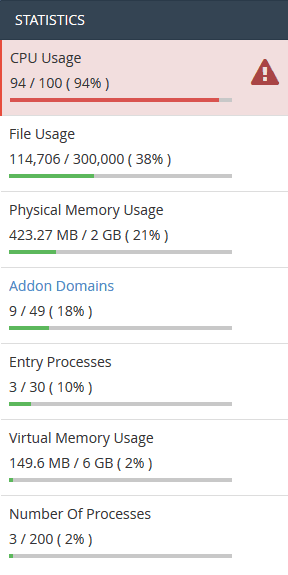
Sometimes the server reaches its resource limits; in this case, you might want to check cPanel to see resource usage. This typically happens with shared hosting accounts. Contact your hosting provider in such a case.
Method 6: Disable Unused Widgets
Conflicts with specific widgets can sometimes cause Elementor to experience loading issues. To troubleshoot, disable any unused widgets and elements on your pages.
This can be done by opening the Elementor editor, selecting the widget, and clicking the eye icon to disable it temporarily.
For example, if you suspect a conflict with a specific image widget, try disabling it and see if the loading issue persists. By systematically disabling unused widgets, you can identify and resolve conflicts causing Elementor to get stuck on the loading screen.
Read: Elementor vs SeedProd: Detailed Comparison
Method 7: Reinstall Elementor
If Elementor is stuck on the loading screen, reinstalling the plugin might help resolve the issue. Start by deactivating, then deleting, the Elementor plugin from your WordPress dashboard.
After that, go to the WordPress plugin repository, search for Elementor, and reinstall it. Activate the plugin and check if the loading problem persists.
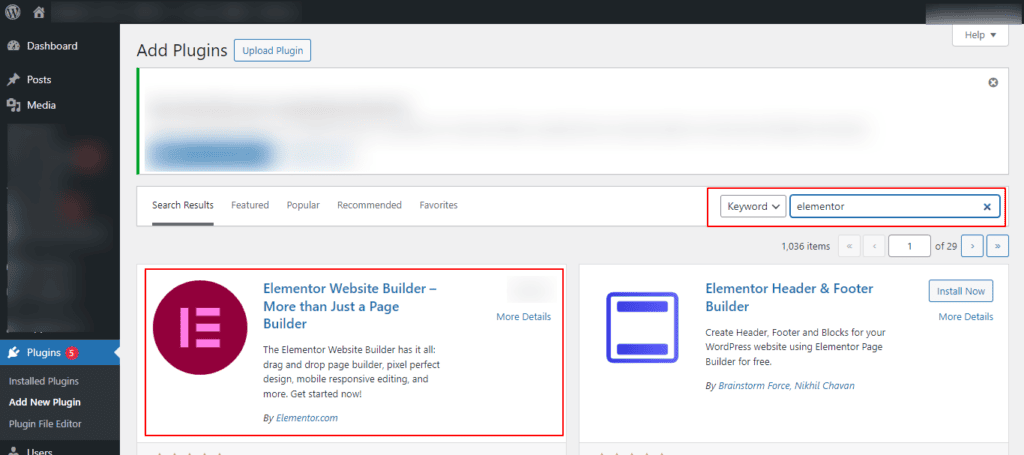
This process ensures a clean Elementor installation, eliminating potentially corrupted files or conflicts. Before reinstalling, it’s important to back up your website to prevent data loss during the process.
Method 8: WordPress Address (URL) and Site Address (URL)
Ensuring that the WordPress Address (URL) and Site Address (URL) are the same in your WordPress settings is crucial for Elementor to function properly.
To check and set these, go to your WordPress dashboard, navigate to Settings → General, and confirm that the WordPress Address (URL) and Site Address (URL) are identical.
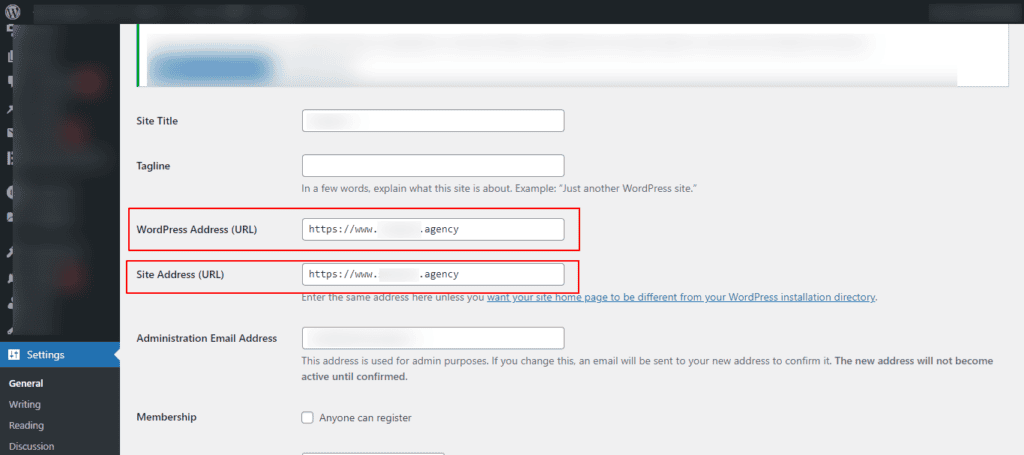
For example, if your site is “https://example.com,” both fields should reflect this URL. Mismatched addresses may cause Elementor to load resources and stylesheets incorrectly, resulting in a loading screen error.
Adjust the URLs if needed, save changes, and see if the problem persists.
Learn: Reason Your Pages Are Not Indexed and Understanding “Not Found 404” Errors
Method 9: Fixing Mixed HTTPS
Mixed content issues, where a website contains both secure (HTTPS) and non-secure (HTTP) elements, can cause Elementor to fail to load.
To fix this, ensure that your entire website, including Elementor assets, is served over HTTPS. Update the WordPress Address (URL) and Site Address (URL) to use “https://” in the WordPress settings.
Additionally, ensure that all your Elementor pages and assets (images, scripts, stylesheets) use secure URLs. For example, change any HTTP URLs in your content to HTTPS.
This ensures a secure connection throughout your site, preventing mixed content issues and potential loading errors in Elementor.
Related: HTTP vs HTTPS
Method 10: Make a Hard Refresh
Performing a hard refresh can help clear cached files and reload the page, potentially resolving Elementor loading issues. To do a hard refresh, press “Ctrl + F5” on Windows or “Cmd + Shift + R” on Mac.
This forces the browser to fetch a fresh copy of the page and its assets, eliminating any cached data that might be causing problems with Elementor.
If the loading screen error persists after a hard refresh, consider clearing the browser cache entirely to ensure a clean reload of the page and its resources.
Method 11: Disable Security Plugin
Security plugins may sometimes interfere with Elementor’s loading process. Temporarily disable any security plugins on your WordPress site, then check whether the loading issue persists.
If disabling the plugin resolves the problem, you can then reconfigure the security settings or look for alternative security solutions that don’t conflict with Elementor.
*Always exercise caution when adjusting security settings and ensure your site remains secure during troubleshooting.
Know more: BlogVault Review: The Best WordPress Backup & Security Plugin
Method 12: Check Site Health and Plugins
Use the Site Health feature in WordPress to identify potential issues affecting your site’s performance. Navigate to “Tools” → “Site Health” in the WordPress dashboard to view recommendations and critical issues.
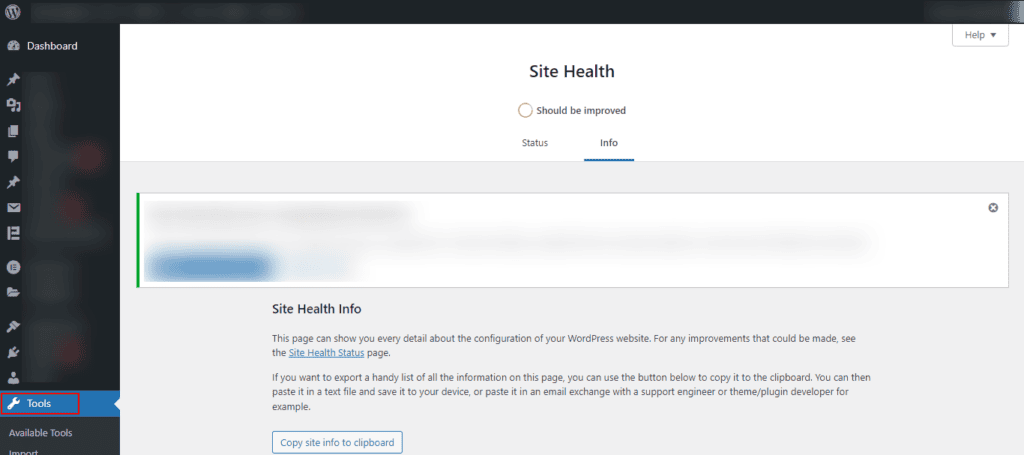
In addition, install the Query Monitor plugin, a powerful debugging tool. This plugin helps analyze your site’s performance, revealing detailed information about database queries, PHP errors, and other factors that could affect Elementor’s loading.
By addressing any issues highlighted in Site Health and Query Monitor, you can optimize your site for better compatibility with Elementor.
Method 13: Turn Off Cache and Performance Plugin
Cache and performance optimization plugins can sometimes conflict with Elementor, causing loading issues. Temporarily deactivate any caching or performance optimization plugins you have installed on your WordPress site. Common plugins include W3 Total Cache, WP Super Cache, or Autoptimize.
After disabling these plugins, check if Elementor loads without any issues. If the problem is resolved, you may need to reconfigure the caching plugin settings or look for alternatives that better integrate with Elementor.
Keep in mind that caching is essential to site speed, so disable these plugins only temporarily for troubleshooting.
Further reading: Why Is Your WordPress Slow
Method 14: Regenerate CSS and Data
If Elementor is stuck on the loading screen, regenerating CSS and data might help. Go to the WordPress dashboard and navigate to “Elementor” → “Tools.” In the Elementor Tools section, find the option to regenerate CSS or clear the data cache.
This process can refresh Elementor’s styling and resolve issues related to cached or corrupted CSS files. Regenerating CSS and data is a quick and effective troubleshooting step that ensures Elementor loads correctly by rebuilding its essential components.
Method 15: Switch Hosting
If you’ve exhausted other troubleshooting steps and Elementor is still stuck on the loading screen, consider the possibility that your hosting environment may be the culprit.
Switching to a more reliable web hosting provider or upgrading your hosting plan to meet Elementor’s technical requirements can resolve performance issues.
A hosting environment with sufficient resources, compatibility, and optimal server configurations is crucial for Elementor’s smooth operation.
Before switching hosting, back up your website and consider consulting your hosting provider for assistance with the migration.
Read: Best Cloud Hosting Services
Method 16: Modify the Editor’s Loading Method
Elementor lets you customize the loading process of the builder. There isn’t enough information about how it works, but if you’re having trouble with the editor, Elementor recommends switching to another method.
- Go to Elementor → Settings → Advanced in your WordPress dashboard to locate this option.
- Change Editor Loading Method in Elementor
The ability to change the editor loading mechanism is available on the Advanced tab. This feature is deactivated by default. Check that the editor loads correctly after enabling this option.
Method 17: Utilize Elementor Safe Mode
If Elementor is stuck on the loading screen, try this solution. Elementor Safe Mode temporarily deactivates all plugins and switches to a default WordPress theme, allowing you to isolate the issue.
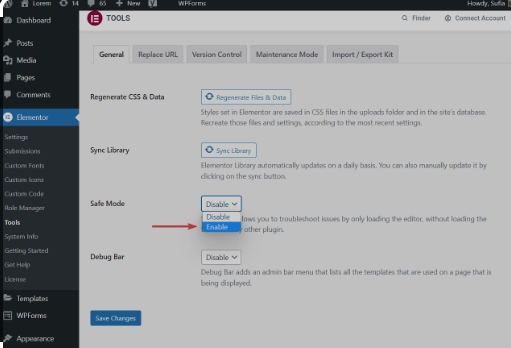
To activate Safe Mode, navigate to Elementor → Tools → General tab. Toggle the Safe Mode button to enable it.
This helps identify whether conflicts with other plugins or themes are causing the problem. Once activated, try accessing the Elementor editor again.
If the loading issue is resolved, gradually reactivate plugins and switch back to your preferred theme to pinpoint the conflicting element.
Method 18: Investigate Firewall Settings
The Elementor editor may get stuck on the loading screen due to firewall settings blocking necessary connections or scripts required for Elementor’s functionality.
Check your firewall settings, including those on your hosting provider’s server and any third-party firewall services you use. Ensure that necessary ports are open and Elementor’s scripts are allowed.
Whitelist any domains or IP addresses related to Elementor to prevent them from being blocked. If necessary, consult your hosting provider or IT support to adjust firewall settings to ensure the smooth operation of the Elementor editor.
Method 19: Run Elementor Health Check
Use Elementor’s built-in health check to identify potential issues. Navigate to Elementor → Tools → Health Check tab. Here, you can run various tests to identify issues related to server configuration, compatibility, or conflicts with other plugins or themes.
Follow the recommendations provided by the health check tool to resolve any detected issues and improve the performance of the Elementor editor.
Method 22: Enable WP_DEBUG for Error Logging
Sometimes, when Elementor is stuck on the loading screen, it might encounter errors or conflicts that aren’t immediately apparent, making troubleshooting difficult.
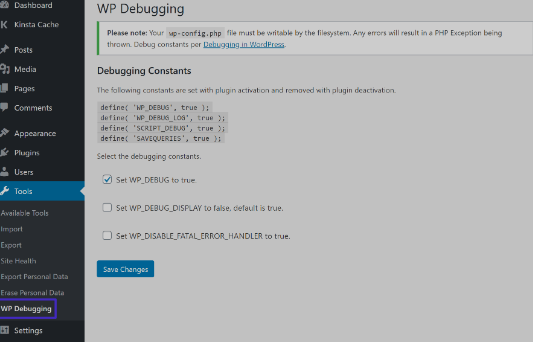
Here, activate WP_DEBUG mode in your WordPress installation to log any errors or warnings occurring behind the scenes. Edit your wp-config.php file and set WP_DEBUG to true. This will display errors on the screen, helping you identify the specific issues causing Elementor to stall.
Method 21: Disable ModSecurity Temporarily
Elementor’s loading screen may also be caused by ModSecurity rules on your server blocking certain requests or scripts required for Elementor’s functionality.
- To fix this, temporarily disable ModSecurity rules on your server to see if they are causing the issue with Elementor.
- Use your hosting provider’s control panel or contact your hosting support for this. Once disabled, try accessing the Elementor editor again.
If the loading screen issue is resolved, it indicates that ModSecurity rules are indeed causing the problem. You can then work with your hosting provider to adjust the rules or whitelist specific Elementor requests to ensure smooth operation without compromising website security.
Method 22: Review JavaScript Console for Errors
Elementor’s stuck loading screen may be caused by JavaScript errors occurring within the browser, which can hinder its proper functionality.
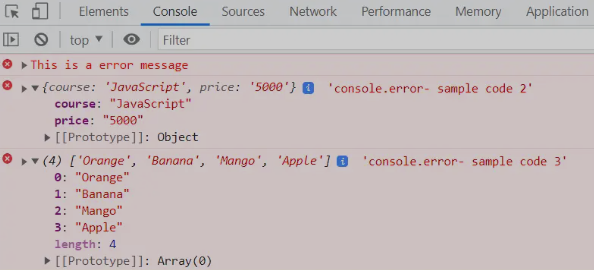
Open the developer tools in the web browser (usually accessible by pressing F12 or right-clicking and selecting “Inspect”), then navigate to the “Console” tab. Here, you can view any JavaScript errors or warnings that might be occurring when trying to load Elementor.
These errors can provide valuable insight into what’s causing the loading screen issue. Address JavaScript errors by resolving conflicts with other plugins or themes, ensuring browser compatibility, or, if applicable, debugging custom JavaScript code.
Once the errors are resolved, try accessing Elementor again to see if the loading screen problem persists.
Method 23: Check for Database Corruption
Use database management tools or plugins to scan for and identify any potential corruption within the WordPress database. WordPress plugins like WP-Optimize or WP-DBManager offer options to check and repair database tables.
You can also manually run SQL queries to check for integrity issues. If corruption is detected, proceed with the database repair processes provided by the tools or plugins.
After repairing any corrupted tables, reattempt accessing Elementor to verify if the loading screen problem persists. Regular database maintenance and backups can help prevent future occurrences of corruption.
Method 24: Restore Site Backup
If Elementor is stuck on the loading screen due to recent changes or updates, restoring a site backup may revert your website to a working state.
Access your website’s backup files through your hosting provider’s control panel or via a backup plugin. Choose a backup version from before the issue with Elementor arose.
Restore the backup following the instructions provided by your hosting provider or the backup plugin. Ensure that you select the appropriate backup files, including the website and database.
After restoration, check if Elementor loads properly without encountering the loading screen issue. If successful, consider cautiously applying any necessary updates or changes to avoid triggering the problem again.
Method 25: Other Miscellaneous Issues
- PHP Version: If your system is running PHP 8, downgrade to PHP 7, as Elementor currently does not support PHP 8.
- Permissions: Make sure Elementor has permission to download Globals. If you see any error code, such as 403, contact the hosting company.
- Caching Issues: Make sure the server caching, Cloudflare, Rocketloader, or any caching plugin is disabled, and try again.
- Check Console for Errors: Use your browser’s developer tools to check for any JavaScript errors in the console that might be affecting Elementor.
- Disable CDN temporarily: If you’re using a Content Delivery Network (CDN), temporarily disable it to see if it’s causing the loading issue. Ensure the CDN settings are configured correctly for Elementor.
- Review Error Logs: Check your server error logs for any relevant error messages that could provide insights into the loading problem.
- Elementor Help & Support: If all else fails, seek professional help. Seahawk’s Elementor Help & Support service can provide specific guidance based on your setup and the nature of the issue.
Conclusion
Elementor getting stuck on the loading screen can interrupt your workflow, but the issue is usually fixable with the right troubleshooting steps. Most problems arise from plugin conflicts, outdated PHP versions, server limits, or theme incompatibility.
By checking installed plugins, adjusting PHP memory limits, reviewing browser console errors, and ensuring your WordPress setup is up to date, you can quickly identify the root cause.
Simple actions such as enabling the switch editor loader method, regenerating CSS, or clearing cache often restore the editor.
If the problem persists, reviewing server settings or contacting hosting support can help resolve deeper configuration issues and ensure the Elementor builder runs smoothly again.
Elementor Loading Error FAQs
Why is Elementor stuck on the loading screen?
The most common reasons include plugin conflicts, browser extensions, or a memory limit issue. A corrupted browser cache or script blockers can also cause a grey screen in the Elementor editor.
Check system requirements, PHP version, and theme settings from the admin dashboard. Many users report this issue after a plugin update or when using Cloudflare Rocket Loader.
How do I fix Elementor loading quickly and getting stuck?
Start by clearing the cache and opening the editor in an incognito browser window. Temporarily disable plugins except Elementor and Elementor Pro.
Switch to a default theme, such as Twenty Twenty. Increase memory_limit and wp_max_memory_limit via cPanel or FTP. These steps often fix the issue where the widget panel isn’t loading.
Can browser issues cause problems with the Elementor editor?
Yes. Browser cache, ad blockers, and script blockers can block JS files. Test in Chrome, Firefox, or Safari. Disable extensions, then right-click and inspect to check console errors. Cross-origin or X-Frame-Options issues can also affect the loading of the editor panel.
How do I fix a blank or grey screen in Elementor?
Check the htaccess file and server time limit. Disable theme preloader, custom code, or animations. Also, verify Cloudflare settings and turn off Rocket Loader. Use Elementor’s safe mode to isolate the issue on a staging site.
Does hosting or server setup affect Elementor’s loading time?
Yes. Low memory, outdated PHP version, or server restrictions can cause loading issues. Ensure proper optimization, object cache settings, and correct file permissions in the root directory. Keep all versions of Elementor up to date for optimal performance.