
WordPress plugin bloat slows your site by adding extra scripts, styles, and database queries with every plugin you install. This increases load time, harms Core Web Vitals, and puts more pressure on your server, even with a good hosting provider.
To fix it, audit your plugins, remove duplicates, replace heavy ones with lightweight alternatives, and control where they load. This reduces resource usage, improves speed, and helps your site rank better while giving users a smoother experience.
TL;DR: A Quick Overview of WP Plugin Bloat
- Too many or poorly optimized plugins slow down your WordPress site.
- Plugin bloat increases load time, server usage, and database queries.
- Removing duplicate and unnecessary plugins instantly improves performance.
- Lightweight plugins and conditional loading reduce resource usage.
- Cleaning your database helps remove leftover data and improves speed.
- Fewer, well-optimized plugins lead to better Core Web Vitals and SEO.
What is WordPress Plugin Bloat?
WP plugin bloat happens when your site has too many plugins, especially when you have excessively installed plugins or active plugins that are unnecessary or poorly optimized.
This can increase load time, server usage, and database queries, making your website slow and inefficient. It’s not just about how many plugins you use, but how they are built and how they load resources.
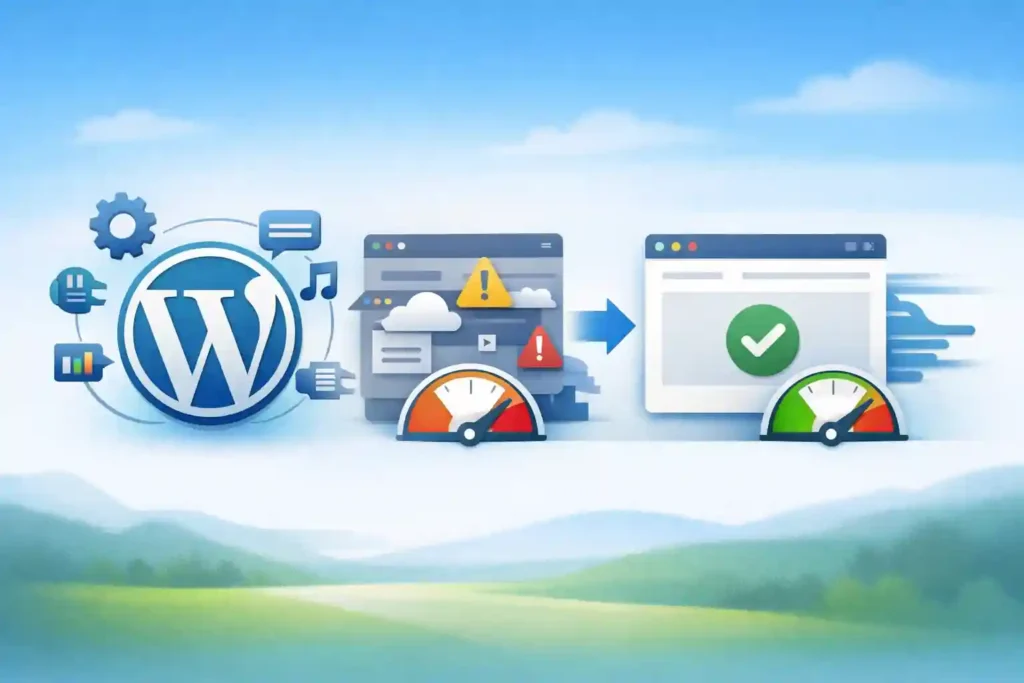
In fact, it is often not the number of plugins that causes issues, but rather their quality and the amount of “dead weight” code they add to your site.
Every plugin adds its own CSS, JavaScript, and database operations. When multiple plugins run without control, they increase page size, create unnecessary requests, and overload your server. This directly impacts speed, Core Web Vitals, and overall user experience.
The Real Reason Plugins Slow Down WordPress
Most websites don’t slow down solely because of plugin count. They slow down because plugins load unnecessary assets, run inefficient queries, and add extra processing on every page.
Heavy plugins often add extra files and scripts, which can negatively impact your site’s performance. These hidden factors quietly reduce performance over time.
Understanding how plugins affect loading behavior, server responses, and rendering helps you fix speed issues at the root. Heavy plugins may also perform excessive database queries or run resource-intensive background tasks, exhausting CPU and memory, in shared hosting environments.
Instead of guessing, you can identify exactly what is slowing your site and take control of performance.
Global Asset Loading Problem
Most plugins load their CSS and JavaScript files across your entire website, even on pages where they are not needed. This creates unnecessary HTTP requests and increases the total page size, slowing load time and affecting performance metrics.
For example, a contact form plugin may load scripts on blog pages where no form exists. This wastes resources and adds extra load on every page visit. Controlling where assets load is one of the fastest ways to improve speed.
Database Query Explosion
Plugins depend on database queries to fetch and store data. Poorly optimized plugins increase the number of queries required to load a page, slowing server response time and increasing Time to First Byte.
As queries grow, your server works harder to process each request. This becomes a bigger problem on shared hosting or high-traffic sites, where database load can directly impact performance and stability.
Render-Blocking Scripts
Heavy CSS and JavaScript files can block the browser from displaying content until they are fully loaded. This delays page rendering and increases metrics like Largest Contentful Paint, making your site feel slow to users.
When too many scripts load at the top of the page, users see a blank screen longer. Reducing or deferring these scripts helps content appear faster and improves both user experience and SEO performance.
PHP Execution Time Increases
Every plugin adds PHP code that runs before your page is displayed. As the number of plugins increases, the server takes longer to process requests, which increases execution time and slows down your site.
This extra processing affects how quickly your server responds to users. Reducing unnecessary plugins and optimizing code helps lower execution time, resulting in faster page delivery and smoother performance.
Struggling with a Slow Website?
Let experts clean up your plugins, improve performance, and keep your website running fast without the stress.
How Many Plugins Are Too Many?
There is no fixed number for WordPress plugins. A well-optimized site can run 20 or more plugins without issues if they are lightweight, properly coded, and managed correctly. The real problem is not the quantity, but how those plugins impact performance.
What actually matters is how efficiently your plugins load resources, interact with your server, and execute code.
A smaller number of heavy plugins can slow your site more than a larger set of optimized ones. Focus on performance, not just counting.
Signs Plugin Bloat is Hurting Your Site
Plugin bloat shows up through clear performance issues, even if everything looks fine on the surface. If your site feels slow or unstable, these signs usually point to overloaded plugins.
A slow site can also negatively impact your SEO rankings, making it harder for your website to perform well in search results.
Pay attention to these indicators early, because ignoring them can lead to poor user experience, lower rankings, and higher bounce rates.
- Slow Load Time Even on Premium Hosting: Your site still loads slowly despite premium hosting, suggesting unnecessary resource usage by plugins.
- High TTFB and Poor Server Response: Increased Time to First Byte indicates your server is struggling to process requests due to excessive queries and processing overhead.
- Low Core Web Vitals Scores: Metrics like LCP and FID drop when plugins load heavy scripts, delaying page rendering.
- Backend Dashboard Lag: A slow WordPress admin panel often means plugins are adding too much load in the background.
- Conflicts After Updates: Frequent errors or broken features after updates indicate plugin overload and compatibility issues.
A slow site does more than frustrate visitors; it can hurt your SEO, lower conversions, and damage your brand’s credibility.
How to Identify Heavy Plugins?
Not every plugin slows your site in the same way. Some barely affect performance, while others quietly add load through scripts, database calls, and external requests. If you want real speed improvements, you need to identify which plugins are actually causing the slowdown.
Using plugins like Query Monitor can help identify which plugins are slowing down your site by revealing slow database queries and resource usage.
This process is not about guessing or randomly removing plugins. It’s about measuring impact, understanding behavior, and making decisions based on real performance data.
Use Waterfall Analysis (Critical for Performance Diagnosis)
A waterfall report shows exactly how your site loads, step by step. It reveals which files take the most time, which scripts block rendering, and where delays happen.
When you analyze it properly, you start seeing patterns. Large files often come from specific plugins, blocking scripts delay content visibility, and third-party requests add hidden load. This gives you a clear starting point to identify performance-heavy plugins.
Measure Plugin Impact Individually
The most reliable way to find slow plugins is to test them one at a time. This removes guesswork and shows the real impact each plugin has on your site.
When you turn off a plugin and test your site speed, you can clearly see changes in load time and resource usage. Even small improvements add up, and this method helps you isolate the plugins that are actually slowing your site down.
Check Plugin Behavior
A plugin might seem useful, but how it behaves behind the scenes matters more. Many plugins load resources across your entire site, even when they are only needed on specific pages.
You also need to consider how they interact with your database. Plugins that add frequent or complex queries increase server load and slow down response time. Understanding this behavior helps you decide whether to keep, replace, or optimize each plugin.
Step-by-Step Process to Eliminate Plugin Bloat
Fixing plugin bloat is not about randomly deleting plugins. It’s about following a structured process that improves performance without breaking your site. When done right, you reduce load time, clean up resources, and gain full control over how your site runs.
This step-by-step system helps you identify what to keep, what to remove, and how to optimize everything in between. Follow it carefully, and you’ll see measurable speed improvements.

Step 1: Full Plugin Audit
Start by reviewing every plugin installed on your site. Most sites have outdated, unused, or no longer needed plugins. Without a proper audit, these hidden layers continue to slow down your site.
Group each plugin into three clear categories. Essential plugins are critical for functionality. Replaceable plugins can be swapped for better alternatives.
Removable plugins add no real value and should be deleted. This clarity makes the next steps easier and more effective.
Step 2: Remove Feature Overlap
One of the biggest causes of plugin bloat is duplication. Many sites use multiple plugins for the same purpose without realizing it. This creates unnecessary load and conflicts.
You often see sites running more than one SEO plugin, multiple speed optimization tools, or duplicate form builders. Each of these adds extra scripts and processing. Keeping only one well-optimized plugin per function instantly reduces load and improves performance.
Step 3: Replace Heavy Plugins (With Smarter Alternatives)
Not all plugins are built the same. Some are packed with features but come with heavy code and unnecessary dependencies that slow your site down.
Instead of removing functionality, replace heavy plugins with lightweight alternatives that focus on efficiency. Look for plugins with modular features, minimal scripts, and clean code. This allows you to keep functionality while reducing performance impact.
Step 4: Apply Conditional Loading
Most plugins load their assets across your entire site, even where they are not needed. This creates unnecessary requests and increases page size on every visit.
Conditional loading solves this problem by restricting plugins to specific pages. For example, a contact form plugin should only load on your contact page, not on blog posts.
This simple change reduces load time, improves Core Web Vitals, and gives you a clear performance advantage.
Step 5: Clean Database After Removal
Removing plugins does not automatically clean your database. Many plugins leave behind data, such as unused tables, settings, and temporary entries, which continue to slow down your site.
Cleaning your database removes this leftover clutter and improves server response time. Focus on clearing orphaned tables, old plugin data, and transients.
Using reliable optimization tools helps automate this process and keeps your database lean and efficient.
Plugin Bloat vs Core Web Vitals
WordPress plugin bloat directly impacts Core Web Vitals, which measure how fast your site loads, responds, and remains stable for users.
Google uses load times as a ranking factor, so plugin bloat can negatively impact SEO rankings by slowing down your site and reducing user experience.
When plugins add unnecessary scripts, styles, and processing, they slow down rendering, delay interaction, and affect visual stability.
These performance issues don’t just affect user experience. They influence how your site ranks in search results, since Core Web Vitals are part of Google’s ranking signals.
- LCP (Largest Contentful Paint) Through Heavy Scripts: Plugins that load large CSS and JavaScript files delay the rendering of key content elements. This slows down how quickly users see meaningful content, increasing LCP and making the page feel slow.
- FID (First Input Delay) Through JavaScript Execution: Excessive JavaScript from plugins keeps the browser busy, delaying user interactions. When users click or scroll, the response feels delayed because scripts are still running.
- CLS (Cumulative Layout Shift) Through Delayed Styling: Plugins that inject styles or elements late can cause layout shifts. Content moves unexpectedly as the page loads, creating a poor visual experience and reducing stability.
Best Lightweight Plugin Stack
A fast WordPress site is not built with more plugins. It’s built with a lean, well-structured plugin stack that focuses on efficiency and performance. Instead of installing multiple tools for similar tasks, aim to keep your setup simple and optimized.
The ideal approach is to use one reliable plugin for each core function. One SEO plugin, one caching plugin, and one performance optimization plugin are usually enough for most sites.
Beyond that, only add plugins that serve a clear purpose and do not overlap. This reduces unnecessary scripts, minimizes conflicts, and keeps your site fast and stable.
When to Replace Plugins with Custom Code
Not every feature needs a plugin. Many small tasks can be handled with simple code, reducing dependencies and improving performance. Plugins often add extra layers of processing, even for basic functionality.
Custom code is best for lightweight changes, such as adding header scripts, making small UI adjustments, or setting up simple redirects.
By handling these tasks without plugins, you reduce load, avoid unnecessary resource usage, and maintain better control over your site’s performance.
Mistakes That Keep Your Site Slow Even After Cleanup
Even after removing unnecessary plugins, many sites still struggle with speed because of common mistakes that go unnoticed. These issues continue to affect performance, limit improvements, and prevent your site from reaching its full potential.
Avoid these mistakes to ensure your optimization efforts actually deliver results:
- Keeping Inactive or Unused Plugins: Inactive or unused plugins still consume space and pose security risks. Removing unused plugins can enhance security by reducing the risk of vulnerabilities introduced by outdated code. Some may leave behind code or database entries that continue to affect performance. Always delete plugins you are not using.
- Ignoring Database Cleanup: Removing plugins does not remove their data. Old tables, leftover settings, and transients can slow down queries in your database. Regular cleanup is essential for maintaining speed.
- Not Testing After Changes: Making changes without testing can hide performance issues. Always check load time, requests, and Core Web Vitals after removing or replacing plugins to ensure real improvement.
- Using Bloated Themes with Plugins: A heavy theme combined with multiple plugins can significantly increase load time. Even if your plugins are optimized, a poorly coded theme can cancel out all performance gains.
Conclusion
WordPress speed is not about adding more tools. It’s about making smarter choices with the ones you already use.
When you remove plugin bloat, you don’t just improve load time. You improve user experience, search rankings, and overall site stability. A clean, optimized setup gives you more control and better long-term performance.
Focus on keeping your site lean, efficient, and intentional. That’s what separates fast websites from slow ones.
FAQs About WordPress Plugin Overload
How many plugins are too many in WordPress?
There is no fixed number. A site can run 20 or more plugins if they are lightweight and well optimized. Performance depends more on quality than quantity.
Do plugins slow down WordPress?
Yes, plugins can slow down WordPress if they are poorly coded, load unnecessary scripts, or run across the entire site without control.
What is the fastest way to reduce plugin bloat?
Audit your plugins, remove duplicates, replace heavy plugins with lightweight alternatives, and use conditional loading to control where they run.
Can removing plugins improve SEO?
Yes, reducing plugin bloat improves site speed and Core Web Vitals, which directly impact search rankings and user experience.
Which plugins slow down WordPress the most?
Heavy page builders, poorly optimized SEO plugins, and plugins that load scripts globally tend to have the biggest impact on performance.
Is it better to use fewer plugins or better plugins?
Better plugins always give you better results. When you choose optimized, lightweight tools, your site stays fast, stable, and easier to manage.


