
Tight, cluttered text pushes visitors away before they finish reading the first paragraph. Adjusting line spacing is one of the fastest ways to improve how your content feels without redesigning your entire site.
This guide covers four methods for changing line spacing in WordPress, from the block editor to custom CSS, so you can pick the approach that best fits your setup.
You can change line spacing in WordPress through the Gutenberg block editor’s Typography settings, the Classic Editor’s Format dropdown or inline CSS, the Theme Customizer’s Additional CSS section, or a spacing plugin. A line height between 1.5 and 1.8 works well for most WordPress sites and produces comfortable, readable text across devices.
Importance of Line Spacing in WordPress
Line spacing controls how much vertical space sits between each line of text. Too little space and your content feels cramped and difficult to scan. Too much and it loses coherence and reads as disconnected.

The right line height keeps readers moving through your content without friction. It also signals professionalism. A well-spaced page looks considered and clean. A poorly spaced one looks unfinished regardless of how good the writing is.
For most WordPress sites, a line height between 1.5 and 1.8 produces comfortable, readable text across both desktop and mobile screen sizes.
Improve Your Website Formatting for Better UX
Fix spacing, typography, and layout issues to boost readability and create a seamless user experience across your WordPress site.
How to Change Line Spacing in WordPress?
WordPress offers several ways to adjust line spacing, depending on your editor, theme, and comfort level with code. Work through the method that best fits your setup.
Method 1: Change Line Spacing in WordPress Using the Classic Editor
If you’re still using the Classic Editor, you have two options for adjusting line spacing. The Format dropdown is the quickest. The Text editor gives you more precise control through inline CSS.
Using the “Format” Dropdown
- Step 1: Go to your WordPress post or page and highlight the text you want to adjust.
- Step 2: Click the Format dropdown in the Classic Editor toolbar.
- Step 3: Select Line Height if your theme supports it and choose a preset value like 1.5 or 2.0.
Using the “Text” Editor
The Classic Editor lets you switch between “Visual” and “Text” (HTML) editing. Here’s how to customize line spacing using the “Text” editor:
- Step 1: In the top right corner of the Classic Editor, click the “Text” tab to switch to HTML view.
- Step 2: Now, you can add inline CSS directly to your paragraph tags to control line spacing.
For example:
<p style="line-height: 1.7;">This paragraph has a line height of 1.7.</p>Just like in Gutenberg, the line-height property here can use numbers, length values, percentages, or keywords to define the spacing.
Method 2: Use the Gutenberg Editor to Change Line Spacing
The Gutenberg block editor has built-in typography controls that let you adjust line spacing without touching any code. For more precise control, you can also edit the block’s HTML directly.

Adjusting Line Spacing Through Paragraph Settings
- Step 1: Inside your WordPress post or page, select the paragraph you want to modify.
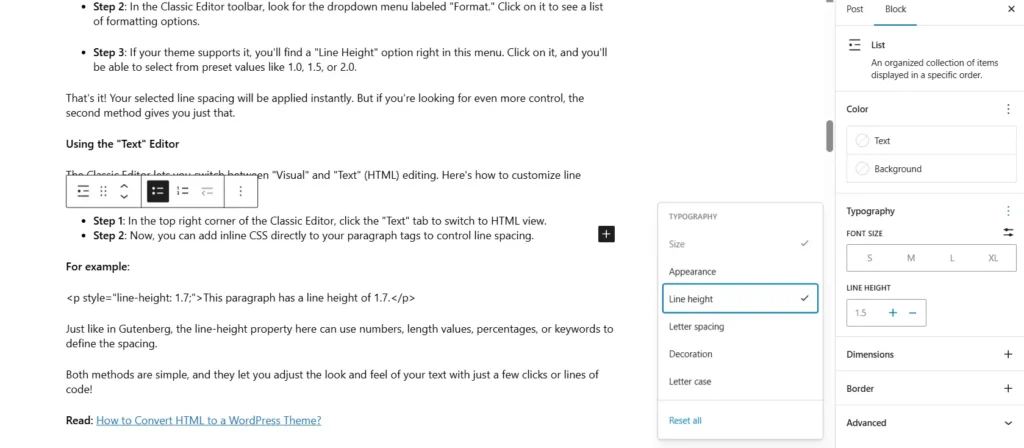
- Step 2: Head over to the block settings sidebar on the right. Look for the section labeled “Typography” or “Text settings.”
- Step 3: Click on the three-dot menu next to Typography, and you’ll see the option for “Line height.”
- Step 4: Now, just adjust the line spacing to your liking. It’s that easy!
Customizing Line Spacing with HTML
If you’re after more precise control, the custom HTML option has your back.
Here’s how to do it:
- Step 1: Select the paragraph block you want to edit. Click the “p” icon, then switch to “Code.”
- Step 2: Click the code icon again, then choose “Custom HTML.” This will turn your paragraph into editable HTML.
- Step 3: Now, add the following code snippet with your desired content:
<p style="line-height: 1.8em;">Your text here.</p>The line-height property controls the space between lines of text.
Here’s how you can set it:
- Number: A multiplier of the font size (e.g., 1.5 means 1.5 times the font size).
- Length value: Like 20px for 20 pixels of spacing.
- Percentage: 150% for spacing, which is 150% of the font size.
- Keyword: Such as normal (which typically defaults to about 1.2).
Note: Adjustments made in the block settings will only apply to that specific paragraph, but using the “Custom HTML” block with inline CSS gives you more flexibility, allowing you to style multiple paragraphs or elements exactly how you want.
Method 3: Adjust Line Spacing Using the Theme Customizer
The Theme Customizer lets you adjust line spacing site-wide without editing individual blocks or posts. What’s available depends on your theme, but most modern themes include typography controls.

Step 1: Head to your WordPress admin dashboard and go to Appearance> Customize. This opens up the Theme Customizer.
Step 2: Once in the Customizer, look for sections labeled “Typography,” “Content,” or “Global.” The exact name and location might vary based on your theme.
Step 3: Now, locate the line height controls. Depending on your theme, you might find one of the following:
- Slider: Simply drag it to adjust the spacing.
- Numerical input field: Enter a specific line-height value, like 1.5.
- Preset options: Choose predefined line-height settings.
Step 4: After making your adjustments, hit the “Publish” button to save your changes. The best part? You get a live preview of how the changes affect your site, so you can see the results instantly!
How to Use Additional CSS for Line Spacing?
If your theme doesn’t include built-in line height controls, use the Additional CSS section in the Customizer. Add the following to adjust line spacing across all paragraphs on your site.
To target only a specific content area, adjust the selector to match your theme’s content class. You can use px, em, rem, or unitless values depending on your preference.
Method 4: Use WordPress Plugins to Adjust Line Spacing
If you want to adjust spacing without touching code or the customizer, a plugin is the simplest option. The Spacer plugin adds a dedicated spacing block to the Gutenberg editor that lets you control the height between elements using a slider or numeric input.
Install and activate Spacer from the WordPress plugin directory. A new Spacer block appears in your block inserter. Add it between any two blocks, set your preferred height, preview the result, then publish or update your page.
Conclusion
Line spacing is a small change that makes a significant difference to how your content reads and how long visitors stay on your page. Start with the Gutenberg Typography settings if you want a quick fix on individual blocks.
Use the Theme Customizer’s Additional CSS section to adjust spacing across your entire site at once. A line height between 1.5 and 1.8 works well for most WordPress sites and is a safe starting point before fine-tuning to match your specific font and design.
FAQs About Changing Line Spacing in WordPress
How do I change line spacing in WordPress?
Use the Gutenberg editor’s Typography settings to adjust line height on individual blocks. For site-wide changes, add CSS to the Additional CSS section in the Theme Customizer. For a no-code option, use the Spacer plugin.
What is the difference between line height and paragraph spacing?
Line height controls the space between individual lines within a paragraph. Paragraph spacing controls the gap between separate paragraphs. Both affect readability but are adjusted through different CSS properties.
Can I change spacing in WordPress without coding?
Yes. The Gutenberg editor’s Typography settings and the Theme Customizer both let you adjust line spacing without writing any code. The Spacer plugin is another no-code option for adding spacing between blocks.
Why is line spacing important for readability?
Proper line spacing gives each line of text enough breathing room to be read comfortably. Dense text fatigues readers quickly and increases bounce rates on content-heavy pages.
What is the ideal line height value in WordPress?
A line height between 1.5 and 1.8 works well for most WordPress sites. Start at 1.6 and adjust based on your font size and design until the text feels comfortable at your most common screen sizes.


