The WooCommerce Add to Cart button is the most important single element on any product page. When it stops working, your store cannot process orders. Every visitor who lands on a broken product page is a lost sale.
A report by the Baymard Institute found that 17% of online shoppers abandon their purchases due to website errors. A broken or missing Add to Cart button falls squarely into that category and affects 100% of your product page visitors, not just a fraction.
The fix depends on the specific type of failure. A button that is not visible at all has different causes from one that appears but does nothing when clicked, or one that adds to the cart, but the page does not update. Diagnosing which failure you have determines which fix to apply first.
This guide covers every cause and every fix, ordered by which problems to rule out first.
A WooCommerce Add to Cart button typically stops working because of outdated software, plugin or theme conflicts, JavaScript or AJAX errors, incorrect product settings, or WooCommerce configuration issues.
Common fixes include updating WordPress and WooCommerce, checking for plugin conflicts, verifying product configuration, refreshing permalinks, and ensuring your theme fully supports WooCommerce.
Before troubleshooting, create a complete backup of your website so you can safely restore it if needed.
Diagnose Your Failure Type First
Not all Add to Cart button problems are the same. The fix depends on which type of failure you are experiencing.
| Failure Type | What You See | Most Likely Cause |
| Button not showing | Product page loads, but no button appears | Missing product data, out-of-stock settings, and theme issue |
| Button not clickable | The button appears, but nothing happens on click | JavaScript error, theme conflict, plugin blocking scripts |
| Button adds, but the page does not update | Spinner appears, then stops, cart count unchanged | AJAX is blocked by caching or a security plugin |
| Button redirects incorrectly | Click takes the customer to the wrong page | Permalink misconfiguration, cart page not assigned |
| Button works on some products, not others | The issue is product-specific | Incomplete product data, variable product misconfiguration |
Identify your failure type using this table, then start with the fix most likely to apply to your specific situation.
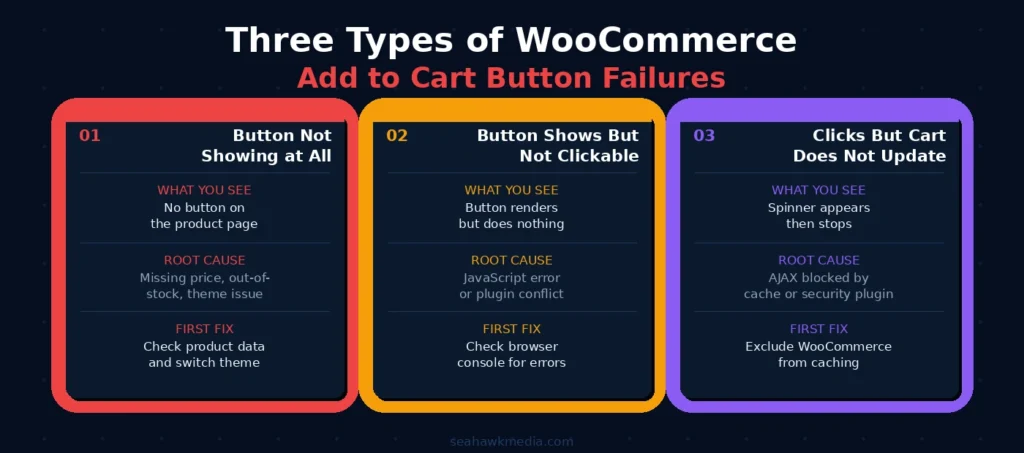
Three Types of WooCommerce Add to Cart Button Failures
Applying the wrong fix wastes time and can introduce new problems. Identify which failure type matches what you are seeing before moving to the fixes below.
Button is Not Showing at All
When the Add to Cart button is completely absent from a product page, WooCommerce is either hiding it by design or the theme is not rendering it.
WooCommerce hides the Add to Cart button automatically in these scenarios:
- The product has no price set
- The product is marked as out of stock, and the store setting to hide out-of-stock products is enabled
- A variable product has no configured variations, or all variations are out of stock
- An external/affiliate product has no external URL configured
Check these product-level settings before assuming a technical problem. Go to your product’s edit page in WooCommerce and verify that the Product Data panel shows a price entered, the stock status is In Stock, or the out-of-stock setting is configured as you intend, and, for variable products, that at least one variation exists and has stock.
Button is Showing But Not Clickable
When the button appears but does not respond to clicks, a JavaScript error is preventing the click handler from firing. The button renders in HTML, but its functionality is broken due to a script conflict or error.
Open your browser’s developer console (F12 in Chrome, then Console tab) and reload the product page. Click the Add to Cart button and look for red error messages in the console. Common JavaScript errors that indicate the specific cause:
- jQuery is not defined: jQuery is not loading or loading out of order. Often caused by optimization plugins deferring jQuery.
- Cannot read property of undefined: A WooCommerce JavaScript function is running before its dependency is ready. Usually caused by a plugin conflict.
- AJAX URL not defined / wc_add_to_cart_params is not defined: WooCommerce’s cart parameters are not being output to the page. Usually caused by a caching plugin serving a cached version of the page without WooCommerce’s JavaScript.
Note the specific error before proceeding. It tells you exactly which fix to apply.
Button Clicks, But Cart Does Not Update
When the button appears to work (the click registers and a spinner may appear) but the cart count does not update, and the product is not added, the AJAX request is failing. WooCommerce uses AJAX to add products to the cart without a page reload. When AJAX is blocked or fails, the click appears to have no effect.
This is the most commonly caused by caching plugins serving cached responses to AJAX requests, security plugins blocking AJAX calls they classify as suspicious, or incorrect AJAX URL configuration in WooCommerce settings.
Is Your WooCommerce Store Losing Sales to a Broken Button?
Seahawk’s WooCommerce team diagnoses and fixes cart issues, plugin conflicts, and JavaScript errors fast. Emergency support available. No contracts. No retainers.
Fix 1: Update WooCommerce, WordPress, and All Plugins
Outdated software is the easiest problem to rule out and the most commonly overlooked. Start here before any other fix, especially if the button broke after a recent update.

Why Outdated Software Breaks the Add to Cart Button
WooCommerce, WordPress, themes, and plugins are updated frequently. When one component updates and others do not keep pace, compatibility gaps form. The Add to Cart button relies on a chain of components working together: WordPress core, WooCommerce, the active theme, and any plugins that modify product or cart behavior. A version mismatch at any point in the chain breaks the chain.
This is the most common root cause of the Add to Cart button breaking immediately after any update. If your button worked and then broke after a recent update, a compatibility issue is almost certainly the cause.
How to Update Everything Safely
Before updating, take a backup. Go to Dashboard > Updates in your WordPress admin. Update WordPress core first. Then update all plugins. Then update your theme.
For WooCommerce specifically, major version updates (4.x to 5.x, 5.x to 6.x) sometimes introduce breaking changes. Always test major WooCommerce updates on a staging environment before applying them to production.
After updating, clear your site cache if you have a caching plugin. Then test the Add to Cart button on a product page before declaring the issue resolved.
What to Do If the Button Breaks After an Update
If the button broke immediately after a specific update, that update is the most likely cause. Roll back to the previous version using the WP Rollback plugin or restore your pre-update backup. Then check the plugin’s changelog and support forum for reports of the same issue before updating again.
Fix 2: Resolve Plugin and Theme Conflicts
Plugin and theme conflicts are the most common cause of a broken Add to Cart button. Work through these steps in order, testing after each one before moving to the next fix.
How to Identify a Plugin Conflict
Plugin conflicts are the most common cause of a broken Add to Cart button. The fastest way to identify a plugin conflict is to deactivate all plugins except WooCommerce and test the button.
Go to Plugins > Installed Plugins. Select all plugins except WooCommerce. Choose Deactivate from the bulk actions dropdown. Apply.
Test the Add to Cart button. If it now works, a deactivated plugin was the cause. Reactivate plugins one at a time, testing the button after each reactivation. When the button breaks again, the most recently reactivated plugin is the one causing the conflict.
If you cannot deactivate all plugins on a live store, use a staging environment to replicate this test.
Common Plugins That Conflict with the Add to Cart Button
Certain plugin categories are responsible for the majority of Add to Cart button conflicts:
Caching plugins: WP Rocket, W3 Total Cache, WP Super Cache. These plugins can cache WooCommerce JavaScript in ways that break AJAX functionality. Fix: Exclude WooCommerce pages from caching. In WP Rocket, WooCommerce pages (cart, checkout, my account) are automatically excluded, but verify this in WP Rocket > Settings > Cache > Never Cache These URLs.
Optimization plugins: Autoptimize, Perfmatters, Asset CleanUp. These plugins minify and combine JavaScript files. Incorrectly combining WooCommerce scripts with other scripts causes jQuery dependency errors. Fix: In Autoptimize, go to Settings > JavaScript Options and enable Force JavaScript to Head? Check Exclude Scripts from Autoptimize and add woocommerce.js and add-to-cart.js to the exclusion list.
Security plugins: Wordfence, Sucuri, iThemes Security. Some security configurations block WooCommerce’s AJAX requests, classifying them as malicious. Fix: In Wordfence, go to Firewall > Firewall Options and whitelist the WooCommerce AJAX endpoint (wp-admin/admin-ajax.php).
Page builders: Elementor, Divi, WPBakery. Some page builders override WooCommerce templates or inject conflicting scripts on product pages. Fix: Test by temporarily switching to the default WooCommerce product template.
How to Identify a Theme Conflict
After ruling out plugin conflicts, switch to the Storefront theme (WooCommerce’s official default theme) and test the button. Storefront is designed specifically for WooCommerce and has zero compatibility issues.
Go to Appearance > Themes > Add New, then search for Storefront. Install and activate it. Do not change any other settings. Test the Add to Cart button.
If the button works with Storefront, the issue is your active theme. Contact your theme developer with a report. If it does not work with Storefront, the cause is not theme-related.
Fix 3: Fix JavaScript and AJAX Errors
JavaScript and AJAX failures cause the button to appear broken even when everything else is configured correctly. Check the browser console first to see which script is failing before making any changes.
How to Check for JavaScript Errors in Your Browser
Open your site in Chrome or Firefox. Press F12 to open Developer Tools. Click the Console tab. Navigate to a product page where the Add to Cart button is broken.
Look for red error messages. These are the specific JavaScript failures causing the button malfunction. Copy the full error message. Search for it in the WooCommerce support forums and the plugin’s own support forum. Most common errors have documented solutions.
While the Console is open, also check the Network tab. Click the Add to Cart button and watch for requests. A failed AJAX request appears in red with a status code. A 403 status indicates a security plugin is blocking the request. A 500 status indicates a server error in the AJAX handler.
Fix AJAX Add to Cart Settings in WooCommerce
Go to WooCommerce > Settings > Products. Look for the Add to Cart Behaviour section. Verify that Enable AJAX add to cart buttons on archives is checked. This setting controls whether the AJAX cart functionality is active on shop and category pages.
Also, verify your cart and checkout pages are correctly assigned. Go to WooCommerce > Settings > Advanced > Page Setup. Confirm that the Cart and Checkout pages are set to the correct pages on your site. If either is blank or set to the wrong page, cart button clicks will fail silently.
Fix Optimization Plugins Breaking WooCommerce Scripts
If an optimization plugin is minifying or combining JavaScript and causing WooCommerce to break, add the following scripts to the plugin’s exclusion list:
Scripts to exclude from minification:
- woocommerce/assets/js/frontend/woocommerce.min.js
- woocommerce/assets/js/frontend/add-to-cart.min.js
- woocommerce/assets/js/frontend/add-to-cart-variation.min.js
- jquery.js or jquery.min.js
Also, exclude WooCommerce pages from JavaScript optimization: cart (/cart/), checkout (/checkout/), my account (/my-account/), and all product pages (/product/).
In WP Rocket: Go to File Optimization > JavaScript Files. Add the exclusions above to the Excluded JavaScript Files field.
In Autoptimize: Go to JavaScript Options > Exclude Scripts from Autoptimize and add the WooCommerce script paths.
Fix 4: Check and Complete Your Product Information
WooCommerce silently disables the Add to Cart button when required product data is missing. If the button is missing on specific products but works on others, start here.
Required Fields That Trigger the Missing Button
WooCommerce requires specific product data to display the Add to Cart button. If any required fields are missing, WooCommerce disables the button silently without an error message.
Check every product where the button is missing:
- Price: Every product must have a regular price set. A product with no price will not show the Add to Cart button. Go to Product > Product Data > General, and verify that the Regular Price field contains a value.
- Product name: The product must have a title. This is rarely missing but worth confirming on newly created drafts.
- Visibility: Ensure the product’s Catalog Visibility is set to Shop and search results, or Shop. Products set to Hidden do not show the button on archive pages.
- Product status: Confirm the product is Published, not Draft or Pending Review.
Variable Product Configuration for Add to Cart
Variable products behave differently from simple products. On shop/archive pages, variable products display a Select options button instead of an Add to Cart button. On the individual product page, Add to Cart appears only after a customer selects all required attributes.
If the Add to Cart button is missing entirely from a variable product page (not just showing Select options on the shop page), check:
- At least one product variation exists (Product Data > Variations > Add Variation)
- At least one variation is marked as In Stock with stock available
- All attributes used in variations are defined under Product Data > Attributes before creating variations
- The variations tab does not show any configuration errors
A variable product with no created variations, or with all variations out of stock, will not display the Add to Cart button.
Stock Status and Out-of-Stock Settings
Go to WooCommerce > Settings > Products > Inventory. Check whether Hide out-of-stock items from the catalog is enabled. If it is, any product marked as out of stock will not appear on shop pages and will not show the Add to Cart button.
Also, check the individual product’s stock status: Product > Product Data > Inventory > Stock Status. Confirm it is set to In Stock. A product manually set to Out of Stock will not show the Add to Cart button regardless of the catalog-level setting.
Fix 5: Check WooCommerce Pages and Permalink Settings
A misconfigured cart page or stale permalink structure causes silent failures that no amount of plugin debugging will fix. These three checks take less than 5 minutes and resolve more issues than most store owners expect.

Verify Cart and Checkout Page Assignment
WooCommerce requires specific pages to exist and be correctly assigned for cart functionality to work. If the cart page or checkout page is deleted, unpublished, or reassigned to the wrong page, Add to Cart button clicks either fail silently or redirect to the wrong page.
Go to WooCommerce > Settings > Advanced > Page Setup. Verify:
- Cart: assigned to a published page containing the [woocommerce_cart] shortcode or WooCommerce Cart block
- Checkout: assigned to a published page containing the [woocommerce_checkout] shortcode or WooCommerce Checkout block
- My Account: assigned to a published page containing the My Account block or shortcode
If any are missing or incorrectly assigned, reassign them. If the pages themselves are missing, create new pages with the correct shortcodes and assign them here.
Flush Your Permalink Structure
WordPress uses permalink rules to route requests correctly. If these rules become corrupted, WooCommerce AJAX requests may fail even when all other settings are correct. Flushing the permalink structure regenerates these rules.
Go to Settings > Permalinks in your WordPress dashboard. Do not change any settings. Click Save Changes. This regenerates the .htaccess file with fresh permalink rules and resolves routing issues that cause silent cart button failures.
This takes under 10 seconds and has no effect on your content. It is worth doing early in any troubleshooting process because it costs nothing and fixes a meaningful number of cart failures.
Check the WooCommerce Status Page for Errors
Go to WooCommerce > Status. This page shows a comprehensive overview of your WooCommerce installation. Red-highlighted rows indicate configuration errors.
Common errors shown on the Status page that affect the Add to Cart button:
- Database Outdated: WooCommerce database tables need updating. Click the Update Database button.
- WooCommerce.js: the file is missing or inaccessible. This directly prevents the Add to Cart button from functioning.
- Template overrides: your theme has overridden WooCommerce template files. If the overrides are from an old WooCommerce version, they may be missing new functionality. Update your theme or remove the outdated overrides.
Fix 6: Clear Your Cache
A caching plugin serving a stale version of your product page can cause the Add to Cart button to appear unresponsive even after you have applied all other fixes. Always clear your cache as both an early troubleshooting step and a final step after making any changes.
Clear cache in WP Rocket: Click the WP Rocket icon in your admin bar > Clear Cache.
Clear cache in W3 Total Cache: Performance > Purge All Caches.
Clear the WP Super Cache cache: Settings > WP Super Cache > Delete Cache.
Clear cache in LiteSpeed Cache: LiteSpeed Cache > Purge All.
Clear Cloudflare cache: Cloudflare Dashboard > Caching > Configuration > Purge Everything.
Clear your browser cache: Ctrl+Shift+Delete in Chrome or Firefox. Clear cached images and files. Reload the product page in a private/incognito window to verify the fix, which guarantees no browser cache is involved.
After clearing all caches, test the Add to Cart button on the affected product page. Test in an incognito window to rule out browser cache.
Troubleshooting Checklist: The Right Order
Work through these in order. Stop when the button works.
- Take a full site and database backup
- Identify your failure type (not showing / not clickable / clicking but not updating)
- Check the browser console for JavaScript errors and note any specific errors
- Go to Settings > Permalinks and click Save Changes (no setting change needed)
- Check WooCommerce > Status for red errors and resolve them
- Check product data: price set, stock status In Stock, variations configured
- Update WordPress, WooCommerce, all plugins, and your theme
- Clear all caches: caching plugin + Cloudflare + browser
- Deactivate all plugins except WooCommerce and test
- If the button works with plugins deactivated, reactivate one by one to identify the conflict
- Switch to the Storefront theme and test
- If the button works with Storefront, the active theme is the cause
- Check WooCommerce > Settings > Advanced > Page Setup for cart and checkout page assignment
- Add WooCommerce scripts to your optimization plugin’s exclusion list
Final Thoughts on Fixing the WooCommerce Add to Cart Button
Most WooCommerce Add-to-Cart button failures are caused by plugin conflicts, caching issues, or incomplete product data. All three have clear diagnostic paths and specific fixes that do not require custom development.
Start with the diagnostic table to identify your failure type. Check the Status page and flush permalinks first — these cost nothing and fix a meaningful number of cases. Update everything before making any other changes. Then work through the plugin and theme conflict process.
If you have applied every fix on this list and the button is still not working, the issue is likely a custom code conflict or a server-level configuration issue. At that point, a WordPress developer with WooCommerce experience should review the browser console errors, server error log, and WooCommerce debug log together.
Seahawk’s WooCommerce development team resolves Add to Cart button issues as part of its emergency support and ongoing maintenance service.
Frequently Asked Questions About WooCommerce Add to Cart Button Not Working
Why is my WooCommerce Add to Cart button not showing?
The most common reasons the WooCommerce Add to Cart button does not show are: the product has no price set, the product is out of stock, and the store is configured to hide out-of-stock items, a variable product has no configured variations or all variations are out of stock, or the active theme is not correctly rendering WooCommerce hooks. Check the product’s price, stock status, and variation configuration first, then switch to the Storefront theme temporarily to rule out theme issues.
Why is my WooCommerce Add to Cart button not working after an update?
When the button stops working immediately after a plugin, theme, or WooCommerce update, a compatibility gap is almost certainly the cause. Roll back to the previous version using the WP Rollback plugin or restore your pre-update backup. Then check the plugin’s changelog and support forum for known compatibility issues with the current WooCommerce version before re-applying the update.
How do I fix the WooCommerce Add to Cart button not working with WP Rocket?
WP Rocket can break WooCommerce’s AJAX cart functionality by caching cart-related pages or by incorrectly optimizing WooCommerce scripts. Go to WP Rocket > Cache and verify that the cart, checkout, and my account pages are in the Never Cache These URLs list. In File Optimization > JavaScript Files, add WooCommerce’s add-to-cart scripts to the exclusion list. Clear the WP Rocket cache completely after making changes.
Why does clicking Add to Cart do nothing in WooCommerce?
When the button does not respond to clicks, a JavaScript error is preventing the click handler from executing. Open your browser’s Developer Console (F12 > Console tab), reload the product page, and click the button. Look for red error messages. Common errors include jQuery not being defined (jQuery loading issue) and wc_add_to_cart_params not being defined (WooCommerce scripts not loaded). These errors point directly to the cause.
What is the fastest way to fix the WooCommerce Add to Cart button?
Work through in this order: flush permalinks (Settings > Permalinks > Save Changes), clear all caches, check the WooCommerce Status page for errors, verify product data is complete, update WordPress and all plugins, then deactivate all plugins except WooCommerce to identify conflicts. This order prioritizes the fastest, zero-risk fixes before moving to the more involved troubleshooting steps.
How do I fix the WooCommerce Add to Cart AJAX not working?
Go to WooCommerce > Settings > Products, and verify that “Enable AJAX add to cart buttons on archives” is checked. Then check whether your caching plugin or security plugin is blocking the WordPress AJAX endpoint (wp-admin/admin-ajax.php). In Wordfence, whitelist this endpoint. In caching plugins, exclude it from caching. Clear all caches and test again.
Why does the Add to Cart button work on some products but not others?
This is almost always a product configuration issue on the specific products where the button does not work. Check whether the affected products are missing a price, have a stock status of Out of Stock, are variable products with no configured variations, or have a catalog visibility setting that hides them from shop pages. Compare the settings of a working product with those of a non-working product to identify the differences.