
If your online store is still running on VirtueMart, you have probably already felt the friction. Extensions that no longer get updated. SEO capabilities that barely scratch the surface. A Joomla dependency that limits where you can take your business. The good news is that the VirtueMart to WooCommerce migration is far more straightforward than most store owners expect, and the payoff is significant.
In this guide, we’ll walk you through every step, from preparing your store to going live on a platform built to grow with you.
TLDR: VirtueMart to WooCommerce Migration at a Glance
Short on time? Here is what you need to know before diving into the full guide.
- VirtueMart is a Joomla-based eCommerce plugin with limited SEO tools, a shrinking extension library, and fewer developer resources every year.
- WooCommerce runs on WordPress and powers 6.3 million+ active stores, offering a far larger plugin ecosystem and superior SEO capabilities.
- You can migrate products, orders, customers, coupons, tax settings, and SEO URLs without disrupting your live VirtueMart store at any point.
- Automated migration tools handle the entire data transfer in the background with zero downtime.
- Always back up your VirtueMart store first, run a free demo migration, set up 301 redirects, and test checkout before going live.
- After migration, install Rank Math, MonsterInsights, SolidWP, and Jetpack to get your WooCommerce store fully operational from day one.
- Seahawk Media offers a fully managed WooCommerce migration for store owners who want the entire process handled without any technical involvement.
Why VirtueMart is No Longer Enough for Growing Stores?
VirtueMart made sense for many store owners when Joomla was a dominant CMS. That landscape has shifted considerably. WordPress now powers more than 43% of all websites on the internet, and WooCommerce has become the default eCommerce solution for millions of businesses at every scale.
VirtueMart, by contrast, powers only around 38,000 live stores today. The gap is not just a popularity contest. It reflects a real difference in community investment, developer resources, and long-term viability.
Here is what store owners actually run into when they try to scale on VirtueMart in 2026:
- The extension library is outdated. Many third-party add-ons have not been updated in years, and quality options are genuinely hard to find.
- SEO capabilities are weak. VirtueMart lacks the native tools and plugin support that WordPress provides as standard.
- Themes are limited and increasingly abandoned. Finding a modern, well-supported VirtueMart theme is a challenge.
- The Joomla dependency creates friction. Developers, designers, and content teams are far more likely to know WordPress than Joomla.
- Developer resources are shrinking. Finding experienced VirtueMart developers for custom work is becoming harder and more expensive.
If you are trying to grow your store, these limitations compound quickly. The move to WooCommerce is not just an upgrade. It is a foundation change that removes the ceiling on what your store can become.
Move to WooCommerce Without Losing a Single Order or Ranking
We have migrated stores of every size to WooCommerce. We protect your data, preserve your SEO, and get your new store live faster than you think.
VirtueMart vs WooCommerce: What Actually Changes When You Switch?
Before committing to any CMS migration to WordPress, it helps to understand exactly what you are moving toward. Here is how the two platforms compare across the areas that matter most.
Platform Foundation
VirtueMart is a plugin for Joomla. Every limitation of VirtueMart is also a limitation of its Joomla environment. WooCommerce, on the other hand, runs inside WordPress, which is the most widely used CMS in the world. That means access to a development community that is orders of magnitude larger, better documentation, and far more hiring options if you ever need developer support.
SEO and Organic Growth
WooCommerce inherits everything WordPress does well for SEO. Pair it with Rank Math or AIOSEO, and you get a complete on-page SEO system covering meta titles, meta descriptions, XML sitemaps, schema markup, redirect management, and more.
VirtueMart offers basic SEO URL support starting with version 2.x, but it cannot match the SEO infrastructure available in WooCommerce.
Plugin and Extension Ecosystem
WooCommerce connects with thousands of actively maintained plugins covering payments, shipping, inventory, marketing, analytics, security, and more. Many of them are free or low-cost.
VirtueMart extensions are fewer in number, more expensive on average, and frequently abandoned. Some of the most commonly needed VirtueMart add-ons can cost upward of $500, with no guarantee of ongoing updates.
Community and Long-Term Support
WooCommerce is backed by Automattic and supported by a global community of developers and agencies. Updates are regular, security patches are fast, and documentation is comprehensive.
VirtueMart is maintained by a much smaller team with noticeably fewer resources, and the gap between the two communities has widened significantly over the past few years.
What Data Actually Transfers from VirtueMart to WooCommerce?
One of the first concerns store owners raise is whether they will lose data during migration. The short answer is no. Automated migration tools are designed to move your store data completely and accurately.
Here is what transfers:
- Products: Name, SKU, short and full descriptions, status, price, sale price, stock quantity, weight, dimensions, product images, product gallery images, variants, and attributes.
- Product categories: Name, description, parent-child hierarchy, and category images.
- Customers: First name, last name, email, customer group, billing address, and shipping address.
- Customer passwords: Available as an optional migration setting, allowing customers to log in without resetting credentials.
- Order history: Order ID, order date, order status, billing address, shipping address, and line items.
- Coupons and discounts: Coupon codes and discount rules transfer as part of the migration.
- Tax classes and rates: Tax names, rates, country, and state-level configurations.
- SEO data: Meta titles, meta descriptions, and SEO-friendly URLs from VirtueMart 2.x onward.
One thing that does not transfer is your store theme and visual design. WooCommerce themes are completely separate from VirtueMart themes, so your new store will need a fresh design setup on WooCommerce.
What WooCommerce Can’t Import From VirtueMart (And What to Do Instead)?
Being upfront about migration limitations saves you from unpleasant surprises after go-live. Here is what you will need to rebuild or replace:
- Store theme and design: VirtueMart themes have no direct equivalent in WooCommerce. You will need to choose a WooCommerce-compatible theme and rebuild your store’s visual identity. Kadence, Astra, and Blocksy are solid, lightweight starting points that work well with WooCommerce out of the box.
- Custom VirtueMart extensions: If your store relies on VirtueMart-specific extensions for functionality, you will need to replace them with WooCommerce-compatible plugins. Most popular VirtueMart features have direct WooCommerce equivalents that are better maintained.
- Certain product option types: Some product option configurations require the WooCommerce Product Add-Ons plugin to be installed on your WooCommerce store before migration starts. Without it, those options may be converted to product variants rather than transferred as intended.
- Multi-language stores: If your VirtueMart store supports multiple languages, you need WPML installed and configured on your WooCommerce site before migration begins. WPML is a paid plugin, so factor that into your planning.
Seahawk Media helps clients audit these gaps before migration starts, so nothing gets missed.
How Much Does VirtueMart to WooCommerce Migration Cost?
Most guides avoid this question. Here is an honest breakdown.
- Automated migration tools are the most cost-effective option for standard stores. Pricing typically starts around $79 for a basic migration covering products, customers, and orders.
- Full-suite packages that include SEO URL migration, image transfer, and customer password migration generally run up to $139.
- Costs scale with the number of entities you are migrating, so a store with 10,000 products will cost more than one with 500.
Hiring a developer for a custom migration is the right choice for stores with heavily customized functionality or complex data structures.
With Seahawk Media, migration pricing starts from $499, with the final cost depending on your store’s size, features, and complexity. This approach ensures your data, design, and functionality are transferred accurately without disruptions.
Our managed migration service handles everything from data transfer to SEO setup and post-migration testing. This option is ideal if you want the process done correctly without any technical involvement on your end.
Before You Start: Your Pre-Migration Checklist
Rushing into migration without preparation is how things go wrong. Take care of these steps first.
Back Up Everything First
Navigate to your VirtueMart dashboard and go to Components ⟶ VirtueMart ⟶ Tools. Use the Database Backup wizard to export all tables.
Also, back up your Joomla files via FTP. Do this before touching anything else. If something goes wrong during migration, your backup is your only safety net.
Audit Your Existing Store Data
Before migrating, take time to clean up. Remove outdated products that you no longer sell. Delete inactive customer accounts if appropriate. Clear duplicate or test orders from your database. Clean data transfers faster, so you can start your WooCommerce store without carrying over clutter from years of Joomla operations.
Set Up WordPress and WooCommerce
Install WordPress on reliable hosting before you connect any migration tool.
After WordPress is installed, add the WooCommerce plugin from the WordPress dashboard under Plugins ⟶ Add New, install it, and activate it.
Your WooCommerce store needs to be live and accessible before the migration tool can connect to it as a target.
Create a Staging Site
Never run a live migration without testing it on a staging environment first. Most quality hosts offer one-click staging setups.
Run your full demo migration on staging, verify the results, and only then move to production. This step saves hours of cleanup if something does not transfer correctly.
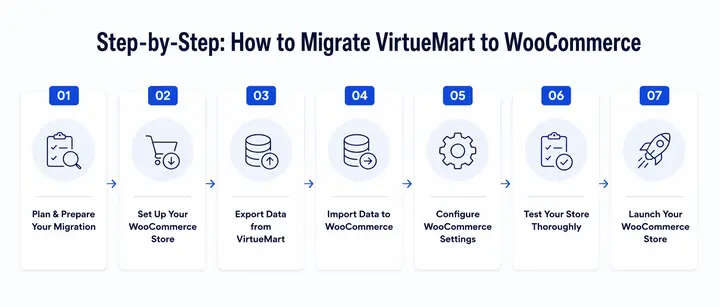
Step to Migrate VirtueMart to WooCommerce
Here is the complete migration process from start to finish.
Step 1: Choose Your Migration Method
You have three options.
- Manual CSV export is technically possible, but it becomes error-prone and time-consuming as your store grows.
- Automated migration tools can handle basic transfers, but they often miss custom functionality and require additional fixes later.
- Hiring a developer is the most reliable option, especially for stores with custom features, large product catalogs, or complex setups. It ensures a smooth migration, protects your data, and avoids costly issues after the move.
Step 2: Connect Your VirtueMart Store as the Source
In your migration tool, select VirtueMart as the source cart and enter your store URL. The tool will ask you to download a Connection Bridge file.
Download it, unzip it, and upload the resulting folder to your VirtueMart root directory via FTP or SFTP.
Once uploaded, your migration tool will confirm the connection is established. Do not move to the next step until you see that confirmation.
Step 3: Connect Your WooCommerce Store as the Target
Select WooCommerce as the target cart. You can connect via your WordPress admin credentials (URL, username, and password).
Or through the WooCommerce REST API using a Consumer Key and Consumer Secret generated from WooCommerce ⟶ Settings ⟶ Advanced ⟶ REST API.
Install the target connector in your WooCommerce root folder and confirm the link before proceeding.
Step 4: Select What to Migrate
Choose the entities you want to transfer. For most stores, selecting everything is the right call: products, categories, customers, orders, coupons, and tax classes. At this stage, enable two important options.
- First, enable “Preserve order IDs on the Target Store” to keep your historical order numbering intact.
- Second, enable “Migrate categories and products SEO URLs” to protect your organic search rankings.
These options make a meaningful difference after go-live.
Step 5: Run the Free Demo Migration First
Do not skip this step. The demo migration transfers a small batch of up to 10 entities in roughly 10 to 30 minutes.
- Check that product names, descriptions, images, order data, and customer records all appear correctly inside your WooCommerce store.
- Look at the detail level: are product descriptions formatted correctly? Did images transfer cleanly? Are order statuses mapped accurately?
Fix any issues at this stage rather than after a full migration of thousands of records.
Step 6: Launch the Full Migration
Once the demo results look accurate, start the full migration. The process runs in the background and continues even if you close the browser tab.
Most modern migration tools will email you when the transfer is complete. Average transfer speed under normal server conditions is around 3,000 products per hour.
A small store of a few hundred products may complete in under an hour. Larger stores with tens of thousands of records can take the better part of a day.
Step 7: Verify Everything After Migration Completes
Do not go live the moment migration finishes.
- First, check all product listings and confirm that titles, descriptions, prices, images, and inventory quantities are correct. Then check customer accounts and verify that billing and shipping addresses transferred accurately.
- Review order history and confirm that statuses are mapped correctly.
- Finally, place a test order yourself. Walk through the complete checkout flow, including payment method selection, shipping calculation, and order confirmation email.
If product thumbnails are missing in WooCommerce, go to WooCommerce ⟶ Status ⟶ Tools and click Generate under Regenerate Shop Thumbnails.
If images are still missing, check whether a CDN on your VirtueMart server was blocking image downloads during the transfer.
How to Protect Your SEO Rankings During and After Migration?
SEO protection is where many migrations go wrong. Store owners move platforms, traffic drops, and they spend months recovering. Here is how to avoid that.
- Enable the “Migrate categories and products SEO URLs” option inside your migration tool before starting the full migration. This preserves your existing URL structure inside WooCommerce so Google does not see your product pages as new, unknown URLs.
- Enable the “Create 301 redirects” option at the same stage. This automatically maps your old VirtueMart URLs to their new WooCommerce equivalents. Any visitor or crawler that hits an old URL is redirected seamlessly to the correct new page.
- Install AIOSEO on your WooCommerce store before migration starts. When you migrate your meta titles and meta descriptions, AIOSEO will receive them cleanly and make them editable from your WooCommerce dashboard.
- After go-live, submit an updated XML sitemap to Google Search Console so Google can crawl your new URL structure quickly.
In the first 30 days after migration, monitor Google Search Console actively for 404 errors. Any missed redirects will show up there. Fix them immediately. A small number of missed redirects is normal, even with careful preparation. Catching them fast minimizes any SEO impact.
Essential WooCommerce Plugins to Install Right After Migration
Your WooCommerce store is live. Now you need the right plugins to replace what VirtueMart extensions used to handle and to add capabilities your old store never had.
- Rank Math handles all on-page SEO, redirect management, schema markup, and XML sitemap generation. If you optimized your metadata during migration, Rank Math makes it all manageable going forward.
- SolidWP handles security hardening, malware scanning, and brute force protection. WooCommerce stores process payments and hold customer data, so security cannot be an afterthought.
- Jetpack adds performance monitoring, downtime alerts, and a basic security layer. It is a practical all-in-one tool for store owners who want visibility without managing multiple security plugins.
- PushEngage lets you re-engage your migrated customer base with push notifications. Notifying customers that your store has moved and offering them a reason to return is a smart post-migration practice.
- SureCart is worth considering if you want more advanced checkout flows, subscription billing, or upsell sequences beyond what core WooCommerce provides out of the box.
Migration Mistakes That Can Break Your Store (and How to Avoid Them)
Even well-planned migrations can go sideways when these common mistakes creep in.
- Skipping the demo migration: The demo is not optional. It exists specifically to catch data accuracy issues before they affect thousands of records. Store owners who skip it and go straight to full migration often find formatting problems, missing images, or broken order statuses that would have taken minutes to fix at the demo stage and hours to correct afterward.
- Not backing up VirtueMart before starting: Migration tools are designed to leave your source store untouched, but server errors happen. Without a full backup of your VirtueMart database and files, there is no recovery path if something unexpected occurs during the process.
- Forgetting 301 redirects before launch: This is the most common SEO mistake in platform migrations. Old VirtueMart URLs will return 404 errors on WooCommerce without redirects in place. Every 404 is a lost visitor and a signal to search engines that your content has disappeared. Set up redirects before you flip the switch.
- Editing data in WooCommerce during migration: Some store owners get impatient and start customizing their stores while the migration is still in progress. This creates data conflicts and inconsistencies. Wait for the migration to complete and verify the results before making any changes.
- Going live without testing the mobile checkout: WooCommerce responsiveness depends heavily on the theme you choose. A desktop checkout that works perfectly can have broken form fields, misaligned buttons, or unusable payment flows on mobile. Test the full checkout experience on at least two mobile devices before announcing your new store.
Wrap Up
VirtueMart served its purpose, but the platform is losing ground fast. The extension library is aging, developer support is thinning out, and the gap between what VirtueMart can do and what WooCommerce offers grows wider every year. Migrating now means getting ahead of that decline instead of managing it reactively.
The process is more straightforward than most store owners expect. Back up your store, set up WooCommerce on quality hosting, run a demo migration, verify the data, enable your redirects, and go live. The steps are clear, the tools are reliable, and the results are worth it.
If you would rather have an expert team handle the entire process, Seahawk Media manages VirtueMart-to-WooCommerce migrations from start to finish. Data transfer, SEO setup, plugin configuration, and post-migration testing are all included. No technical headaches on your end. Just a store that works on a better platform.
Get in touch with Seahawk Media today, and let’s move your store the right way.
Frequently Asked Questions
Does the VirtueMart to WooCommerce migration affect my live store?
No. Automated migration tools copy your data from VirtueMart to WooCommerce without touching or modifying your live store. Your VirtueMart store stays fully operational throughout the entire process. Customers can continue browsing and purchasing without any interruption.
Can I migrate multiple languages from VirtueMart to WooCommerce?
Yes, but you need to prepare your WooCommerce store first. WPML must be installed and configured on your WordPress site before the migration begins. WPML is a paid plugin, so factor in the cost and setup time before starting the transfer.
Will my Google rankings drop after the migration?
Not if you handle two things correctly. Enable the option to migrate your SEO URLs during the migration setup, and ensure 301 redirects are created from your old VirtueMart URLs to their new WooCommerce equivalents.
How long does a VirtueMart to WooCommerce migration take?
It depends on how much data your store has. A small store with a few hundred products and orders typically completes migration in a few hours.
Larger stores with tens of thousands of products, customers, and orders can take up to a full day. The free demo migration, which transfers up to 10 entities, usually completes in 10 to 30 minutes and gives you a realistic time estimate for the full transfer.
Is it safe to migrate from VirtueMart to WooCommerce?
Yes, when done correctly. The key steps are backing up your VirtueMart store before starting, running the demo migration to catch any issues early, and using a reputable migration tool or service.
The migration process copies your data rather than moving it, so your source store remains intact throughout. The biggest risks come from skipping preparation steps or rushing the verification process after migration completes.


