Your WordPress site may be infected, and you might not even know it. Not by malware or a hacker. By WordPress zombie plugins: abandoned, outdated, and unmaintained plugins that silently drain your site’s security, speed, and stability.
These plugins are not dead. They still run code on your server. They still fire database queries. They still load scripts on your pages. But nobody is maintaining them. No developer is fixing their bugs. No security patches are being released. That is exactly what makes them dangerous.
Over 1.6 million WordPress sites currently run vulnerable or unsupported plugins. Understanding what zombie plugins are, how to identify them, and how to remove them safely is one of the most important steps you can take to protect your website.
WordPress zombie plugins are outdated, abandoned, or unused plugins that remain installed and may create security or performance risks. Identifying them involves reviewing plugin updates, activity, compatibility, and security status. Removing risky plugins requires creating a backup, testing changes, deleting unnecessary plugins, and cleaning leftover files or database entries.
Understanding WordPress Zombie Plugins: Causes, Risks, and Impact
WordPress zombie plugins are inactive, outdated, or unsupported plugins that can create security, compatibility, and maintenance issues for websites over time.
What Are WordPress Zombie Plugins?
WordPress zombie plugins are technically active on your site but are no longer maintained, updated, or supported by their original developers. Think of them as the walking dead of your WordPress plugin library, alive enough to run, but too neglected to be safe.
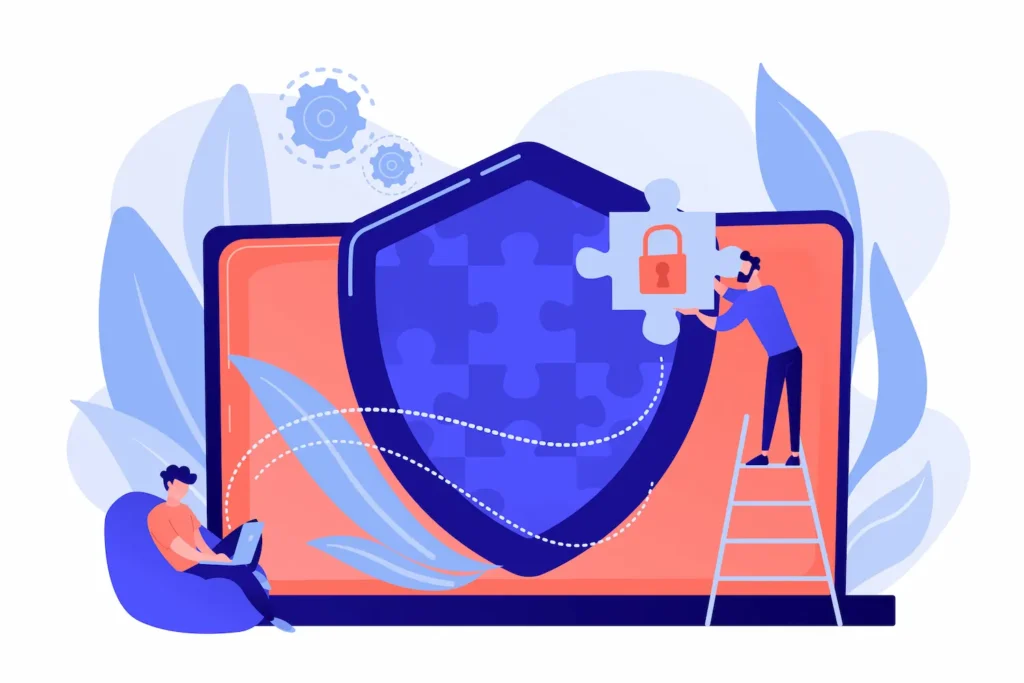
Unlike fully deleted or broken plugins, zombie plugins continue to execute code. They appear in your dashboard. They may even seem to work fine. But they have been abandoned by their creators, often for years, and carry serious risks that grow with every passing month.
Some zombie plugins have not been updated for over 13 years. In the fast-moving world of web software, that is not just outdated, it is a security disaster waiting to happen.
The WordPress ecosystem evolves constantly. Core updates, PHP version changes, and new browser standards all require plugins to adapt. A plugin that has not been updated for a year or more is almost certainly incompatible with the current state of your website.
The term “zombie” fits well. These plugins are not fully gone, but they are not really alive either. They exist in a state between functional and broken, and that liminal state is precisely what poses a risk to your site and its users.
Common Causes Behind WordPress Zombie Plugins on Websites
Several factors led to the creation and spread of zombie plugins across the WordPress ecosystem.
- Developer abandonment is the most common cause. Plugin developers start a project, release it for free in the WordPress.org repository, and then move on. Life happens. Priorities shift. Many free plugin developers are solo contributors or small teams with limited resources and no financial incentive to continue maintaining their work indefinitely. When support forums stop getting replies and new issues pile up, the plugin quietly enters zombie territory.
- Ownership changes also play a role. When a plugin changes hands, sold to a new company or individual, the new owners may lack the same technical expertise or commitment. Sometimes, new owners acquire plugins specifically to inject malicious code or push unwanted ads. Auditing your plugin ownership history can help you catch this early.
- Business shutdowns leave many plugins orphaned. When the company behind a plugin closes, the plugin loses all active development and support, sometimes overnight.
- Neglect through growth happens, too. A site owner installs a plugin for a specific feature, uses it for a few weeks, and then forgets about it entirely. Months later, the plugin sits inactive, still installed, still occupying your server, and potentially still a security liability.
Security Risks of Using Outdated and Abandoned WordPress Plugins
Security is the most urgent reason to care about zombie plugins. Outdated plugins can harbor significant security risks due to their inactive, unmaintained code.
Patchstack, a leading WordPress security organization, operates a free vulnerability disclosure program for plugins. Their research reveals a stark reality: over 70% of disclosed vulnerabilities in WordPress plugins remain unpatched.
In total, 404 vulnerabilities were disclosed but never fixed. These are known, publicly documented security holes in plugins that developers have simply chosen not to address, either because they have abandoned the project or because they lack the capacity to fix them.
When a security vulnerability becomes public, attackers immediately begin scanning for sites still running the vulnerable plugin.
Your site becomes a target not because you did something wrong, but because you are running outdated software. Automated bots constantly crawl the web looking for these known weaknesses. A zombie plugin is essentially an open door with a sign that reads “please come in.”
Malicious code injection, data theft, unauthorized admin access, and full-site takeovers are all possible through vulnerable plugins. Understand the broader WordPress security threat landscape to see just how common these attack vectors have become.
Critically, WordPress Core itself does not notify site owners when a plugin has been removed from the repository for security reasons. A plugin can be quietly pulled from the directory, and your site will continue running it without any warning whatsoever.
How Zombie Plugins Impact WordPress Website Performance?
Security is not the only problem. Zombie plugins also drag down your website’s performance in measurable ways.
Poorly coded plugins do not meet modern performance standards. Many zombie plugins were written years ago, when best practices looked very different. They load unnecessary scripts and styles on every page, not just the pages where they are actually used. That bloats your page size and slows down load times for every visitor.
Excessive database queries are another issue. When a plugin fires slow or redundant queries on every page load, it increases your Time to First Byte (TTFB) and consumes server memory. On a shared hosting environment, this can cascade into wider performance problems.
Unmaintained plugins also frequently conflict with newer plugins or WordPress core updates. A plugin that worked perfectly two years ago may now cause PHP errors, broken layouts, or even white screen crashes after a WordPress update. The older a plugin is, the more likely it is to conflict with newer software.
For sites running on managed WordPress hosting, these performance impacts are especially visible because managed hosts often enforce strict performance benchmarks.
Keep Your WordPress Website Plugin Risk Free
Get expert help to audit, secure, and maintain your WordPress website with proactive plugin management and security checks.
How to Identify WordPress Zombie Plugins?
Identifying zombie plugins requires a methodical review of your installed plugins. Here is a step-by-step approach that any site owner can follow.

Check Inactive and Unused WordPress Plugins
Start with the obvious: your WordPress dashboard. Navigate to Plugins → Installed Plugins and look at what is there. Filter by “Inactive” to see every plugin that has been deactivated but not deleted.
Inactive plugins are a prime source of zombie risk. Many site owners deactivate plugins they no longer need but fail to delete them.
Even an inactive plugin represents dead weight; it takes up disk space, may still hold database tables, and can still be exploited if it contains a vulnerability, since some attack vectors do not require active execution.
Make a list of every inactive plugin. For each one, ask: when did I last use this? Is this feature still needed? If the answer is “I cannot remember” or “probably not,” mark it for removal.
Review Plugin Update History and Release Dates
For every active plugin, check the last update date. You can see this directly on the Installed Plugins page in WordPress; it displays compatibility information and a “View Details” link for each plugin.
A plugin that has not been released in over a year should be flagged. One that has not been updated in two or more years is almost certainly a zombie. Remember: some plugins in the wild have not seen an update in over 13 years.
Pay special attention to the “Tested up to” field. This tells you the last WordPress version the developer confirmed compatibility with. If a plugin was last tested against WordPress 5.2 and you are running 6.7, that gap is a red flag.
Identify Abandoned Plugins Through Developer Activity
A plugin’s update history alone does not tell the full story. A developer may have released a minor update recently while still being largely disengaged from the project. Look deeper at developer activity.
Visit the plugin’s page on the WordPress.org repository. Check whether the developer has responded to new support forum posts.
Look at how many open issues there are versus resolved ones. If users are posting questions and bug reports with no replies for weeks or months, the developer has effectively abandoned the project, even if they released an update recently.
When developers go silent, no responses to forum posts, no changelog entries, no new replies, that is a key warning sign.
Some plugins reveal their zombie status not just by age, but also by the absence of community engagement. Understanding plugin ownership changes can further clarify whether a plugin’s developer is still genuinely engaged.
Scan for Vulnerable Plugins Using WordPress Security Tools
Manual review is important, but automated scanning catches what human eyes miss. Several security tools integrate directly with WordPress to flag vulnerable plugins.
- Wordfence is one of the most widely used. It scans your installed plugins against a regularly updated database of known vulnerabilities.
- Sucuri SiteCheck offers a free external scan.
- WPScan provides a command-line tool and a web interface for checking your site’s plugin vulnerabilities against a comprehensive CVE database.
- Patchstack integrates directly with WordPress and alerts you in real time when a plugin you run receives a new vulnerability disclosure.
Run at least one of these tools and review the results carefully. Pay attention to severity ratings; critical and high vulnerabilities in any plugin, particularly an unmaintained one, require immediate action.
If you find your site has already been compromised, following a clear plan to repair a hacked WordPress site is essential.
Check Plugin Reviews, Ratings, and User Warnings
User reviews on the WordPress.org repository are an underused research source. Before trusting any plugin on your site, check what other users are saying about it.
Low average ratings, recent negative reviews, and repeated complaints about broken functionality after a WordPress update all signal problems.
Look specifically for reviews that mention compatibility issues, security concerns, or developer unresponsiveness. These user warnings often appear weeks or months before an official security advisory.
The number of active installations also matters, but interpret it carefully. A plugin with 500,000 active installs may still be abandoned. Conversely, a plugin with only 1,000 installs but active developer engagement is a safer bet than a popular but neglected one.
Support forum activity is another signal. If the support forum shows unanswered tickets from recent months, that is a clear indication that the developer is no longer engaged with the project.
Monitor Plugin Performance and Database Impact
Beyond security and compatibility, look at what your plugins are doing to your server. Use a query monitor plugin or a performance profiling tool to identify which plugins generate the highest number of database queries per page load.
Tools like Query Monitor (a free WordPress plugin) show you exactly how many queries each plugin triggers, and how long they take.
Any plugin that fires dozens of slow queries on every page request is a performance problem, zombie or not. But unmaintained plugins are particularly prone to this issue, since their database interactions have not been optimized for newer versions of MySQL or MariaDB.
Check for orphaned database tables too. Many plugins create custom tables during installation. When you eventually remove them, those tables often remain.
Over time, they bloat your database and can slow down queries across your entire site. Pairing plugin audits with regular WordPress maintenance and performance checks helps you catch these issues before they accumulate.
How to Remove WordPress Zombie Plugins Safely?
Removing a plugin sounds simple. But doing it carelessly can break your site. Follow these steps to remove zombie plugins safely, without unexpected downtime or data loss.

Create a WordPress Backup Before Removing Risky Plugins
Before you touch anything, back up your site. This is non-negotiable.
A full backup includes your database, all theme files, your wp-content folder (which contains plugins, uploads, and other assets), and your WordPress configuration files. Use a reliable backup plugin such as BlogVault to create a complete snapshot.
If you use a managed WordPress host, check whether they offer automated daily backups you can restore from. Many premium hosts do, which adds an extra layer of protection.
Store the backup off-site. A backup that lives only on the same server you are modifying does not protect you if something goes wrong at the hosting level. Download a copy to local storage or push it to a cloud destination, such as Google Drive or Amazon S3.
Do not skip this step even if you are “just deleting a plugin.” Some plugins are deeply integrated with your site’s content or data structures. Removing them without a backup can lead to data loss that is very difficult to reverse.
Test Plugin Removal on a WordPress Staging Site
After backing up, the safest next step is to test on a staging environment. A staging site is a private copy of your live website where you can make changes without risking real users or live data.
Set up a staging environment using your host’s built-in staging tools, or use a plugin like WP Staging or Duplicator to clone your site. Then, on the staging copy, deactivate and delete the plugin you are targeting.
Check all the pages and features that the plugin might have been supporting. Run a quick front-end review. Check for PHP errors in your server logs. Make sure nothing is visually broken and that no functionality you still need has disappeared.
This step is especially important for plugins that were part of your theme’s shortcodes, custom post types, or page builder elements. Removing them without testing can leave broken shortcode tags or empty content blocks visible to visitors.
Working in a staging environment as part of your development workflow keeps your live site protected while you audit and clean up.
Deactivate and Delete Unused or Vulnerable Plugins
Once testing confirms the removal is safe, return to your live site and act.
First, deactivate the plugin. Go to Plugins → Installed Plugins, find the plugin, and click “Deactivate.” Then click “Delete.” WordPress will show you a confirmation screen before permanently removing the plugin files.
Do not just deactivate without deleting. A deactivated plugin still occupies disk space, retains its database tables, and remains a potential vulnerability. Deletion removes the plugin’s PHP files, but it does not automatically clean up the database, which requires an extra step.
Handle removals one plugin at a time. Do not bulk-delete a dozen plugins at once without testing each one individually. Moving methodically reduces the chance of missing a dependency or losing a critical feature.
Remove Leftover Plugin Files and Database Data
Deleting a plugin from WordPress removes its code files. But it often leaves behind database tables, option entries in the wp_options table, and sometimes even user metadata.
To clean up leftover plugin data, use a plugin like Advanced Database Cleaner or WP-Optimize. These tools scan your database and identify orphaned tables, tables that no active plugin claims ownership of. Review the list carefully before deleting anything; some tables may belong to themes or custom code rather than plugins.
For plugin options stored in the wp_options table, look for entries with option names that match the removed plugin’s prefix. Tools like WP Options Cleaner or a direct database query through phpMyAdmin can help you identify and remove these entries.
A clean database is faster. Removing orphaned tables and unused options reduces the size of your database and speeds up queries WordPress runs on every page load.
Replace Zombie Plugins With Secure Alternatives
Removing a plugin solves the security risk, but you may still need the functionality it provided. Replacing zombie plugins with actively maintained, secure alternatives ensures your site continues to work without the vulnerability.
Before choosing a replacement, ask: Is the developer actively releasing updates? Does the plugin have an active support community? When was the last update released? Does the plugin have recent positive reviews from other users?
Look for plugins with a large number of active installations, frequent release cycles, and responsive developers who reply to support forum posts. For common features like contact forms, SEO management, caching, backups, and security, there are almost always well-maintained alternatives available.
When replacing a plugin, test the replacement on staging first. Then migrate any relevant settings or data before switching on your live site.
Some plugins offer import/export features that make migration smoother. You can also outsource plugin performance optimization to professionals who can match the right tool to your specific site needs.
Update and Maintain Plugins to Prevent Future Risks
After cleanup, establish a routine. Performing regular audits every 3 to 6 months is recommended to identify unused and vulnerable plugins before they become a serious problem.
Set up automatic updates for trusted plugins where possible. WordPress allows automatic updates per plugin from the Installed Plugins screen. For plugins from developers you trust, enabling automatic updates ensures security patches get applied without delay.
For plugins that carry greater risk with automatic updates, page builders, WooCommerce extensions, or deeply integrated tools, review update changelogs before applying them. Test updates on staging before deploying to production.
Subscribe to security newsletters and follow vulnerability databases like Patchstack and WPScan to stay informed about new disclosures affecting plugins you run.
Best Practices to Prevent WordPress Zombie Plugins in the Future
Prevention is always easier than cleanup. The following practices will help you maintain a lean, secure plugin environment from the start.
- Install only what you need. Every plugin you add is a dependency your site must maintain. Before installing a new plugin, ask whether the feature could be achieved with existing plugins or with native WordPress functionality. The fewer plugins you run, the smaller your attack surface.
- Vet every plugin before installation. Check the plugin’s last update date, compatibility with your current WordPress version, developer responsiveness in the support forum, and review scores. Do not install a plugin just because it looks useful. Scrutinize it first. Reviewing plugin ownership history before installation adds another layer of vetting that most site owners skip.
- Set a review calendar. Schedule a plugin audit every 3 to 6 months. Block time on your calendar to go through every installed plugin, check for updates, review developer activity, and remove anything that no longer serves your site. Pair this with a broader eCommerce or site maintenance routine to build a consistent habit.
- Use a managed WordPress environment. Managed WordPress hosting providers often include automatic security scanning, malware detection, and plugin vulnerability alerts as part of their service. These environments actively monitor your plugins and flag potential risks before they escalate. Some even block known malicious plugins at the server level.
- Monitor your site with security plugins. Continuous security monitoring tools catch new vulnerabilities in real time. When a zero-day vulnerability is disclosed for a plugin you run, you want to know within hours — not weeks. Tools like Wordfence, Patchstack, and Sucuri offer real-time alerts that give you a much faster response window.
- Keep your WordPress core and themes up to date. Zombie plugins become even more dangerous when combined with outdated core or theme versions. Keeping WordPress core, your active theme, and all active plugins up to date reduces the risk of cascading vulnerabilities.
- Document your plugin stack. Keep a simple record of every plugin you install: what it does, why you installed it, and who is responsible for maintaining it. This documentation speeds up future audits and helps you quickly identify forgotten plugins.
- Use version control for your site codebase. If you manage your site through a WordPress development workflow, tracking your plugin files in version control (such as Git) means every change is logged. You can see exactly when a plugin was added, updated, or removed, and roll back if something goes wrong.
- Check for abandoned themes alongside plugins. Zombie risks extend beyond plugins. Unupdated themes can carry the same vulnerabilities. If you have inactive themes installed, delete them. Keep only the active theme and, if necessary, a default WordPress theme as a fallback. Managing both your theme and your WordPress site setup holistically reduces overall risk.
- Educate your team. If multiple users have admin access to your WordPress dashboard, ensure everyone understands the risks of installing untested plugins. Limit plugin installation capabilities to trusted users only, and create a review process before any new plugin goes live on your production site.
Conclusion: Remove WordPress Zombie Plugins to Improve Website Security
WordPress zombie plugins are one of the most overlooked security risks on the web. They are invisible threats, not loud crashes or obvious errors, but quiet vulnerabilities that accumulate over time.
Over 1.6 million WordPress sites run vulnerable, unsupported plugins right now. More than 70% of disclosed vulnerabilities remain unpatched. Hundreds of known security holes exist in active plugins that their developers have abandoned. These are not hypothetical risks; they are documented, exploited, and growing.
The good news is that the solution is straightforward. You do not need advanced technical skills to address this problem. You need a process: audit regularly, test before removing, clean up thoroughly, and replace with maintained alternatives.
Start today. Open your WordPress dashboard, navigate to your installed plugins, and check the last update date for every single one. Flag anything that has not been updated in a year. Check its support forum. Assess its developer activity. You may find that your site is running far more zombie plugins than you realized.
Remove what does not serve you. Replace what does. Maintain what you keep. Your site’s security, speed, and stability all depend on the health of its plugin stack.
For site owners who want professional support managing plugin health, performance, and security, exploring WordPress development and maintenance services can take the burden off your plate entirely and ensure your site stays protected without the guesswork.
FAQs About WordPress Zombie Plugins
What are WordPress zombie plugins?
WordPress zombie plugins are outdated, abandoned, inactive, or unused plugins that remain installed on a website. They may create security risks, compatibility issues, or performance problems if they are not maintained.
How can I identify zombie plugins in WordPress?
You can identify zombie plugins by checking plugin update dates, developer activity, WordPress compatibility, user reviews, and security reports. Inactive plugins that no longer receive updates may require removal.
Are inactive WordPress plugins a security risk?
Yes, inactive plugins can still pose security risks if they contain vulnerabilities. Attackers may target outdated plugin files even when they are not active on the website.
How do I safely remove a WordPress zombie plugin?
Create a backup before removing any plugin. Deactivate the plugin, delete it from the WordPress dashboard, and check for leftover files or database entries. Testing changes on a staging site is also recommended.
How can I prevent WordPress zombie plugins in the future?
Perform regular plugin audits, remove unused plugins, keep active plugins updated, and install plugins from trusted sources with ongoing development and support.