For a web hosting business, managing two separate platforms, one for content (WordPress) and one for billing (WHMCS), can create a disjointed experience for users and a logistical nightmare for administrators. To tackle this the solution is simple: add WordPress to WHMCS.
By integrating these two powerful systems, you create a unified, professional storefront that handles everything from domain registration to automated billing without ever forcing the client to leave your main website.
This guide provides a comprehensive walkthrough on how to integrate WHMCS with WordPress, transforming your site into a fully automated selling machine.
TL;DR: Why and How to Add WordPress to WHMCS
- Integrating WordPress with WHMCS creates a unified hosting storefront where marketing, billing, and client management functions work seamlessly on a single website.
- The integration improves user experience through consistent branding, single sign-on, and a smoother purchase journey that reduces cart abandonment.
- Using tools like the WHMCS Bridge plugin enables WHMCS content to display directly within WordPress, eliminating the need for users to be redirected to a separate interface.
- Hosting providers benefit from automated billing, provisioning, support tickets, and domain management, all of which are controlled from WHMCS with WordPress serving as the front end.
- Proper planning, security practices, and performance optimization are essential to ensure a stable, scalable, and professional integration.
Understanding WHMCS and WordPress Integration for Hosting Automation
Before you dive into the technical steps, it is vital to understand how the WHMCS WordPress integration actually works.
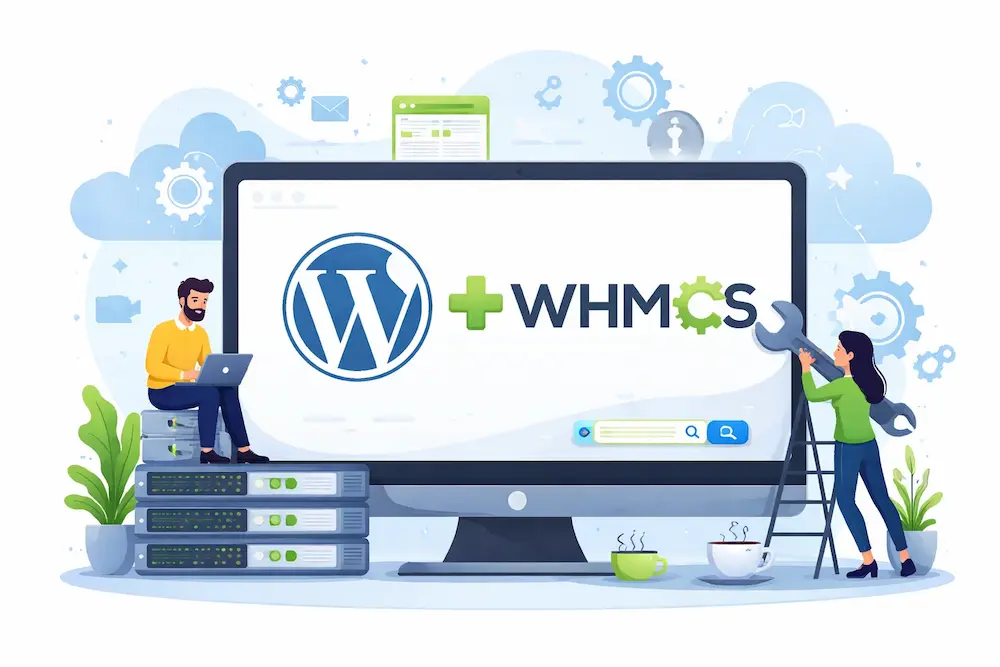
WHMCS (Web Host Manager Complete Solution) is the industry-standard automation platform for billing and support. WordPress, on the other hand, is the world’s most popular Content Management System (CMS), ideal for building beautiful, SEO-friendly marketing pages.
When you add WordPress to WHMCS, you are essentially bridging the gap between your marketing front-end and your billing back-end.
Instead of sending clients to a separate billing.yourdomain.com URL that looks different from your main site, the integration allows WHMCS content to load directly inside your WordPress site.
Why Hosting Providers Add WordPress to WHMCS for Automation?
Hosting providers choose to integrate WordPress with WHMCS to eliminate manual data entry and streamline the user’s journey.
Without integration, a customer might read about a hosting plan on your stylish WordPress site but be redirected to a generic-looking WHMCS cart to purchase. This disconnect often leads to cart abandonment.
By ensuring seamless integration, you allow users to browse product details, add items to their cart, and complete verification and payment, all within the familiar environment of your WordPress site.
How WHMCS WordPress Integration Improves User Experience and Operations?
The primary goal of any hosting provider is to make it easy for customers to buy services. WHMCS WordPress integration achieves this by:
- Unified Branding: Your client area retains the header, footer, and design of your WordPress theme.
- Single Login: Users can log in once to access both their WordPress account (if applicable) and their WHMCS client area.
- Reduced Friction: Removing the need for separate logins increases the likelihood of a completed sale.
Need Help Integrating WordPress with WHMCS
Get a secure, scalable, and fully automated WordPress and WHMCS setup built by experts to streamline billing, client management, and hosting workflows.
Key Benefits of Adding WordPress to WHMCS for Hosting Providers
When you successfully add WordPress to WHMCS, you unlock several long-term benefits for your online businesses:

- Unified Login Experience with Single Sign On Between WordPress and WHMCS: Perhaps the most immediate improvement is the elimination of separate logins. Single Sign-On (SSO) ensures that once a user logs in to WordPress, they are automatically authenticated in their WHMCS client area, eliminating friction and password fatigue.
- Centralized Billing, Invoicing, and Client Management with WHMCS: Go beyond simple payments by consolidating your operations. WHMCS acts as a central engine that automates the entire lifecycle, handling invoices, tax calculations, and recurring automatically, while WordPress serves as the user-friendly front end for client management.
- Customizable Dashboard and Branding Consistency Across Platforms: Maintaining a professional brand image is crucial. Integration ensures that your WHMCS client area inherits the headers, footers, and CSS of your WordPress site. This creates a seamless visual experience where users never feel like they have left your main website.
- Enhanced Website Functionality Using WHMCS Inside WordPress: Integration Transforms a Static Marketing Site into a Dynamic Portal. You can embed powerful tools directly into your WordPress pages, such as real-time domain registration searches, server status updates, and interactive support tickets, significantly boosting your website’s functionality.
- Enhanced SEO: Keeping clients on your main domain (e.g., yourdomain.com/client-area) rather than redirecting them to a subdomain increases on-site time and page views. This consolidation signals higher relevance and authority to search engines, helping you rank better for competitive hosting keywords.
- Scalability and Flexibility Through WHMCS Modules and WordPress Plugins: The combined power of two platforms offers unmatched growth potential. You can easily expand your business by utilizing WordPress plugins for marketing and WHMCS modules for provisioning, enabling you to sell domain names, hosting, and SSL certificates without manual intervention.
Pre-Integration Requirements and Planning Before You Add WordPress to WHMCS
Before you install any plugins or change settings, ensure you have the following requirements in place to add WordPress to WHMCS successfully:
- Active WHMCS License: You must have a fully installed and functioning WHMCS platform.
- WordPress Installation: A live WordPress site on the same domain or a compatible server environment.
- SSL Certificate: Mandatory for secure integration and handling payments.
- Consistent PHP Versions: Ensure both platforms are running compatible PHP versions (e.g., PHP 8.1 or higher) to prevent conflicts.
- Backups: Always back up your WHMCS database and WordPress files before completing the integration.
Steps to Add WordPress to WHMCS Using the WHMCS Bridge Plugin
The most popular and efficient method to add WordPress to WHMCS is using the WHMCS Bridge plugin. This tool acts as a connector, pulling your WHMCS content into a dedicated WordPress page.
Step 1: Choosing the Right WHMCS WordPress Integration Plugin
While there are premium options like WHMpress, the WHMCS Bridge plugin (and its Pro version) is widely used due to its simplicity and reliability. It works by “bridging” the WHMCS output into a WordPress page template, ensuring your website’s functionality remains intact.
Step 2: Installing and Activating the WHMCS Bridge Plugin in WordPress
To begin the process:
- Log in to your WordPress Admin Dashboard.
- Navigate to Plugins → Add New.
- Search for “WHMCS Bridge”.
- Click Install Now and then Activate.
Once activated, you will see a new “WHMCS Bridge” tab in your dashboard menu.
Step 3: Connecting WHMCS URL and Configuring Core Plugin Settings
Now you must link the two systems.
- Go to WHMCS Bridge → Settings.
- Locate the field labeled ‘WHMCS Account URL’.
- Enter the full URL of your WHMCS installation (e.g., https://yourdomain.com/whmcs/). Note: Ensure you include the trailing slash.
- Select your preferred WordPress page where the client area will display. The plugin usually creates a page titled “Client Area” or “WHMCS-Bridge” by default.
- Save your settings.
Step 4: Enabling Single Sign-On and Client Area Synchronization
For a truly seamless integration, you need Single Sign-On (SSO). This feature allows users logging into WordPress to be automatically logged into WHMCS.
- If you are using the Pro version of WHMCS Bridge, navigate to the SSO settings tab.
- Check the box to Enable Single Sign On.
- You may need to upload a specialized “bridge” PHP file to the root directory of your WHMCS installation. The plugin will provide this file and instructions.
- This step ensures clients do not face the frustration of separate logins.
Step 5: Testing the WHMCS WordPress Integration for Errors
Before launching, perform a full audit:
- Visit the client area page on your WordPress site as a guest.
- Try to register a new account.
- Test the login functionality.
- Click through to a product details page to ensure the design holds up.
- Verify that domain registration searches return accurate results.
Also Read: How to Uninstall Sky Login Redirect from WordPress
Advanced Customization, Automation, and Optimization After Integration
Once you add WordPress to WHMCS, the real work of optimization begins. You can now customize the experience to maximize conversions.

Customizing the WHMCS Client Area Inside WordPress
The default WHMCS template (often referred to as “Six” or “Twenty-One”) may not perfectly match your WordPress theme.
- CSS Styling: Use the WHMCS Bridge settings to inject custom CSS. This helps hide duplicate headers or footers that might appear inside the bridge frame.
- Theme Inheritance: Ensure the plugin setting “Inherit Theme” is checked. This forces WHMCS to adopt the fonts and colors of your active WordPress theme.
Automating Billing, Invoices, and Account Provisioning
Automation is the heart of any web hosting business.
- Invoices: Configure WHMCS to generate and email invoices X days before the due date.
- Provisioning: Link your server modules so that as soon as a payment is marked “Complete,” the hosting account is automatically created, and the welcome email is sent without you lifting a finger.
Integrating cPanel, Domain Registrars, and Hosting Services
To be a full-service hosting provider, you must integrate third-party tools.
- cPanel: In the WHMCS setup, add your cPanel server details. This allows clients to manage email accounts and databases directly from their client area.
- Domain Registrars: Connect APIs from providers like Enom or ResellerClub. This enables real-time domain registration and transfer functions within your WordPress interface.
Payment Gateway Setup for Secure Online Transactions
You cannot automate revenue without gateways.
- Go to WHMCS → System Settings → Payment Gateways.
- Activate gateways like Stripe, PayPal, or Authorize.net.
- Ensure the gateway callbacks are functioning correctly so that WHMCS receives the “Payment Received” signal instantly.
Customer Support Integration with Tickets and Knowledge Base
One of the primary benefits of integrating WordPress with WHMCS is centralized support.
- Support Tickets: Clients can open, view, and respond to support tickets from the unified dashboard.
- Knowledge Base: Sync your WHMCS knowledge base articles or simply link them to your WordPress blog to reduce ticket volume.
Performance Optimization for WordPress and WHMCS Together
Running two heavy scripts can slow down your site, so start with:
- Caching Exclusions: Crucial Step. You must configure your WordPress caching plugin to exclude the WHMCS bridge page. Caching this page can result in one client seeing another client’s private data.
- CDN: Use a Content Delivery Network (CDN) like Cloudflare to serve static assets (images, CSS) for both platforms.
Security Best Practices for WordPress WHMCS Integration
Security is paramount when handling billing data.
- 2FA: Enable Two-Factor Authentication for all admin staff on both WordPress and WHMCS.
- Updates: Keep your WHMCS installation, WordPress, and the WHMCS Bridge plugin updated to the latest versions.
- Data Privacy: Ensure your Privacy Policy is updated to reflect how data is shared between the two platforms.
Common Issues and Troubleshooting WHMCS WordPress Integration
Even experienced developers may encounter issues when integrating WordPress with WHMCS.
- 404 Errors: Often caused by Permalink settings. Go to WordPress Settings → Permalinks and simply click “Save Changes” to flush the rewrite rules.
- Layout Issues: If the WHMCS content looks “squashed,” check the “Auto Resize Iframe” setting in the WHMCS Bridge plugin.
- Login Loops: This usually indicates a cookie conflict. Ensure the WHMCS Account URL in the plugin settings exactly matches the URL in your WHMCS General Settings (http vs https matters).
Best Practices, Themes, and Plugins for Long-Term Success
To maintain a healthy web hosting business, follow these long-term practices:
- Themes: Choose themes that are “WHMCS Compatible” or “Hosting Optimized.” These often come with pre-styled templates for the bridge.
- Plugins: Utilize the shortcodes provided by the WHMCS Bridge plugin to insert login forms or domain search bars on your homepage or sidebar.
- Monitoring: Regularly check your automation logs to ensure invoices are being sent and services are being provisioned correctly.
Conclusion
Deciding to add WordPress to WHMCS is a transformative step for any hosting provider. It bridges the gap between marketing and management, offering a streamlined experience that modern customers expect.
By following this guide to integrate WHMCS with WordPress, you do more than just link two platforms; you build a professional, user-friendly, and automated brand.
Whether you are selling domains, hosting, or digital services, the combination of WHMCS and WordPress provides the flexibility and power needed to scale your business successfully.
FAQs About Adding WordPress to WHMCS
How does WHMCS work with WordPress after integration?
WHMCS works smoothly with WordPress through a bridge plugin. It connects billing, client management, and support systems to your WordPress site. Users can manage services from a single, user-friendly interface without needing to switch platforms.
Can I integrate WHMCS with WordPress if I use a hosting control panel like cPanel?
Yes. You can integrate WHMCS with popular control panel solutions such as cPanel. This setup enables hosting providers to automate account creation, suspend services, and manage hosting resources efficiently.
Is WHMCS WordPress integration flexible enough to meet different business needs?
The integration is highly flexible. WHMCS supports custom modules, addons, and themes. This flexibility enables you to tailor workflows, billing cycles, and client areas to suit your business model.
Does WHMCS support multiple languages when integrated with WordPress?
Yes. WHMCS supports multiple languages by default. When you integrate WHMCS with WordPress, you can offer a localized and user-friendly experience to clients across different regions.
Is it difficult for non-technical users to manage WHMCS after integration?
No. WHMCS is designed to be user-friendly. Once integrated, clients and administrators can easily manage services, invoices, and support tickets from a centralized dashboard with minimal effort required for learning.