Many WordPress websites lose visitors simply because people cannot read the content. When your site speaks only one language, you limit reach, engagement, and growth. TranslatePress helps solve this by making it easy to translate WordPress websites automatically while keeping full control inside WordPress.
Instead of spending hours on manual translation, TranslatePress lets you auto translate your site and edit content visually.
In this guide, you’ll learn how to use TranslatePress for free, set up automatic translation, and fix common issues so your multilingual site stays clear, fast, and easy to manage.
What is TranslatePress and How Free Automatic Translation Works?
TranslatePress is a WordPress translation plugin that works from the front end of your site. You translate content visually by clicking directly on text as visitors see it. This makes editing faster and more accurate because you always see the context.
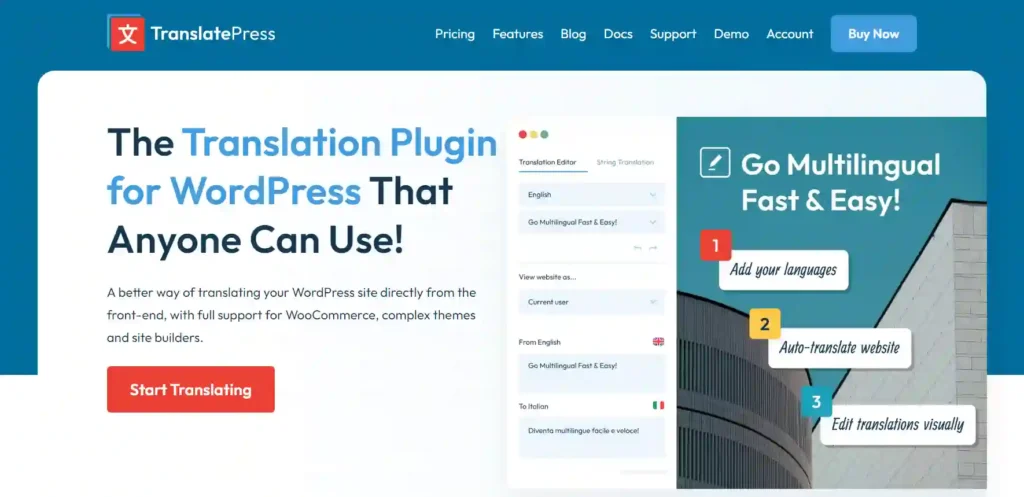
The free version supports two languages in total and allows automatic translation using Google Translate.
Your pages are translated automatically, then saved so they load quickly. You can manually edit any translated text to improve wording, tone, or accuracy.
One thing to understand is what “free” really means. The plugin itself is free, but automatic translation uses the Google Translate API.
Google provides free credits, but once those are used, additional translations may cost a small amount. For small sites, this often stays within free limits.
Build a Multilingual WordPress Website
Need help setting up translations, performance, or custom features? Our WordPress development experts can help you scale with confidence.
Steps to Set Up TranslatePress for Automatic Translation
Setting up TranslatePress is straightforward and beginner friendly. Once configured, it allows you to automatically translate your WordPress website and refine translations visually from the front end.
Step 1: Install TranslatePress (Free)
Log in to your WordPress dashboard and go to the Plugins section. Click Add New, search for TranslatePress, then install and activate the plugin.
After activation, TranslatePress adds its own settings area in WordPress where you manage languages and translation options.
Step 2: Choose Your Default and Secondary Language
Open the TranslatePress settings page and confirm your default language. This should be the language your content is originally written in.
Next, add one secondary language. The free version supports two languages in total, so limit this to one additional language. This secondary language will be used for automatic translation.
Save your settings before moving to the next step.
Step 3: Add the Language Switcher
The language switcher lets visitors choose the language they want to view your site in. TranslatePress gives you a few placement options, including adding it to your site menu, using a floating switcher, or inserting it with a shortcode.
For best results, place the switcher in a familiar location such as the header or footer. A visible and easy-to-access switcher enhances usability and facilitates comfortable navigation for visitors.
This video demonstrates how TranslatePress operates within WordPress and how automatic translation is configured step by step. It helps you see the interface, settings, and workflow before you start configuring your site.
How to Enable Automatic Translation in TranslatePress?
Once TranslatePress is installed and your languages are set, the next step is enabling automatic translation. This allows your content to be translated instantly using Google Translate, while still giving you control to edit and improve the results.
Step 1: Create and Add Your Google Translate API Key
To enable automatic translation, you need a Google Translate API key. This key connects TranslatePress to Google’s translation service.
Open your WordPress dashboard and go to the TranslatePress settings page. In the Automatic Translation section, you’ll find a field where the API key needs to be pasted. After adding the key, save your settings.
Keep this API key private. Do not share it publicly or store it in unsecured places.
A common mistake is using the wrong type of key or forgetting to enable billing in the Google Cloud account. Even though Google provides free credits, billing must be enabled for the API to work properly.
Step 2: Turn on Automatic Translation
After adding the API key, enable the machine translation option inside TranslatePress settings. Select Google Translate as the translation engine, as this is the supported option in the free version.
You can then choose how translations are generated. Translating the entire site will automatically process all pages and posts, while translating as you browse only translates content when you visit specific pages.
Translating as you browse is usually better for small sites because it helps control usage. Save your settings once everything is configured.
Step 3: Auto Translate a Page and Improve the Content
To review translations, open any page on your site and click the Translate Page option in the WordPress admin bar. This opens the visual translation editor.
Click directly on the text you want to edit. You can adjust wording, fix grammar, or improve tone to better match your brand. After making changes, save the translation and review the page layout to ensure formatting looks correct in the new language.
This process gives you the speed of automatic translation with the accuracy of manual review, which works well for most WordPress websites.
For a broader perspective on multilingual WordPress sites, you can also listen to this conversation with Adrian Spiac, Founder of TranslatePress. He shares insights on translation strategy, performance, and building multilingual websites at scale.
How to Review and Fix Machine Translations Fast?
Automatic translation speeds things up, but a focused review helps make the content clear and usable. You do not need to edit every sentence to get good results.
- Fix Brand Terms and CTA Text First: Check brand names, product names, and call-to-action text. Keep them consistent and aligned with your brand voice.
- Review Headings for Tone: Headlines and section titles often sound awkward after machine translation. Adjust wording so it feels natural and easy to understand.
- Check Forms, Buttons, and Menus: Short text in forms, buttons, and navigation menus can translate poorly. TranslatePress allows editing strings from themes and plugins, so review these carefully.
- Run a Quick “Done Enough” Check: Make sure pages read clearly, navigation works, buttons make sense, and nothing important feels confusing. This level of review is usually enough before publishing.
SEO Tips for Multilingual WordPress Sites Using TranslatePress
Good SEO ensures your translated pages bring traffic instead of causing confusion for search engines. Even with the free version of TranslatePress, you can follow solid basics.
- Know What Free vs Pro Covers: The free version handles translations well but offers limited SEO controls. Advanced features like translated meta titles and descriptions usually require an SEO add-on or Pro upgrade.
- Avoid Thin or Duplicate Pages: Make sure translated pages contain meaningful content. Avoid publishing empty or partially translated pages that add no value.
- Use Internal Links in Both Languages: Link pages within the same language version. This helps users navigate easily and helps search engines understand page structure.
- Optimize Page Speed for Translated Pages: Fast-loading pages improve user experience and rankings. Cached translations and clean layouts help keep multilingual pages quick.
Common TranslatePress Auto Translation Problems and Fixes
TranslatePress is reliable, but some issues can appear during setup or use. Most problems are easy to resolve.
- Automatic Translation Not Working: Check your Google Translate API key, make sure billing is enabled, and confirm you have not exceeded free usage limits.
- Some Text Not Translating: Dynamic content from themes, plugins, or page builders may need manual editing. Clear cache and refresh the translation editor to catch missed strings.
- Language Switcher Not Showing: Confirm the switcher is added to the correct menu or location. Clear site and browser cache after changes.
- Translations Look Off on Mobile: Spacing or font issues often cause layout problems. Use responsive settings to adjust typography and spacing for smaller screens.
TranslatePress Free vs Pro
Choosing between the free and Pro versions of TranslatePress depends on how complex your multilingual needs are and how much control you want over SEO and automation.

TranslatePress Free
The free version is a solid starting point for small websites and basic multilingual needs. It supports two languages in total and includes Google Translate for automatic translation. You also get access to the visual editor, which lets you translate content directly from the front end and edit text in context.
This version works well if you want to test multilingual content, translate a limited number of pages, or launch quickly without extra cost.
TranslatePress Pro
The Pro version unlocks advanced features designed for larger or growing websites. It supports multiple languages, adds SEO-focused add-ons, and integrates with DeepL for higher-quality translations. Pro also includes features like automatic language redirects based on user location and more control over translated metadata.
These tools are useful if your site targets multiple regions, relies heavily on search traffic, or needs polished multilingual SEO.
When Should You Upgrade?
Upgrading makes sense when you need more than two languages, want better SEO control for translated pages, or rely on automatic redirects and advanced translation engines. If your site is growing internationally or depends on multilingual traffic for conversions, the Pro version offers long-term value.
Conclusion
TranslatePress offers a practical way to make your WordPress site multilingual without adding complexity.
With automatic translation and a visual editor, you can translate content quickly and still keep control over wording and layout.
The free version works well for small sites and basic language needs. By reviewing key sections and following SEO best practices, you can launch translated pages confidently.
As your site grows or targets more regions, upgrading to Pro gives you the extra tools needed for better control and performance.
FAQs About Using TranslatePress
Is TranslatePress automatic translation really free?
The plugin is free to use, but automatic translation relies on the Google Translate API. Google offers free credits, and small sites often stay within those limits.
Do I need a Google Translate API key to auto-translate?
Yes. Automatic translation requires a Google Translate API key. Without it, translations must be done manually.
Can TranslatePress translate Elementor and WooCommerce content?
Yes. TranslatePress works with Elementor, WooCommerce, and most themes and plugins. You can translate page builder content visually.
Why is some text not translating automatically?
Dynamic content, cached pages, or plugin strings may need manual editing. Clearing cache and checking the translation editor usually fixes this.
Will translated pages affect my SEO?
Translated pages can improve SEO when done correctly. Avoid thin pages, link content properly, and ensure pages load fast.
When should I upgrade from TranslatePress Free to Pro?
Upgrade when you need more than two languages, better SEO control, or features like automatic redirects and DeepL integration.